View sections
Learn how to organize views into collapsible sections in NocoDB.
View Sections allow you to organize your views into collapsible folders within the left sidebar. As the number of views in a table grows, sections help you group related views together, making it easier to navigate and manage your workspace. For example, you could create sections like "Reports", "Data Entry", or "Team Views" to keep things tidy.
Create a section
There are two ways to create a new section:
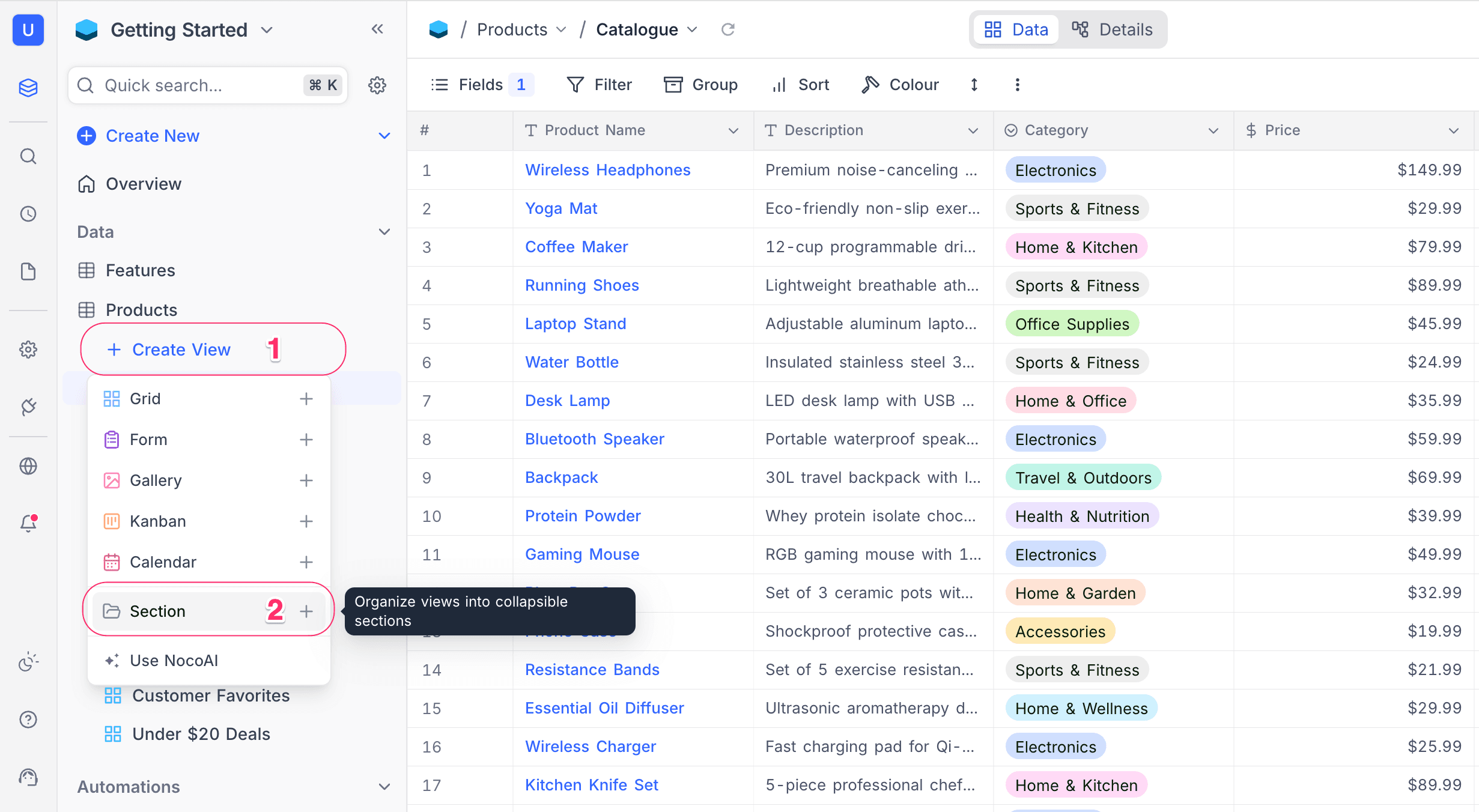
From the Create View menu
- Click the
+ Create Viewbutton in the left sidebar, below the table name. - Click the
Sectionoption at the bottom of the dropdown menu. - A new section is created with a default name (e.g., "View section"). You can immediately rename it by double-clicking on the section name.
From the Move to menu
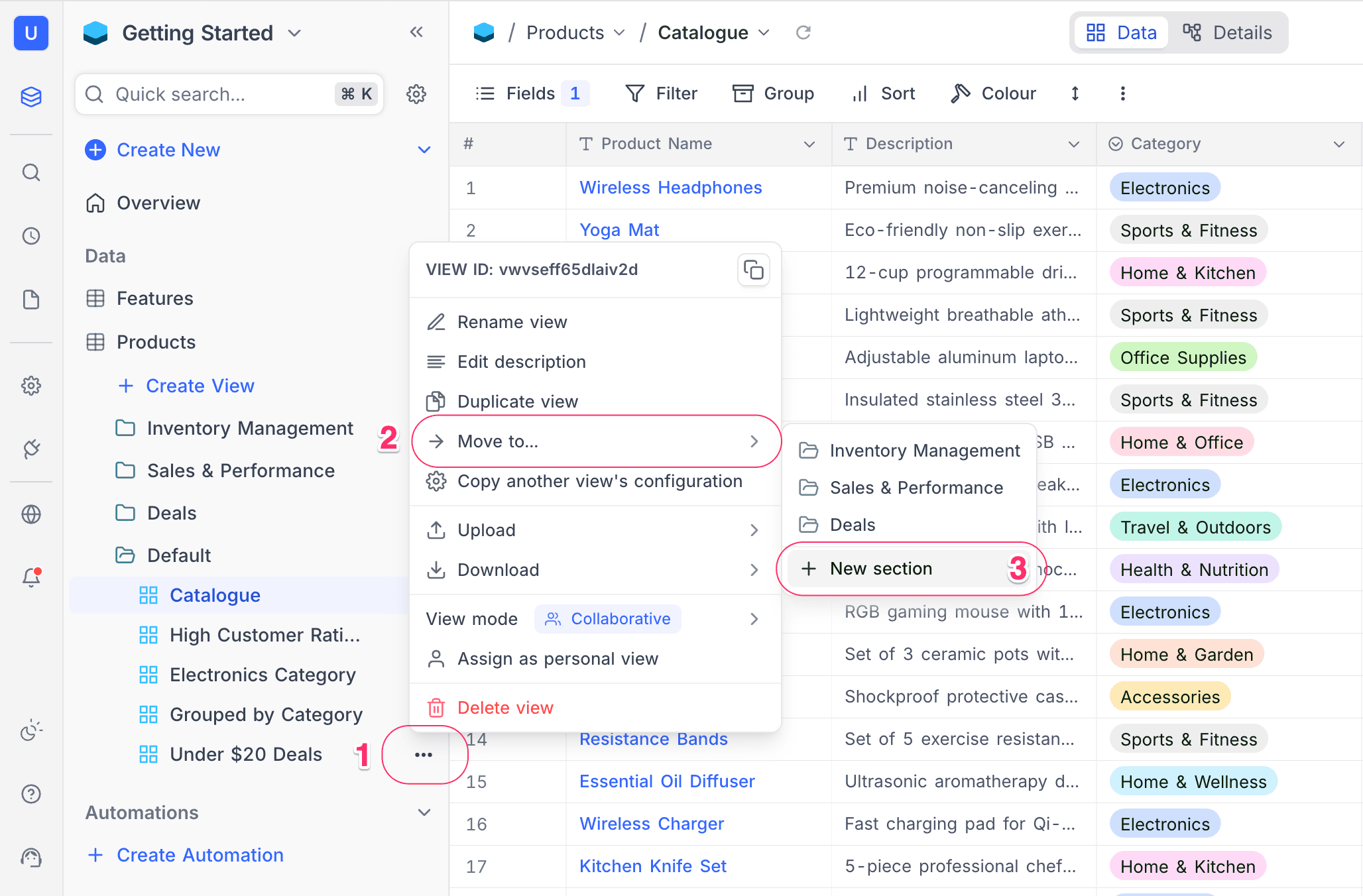
- Right-click on a view or click the ellipsis symbol (
...) next to a view name to open the view context menu. - Hover over
Move to...to open the submenu. - Click
New sectionto create a new section and automatically move the selected view into it.
Rename a section
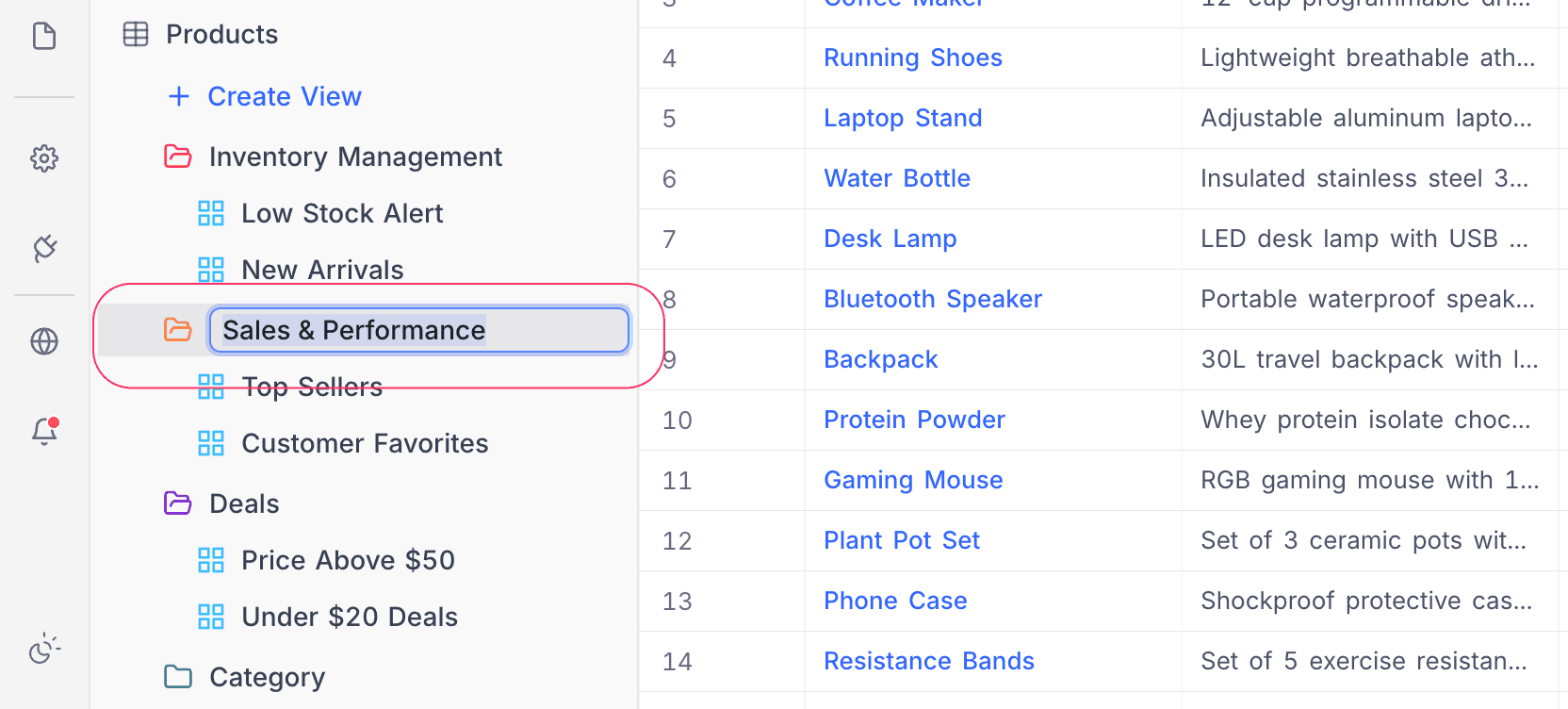
- Double-click on the section name in the left sidebar to enter edit mode.
- Type the new name.
- Press
Enterto save, or pressEscapeto cancel.
Alternatively, you can rename a section from the context menu:
- Click the ellipsis symbol (
...) on the section header. - Select
Rename section. - Type the new name and press
Enter.
Move views into a section
- Click the ellipsis symbol (
...) next to the view you want to move, or right-click on the view name. - Hover over
Move to...in the context menu. - Select the target section from the submenu.
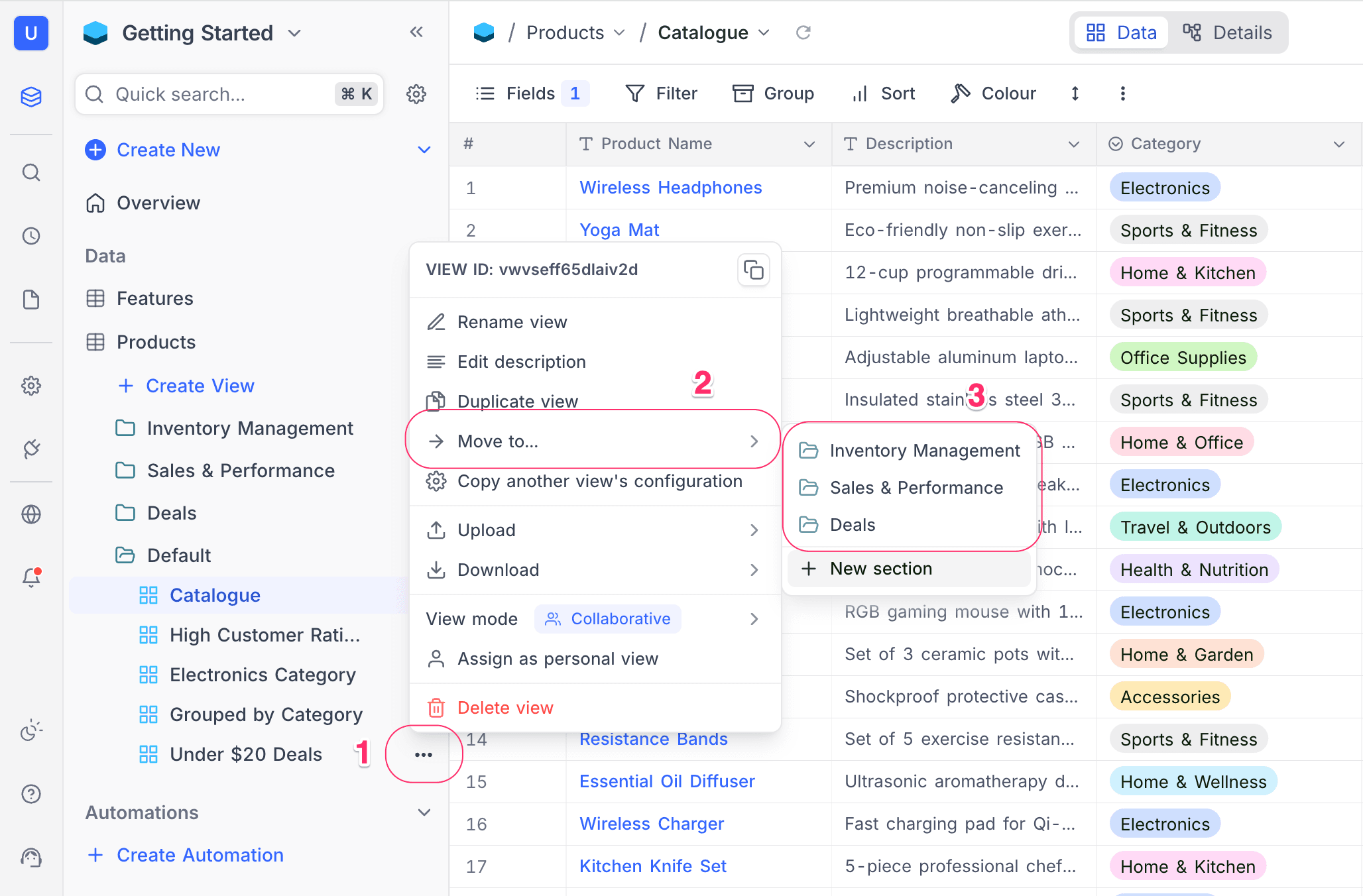
The submenu displays all existing sections. You can also:
- Click
New sectionto create a new section and move the view into it in a single step. - Click
Remove from section(visible only when the view is already in a section) to move the view back to the top level.
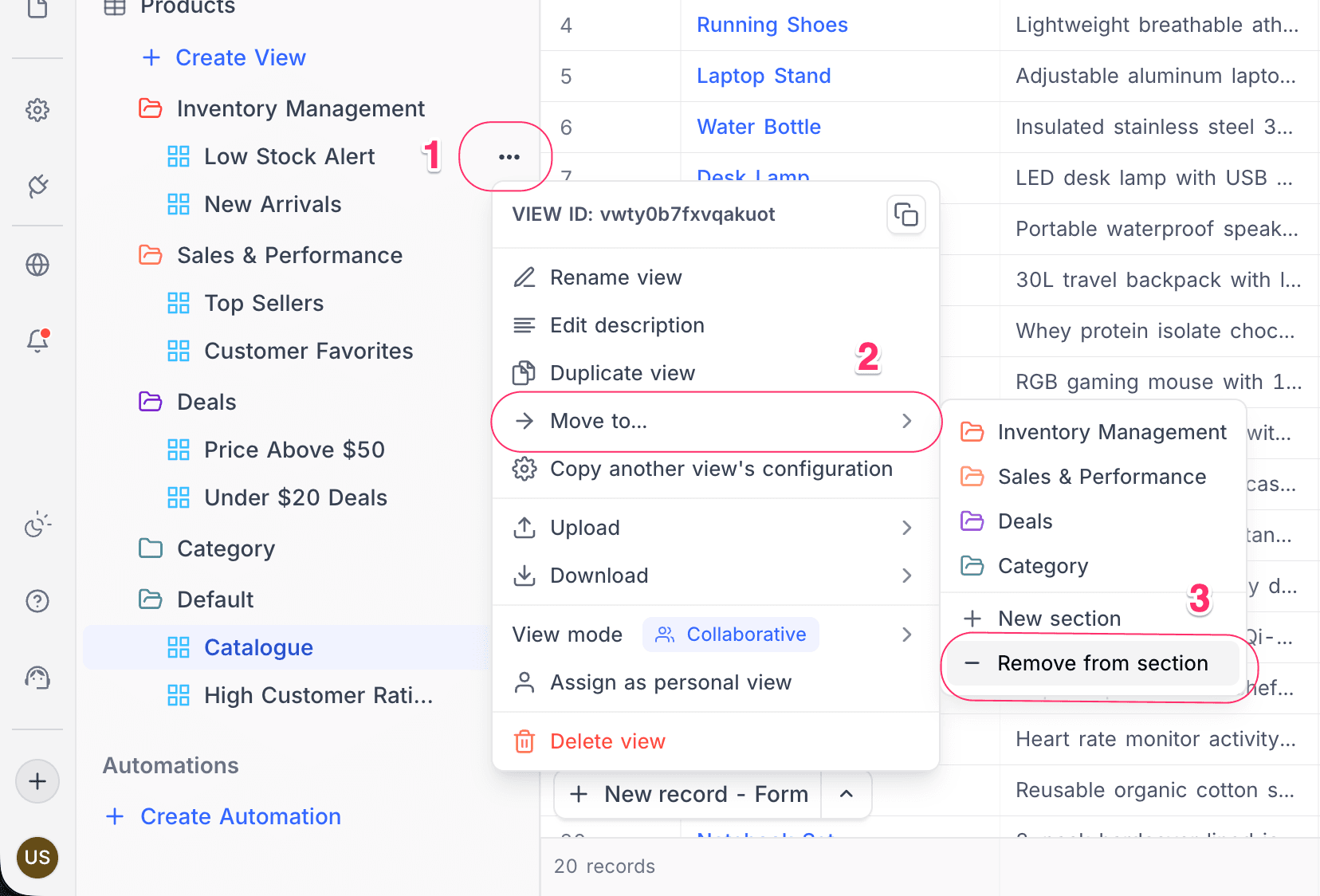
Remove a view from a section
- Click the ellipsis symbol (
...) next to the view name inside a section. - Hover over
Move to...in the context menu. - Click
Remove from section.
The view is moved back to the top-level view list, outside of any section.
Expand and collapse sections
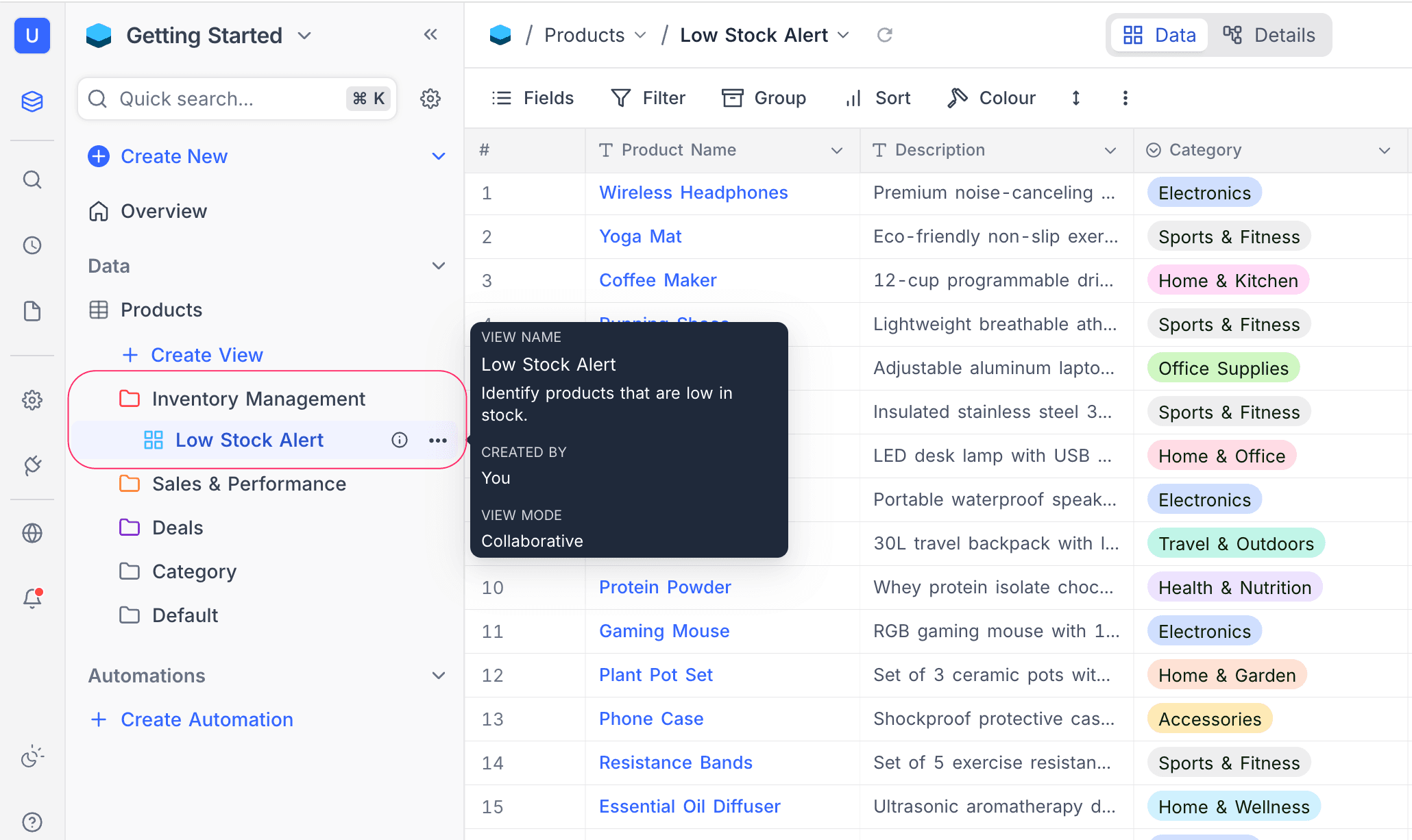
Sections are collapsible, allowing you to hide views you are not currently working with.
- Click on a section header to toggle it between expanded and collapsed states.
- When collapsed, views inside the section are hidden from the sidebar (except the currently active view, which always remains visible).
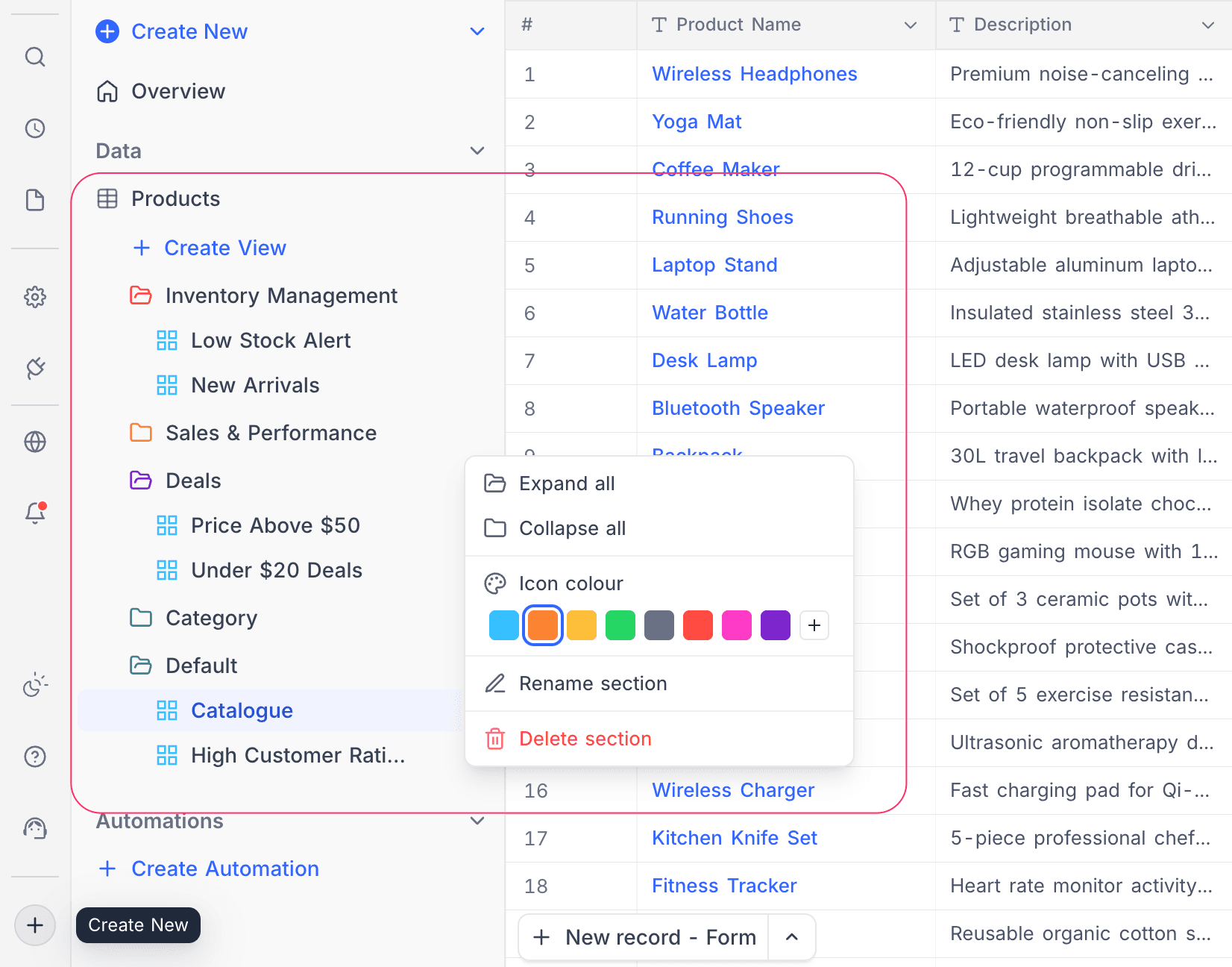
Expand all / Collapse all
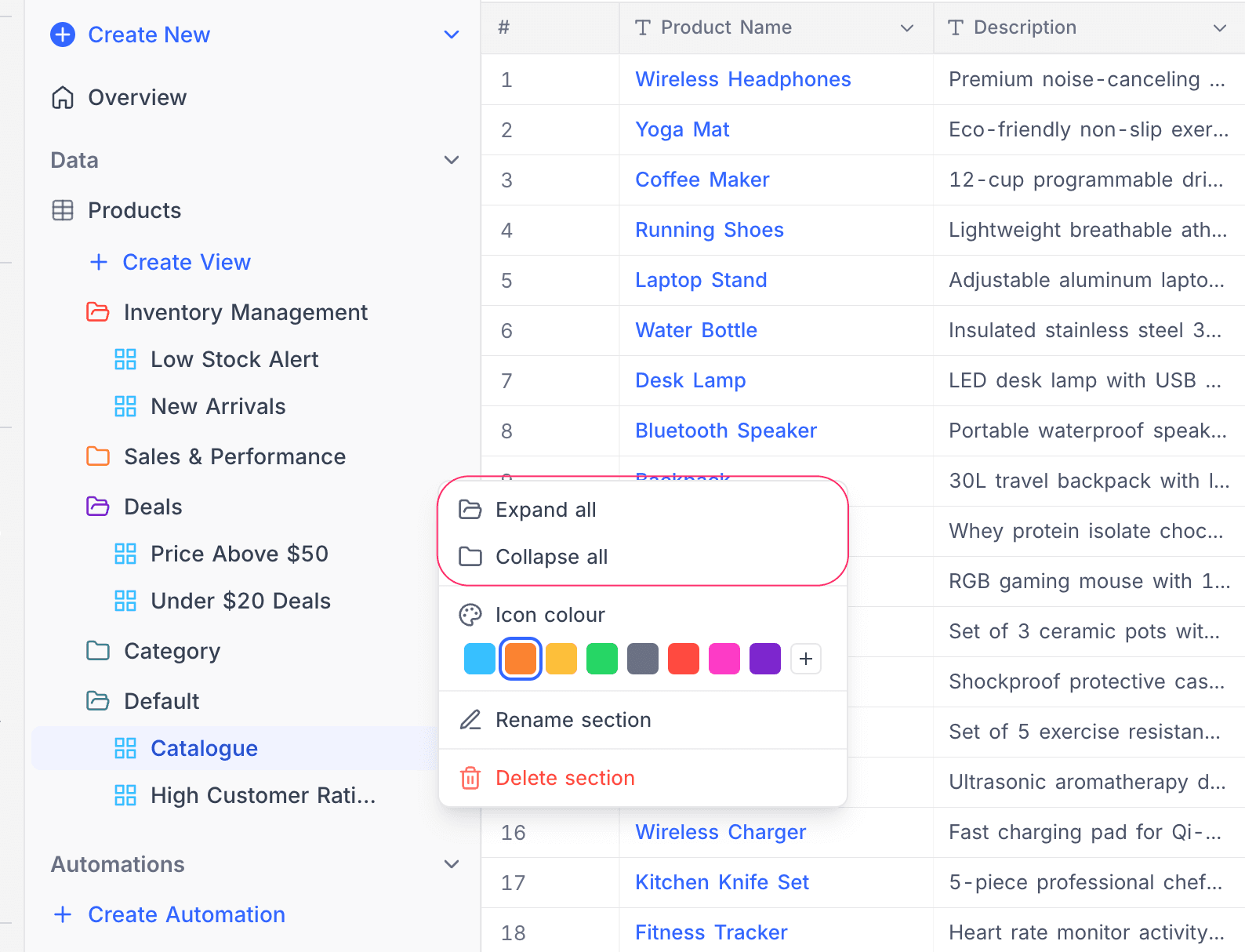
To quickly expand or collapse every section at once:
- Click the ellipsis symbol (
...) on any section header. - Select
Expand allorCollapse all.
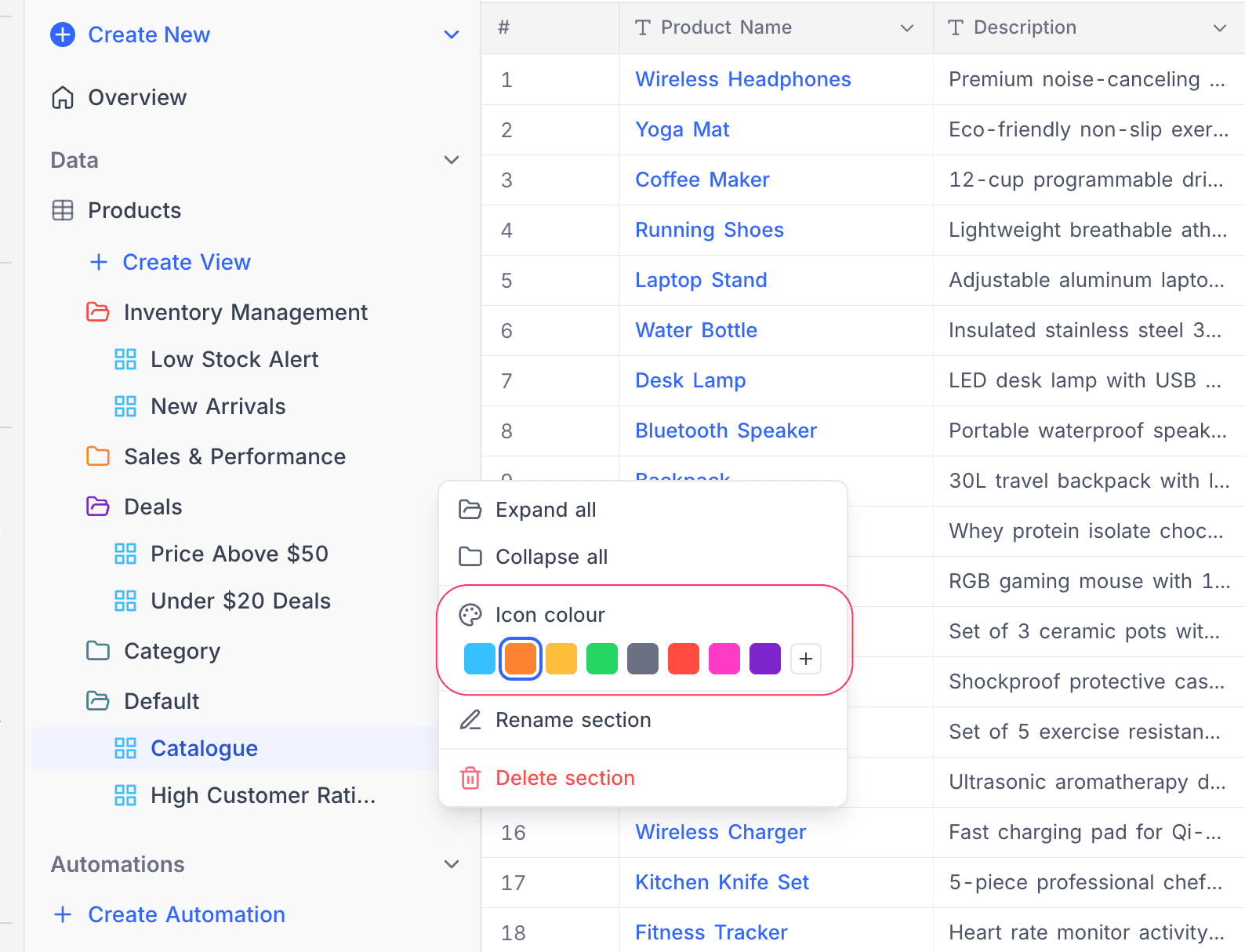
Change section icon colour
Each section displays a folder icon whose colour can be customized.
- Click the ellipsis symbol (
...) on the section header to open the context menu. - A colour palette is displayed under
Icon colour. - Click on any colour to apply it, or click the
More coloursoption to pick a custom colour.
Reorder sections
You can drag and drop sections to rearrange their order in the sidebar.
- Click and hold a section header.
- Drag it to the desired position among other sections.
- Release to drop it in place.
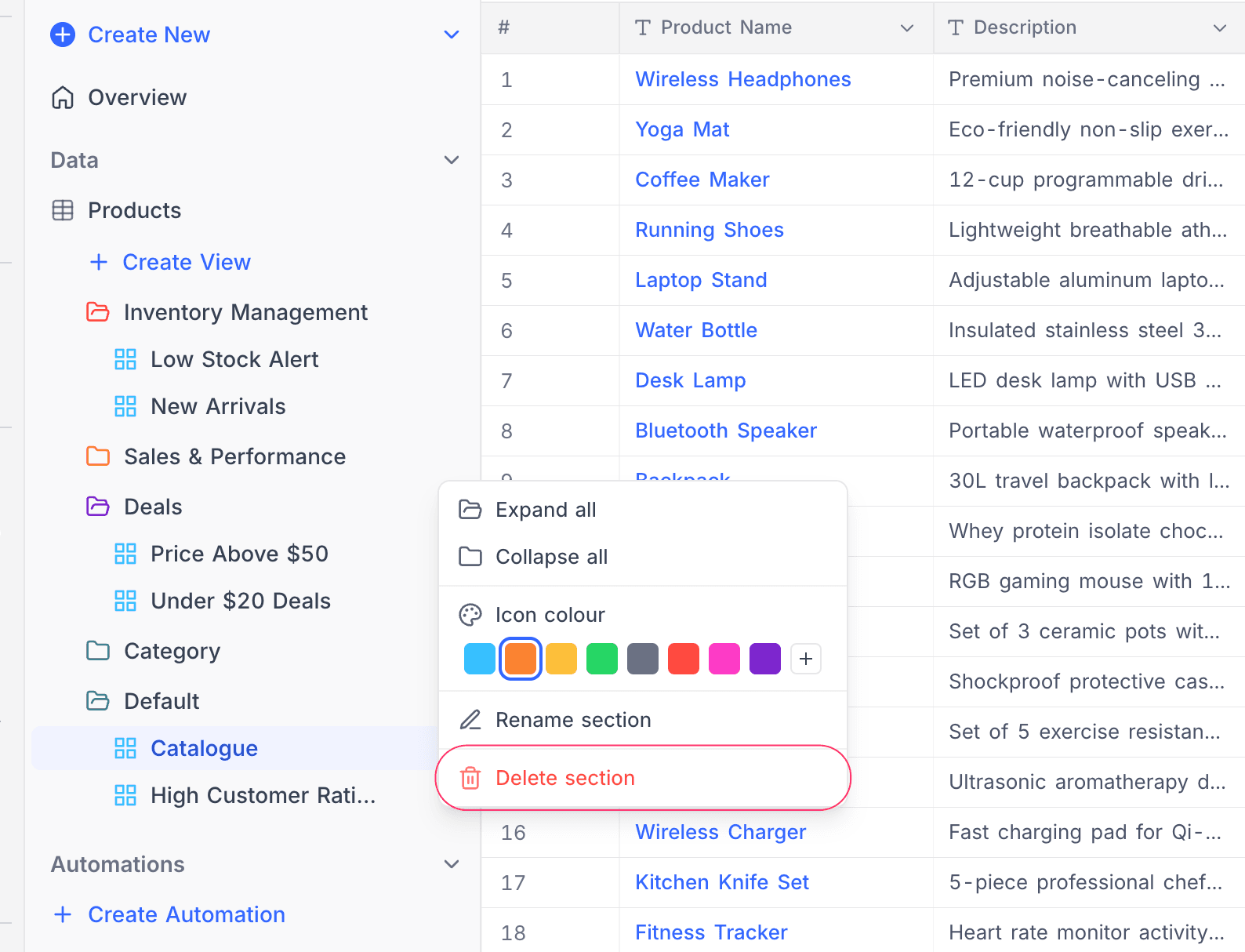
Delete a section
- Click the ellipsis symbol (
...) on the section header. - Click
Delete section. - A confirmation dialog appears, informing you that views inside the section will be moved to the top level.
- Click
Deleteto confirm.
Default section
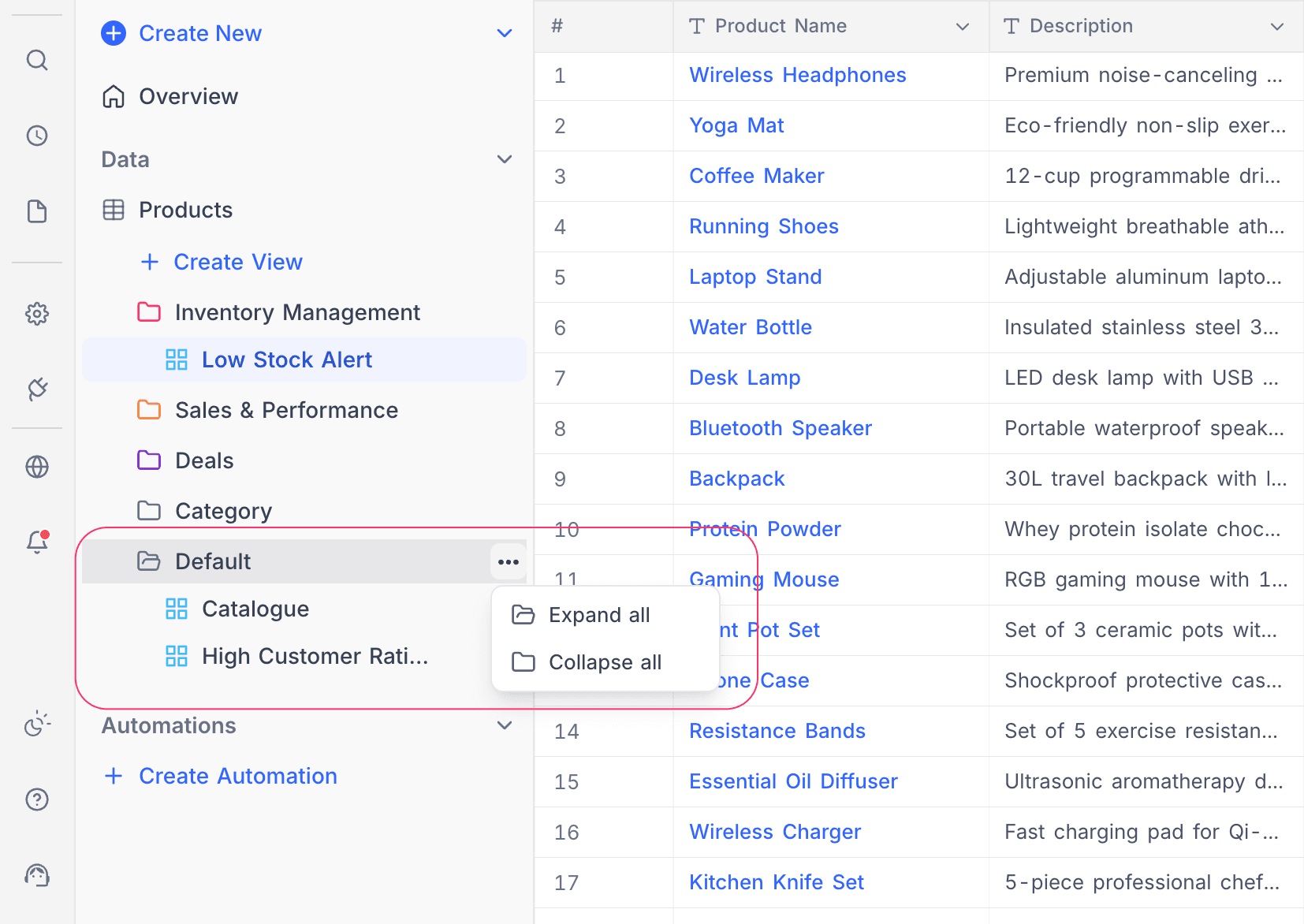
When at least one section exists in a table, a virtual Default section is automatically displayed at the bottom of the section list. This section contains all views that have not been assigned to any section. The Default section cannot be renamed, deleted, or reordered, but it can be expanded and collapsed like any other section.
Notes
- View Sections are an organizational tool — they do not affect the data or configuration of the views inside them.
- Sections are scoped to individual tables. Each table has its own independent set of sections.
- All members of a workspace can see sections. Only members with Creator permissions or above can create, rename, reorder, recolour, or delete sections. Editors can move views between existing sections but cannot create new sections — the New section entry in the "Move to…" submenu is disabled for editors with a tooltip explaining the restriction.
- When a section is collapsed, the currently active view remains visible in the sidebar regardless of which section it belongs to.