Filter Records using AI
Use natural language to filter your table data with NocoAI.
Overview
With NocoAI, you can now describe what data you want to see in plain English, and have the right filter conditions applied automatically. Instead of manually configuring filter operators, values, and conditions, simply type a description like "Show high priority tasks due this week" and NocoAI will set up the filters for you.
This is perfect for quickly narrowing down records, exploring data without remembering filter syntax, or letting non-technical users build complex filter conditions effortlessly.
Steps to Filter Records Using AI
-
Open the Filter menu
Click the Filter button in the toolbar above your table to open the filter panel.
-
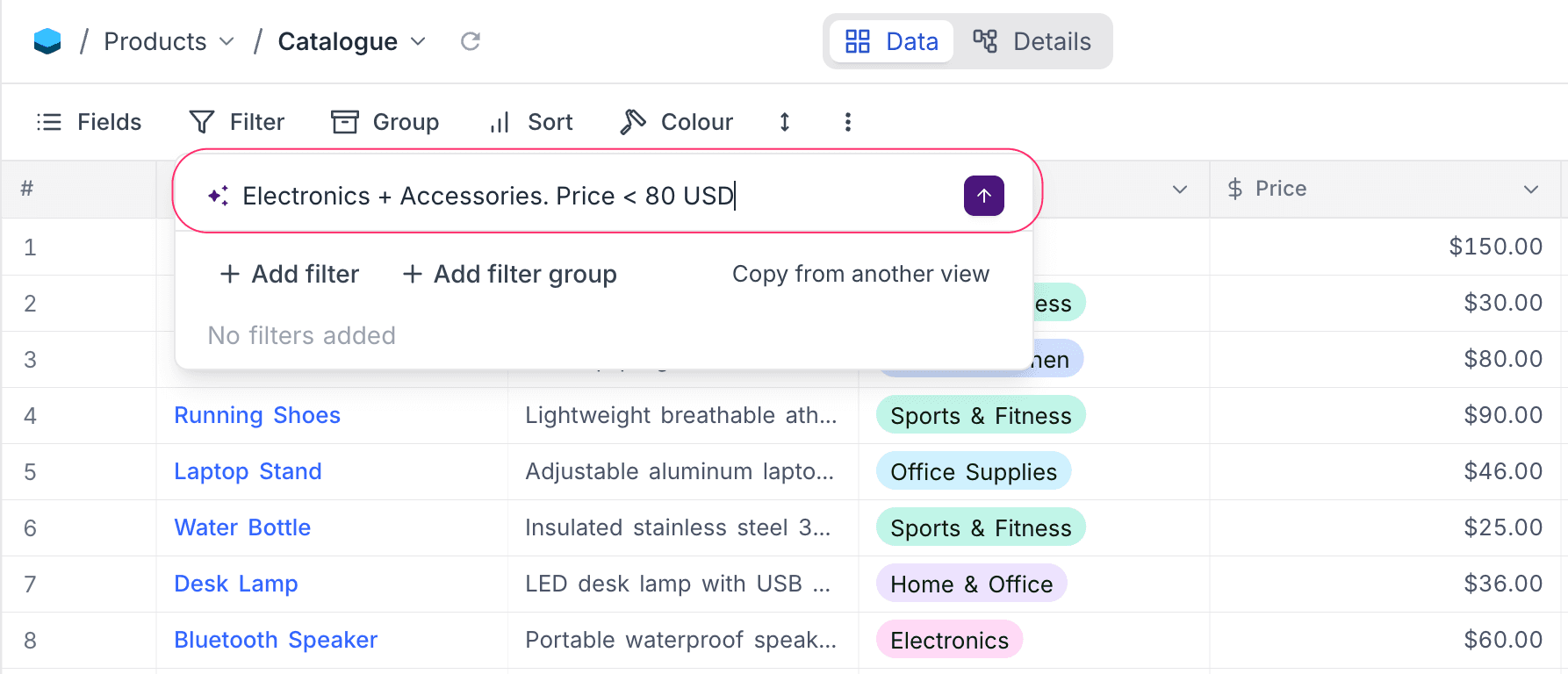
Describe what you want to see
At the top of the filter panel, you'll see an AI-powered text input with a ✨ icon. Type a natural-language description of the records you want to see.
Example:
Show high priority tasks that are due this week
-
Press Enter or click Send
NocoAI will analyze your table's structure and generate the appropriate filter conditions.
-
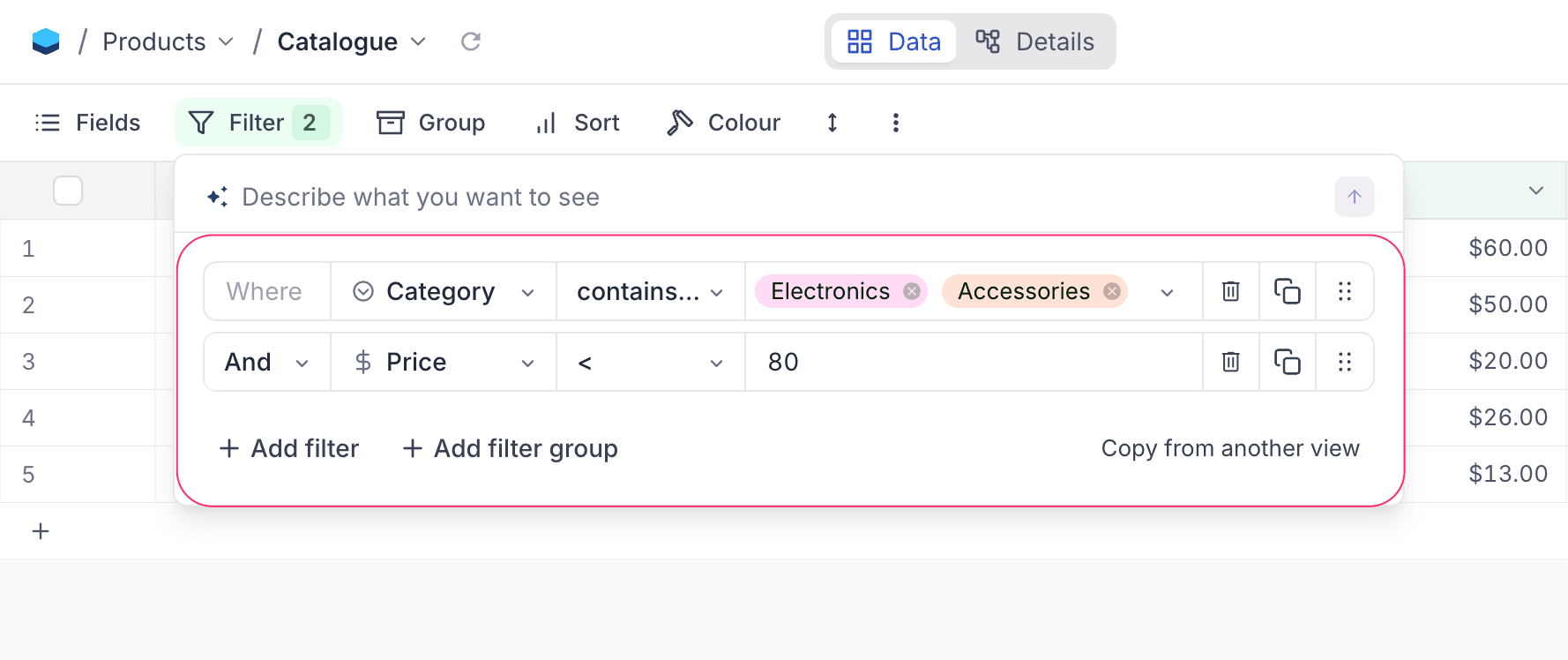
Filters are applied automatically
The generated filters appear in the filter panel and are applied to your view immediately — no extra confirmation needed.
Supported Actions
NocoAI understands your intent and can perform three types of filter actions:
| Action | When it's used | Example prompt |
|---|---|---|
| Add | Append new filters to existing ones | "Also show rows where Status is Done" |
| Replace | Remove all current filters and apply new ones | "Show only rows where Score is above 80" |
| Clear | Remove all existing filters | "Remove all filters" or "Show everything" |
Supported Filter Types
NocoAI can generate filters for a wide range of field types:
| Field Type | Example Prompts |
|---|---|
| Text (SingleLineText, Email, URL) | "Title contains meeting", "Title is either A or B" |
| Number (Number, Decimal, Currency, Percent) | "Price is greater than 100", "Score between 50 and 80" |
| SingleSelect / MultiSelect | "Status is either Todo or In progress", "Tags include urgent" |
| Date / DateTime | "Due this week", "Created after 2025-01-01", "Modified today" |
| Checkbox | "Show only checked items", "Where completed is unchecked" |
| Rating | "Rating is 4 or above" |
NocoAI also understands AND vs OR logic:
- "Priority is High and Status is not Done" → AND conditions
- "Title is either Alpha or Beta" → OR conditions
Tips for Better AI Filters
-
Use exact field names when possible
NocoAI matches against your table's column names. Using exact names produces more accurate results. Example: If your column is called "Due Date", say "Due Date is this week" instead of "due soon".
-
Be specific about values
For select fields, use exact option values. Example: "Status is In progress" works better than "status is active" if your options are
Todo,In progress,Done. -
Use keywords for clear/replace
To remove filters, say "clear filters", "remove all filters", "show everything", or "reset". To replace existing filters entirely, start with "show only ..." or "instead show ...".
-
Start simple, then refine
You can add filters incrementally. Start with "Status is Todo", then follow up with "also where Priority is High".
-
Match filter type with field type
Make sure your condition aligns with the field type. Example: Using a filter like "Price < 50" will not work if the Price field is a text field. Numeric comparisons only work on number-based fields.
Example Prompts and Outcomes
| Prompt | Generated Filters |
|---|---|
| "Show high priority tasks" | Priority is equal High |
| "Title is either Alpha or Beta" | Title is equal Alpha OR Title is equal Beta |
| "Status is Todo or In progress" | Status is any of Todo, In progress |
| "Due this week" | Due Date is within next week |
| "Items with no status" | Status is blank |
| "Remove all filters" | All existing filters cleared |
| "Show only rows where Score > 80" | Existing filters replaced with Score > 80 |
What's Next
Now that you can filter records with AI, explore more NocoAI capabilities:
- Create Views using AI to set up useful views for your data
- Create Fields using AI to auto-generate relevant columns
- Generate Formulas using AI to automate calculations
Let NocoAI handle the filter logic while you focus on your data.