Base trash ☁
View, restore, and permanently delete trashed items — records, tables, views, fields, dashboards, widgets, workflows, scripts, and extensions — from a single base-level Trash.
Base Trash is your safety net for accidental deletions. Anything you delete inside a base — records, tables, fields, views, dashboards, widgets, workflows, scripts, or extensions — moves to Base Trash and can be restored from there until it's emptied or the retention period expires.
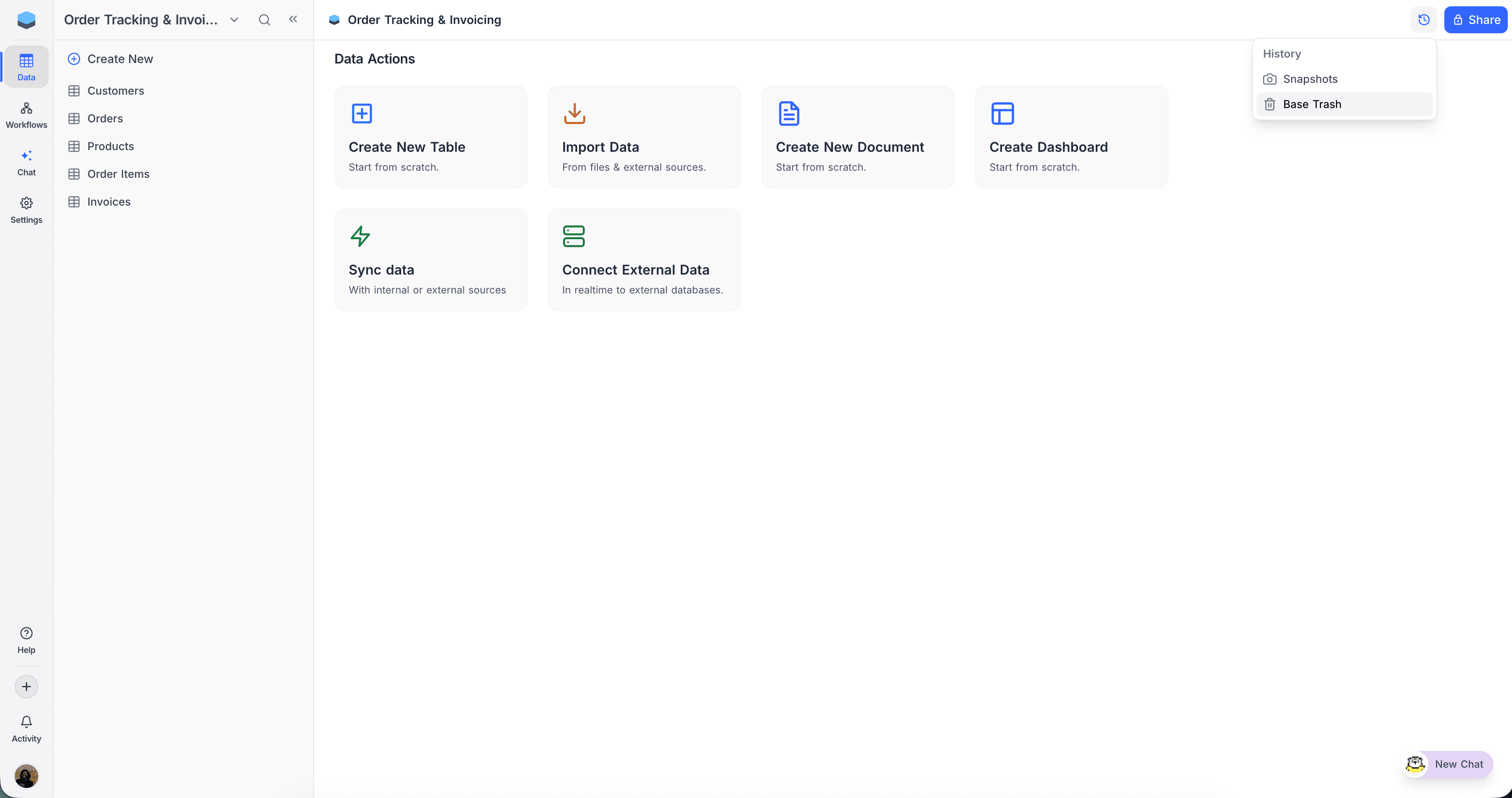
Open Base Trash
- In the topbar, click the History icon.
- Select Base Trash.
Reading the Trash list
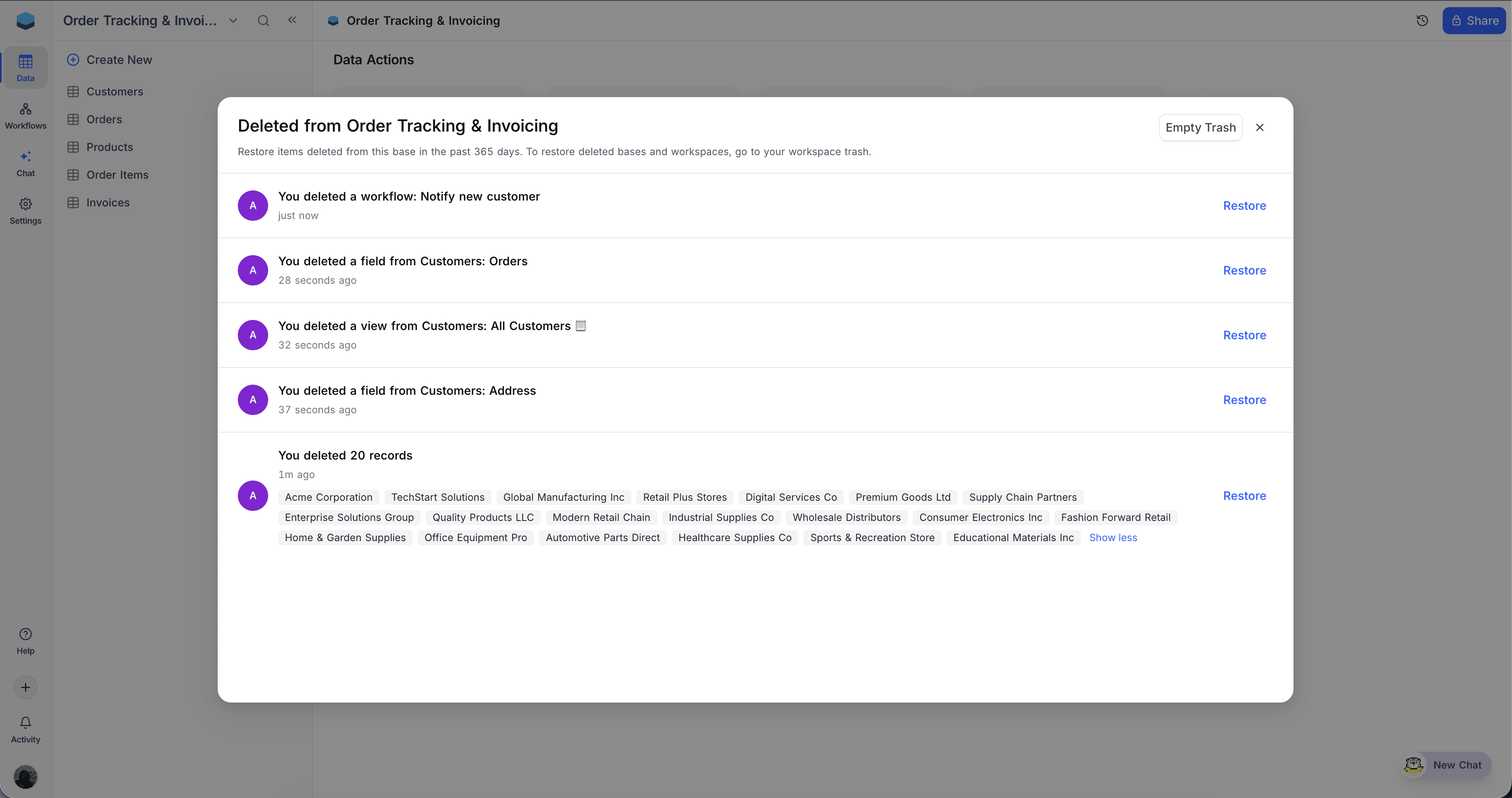
Every deletion shows up as a single entry in the list. For each one, you'll see:
- Who deleted it — hover the avatar for the user's name and email.
- When — hover the time label for the exact timestamp.
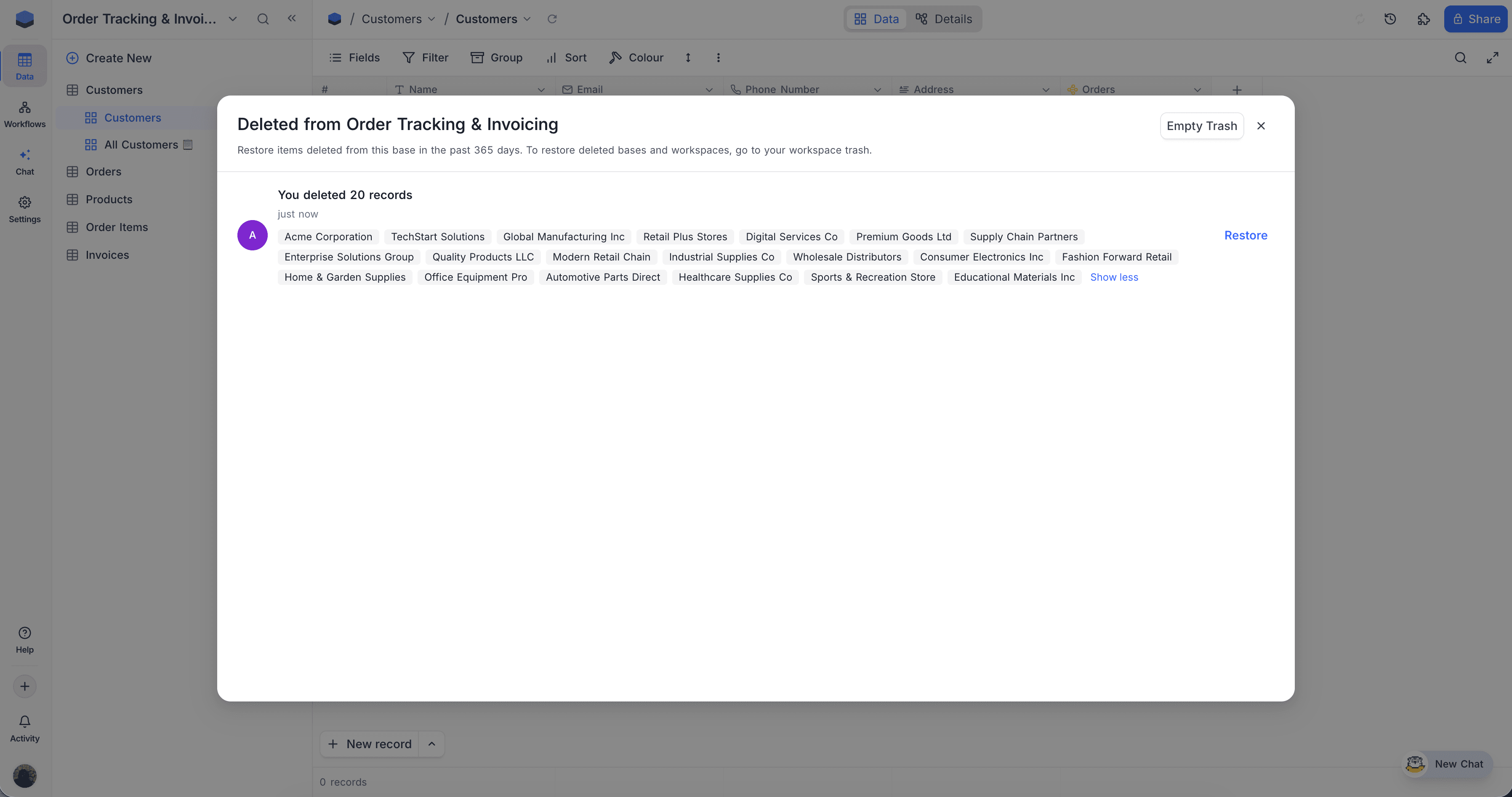
- What was deleted — the resource name and where it lived. For deleted records, you also get a preview of the primary field for up to eight rows; click Show all to see the full batch.
What you can recover
Base Trash covers everything that lives inside a base:
| Resource | What gets restored |
|---|---|
| Records | The deleted rows come back with their values and links. Bulk deletes are grouped into a single entry, so you can restore an entire batch at once. |
| Tables | The table comes back with all its views, fields, and records intact. |
| Views | The view returns with its filters, sorts, group-by, and field visibility. |
| Fields | The field is restored with all its cell values still in place. |
| Dashboards & widgets | The dashboard layout and any widgets on it come back as configured. |
| Workflows & scripts | The full definition is restored — triggers, steps, and code. |
| Extensions | The extension is restored with its saved configuration. |
Restoring an entry
Click Restore next to the entry you want back. Records come back into the table; tables, views, and fields come back into the base.
A few things to know:
- Restoring a table also restores everything that was inside it — views, fields, and records — in one step.
- If a field has been renamed since the record was deleted, the restored value lands in the renamed field (not a new one).
- If a field has been deleted since the record was deleted, that value is dropped — the rest of the record still comes back.
- If a linked record is gone, that one link is skipped and the others are restored.
- If a Single Select or Multi Select option was renamed in the meantime, the restored record uses the current option name.
When restore can't go through
Sometimes a restore would conflict with how the data looks today. When that happens, a panel opens listing the conflicts and gives you three options:
- Cancel — keep everything in the Trash and sort out the conflicting records first.
- Restore the clean ones — restore everything that has no conflicts; leave the rest in the Trash.
- Restore anyway — restore everything, with the conflicting fields cleared on the restored records so they don't override what's currently active.
The three kinds of conflicts you might see:
- Linked record taken — the link the restored record used to have now points to another record (for example, a one-to-one slot or a has-many parent whose child has been re-linked). The other record keeps the link.
- Unique value taken — a field marked Unique on the restored record now has the same value as an active record.
- Format mismatch — a validation rule (Email, URL, or Phone number) was added or tightened after the record was deleted, and the stored value doesn't match the new rule.
In all three cases, Restore anyway clears the conflicting field on the restored record so you can fix it manually afterwards.
Empty Base Trash
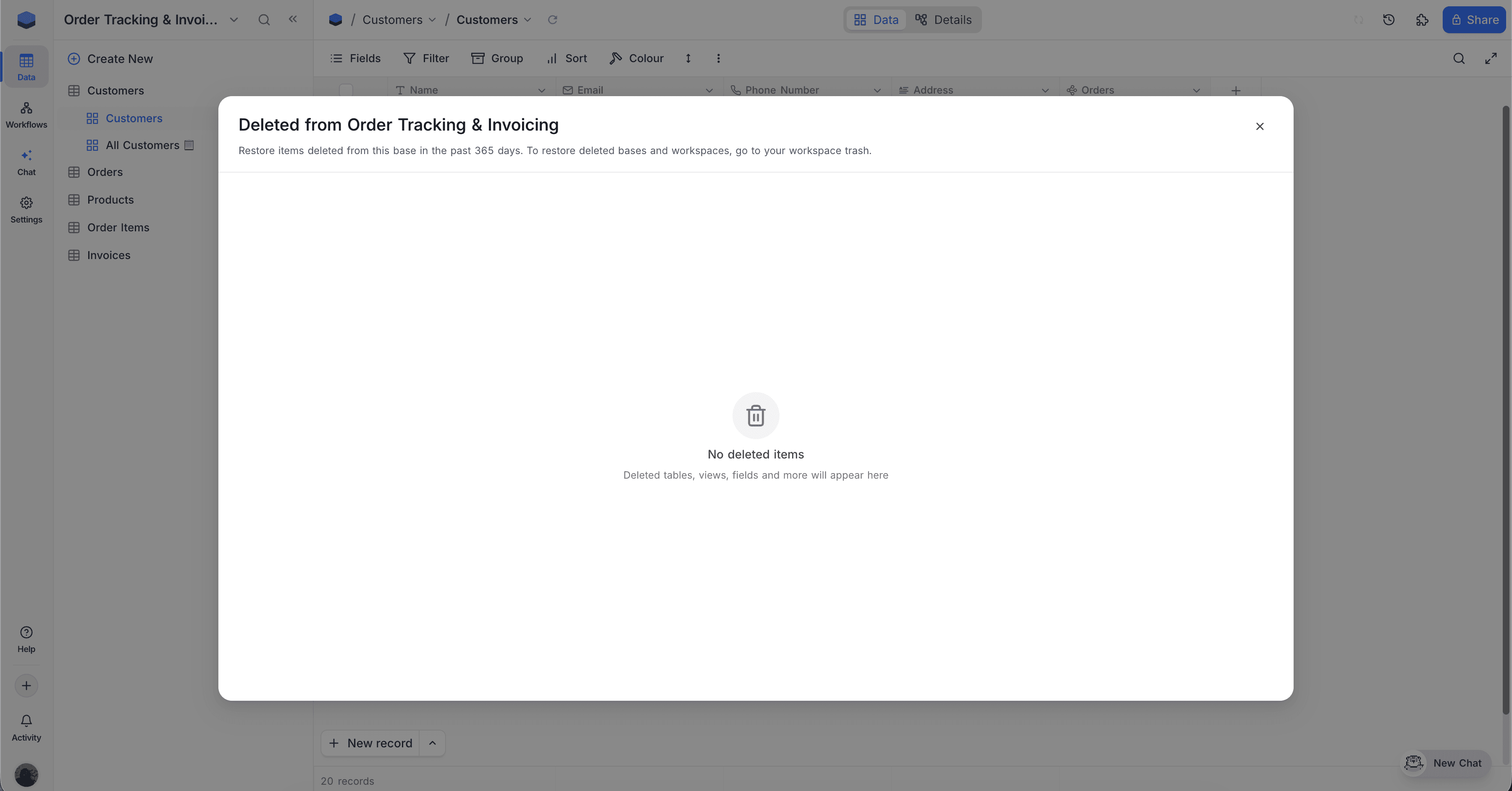
- Click Empty Trash in the top-right of the modal.
- Confirm the dialog.
Empty Trash permanently deletes everything in the base's Trash — records, tables, views, fields, dashboards, widgets, workflows, scripts, and extensions. There is no undo. For longer-term recovery, use Base snapshots.
Who can do what
| Action | Owner | Creator | Editor | Commenter | Viewer |
|---|---|---|---|---|---|
| Open Base Trash | Yes | Yes | Yes | No | No |
| Restore a record | Yes | Yes | Yes | No | No |
| Restore a table, view, field, dashboard, widget, workflow, script, or extension | Yes | Yes | No | No | No |
| Empty Trash | Yes | No | No | No | No |
| View or change trash settings | Yes | No | No | No | No |
If a base uses row-level security, the same rules apply inside Base Trash. Deleted records you weren't allowed to see in the live table remain hidden from you in Base Trash too.
Editors can restore records but can't permanently delete individual entries. To clear them sooner than the retention period, an Owner needs to Empty Trash.