Two-Factor Authentication ☁
Learn how to enable and manage two-factor authentication (2FA) for your NocoDB account.
Two-factor authentication (2FA) adds a second layer of security to your NocoDB account. After entering your password, you'll also need to provide a time-based one-time code from an authenticator app on your phone.
Setting up 2FA
Prerequisites
- You must be signed in to NocoDB using email and password. If you're currently signed in via Google or another identity provider, sign out and sign back in with email and password before continuing.
- Install an authenticator app that supports TOTP (e.g., Google Authenticator, Microsoft Authenticator, Authy, 1Password).
Steps
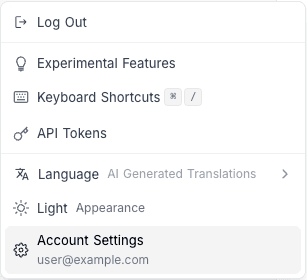
- Click your avatar in the bottom-left corner, then select Account Settings.
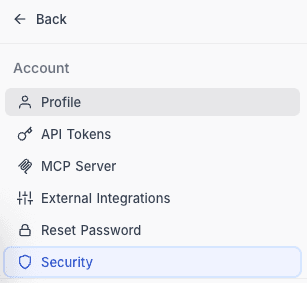
- Navigate to the Security tab.
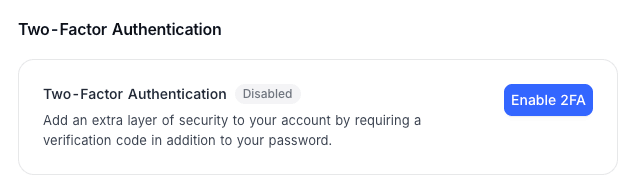
- Click Enable 2FA.
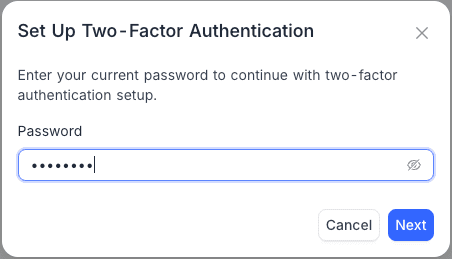
- Enter your current password and click Next.
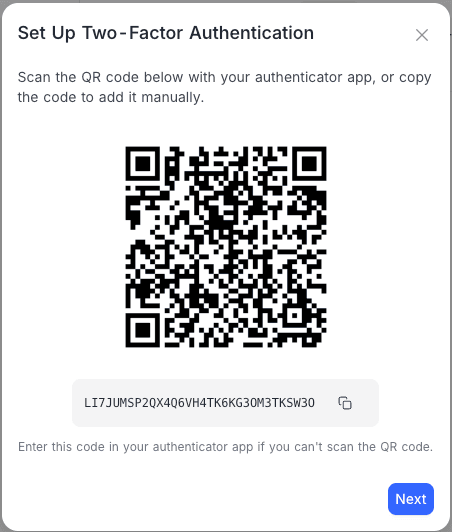
- Open your authenticator app and scan the QR code displayed on screen. If you cannot scan the QR code, click the copy button next to the manual entry key and add it to your authenticator app manually. Click Next.
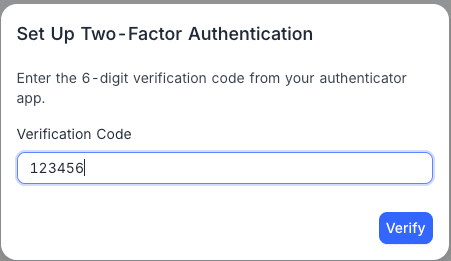
- Enter the 6-digit verification code from your authenticator app and click Verify.
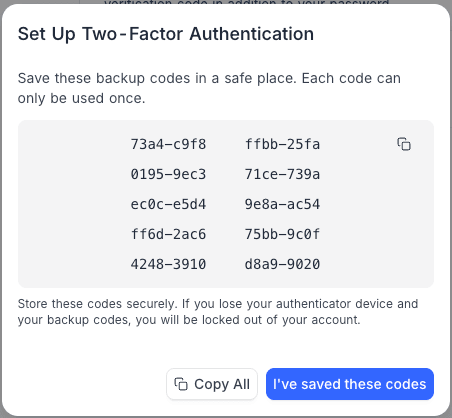
- You will be shown 10 one-time backup codes. Copy or write these down immediately and store them in a safe place — each code can only be used once. Click I've saved these codes to complete setup.
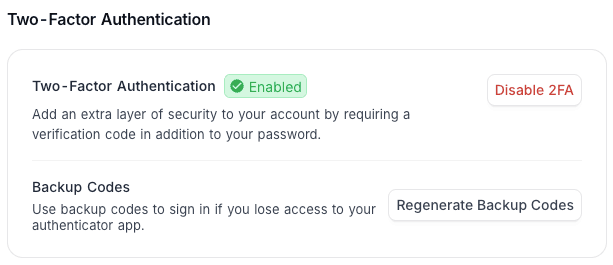
2FA is now active on your account.
Signing in with 2FA
Once 2FA is enabled, every sign-in requires a second verification step after your password.
- Enter your email and password as usual.
- On the Two-Factor Authentication screen, open your authenticator app and enter the current 6-digit code, then click Verify.
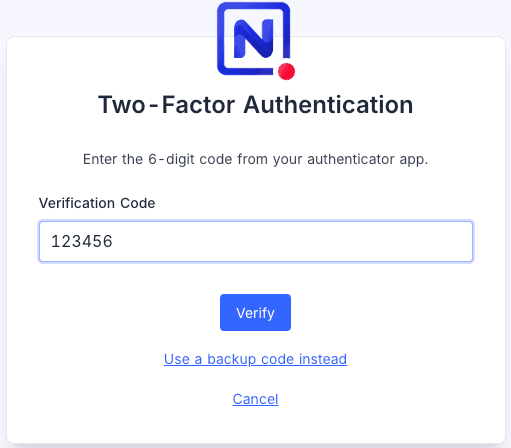
- If you don't have access to your authenticator app, click Use a backup code instead. Enter one of your saved backup codes (in
xxxx-xxxxformat) and click Verify. You can switch back to the authenticator code view at any time by clicking Use authenticator code instead.
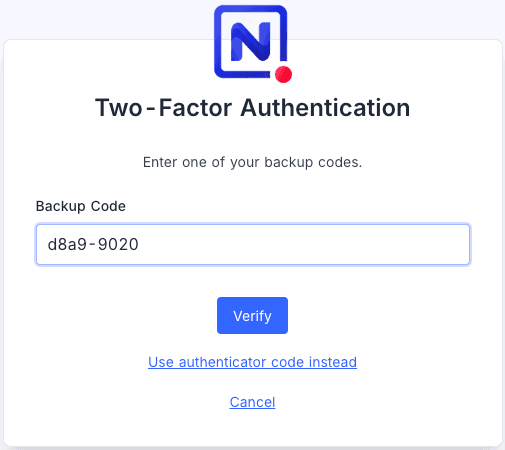
- Click Cancel to abort the sign-in and return to the login screen.
Backup codes
Backup codes are emergency access codes for when you lose access to your authenticator app (e.g., lost phone, app uninstalled).
- You receive 10 backup codes when you enable 2FA.
- Each code can only be used once — it is consumed after a successful sign-in.
- Codes are in
xxxx-xxxxformat. Dashes, spaces, and letter casing are ignored when entering them.
Regenerating backup codes
If you've used most of your backup codes, or if you think they may have been compromised:
- Go to Account Settings > Security.
- Click Regenerate Backup Codes.
- Enter a current 6-digit code from your authenticator app to verify your identity.
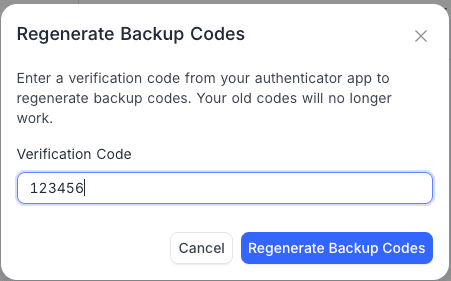
- Your old backup codes are immediately invalidated. New codes are displayed.
- Copy and save the new codes, then click I've saved these codes.
Disabling 2FA
- Go to Account Settings > Security.
- Click Disable 2FA.
- Read the warning and click Disable 2FA to confirm.
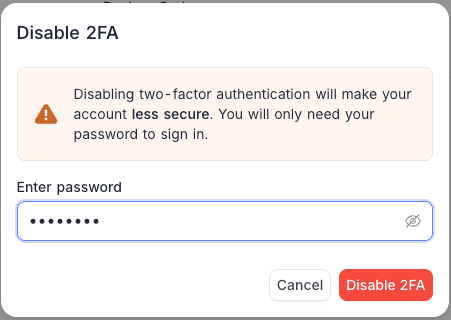
Your TOTP secret and all backup codes are permanently deleted. If you re-enable 2FA later, you will go through the full setup process again with a new secret and new backup codes.
Troubleshooting
"Invalid verification code"
- Make sure your device's clock is accurate. TOTP codes are time-sensitive — even a 30-second drift can cause codes to fail. Enable automatic time sync on your device.
- Ensure you're entering the code for the correct account (check the label in your authenticator app says "NocoDB").
- Codes refresh every 30 seconds. If a code is about to expire, wait for the next one.
Lost access to authenticator app and no backup codes
Contact your NocoDB workspace administrator or system admin. An admin can disable 2FA on your account from the backend. There is no self-service recovery if both the authenticator app and all backup codes are unavailable.
"Too many failed attempts"
After 5 consecutive failed verification attempts, your account is temporarily locked out for 15 minutes. Wait for the lockout period to pass, then try again. Double-check that your device's clock is synced correctly before retrying.
Migrating to a new phone
Before switching devices:
- If your authenticator app supports cloud backup or multi-device sync (e.g., Authy, Microsoft Authenticator, 1Password), your codes will transfer automatically.
- If not, disable 2FA on NocoDB, switch devices, then re-enable 2FA and scan the new QR code on your new phone.
- Alternatively, keep your backup codes handy — you can sign in with a backup code, then disable and re-enable 2FA to set up the new device.