Twilio
The Twilio integration in NocoDB lets a workflow send messages or make phone calls from your projects.
Ask NocoAI
Copy a prompt, paste it into NocoAI in any base, and replace the words in [brackets] with your own.
- When an [appointment] is booked, send [the customer] a text message with Twilio
- One day before [Appointment Date], text [the customer] a reminder with Twilio
- When [Status] changes to [Ready for pickup], send [the customer] an SMS
Prerequisites
- Twilio account: To learn about Twilio and create an account, go to the Twilio website. Also refer to the Twilio documentation.
- NocoDB Twilio integration: You must configure at least one Twilio integration to use this feature. For setup instructions, refer to Integrations.
The Twilio node in NocoDB has three sub-actions:
- Send SMS
- Send WhatsApp Message
- Call Phone
You can add each sub-action as a workflow step and configure it independently.
Available Twilio Actions
1. Send SMS
Use this action to send text messages to one or more phone numbers.
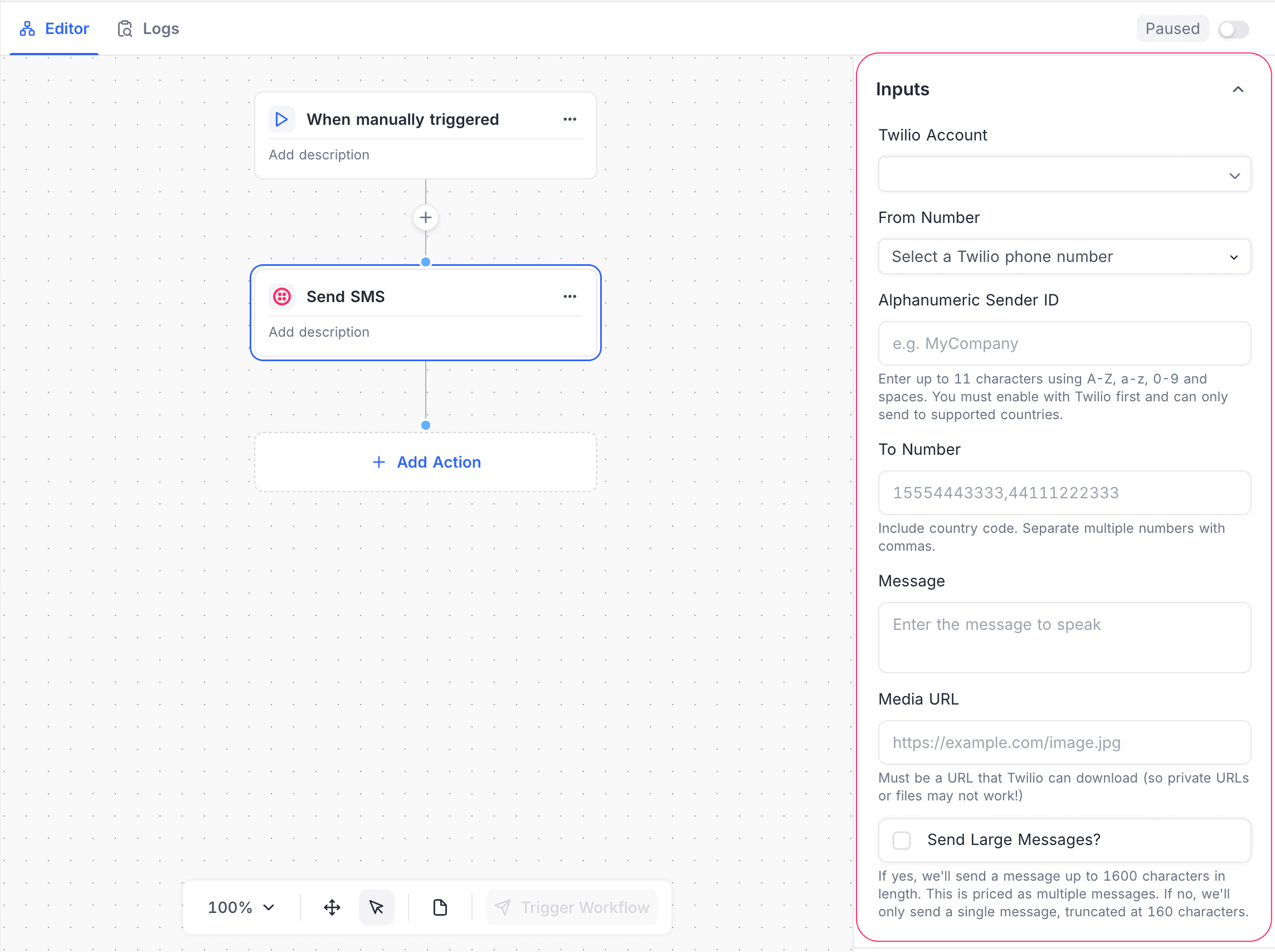
Configuration
| Setting | Description |
|---|---|
| Twilio Account | The connected Twilio account. You must add at least one Twilio integration to use this feature. For setup instructions, refer to Integrations. |
| From Number | A Twilio phone number that is enabled for SMS. |
| Alphanumeric Sender ID (Optional) | A custom sender name, up to 11 characters. You must enable it in Twilio, and the destination country must support it. |
| To Number | One or more recipient phone numbers. Include the country code. Use commas to separate the numbers. |
| Message | The text of the SMS. |
| Media URL (Optional) | The public URL of media to include in the message. Twilio must be able to download the file. |
| Send Large Messages? (Optional) | Enabled: sends messages up to 1600 characters, split into multiple messages. Disabled: sends a single SMS, truncated at 160 characters. |
2. Send WhatsApp Message
Use this action to send WhatsApp messages from a WhatsApp-enabled Twilio number.
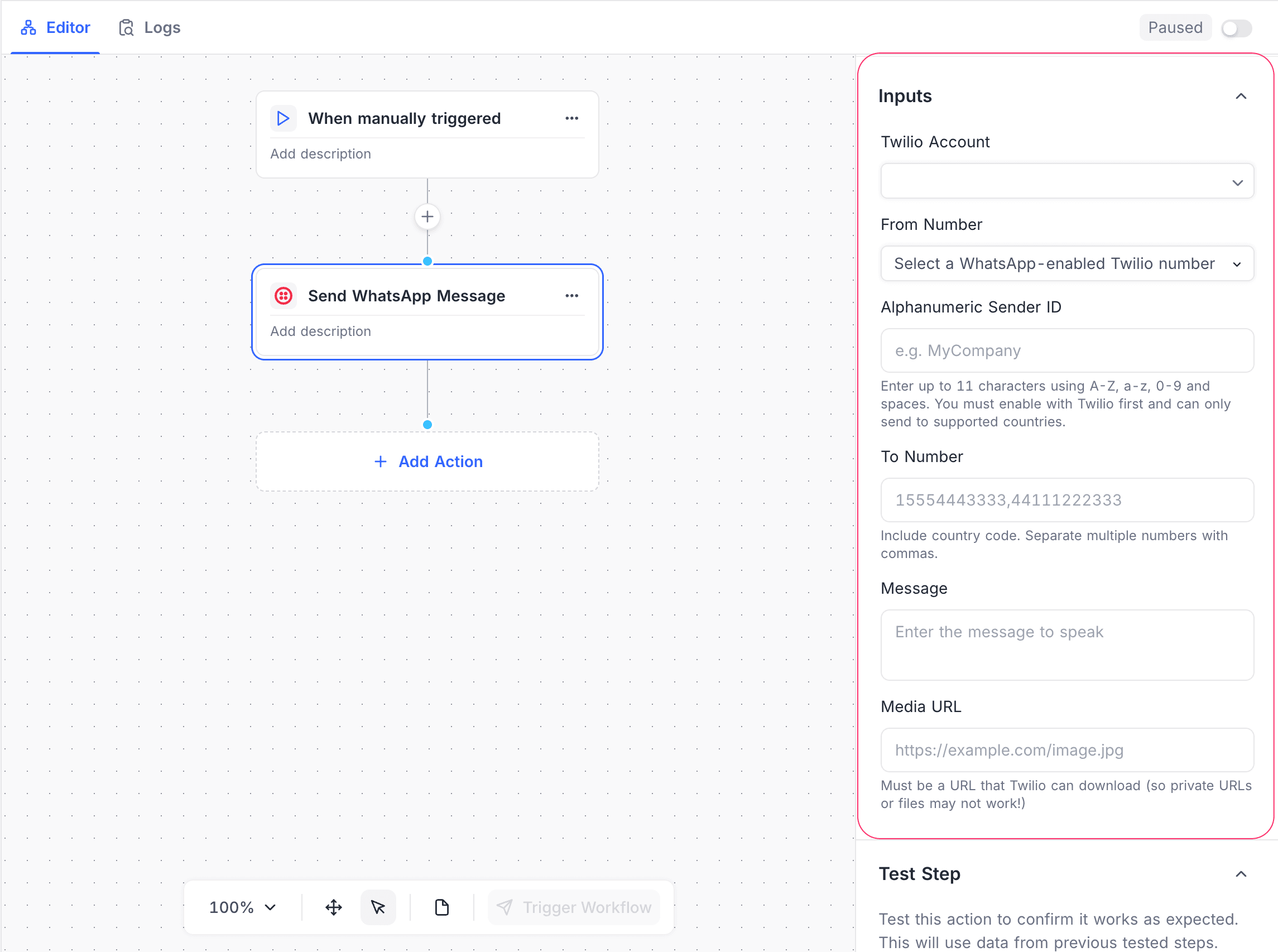
Configuration
| Setting | Description |
|---|---|
| Twilio Account | The connected Twilio account. You must add at least one Twilio integration to use this feature. For setup instructions, refer to Integrations. |
| From Number | A WhatsApp-enabled Twilio number. |
| Alphanumeric Sender ID (Optional) | A custom sender name, up to 11 characters. You must enable it in Twilio, and the destination country must support it. |
| To Number | One or more recipient WhatsApp numbers. Include the country code. Use commas to separate the numbers. |
| Message | The message content to send on WhatsApp. |
| Media URL (Optional) | The public URL of the media (image, document, etc.). Private or restricted URLs may not work. |
3. Call Phone
Use this action to make an automated voice call. The call speaks a message to the recipient.
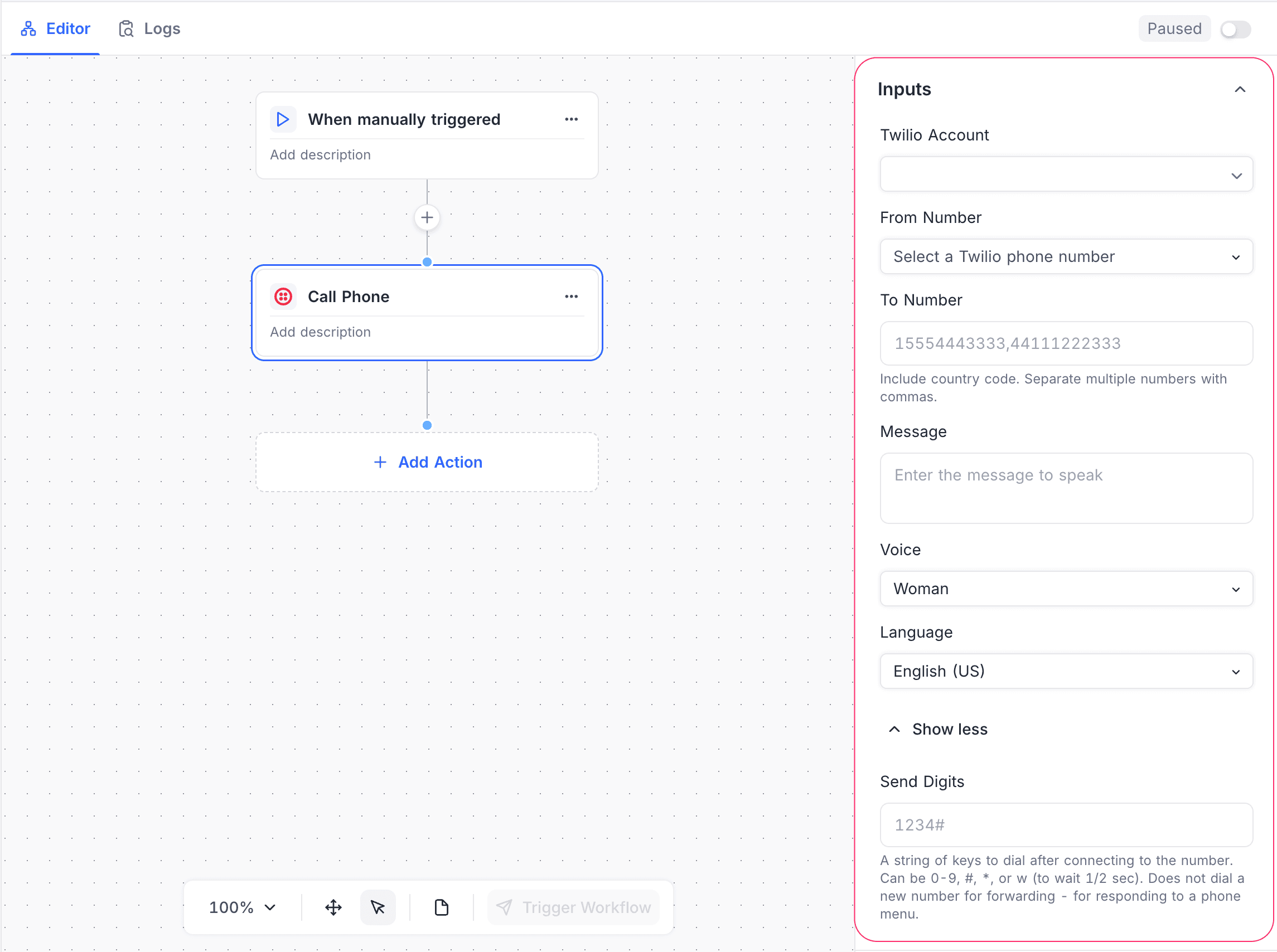
Configuration
| Setting | Description |
|---|---|
| Twilio Account | The connected Twilio account. You must add at least one Twilio integration to use this feature. For setup instructions, refer to Integrations. |
| From Number | A Twilio phone number that is enabled for voice calls. |
| To Number | One or more recipient phone numbers. Include the country code. Use commas to separate the numbers. |
| Message | The text that Twilio converts to speech during the call. |
| Voice | The voice for text-to-speech (for example, Woman). |
| Language | The language and accent of the speech (for example, English – US). |
| Send Digits (Optional) | DTMF digits to send after the call connects. Supports 0–9, #, *, and w (wait ½ second). Use it for IVR or menu-based systems. |
Testing the Action
Each Twilio action has a Test Step option. Use it to:
- Validate the credentials and the configuration.
- Confirm that the message is delivered or the call is made.
- Test with data from previously tested workflow steps.
Notes & Limitations
- You must configure and enable the phone numbers in Twilio.
- Media URLs must be publicly accessible.
- Alphanumeric Sender IDs depend on the country. They need Twilio approval before you use them.
- Message delivery and call availability depend on Twilio and on regional regulations.
Availability
- Available on NocoDB cloud enterprise plan onwards and licensed on-premise deployments.
Last updated on
Latest product updates?See Changelog