Workflow Folders
When you have many automations, a flat list is hard to scan. Use Folders to group workflows and scripts in the Workflows sidebar. For example, make one folder for each team, process, or lifecycle stage.
Create a folder
- Open the Workflows section of your project.
- Click Create New and select Folder. You can also use the New folder option in the sidebar.
- Type a name for the folder.
A folder can hold workflows and scripts. You cannot put a folder inside another folder.
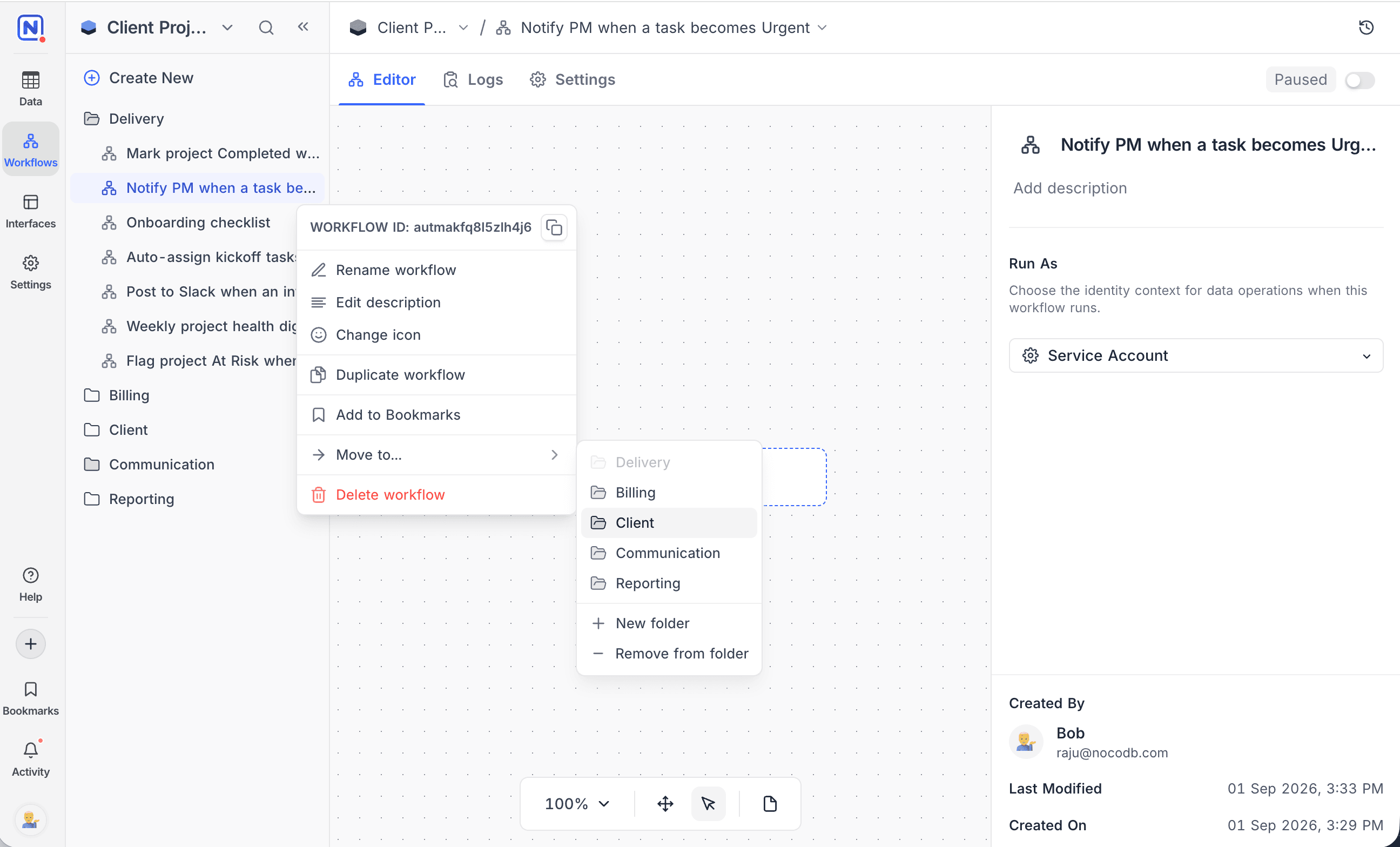
Move items into a folder
- To move a workflow or script into a folder:
- Open the
...actions menu next to the workflow or script. - Select Move to....
- Select the folder. To make a new folder, select New folder in the same submenu.
- Open the
- To take an item out of a folder, select Move to... → Remove from folder.
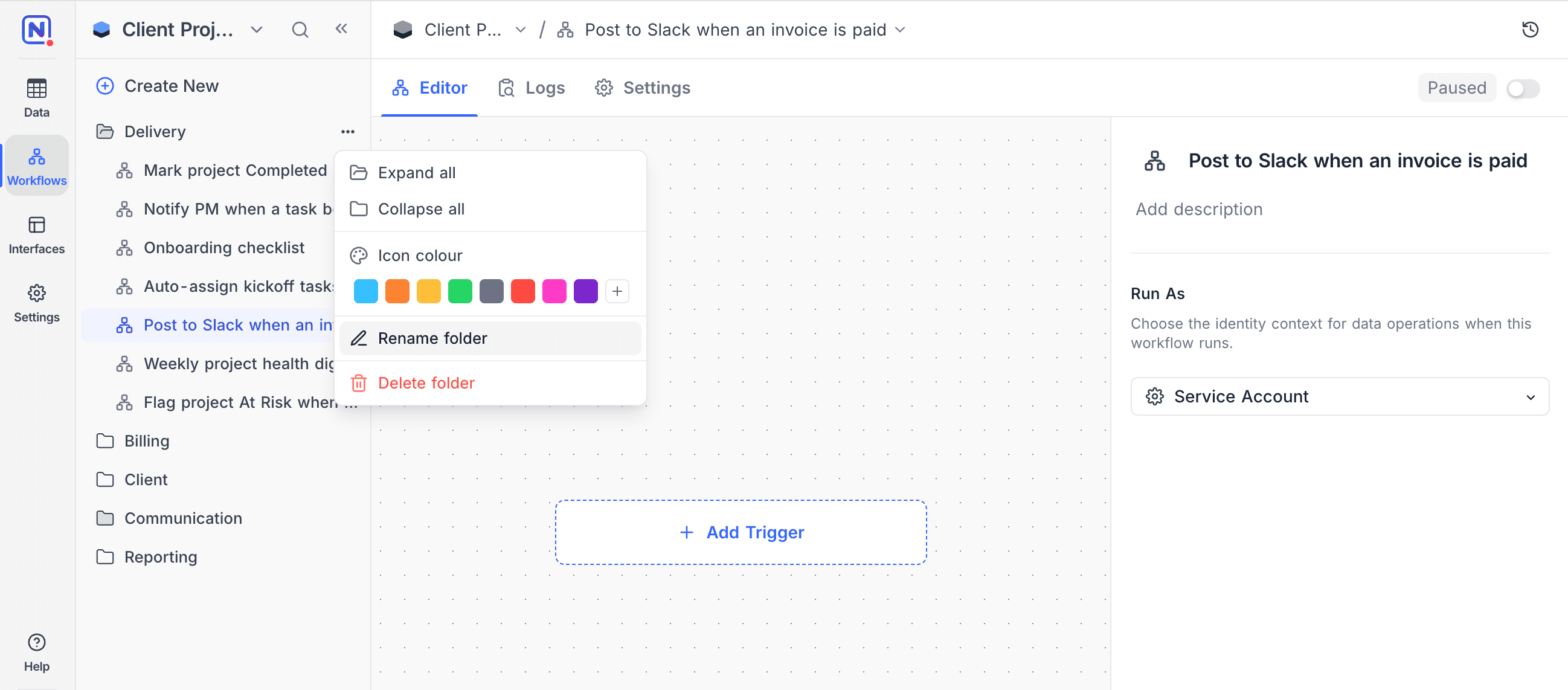
Manage folders
Open the ... menu on a folder to:
- Expand all / Collapse all folders in the sidebar.
- Select an Icon colour. Use it to color-code teams or priorities.
- Rename folder.
- Delete folder. NocoDB moves the items in the folder back to the top level. It does not delete them.
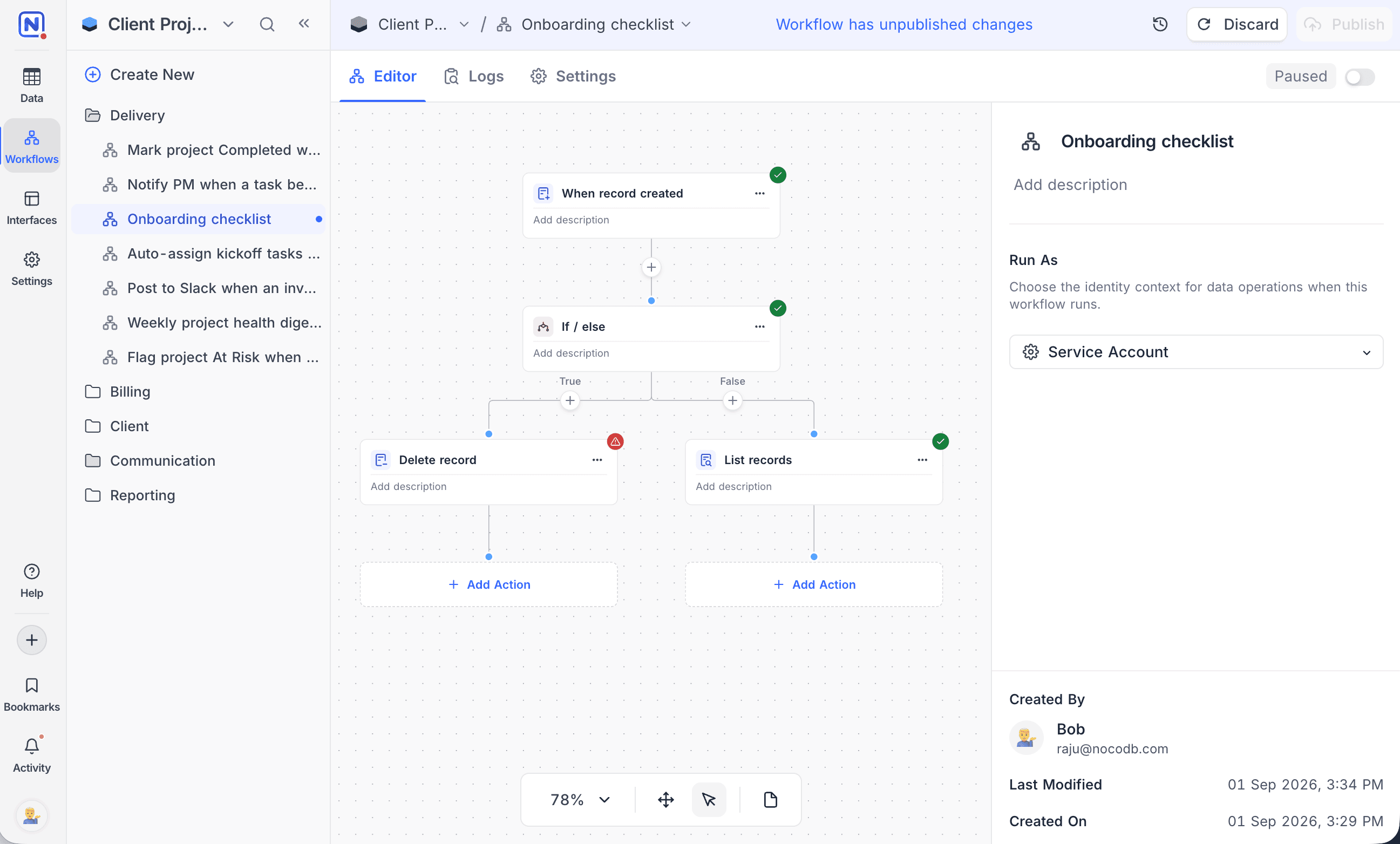
Workflow status indicators
Each workflow in the sidebar has a status dot. The dot shows the state of the workflow without opening it:
| Dot | Status | Meaning |
|---|---|---|
| Green | Live | The workflow is published and enabled. |
| Grey | Paused | The workflow is published but disabled. |
| Blue | Unpublished | The draft has changes that are not in the published version, or nothing is published yet. |
Availability
- Only project creators and owners can manage folders.
Last updated on
Latest product updates?See Changelog