Execution Logs
Execution Logs show all of how a workflow runs in NocoDB. Each time a workflow is triggered, NocoDB records the run and what each step did. Use the logs to follow the progress of a run, stop or pause it, and retry it if a problem occurs.
Accessing execution logs
To see the execution logs of a workflow:
- Open the workflow.
- In the top toolbar, click the Logs tab.
- Select a run to see its details.
Each run is one execution of the workflow, from its trigger to its last step. The list updates live when runs start and finish.
Log views
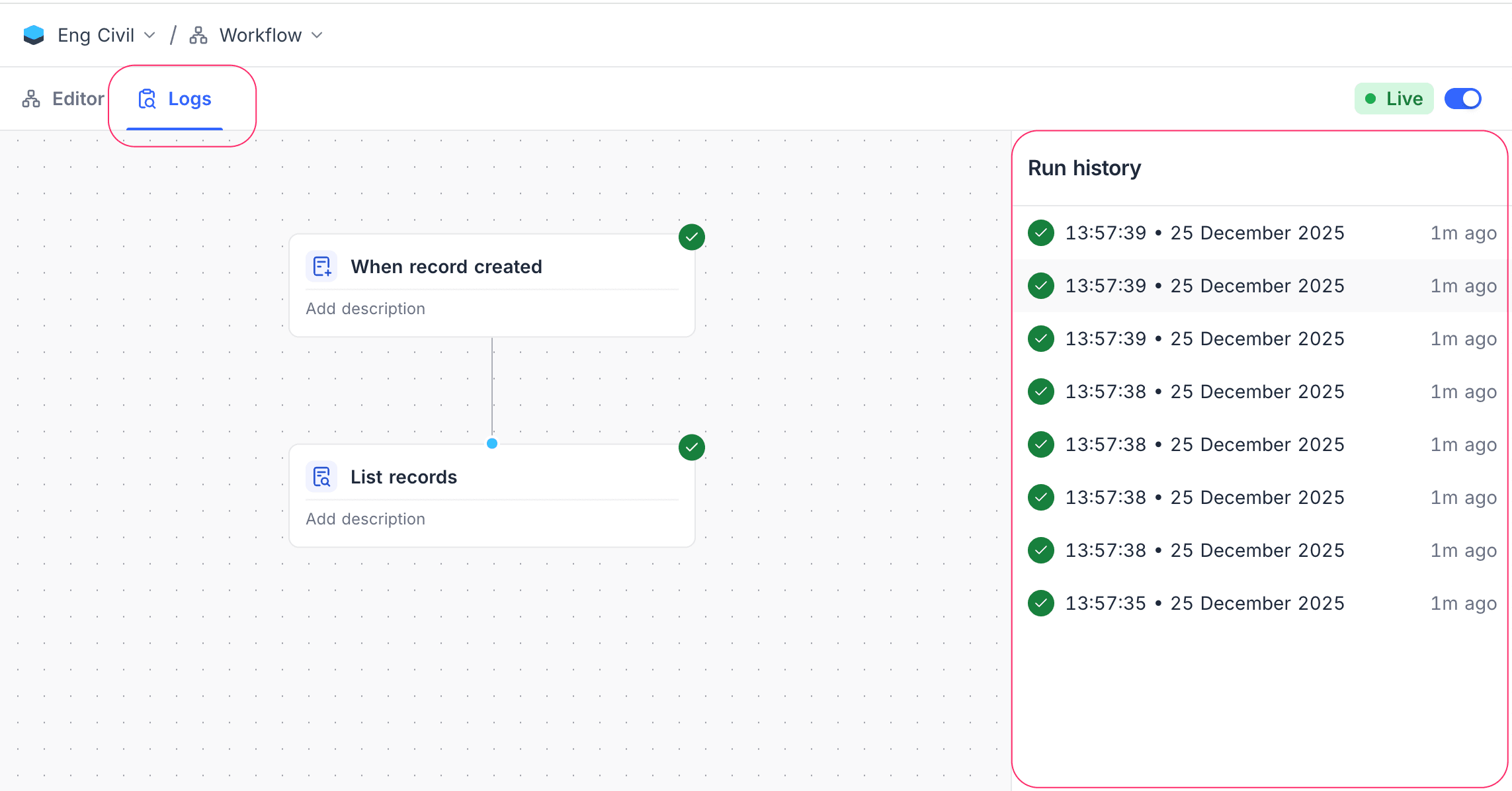
Run history
See all workflow runs with their status and timestamps. Use this view to quickly find successful runs, failures and recent activity.
Three filters narrow the runs:
| Filter | What it does |
|---|---|
| Status | Shows only the run statuses that you select. Any clears the selection. |
| Date range | Shows runs from Last 24 hours, Past week, Past month or a Custom date range. All time clears it. |
| More filters | Adds Needs attention (failed or stopped runs that were not retried), Retries only (runs started by a retry), and Slower than a duration. |
The filters work together. When no run matches, the list says so and offers Clear filters.
Run details
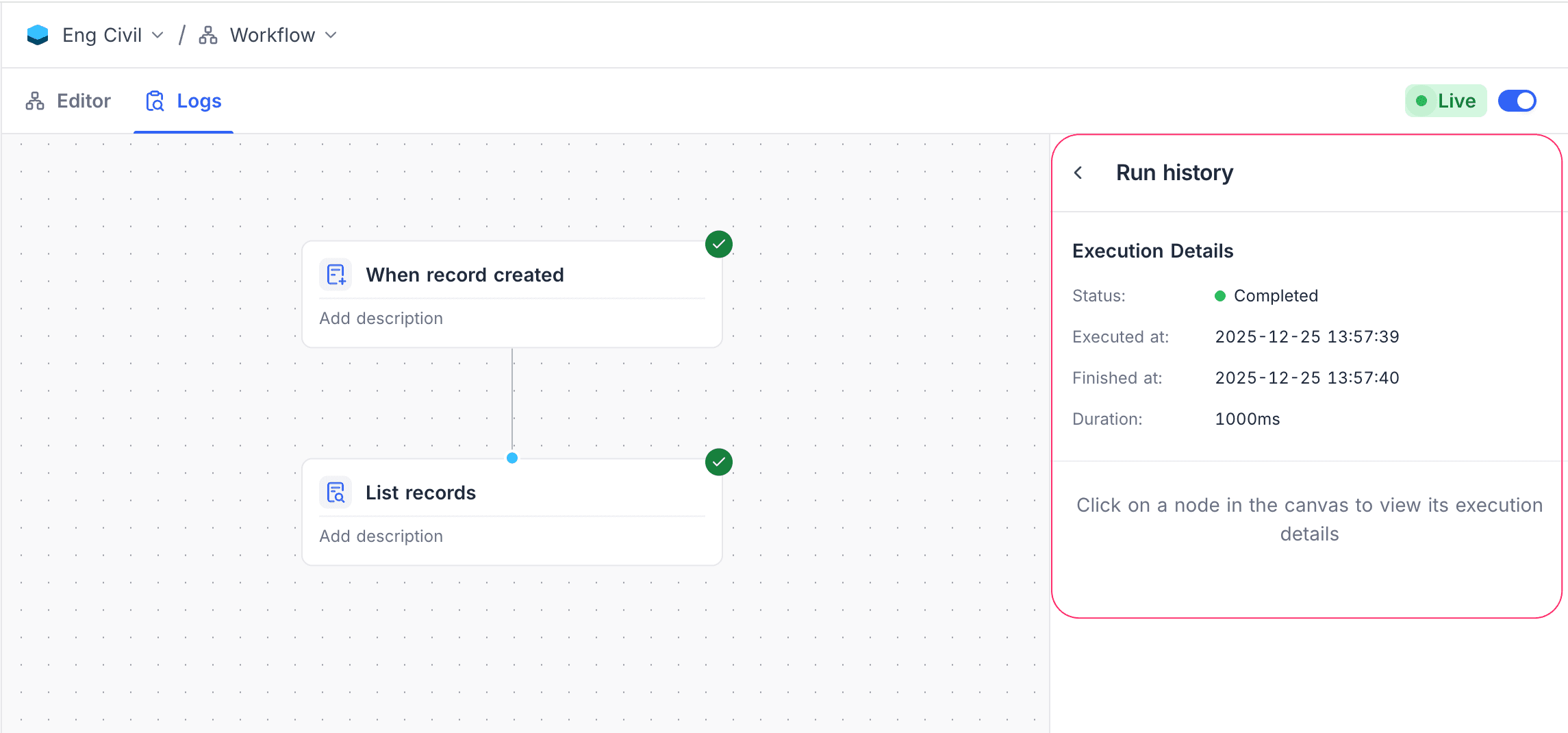
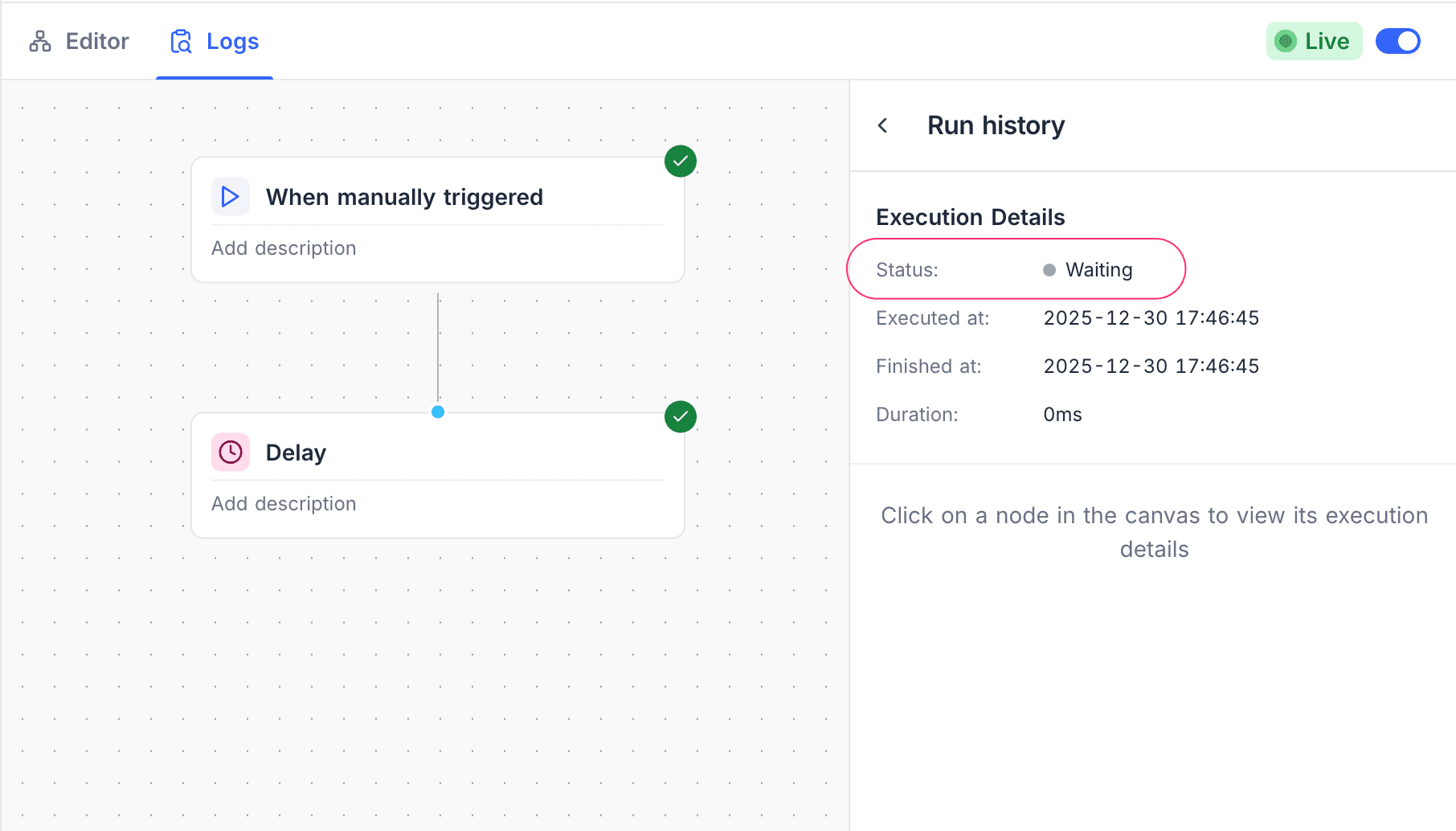
See an overview of the selected run, which includes what triggered it and its status. This view also shows the actions that you can do on the run (stop, pause, resume or retry).
Step details
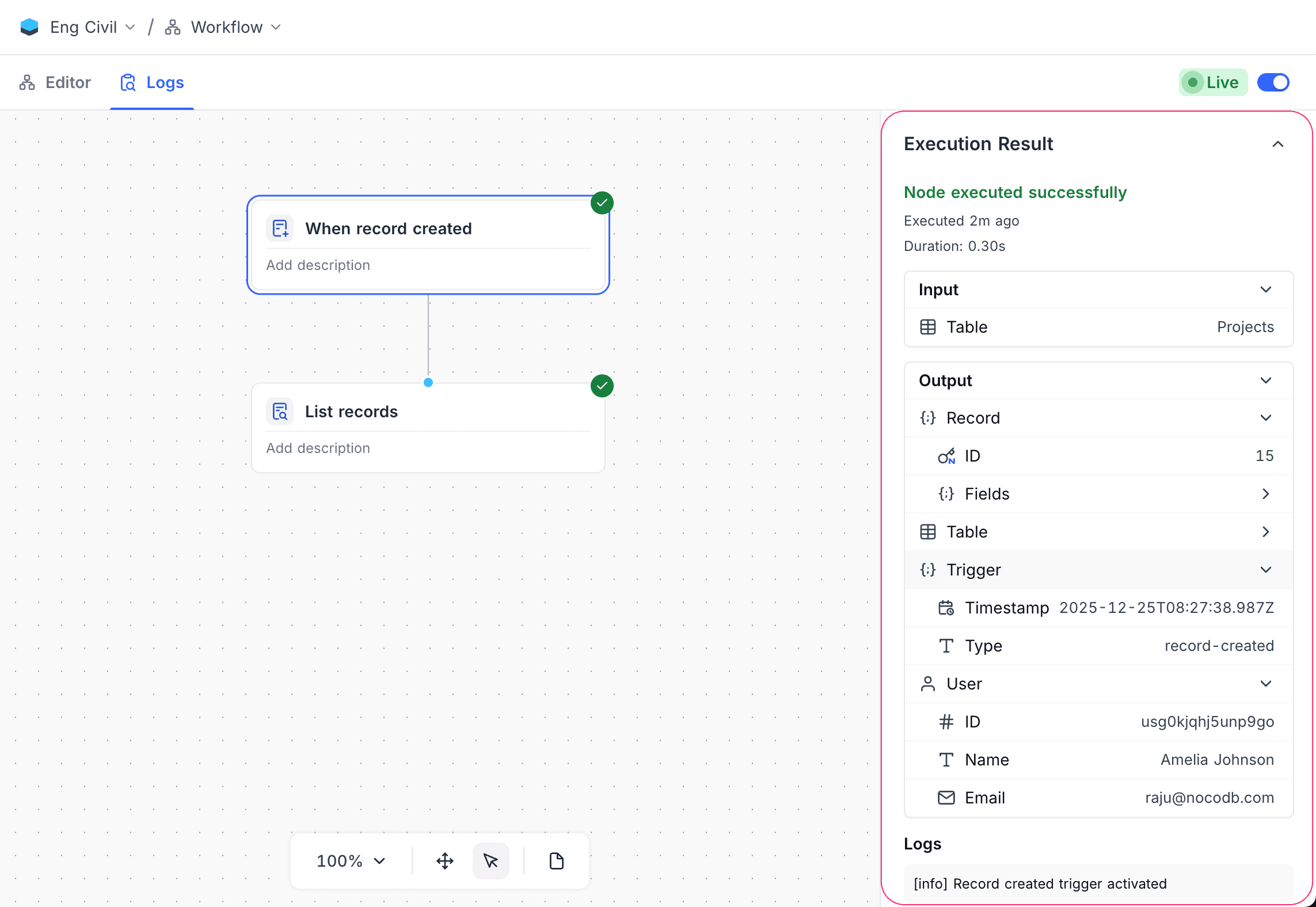
Examine each step of the workflow. When you select a step, NocoDB shows its inputs, outputs and status. Use this to follow the data flow and find errors. For a failed step, you can also see each attempt and its error. Refer to Handling failures.
Play back a run
While you view a run, click Play back on the canvas. NocoDB highlights each step in the order that the run took them, and the loop controls follow the item that each step worked on. Nothing runs again, and no data changes. Click Stop playback to end it.
Run statuses
| Status | What it means |
|---|---|
| Waiting to start | The run will start soon. |
| Running | The run is in progress. |
| Scheduled | The run waits at a Delay or Wait Until step. It continues at the time shown. |
| Retrying at… | A step failed. NocoDB will try it again at the time shown. |
| Paused | The run is paused until you resume it. |
| Stopped | The run was stopped and will not continue. |
| Completed | The run completed successfully. |
| Failed | A step failed. Open the run to see which step failed and why. |
| Stopped unexpectedly | The run was interrupted on our side. Nothing was lost. Retry the run to continue from where it was. |
Controlling a run
Stop a run
To end a run that is not complete, click Stop in the run details. If a step is in progress, the run stops as soon as possible. No more steps run.
Pause and resume a run
To hold a run without ending it, click Pause (next to Stop). If a step is in progress, that step completes first. The run then pauses before the next step.
To continue a paused run from where it stopped, click Resume. If you paused the run while it waited at a Delay or Wait Until step, it still continues at the original time.
Retry a run
You can retry a Failed or Stopped run. Click Retry and select an option:
| Option | What it does |
|---|---|
| Retry the failed step | Continues from the step that failed. Steps that are already complete do not run again. |
| Retry the failed step with your latest changes | Does the same, but uses your latest published version. For example, use it after you correct the failed step. |
| Continue from where it stopped | For a stopped run, continues from the step where the run stopped. |
| Run again from the start | Runs the whole workflow again with the same trigger data. |
Each retry shows as a new run in the run history. The new run links to the original run.
Pending runs when you publish
When you publish changes to a workflow, some runs are possibly not complete yet. For example, they are paused, or they wait at a Delay or Wait Until step.
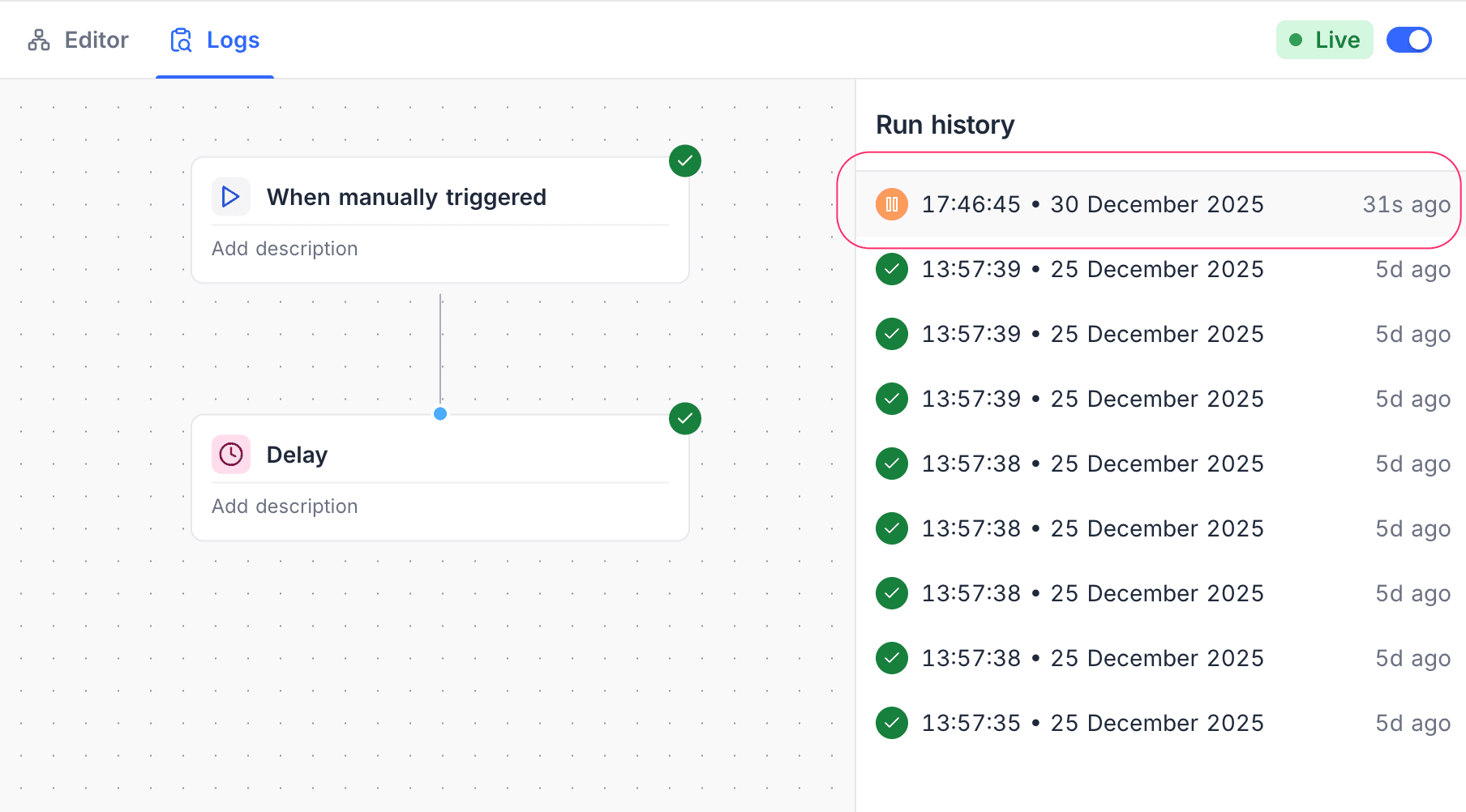
Then NocoDB asks what to do with those runs.
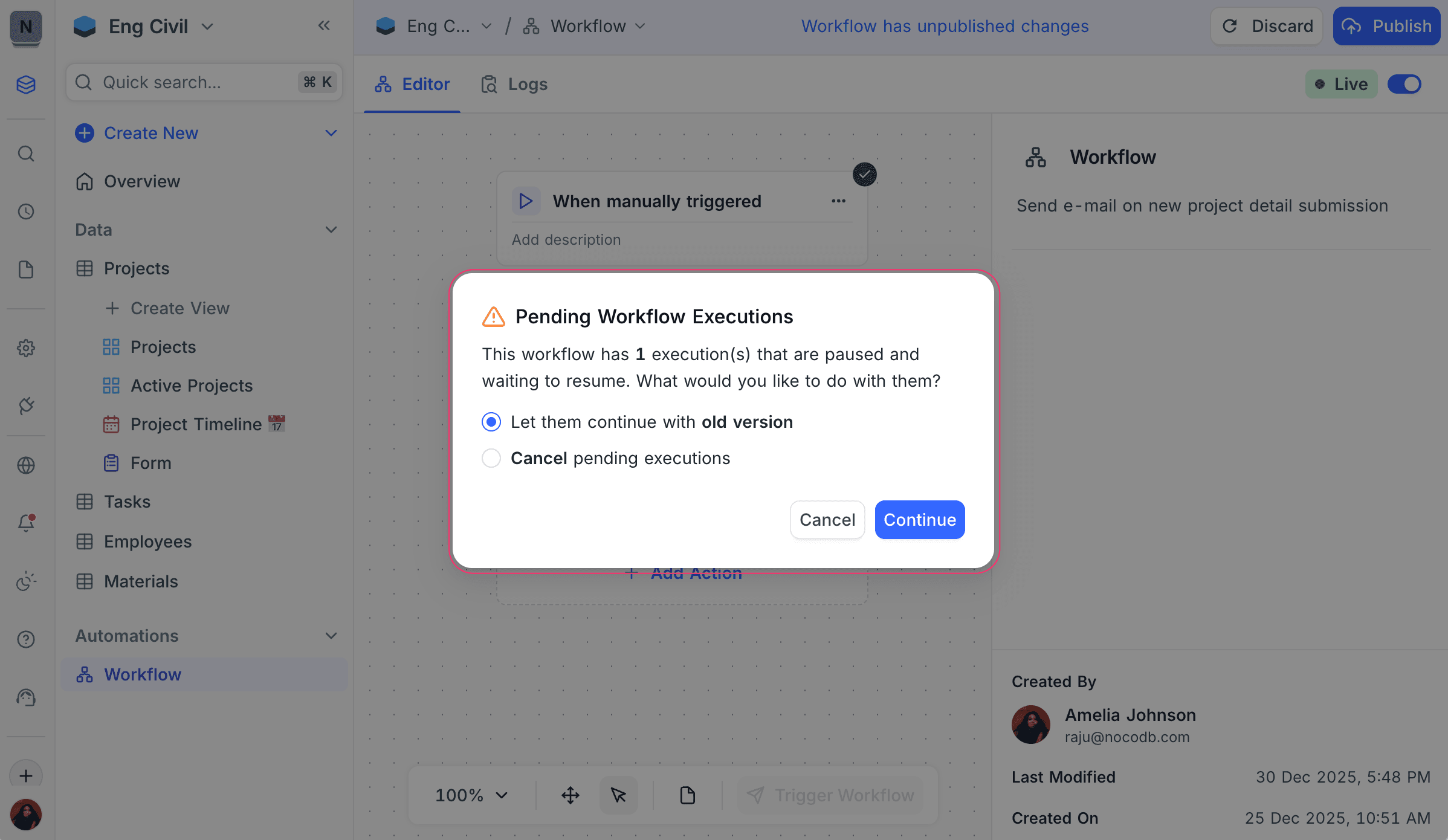
Available options
| Option | Unfinished runs | New runs |
|---|---|---|
| Let them finish using the version they started with | Continue with the version they started with. | Use your new changes. The changes apply only to new runs. |
| Stop them | Are stopped and do not continue. | Use the updated workflow. |
Iterator logs
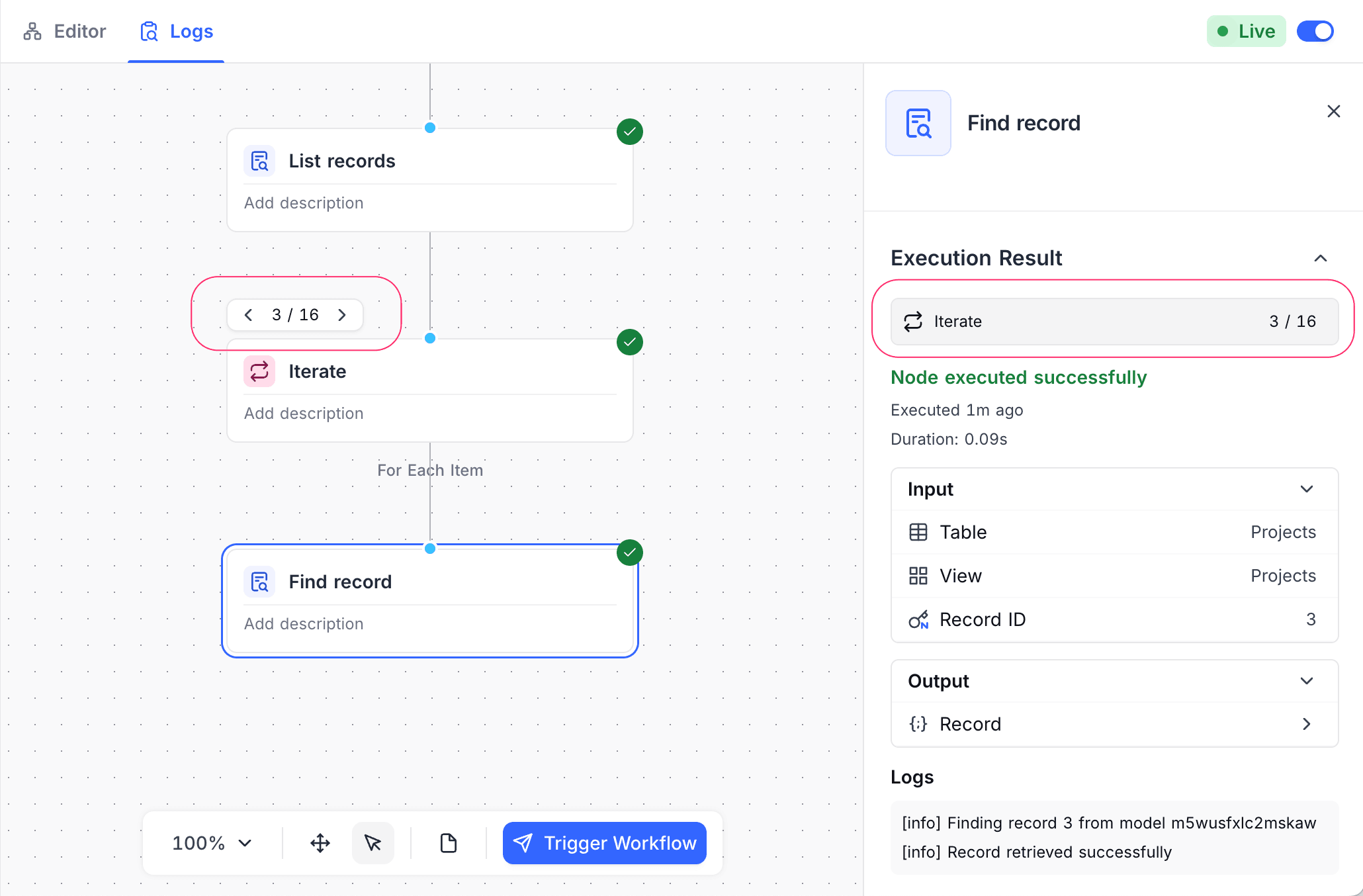
When a workflow processes many records with an Iterate node, NocoDB logs each iteration separately. Use iterator logs to see how the workflow behaves for each item in a collection. You can also use them to find problems in a specific iteration.
Iteration navigation
For runs with an Iterate node, the log view shows an iteration selector. The selector:
- Shows the current iteration number and the total number of items (for example,
3 / 16) - Has previous and next controls to move between iterations
- Updates the node inputs, outputs and logs for the selected iteration
Use it to see how data changes across iterations.
Iteration-specific execution details
When you select an iteration:
- The node execution status shows only that iteration
- The inputs show the record or item that the current loop processes
- The outputs show the results for that item
- The logs show only the messages for the selected iteration
This is especially useful when:
- A workflow is successful for some items but fails for other items
- You must verify changes at the record level
- You debug conditional logic in loops
Availability
- Available on the NocoDB Cloud Plus plan and higher, and on licensed on-premise deployments. The log history retention time can be different for each plan.
Last updated on