Private Project
A Private Project in NocoDB lets project owners fully control access to the project, separate from workspace roles. Use a private project for work that must stay confidential, or that only some members of a workspace can see and use.
How Private Project Works
When you set a project to private:
- Workspace role inheritance is disabled. Users with a workspace role such as Owner, Editor or Viewer do not get access automatically.
- By default, only the project creator (Owner) can access the project.
- To give access to other members, you must explicitly give them a project role (Owner, Creator, Editor, Commenter or Viewer).
Members without explicit access will not see the project listed in their workspace
Creating a Private Project
- On the workspace Projects page, click New Project → From Scratch.
- Type a name for the project.
- For Project Type, select Private.
- Click Create Project.
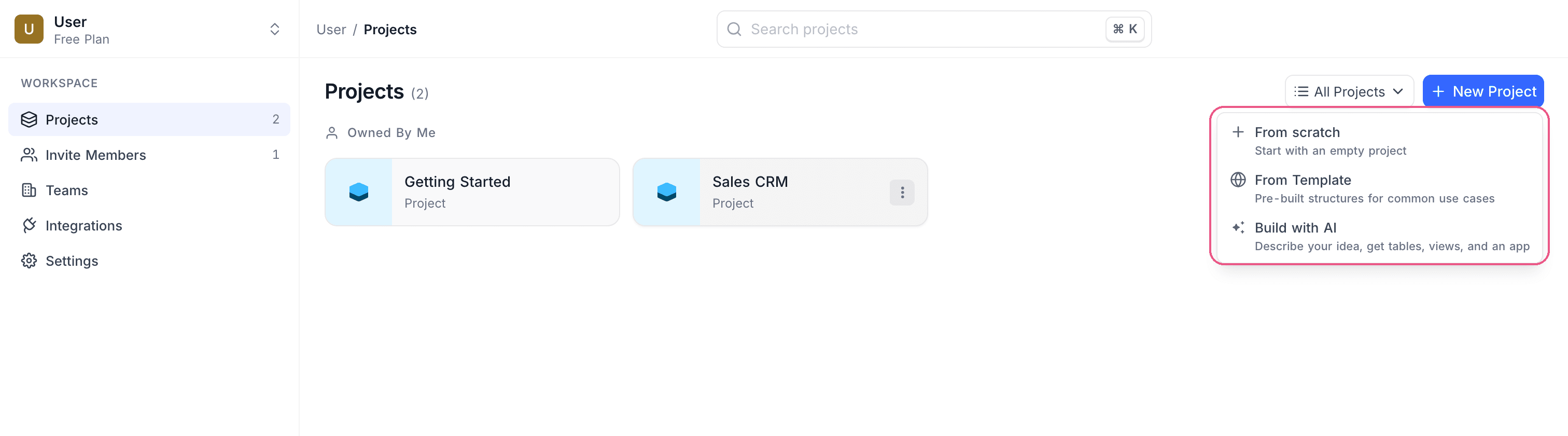
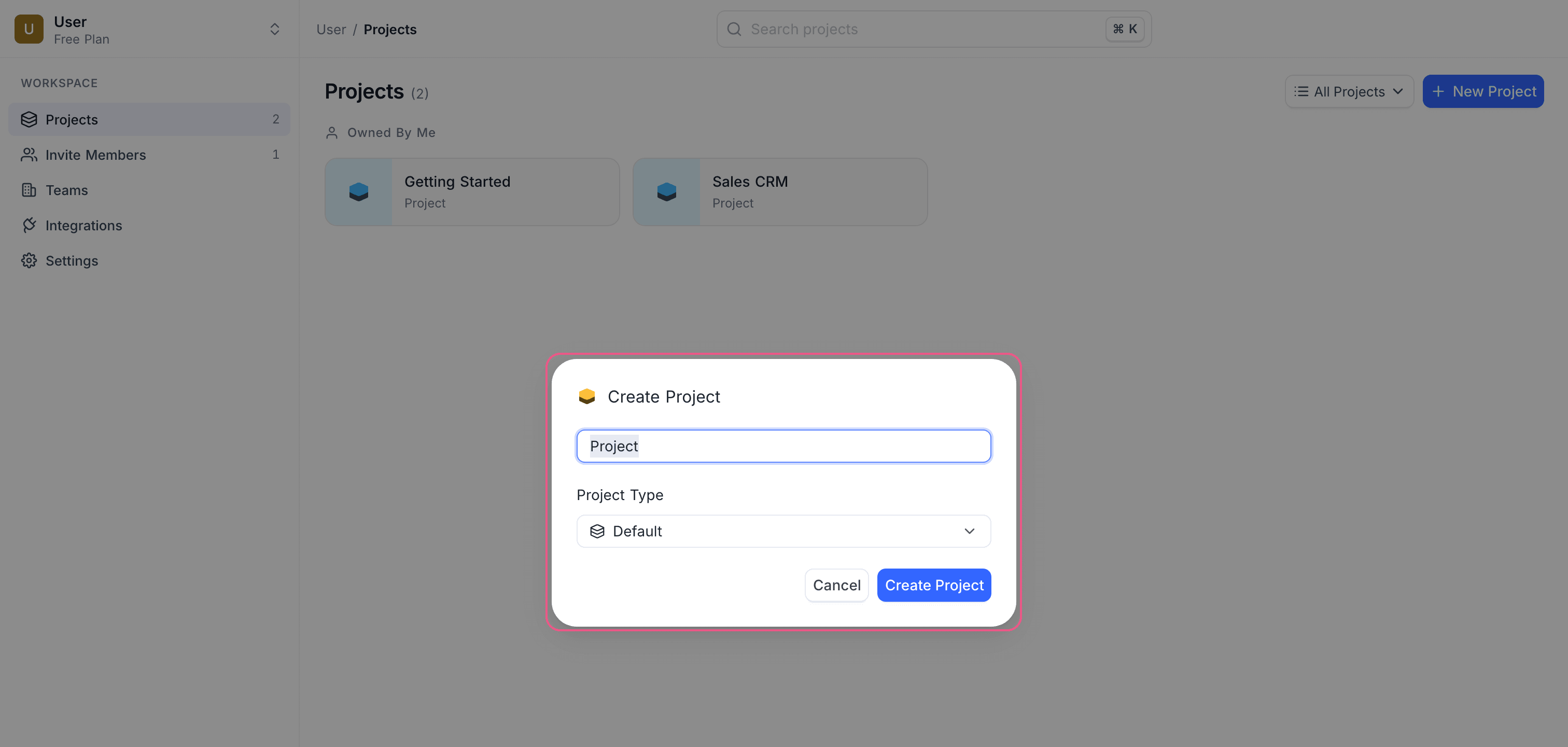
Only the project creator will have access by default. Other workspace members, including Workspace Owners, will not see the project unless explicitly added.
Private projects cannot be shared publicly. All view-sharing (except Form views) is restricted.
Converting an Existing Project to Private
- Open the project.
- Go to Project Settings → Admin → Project Type.
- Select Private.
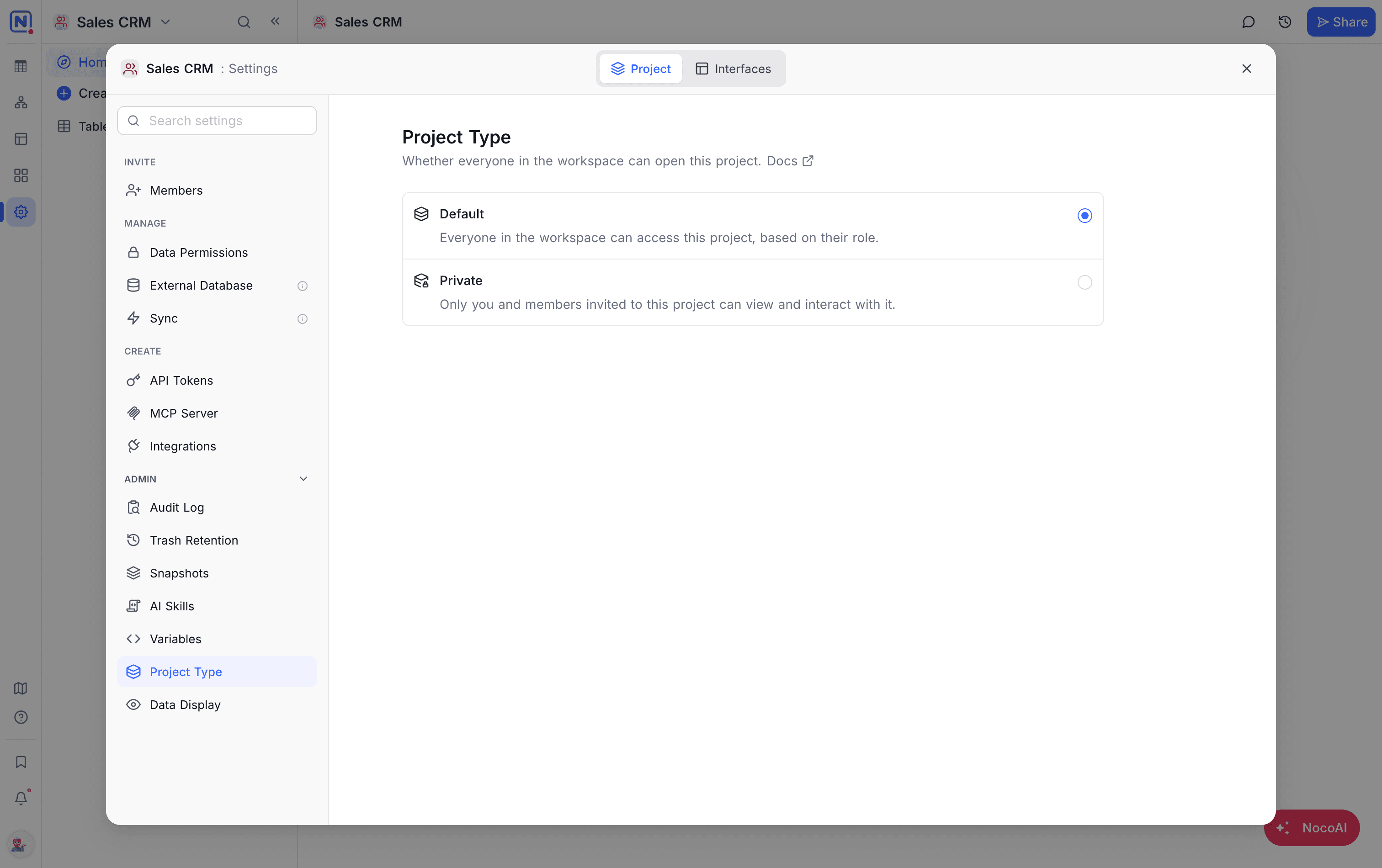
Explicitly configured project-level roles will be retained. Inherited workspace access for other users will be removed.
If the project or view is currently shared publicly, sharing will be disabled when switching to private.
Disabling Private Access
- Open the project.
- Go to Project Settings → Admin → Project Type.
- Select Default.
Workspace-level role inheritance will be re-enabled. Members with workspace roles will regain corresponding access. Explicit project roles remain unchanged.
Managing Access in a Private Project
You manage user access in a private project the same way as in other projects. Invite workspace members and give each of them a project role. Changes to workspace roles do not change access to a private project. This stays true until you set the project type back to Default.
For the steps, refer to the Project Collaboration Guide.
On a private project, only the project Owner can create an invite link. Links created by anyone else stop working while the project is private.
Availability
- The Private Project feature is available only on the Business plan and above
Last updated on
Latest product updates?See Changelog