Create Views Using AI
Overview
You can now let NocoAI intelligently suggest useful views for your table, helping you get started faster and more efficiently.
Steps to Create Views using AI
-
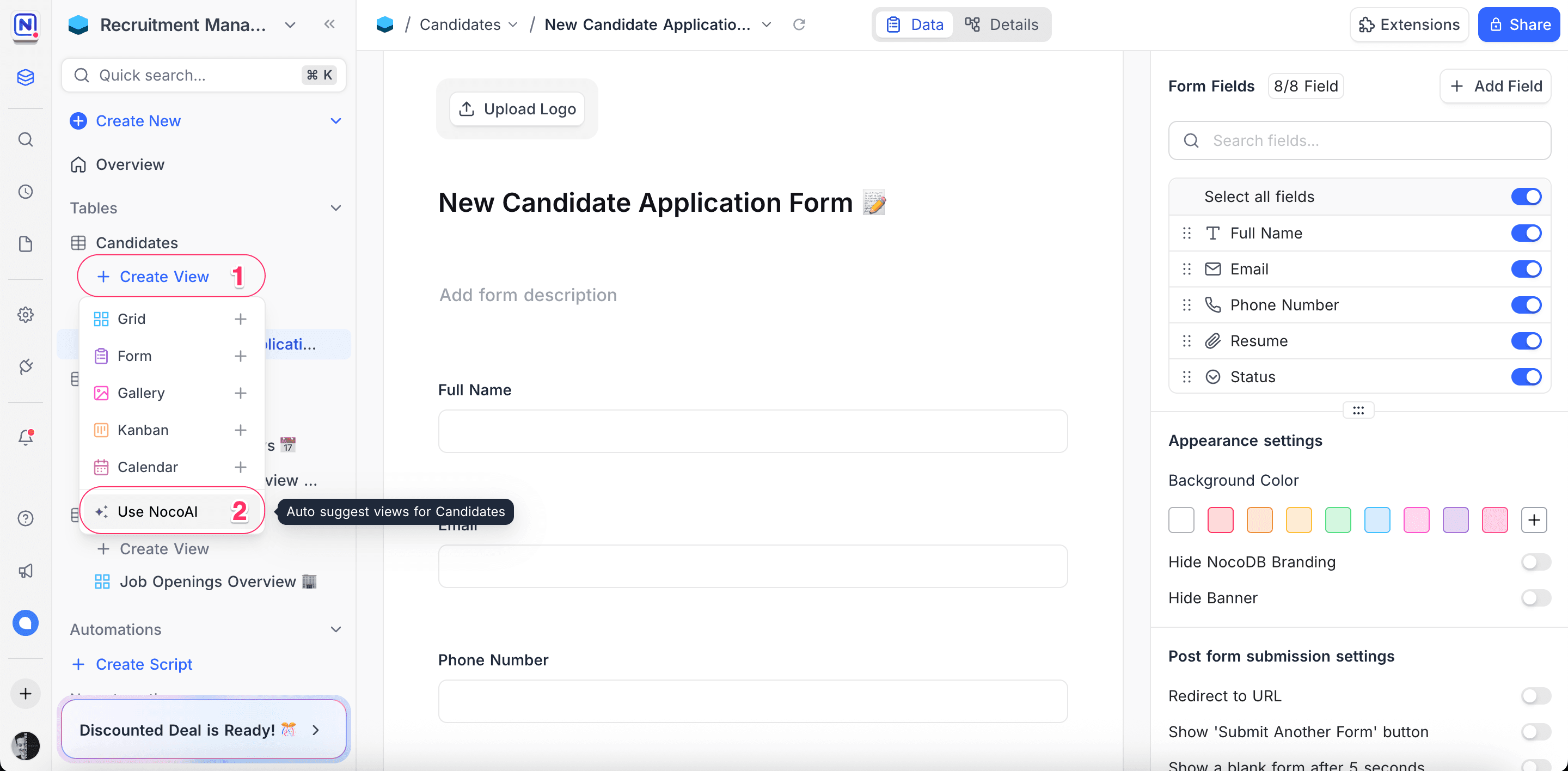
Click on + Create View in the left sidebar.
-
Select Use NocoAI from the dropdown.
-
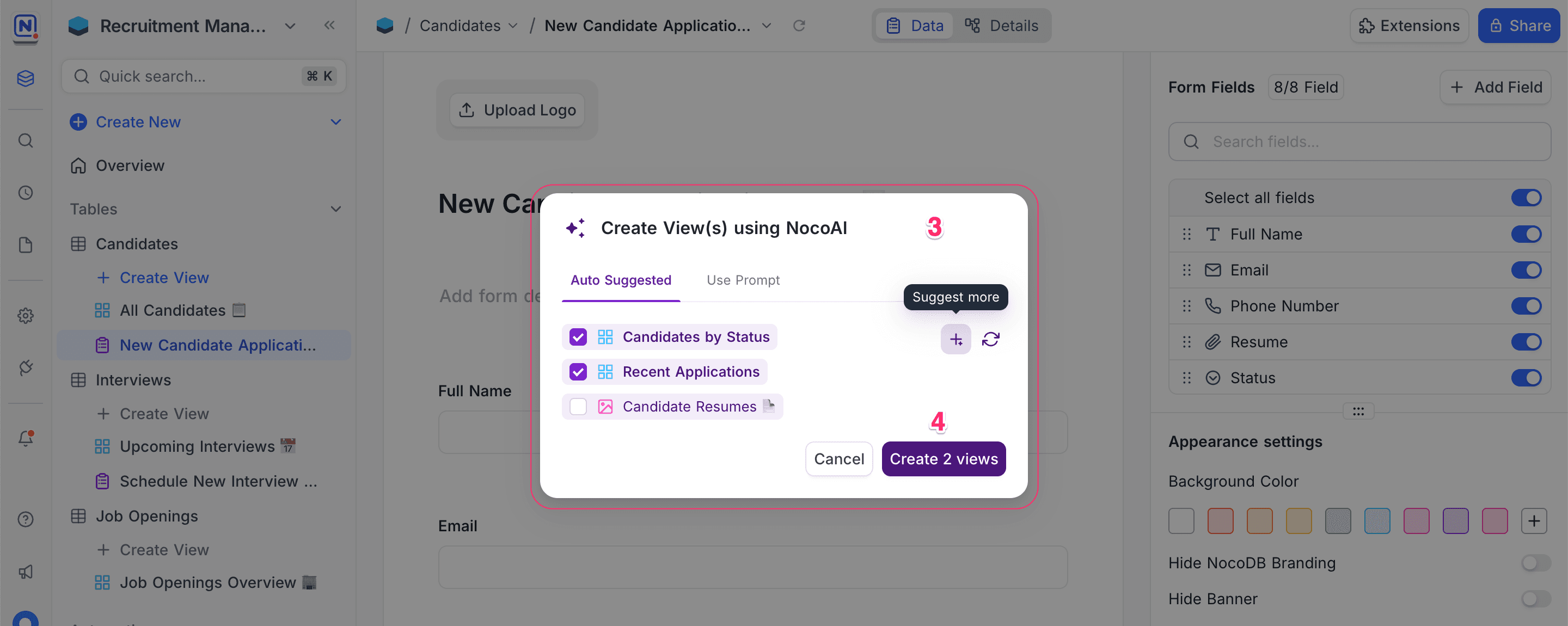
In the popup, go with:
- Auto Suggested: Choose from automatically generated view suggestions.
- Use Prompt: Manually describe what kind of views you need. (Coming soon!)
-
Click Create [X] views to add them to your table.
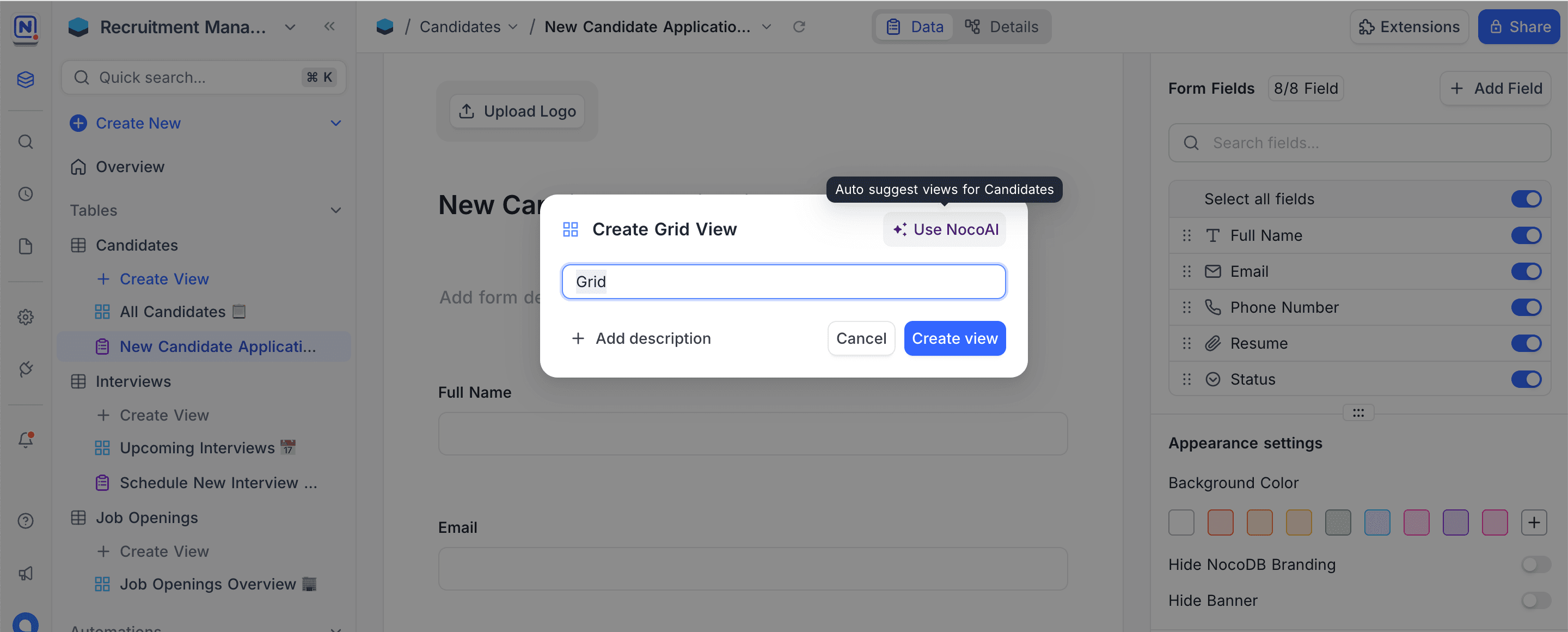
You can also access this feature from the Use NocoAI button in the view creation modal.
Tips for Better AI Suggestions
When using the Auto Suggested option, NocoAI analyzes your table's data and structure to provide relevant view suggestions. Here are some tips to get the most out of this feature:
-
Be descriptive: Clearly state how you want the data grouped or filtered. Example: “Show candidates grouped by status” or “Create a gallery view of job listings.”
-
Mention layout preferences: Indicate the desired layout if any — Grid, Kanban, Calendar, etc.
-
Use data cues: Reference field names or data patterns. Example: “List interviews scheduled this week” or “Show recently updated resumes.”
Example Prompts for "Use Prompt" Tab
- "Show candidates grouped by status in a Kanban view."
- "Create a calendar view for upcoming interviews."
- "List job openings that have more than 5 applicants."
- "Gallery of candidate profiles with photos and resumes."
Start leveraging NocoAI to create powerful views in just a few clicks!
Availability
- NocoDB AI is available on NocoDB Cloud (Plus plan and above), where usage is metered by credits. On self-hosted deployments, AI requires configuring your own AI integration (Business plan and above).
Last updated on