Create Tables Using AI
Overview
With NocoAI, you can automatically generate tables — including their fields and relationships — just by describing your system in plain language. Ideal for getting started quickly with a new database structure or adding new modules to an existing base.
Steps to Create Tables Using AI
-
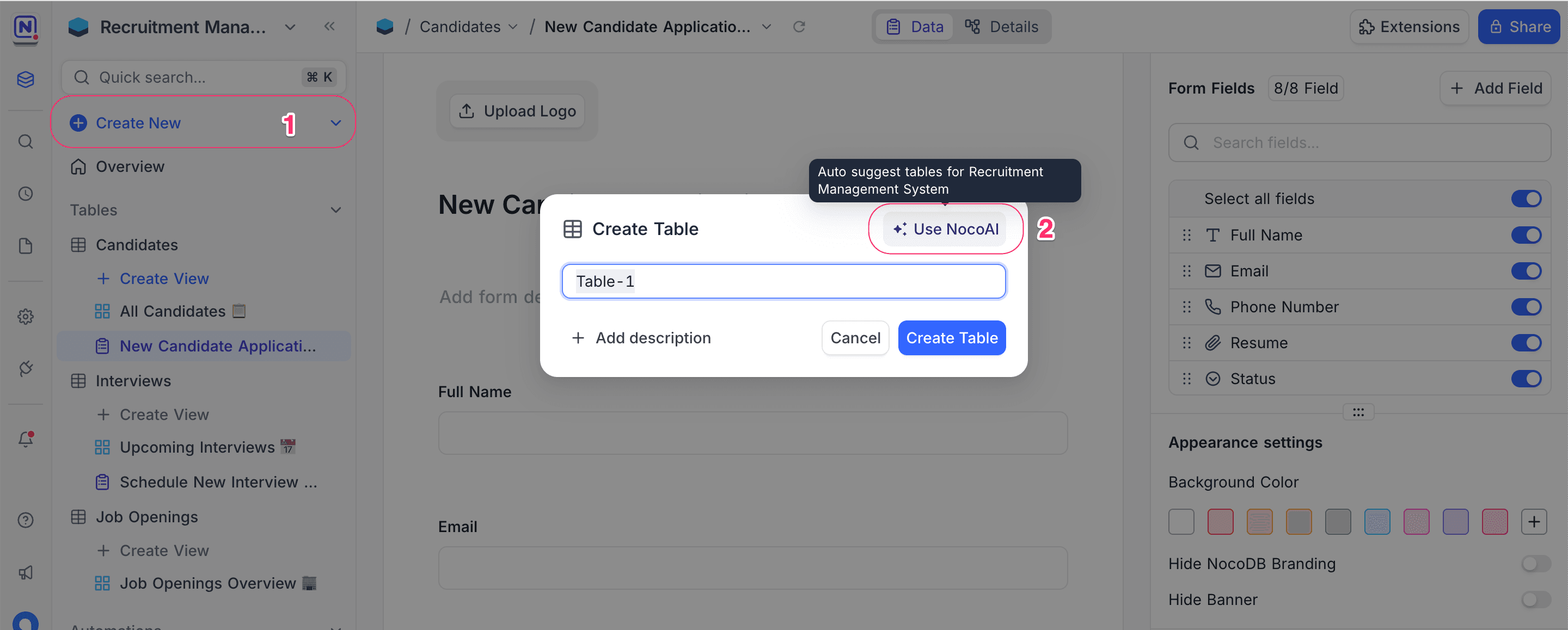
Open ** Create Table** modal From the left sidebar, Click + Create New, select Table
-
Select Use NocoAI
In the dialog, click on ✨ Use NocoAI to begin the AI-assisted process. -
Choose a Suggestion Mode
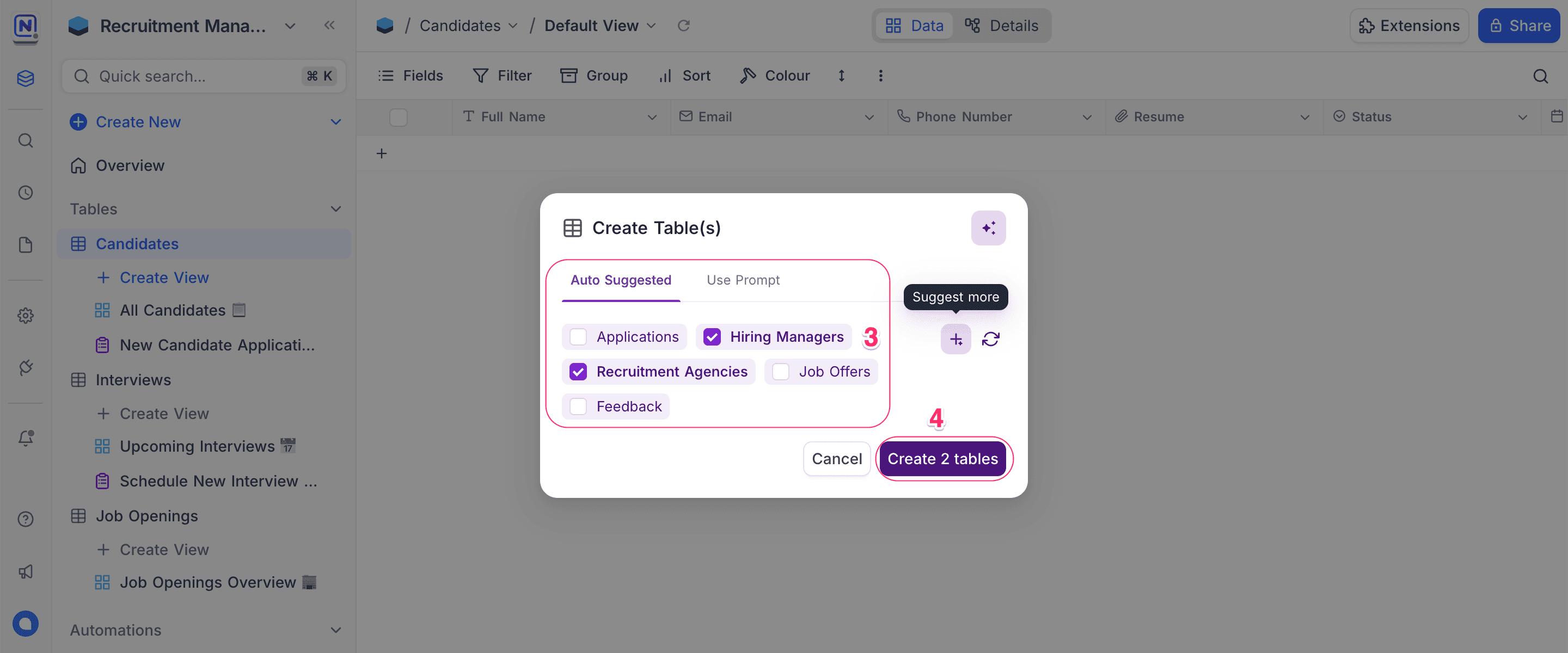
- Auto Suggested: NocoAI provides a set of suggested tables based on your current schema and context.
- Use Prompt: (Coming Soon) Describe what tables you want in your own words.
-
Click Create [X] Tables
Select the tables you want from the list and click Create.
Tips for Better AI Suggestions
-
Use meaningful table names in your base
The AI looks at existing names and structures to recommend relevant tables. -
Think in entities
Imagine the business objects you want to manage (e.g., Candidates, Applications, Feedback, Agencies) and how they connect. -
Preview and refine
If the suggestions aren't accurate, use the Suggest More button to regenerate. -
Add new modules incrementally
You can trigger NocoAI for different parts of your app — e.g., one time for recruiting, another for feedback — to build your schema progressively.
What's Next
Once your tables are created:
- Use NocoAI View Suggestions to generate meaningful views
- Create Fields using AI to automatically generate relevant fields for each table
NocoAI gives you a head start — you can customize everything further to meet your needs.
Availability
- AI table creation is available on NocoDB Cloud (Plus plan and above), where usage is metered by credits. On self-hosted deployments, AI requires configuring your own AI integration (Business plan and above).
Last updated on