Link to Another Record
This article explains how to create & work with a Link to Another Record field.
Link to Another Record field type is used to establish relationships between tables & create links to other records.
NocoDB supports the following types of relations:
One-to-Many- A record in one table can link to multiple records in another table.- Example: A
Countrycan have multipleCities.
- Example: A
Many-to-One- Multiple records in one table link to a single record in another table.- Example: A
Citybelongs to aCountry.
- Example: A
Many-to-Many- Multiple records in both tables can link to each other.- Example: A
Studentcan have multipleSubjects& aSubjectcan have multipleStudents.
- Example: A
One-to-One- A record in one table links to exactly one record in another table.- Example: A
Countryhas oneCapital.
- Example: A
One-to-Many and Many-to-One are also commonly referred to as Has-Many and Belongs-to respectively.
- Links can be created only between tables in the same database.
- Self-referencing links are supported. (Link to the same table)
- For every
One-to-Manyrelation defined, NocoDB augments aMany-to-Onerelationship field in the related table automatically.
Create a link field
- Click on
+icon to the right ofFields header - On the dropdown modal, enter the field name (Optional).
- Select the field type as
Link to Another Recordfrom the dropdown. - Select the relation type:
One-to-One,One-to-Many,Many-to-One, ORMany-to-Many. - Select the table to which the relation is to be established with.
- Click on
Save Fieldbutton.
You can control record visibility in the Link records modal by limiting the records available for selection. Read more
Cell display
The cell displays linked records as chips, showing the primary display value of each linked record.
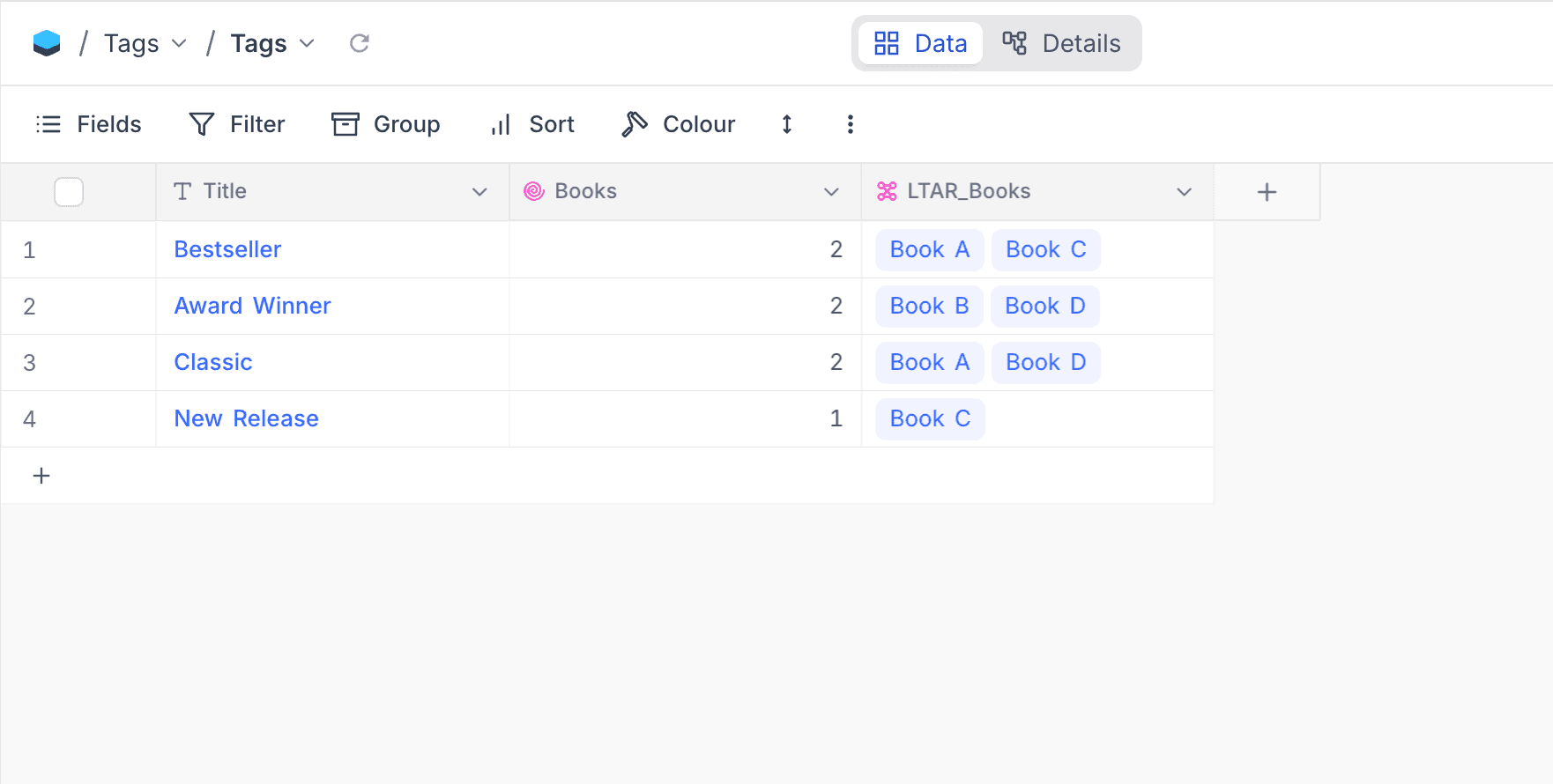
Clicking on the expand icon will open a Linked Records modal with the full list of links & associated additional information.
List linked records
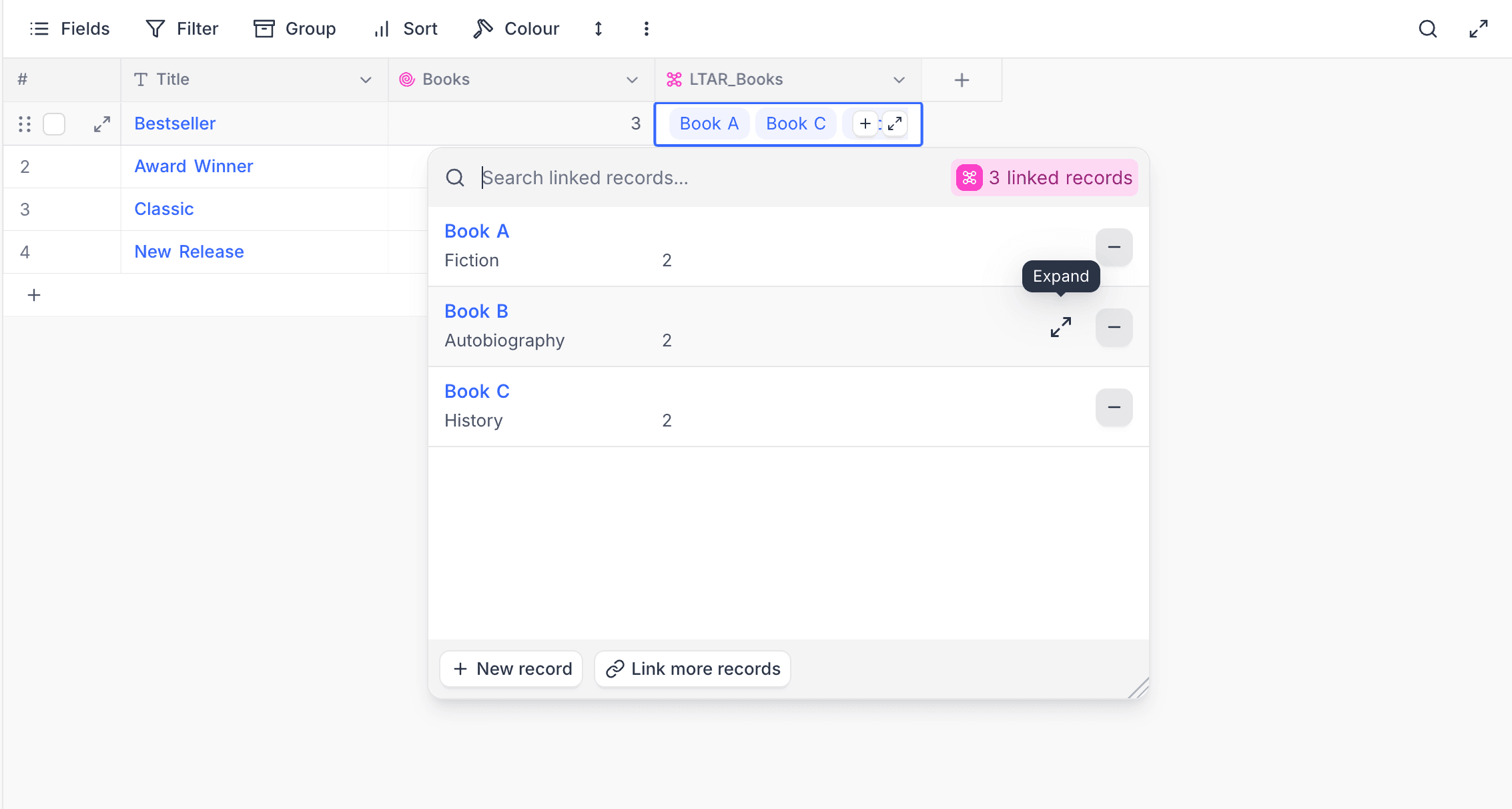
List of linked records will appear as a dropdown containing linked records as cards. A brief note about the modal components:
- Search bar, to narrow down the list of linked records displayed
- Icon represents the relation type. The count indicates the number of linked records
- List (cards) of linked records
- To view additional information (expanded record), hover on the card & click on the expand icon
- Click on the
-icon to unlink the record - Click on
+ New recordbutton to create and link a new record to the current one - Click on
Link more recordsto link an existing record Read more
Link new records
Modal to add new links can be opened by
- Clicking on
+ Link more Recordsbutton in theLinked Recordsmodal - Clicking on the
+icon in the cell (appears on clicking on the cell)
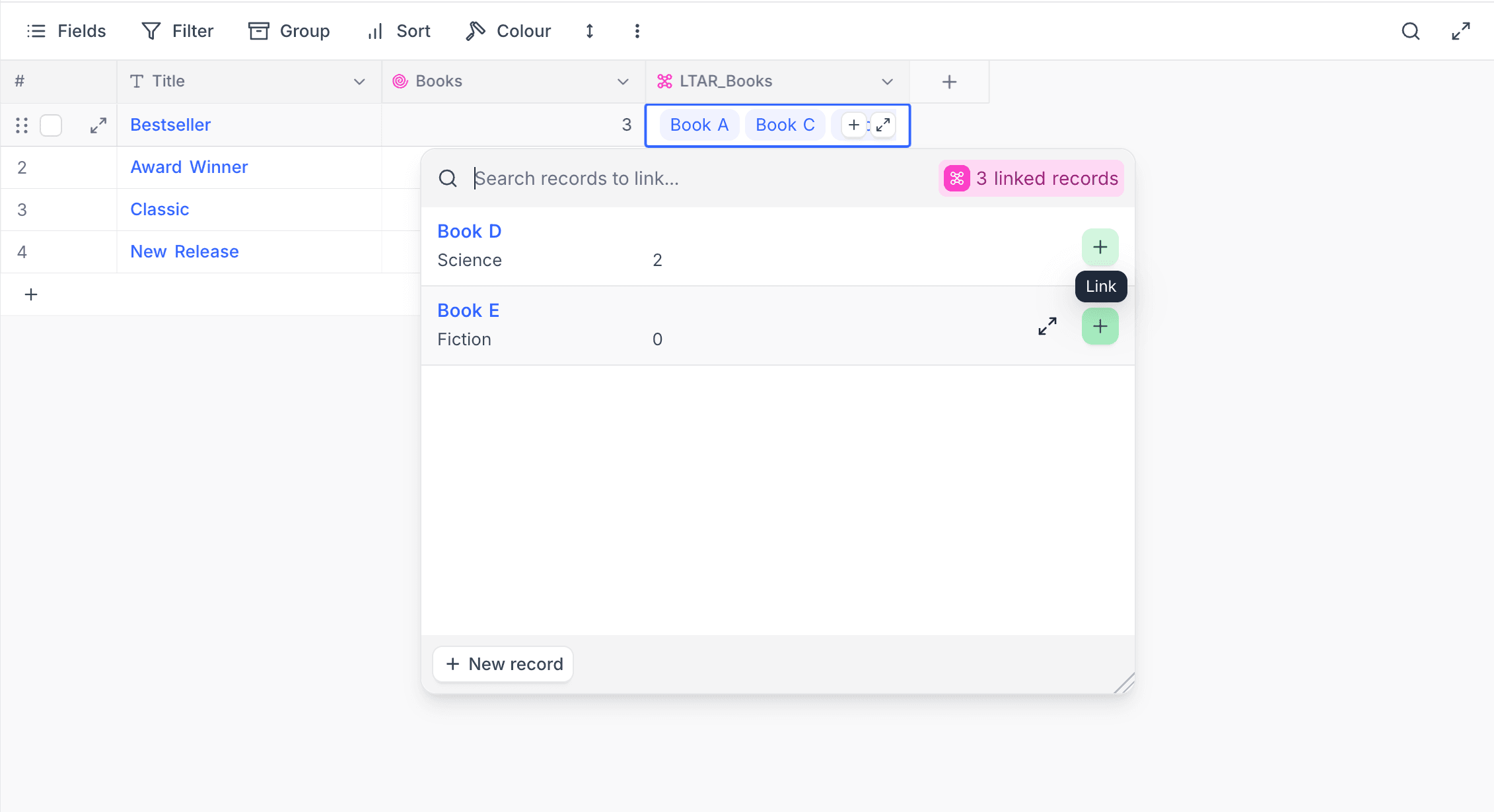
A brief note about the modal components:
- Search bar, to narrow down the list of records displayed
- Icon represents the relation type. The count indicates the number of linked records
- List (cards) of records available for linking
- To view additional information (expanded record) before linking, hover on the card & click on the expand icon
- Click on the
+icon to link the record - Click on
+ New recordbutton to create and link a new record to the current one
Unlink records
To unlink a record, open the Linked Records modal & click on the - icon on the card of the record to be unlinked.
Limit record selection
This feature enables users to restrict the records available for selection within the Link records modal. This can be achieved by two modes:
- Limit by view
- Limit by filter ☁
Note that,
- These options are not mutually exclusive & can be used together. When both are used, the records available for selection will be the intersection of the records satisfying all conditions.
- This feature only affects the records available for selection & does not affect the existing links.
- The limit is applied only on the Link records modal & does not restrict the link modification process via API, Copy-Paste or any other mechanisms.
- Limit by filter option is available on NocoDB Cloud (Plus plan and above) and licensed self-hosted deployments (Business plan and above).
Limit by view
To limit the records available for selection based on a view, follow the steps below:
Steps
- Enable
Limit record selection to view - Select the view from the dropdown
- Click on
Save Fieldbutton
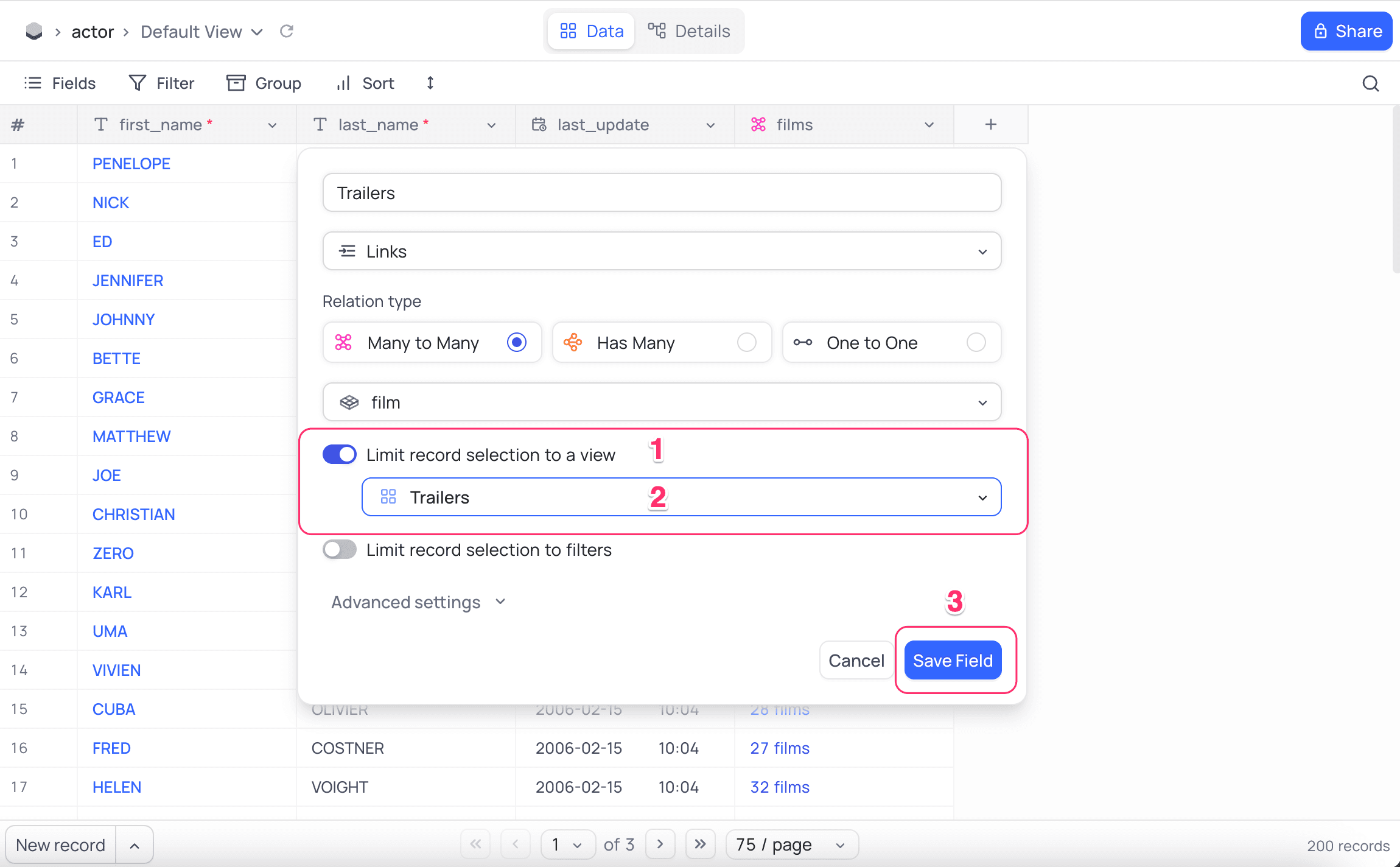
In the example image above, the records available for selection will be limited to the records available in Trailers view.
Note that,
- Only one view can be selected at a time.
- Deleting the view associated with the link field will disable the limit by view option.
- Change in filters within the view will also reflect records available for selection during linking.
Limit by filter ☁
To limit the records available for selection based on filters, follow the steps below:
Steps
- Enable
Limit record selection by filter - Configure filter
- Click on
Add filterbutton. - Select the field, operator
- Configure value
- Click on
Save Fieldbutton
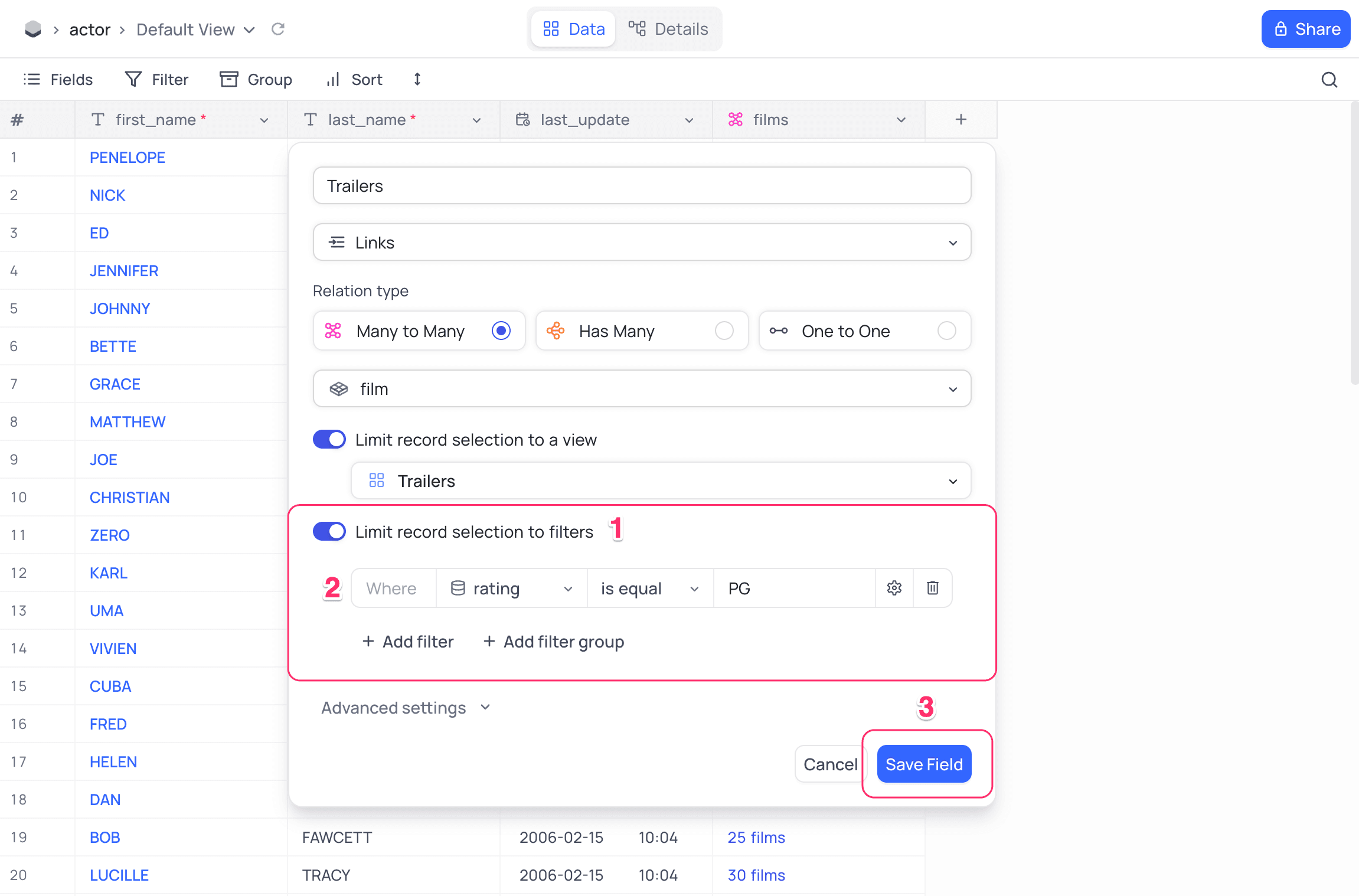
In the example image above, the records available for selection will be limited to the records available in Trailers view where rating is PG.
Note that,
- Multiple filters can be added.
- Deleting the field associated with the link field will disable associated filters.
Filter Type
Conditions in the filter can be of two types: Static & Dynamic.
- Static condition: Filter value is a constant value.
- Dynamic condition: Filter value is a field value from the current record.
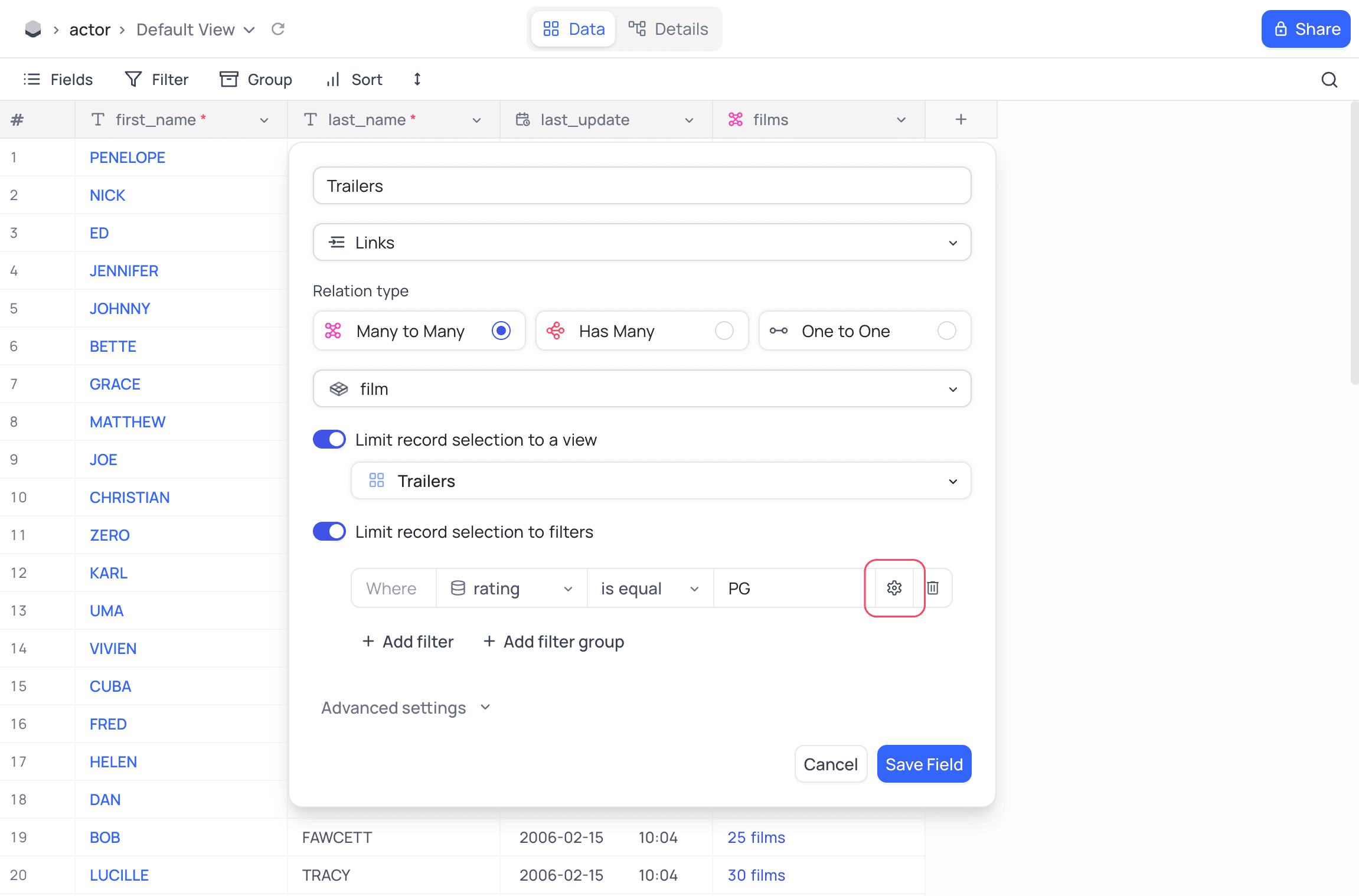
Use the ⚙️ icon to the right of the filter to toggle between static & dynamic filter values.
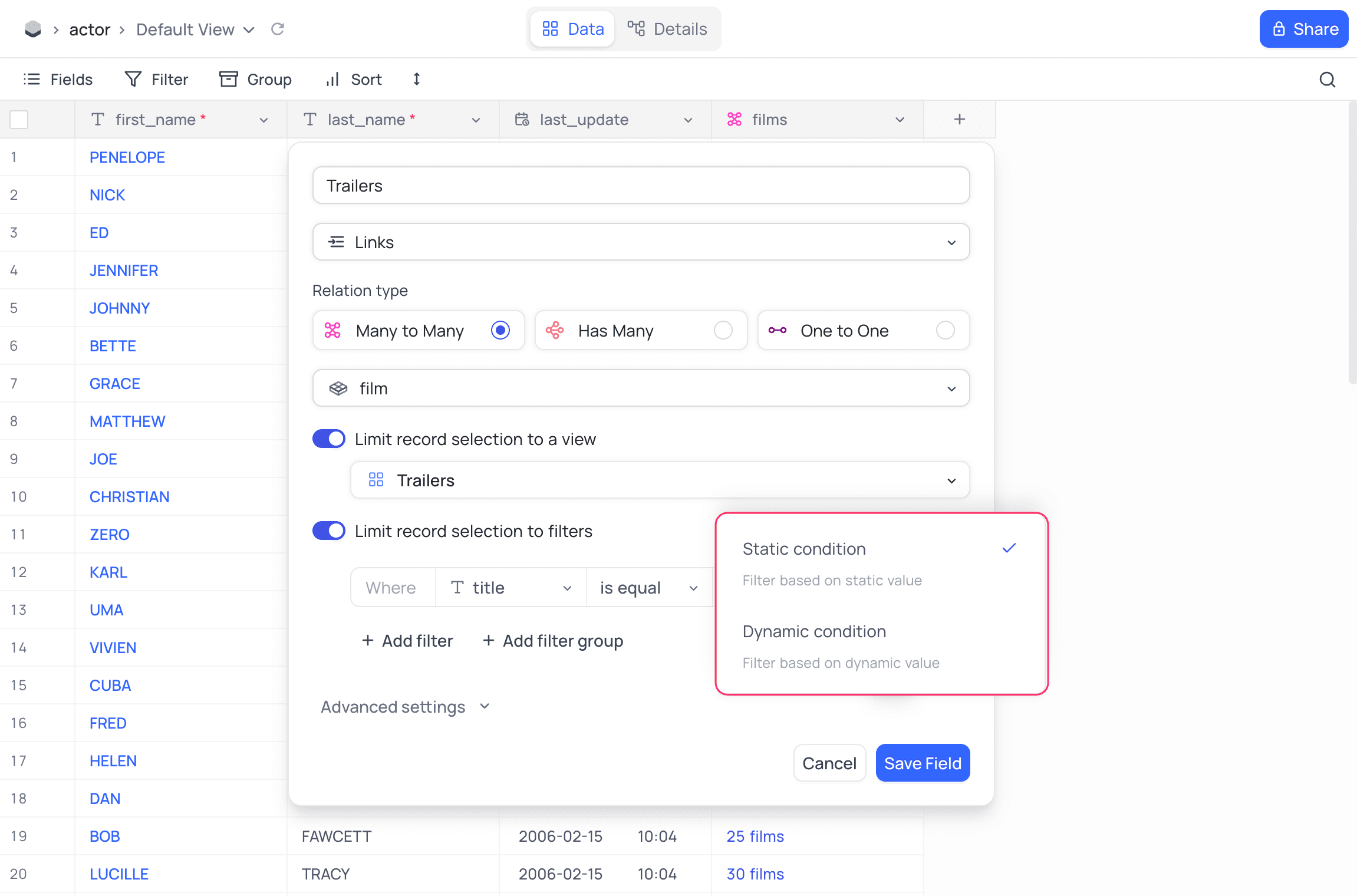
Note that, it's allowed to have a mix of static & dynamic conditions in the filter.
Custom display value field ☁
By default, a Link to Another Record field shows the primary display value of each linked record (the title column of the linked table) in cells, link pickers, and expanded forms. The Custom display value field option lets you override this on a per-link basis and pick any column from the linked table to display instead.
This is useful when the linked table's primary display value is not the most meaningful identifier in context. For example, on a Deals → Contacts link in a CRM, you might prefer to show the contact's email or phone over their full name.
Steps
- Open the field editor for the
Link to Another Recordfield. - Enable the
Use custom display value fieldtoggle. - From the dropdown, select the column from the linked table to use as the display value.
- Click on the
Save Fieldbutton.
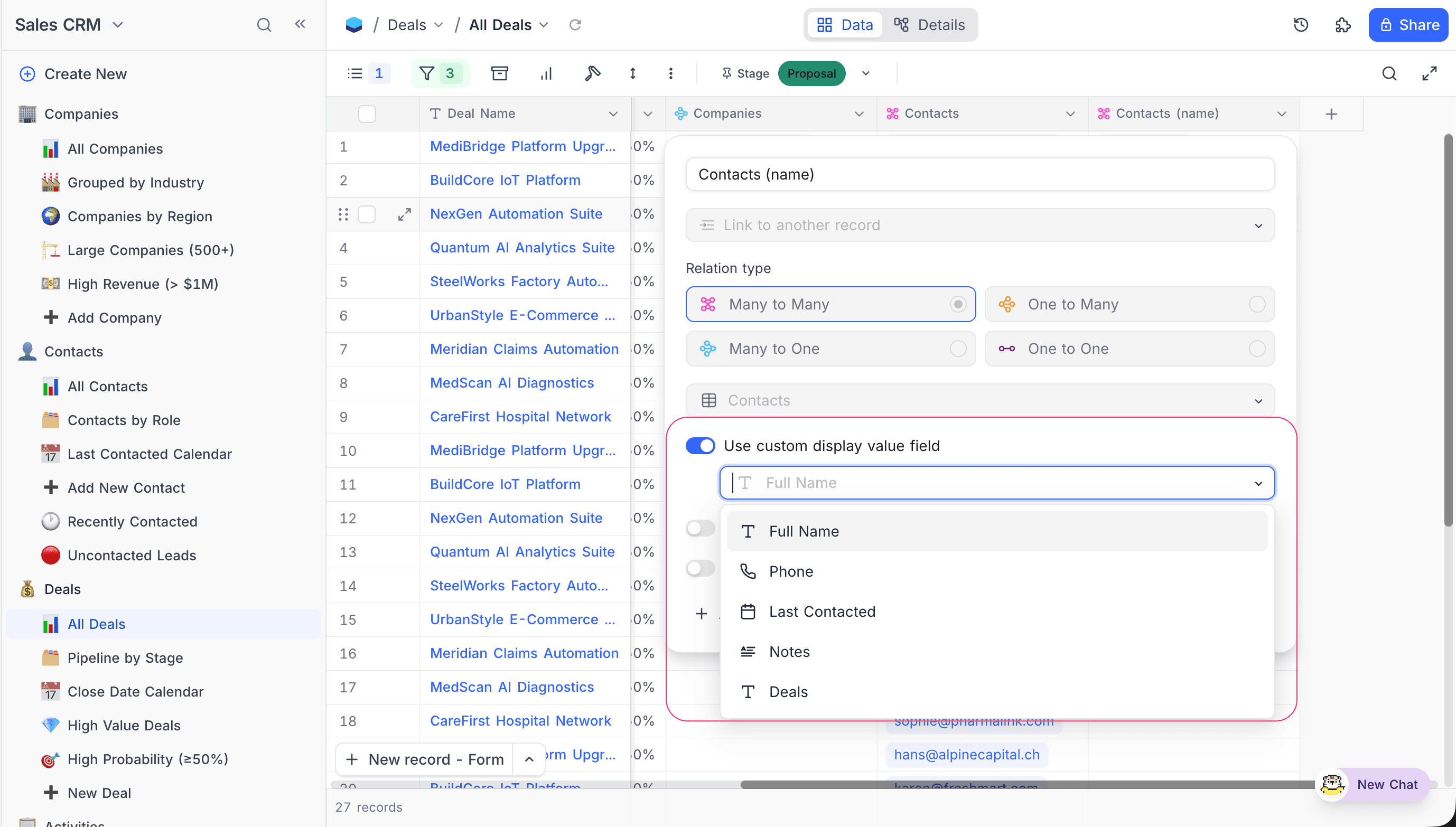
Once configured, the selected column is used as the display value wherever linked records are rendered (cell pills, link picker, expanded forms, calendar and timeline inline cards) and wherever they are referenced (search, filter, sort, group-by, formula, and audit log entries). The setting is preserved across export, import, and base duplication.
Upgrade from Links (V1)
If your base has existing Links fields (the older field type that displayed only a count of linked records), you can upgrade them to Link to Another Record fields.
The upgrade option is available in two places:
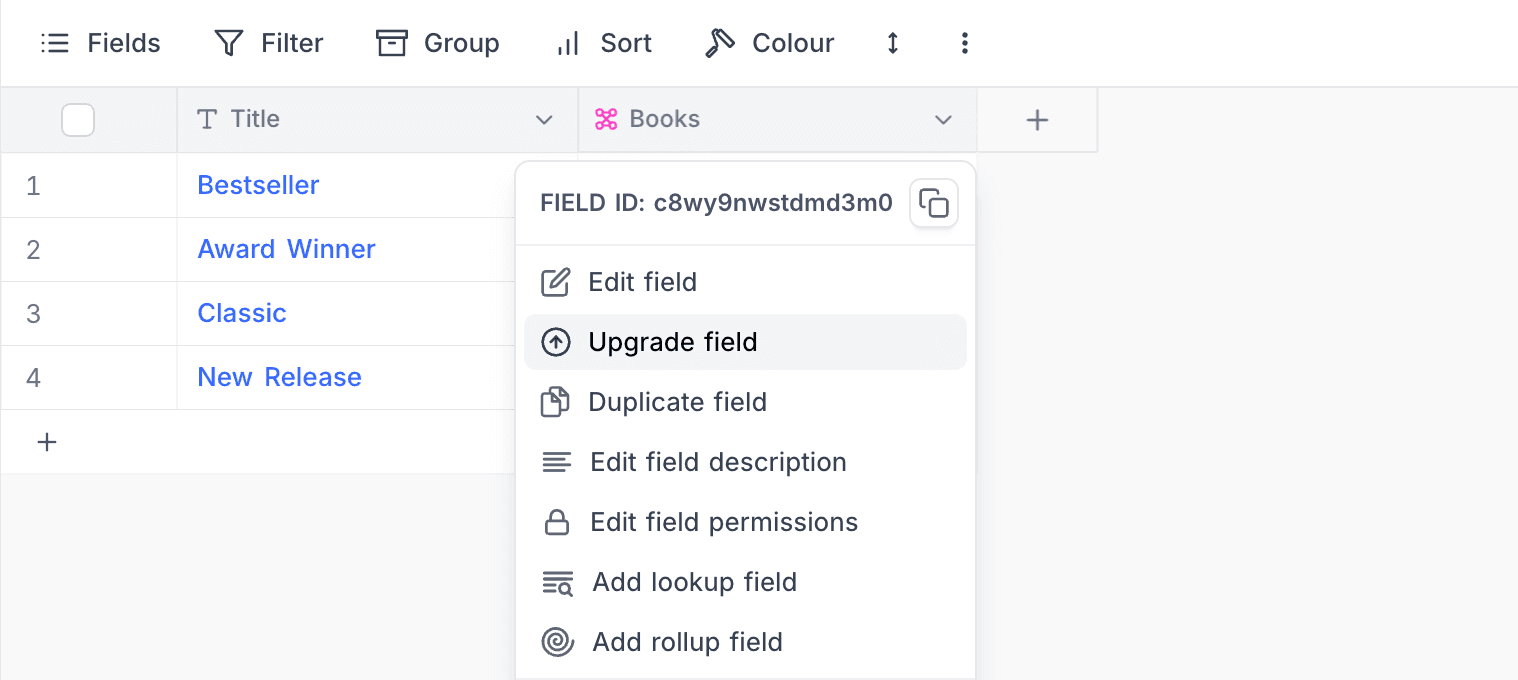
- Right-click on a Links field header and select
Upgrade field
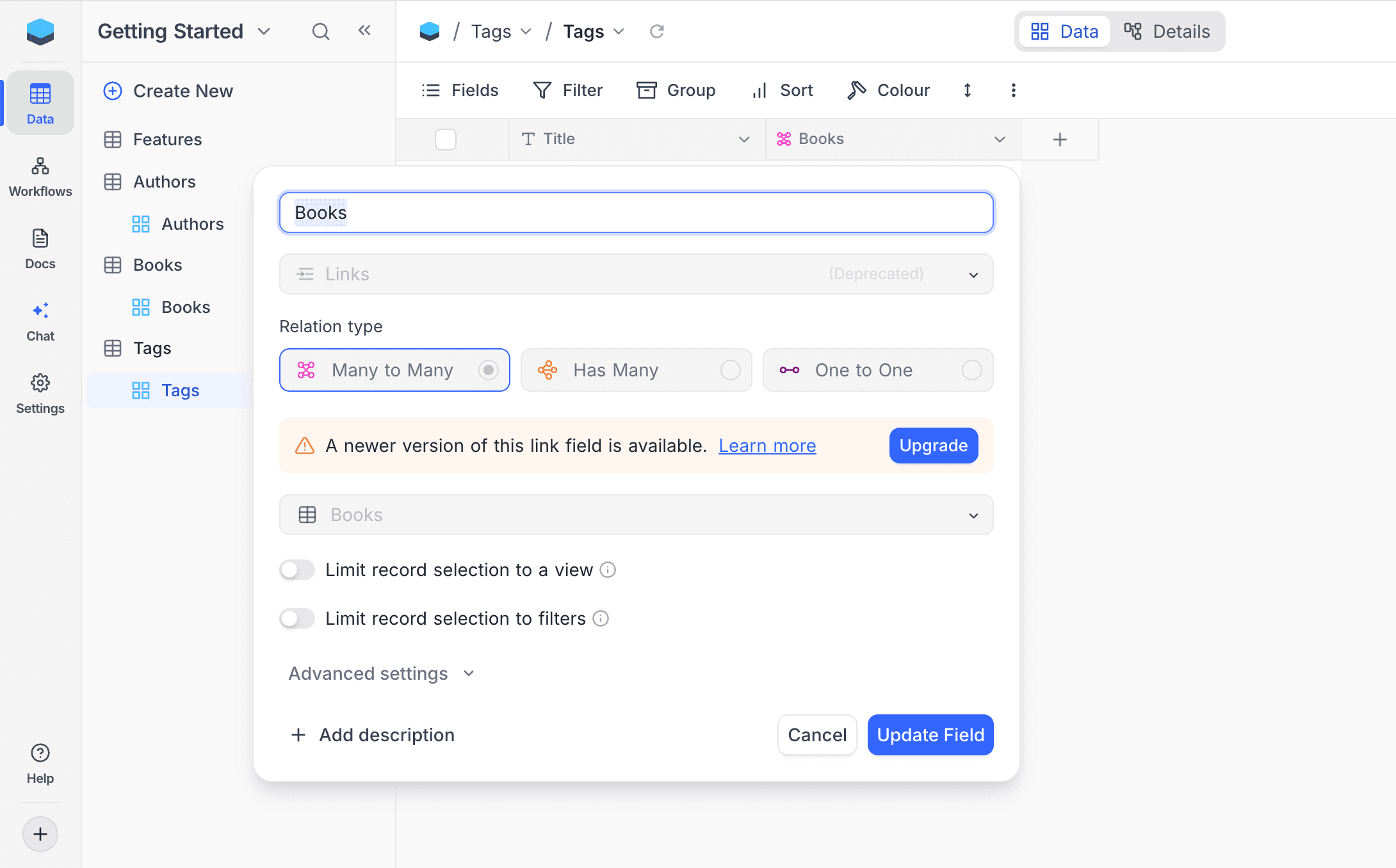
- Open the field editor — a banner will indicate that a newer version is available with an
Upgradebutton
A confirmation dialog will appear before the upgrade is applied.
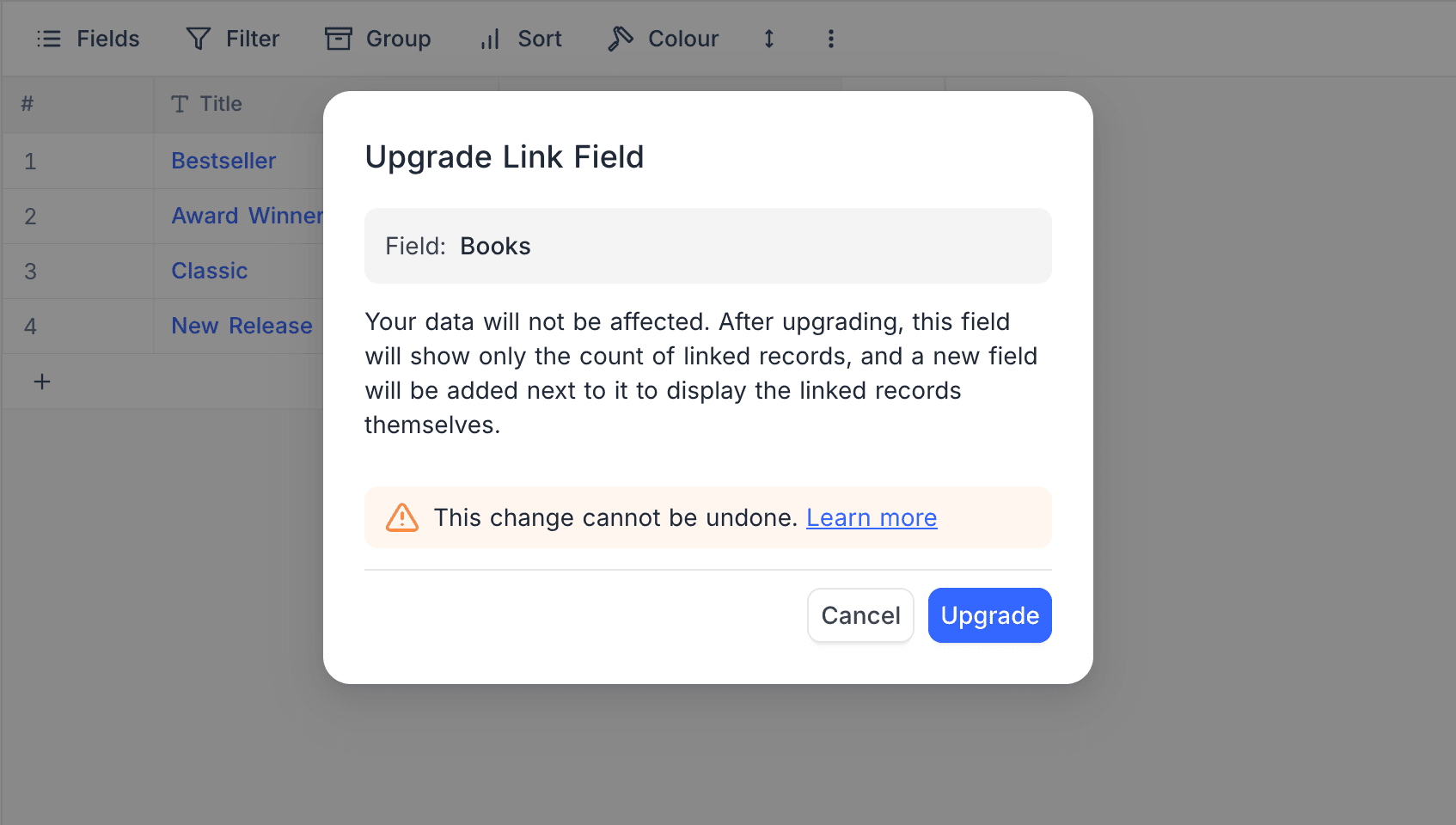
This change cannot be undone.
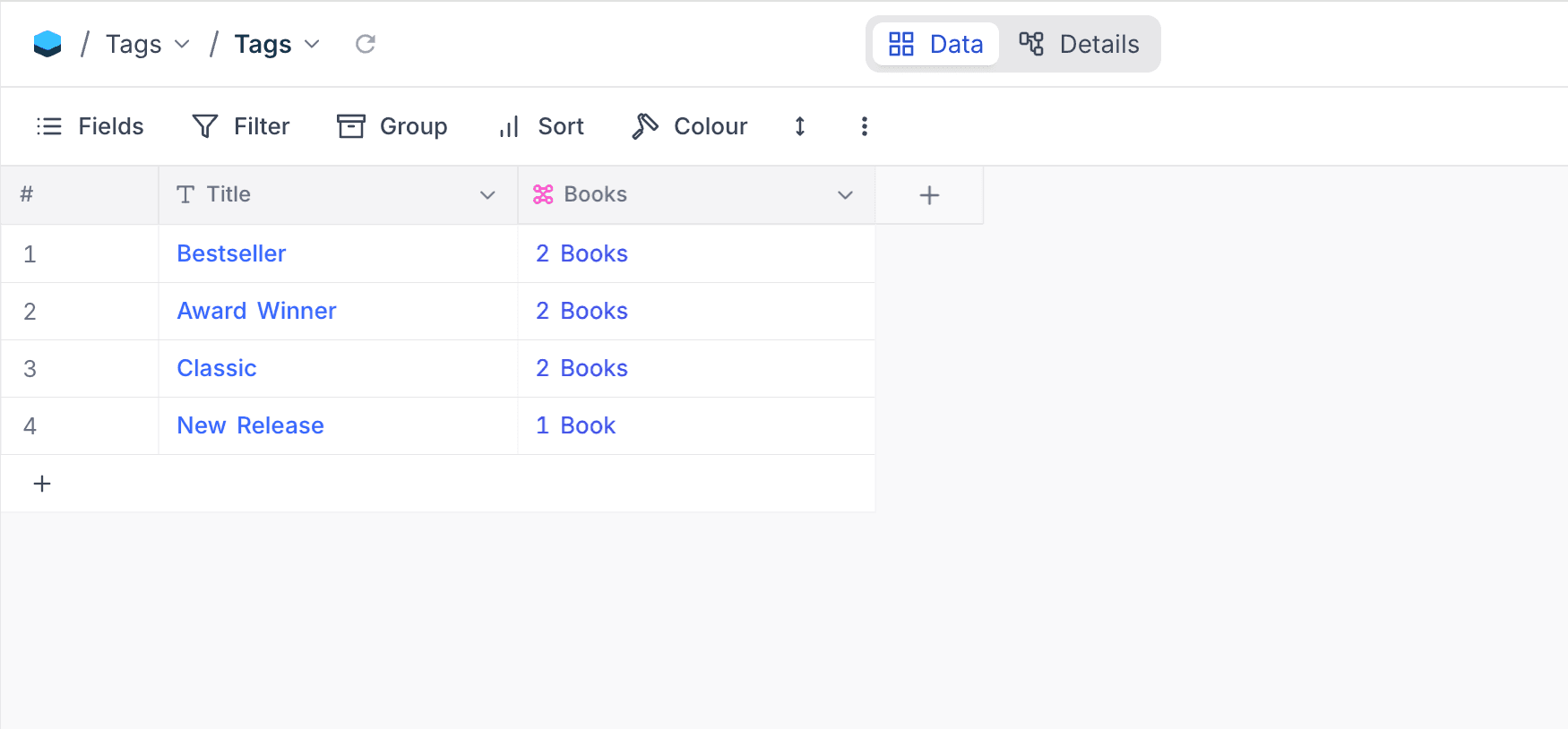
After upgrading:
- Your data will not be affected.
- The original field will show only the count of linked records (converted to a Rollup field).
- A new
Link to Another Recordfield will be added next to it to display the actual linked records.
| Before upgrade | After upgrade |
|---|---|
 | |