Connect Cursor to NocoDB
Cursor works with NocoDB through the NocoDB MCP server. You paste the JSON block from your MCP connection in NocoDB into the MCP settings of Cursor.
| Cursor | |
|---|---|
| Type | Desktop |
| How it connects | JSON block, over HTTP |
| You need | An MCP connection |
Set up Cursor
Cursor connects directly to the MCP endpoint over HTTP. Thus it does not need the mcp-remote bridge. Its JSON block carries the endpoint URL and the token header.
- Open Cursor Settings (
⇧+⌘+J). - Open the MCP tab.
- Select Add Custom MCP.
- Paste the JSON block that you copied here.
- Save.
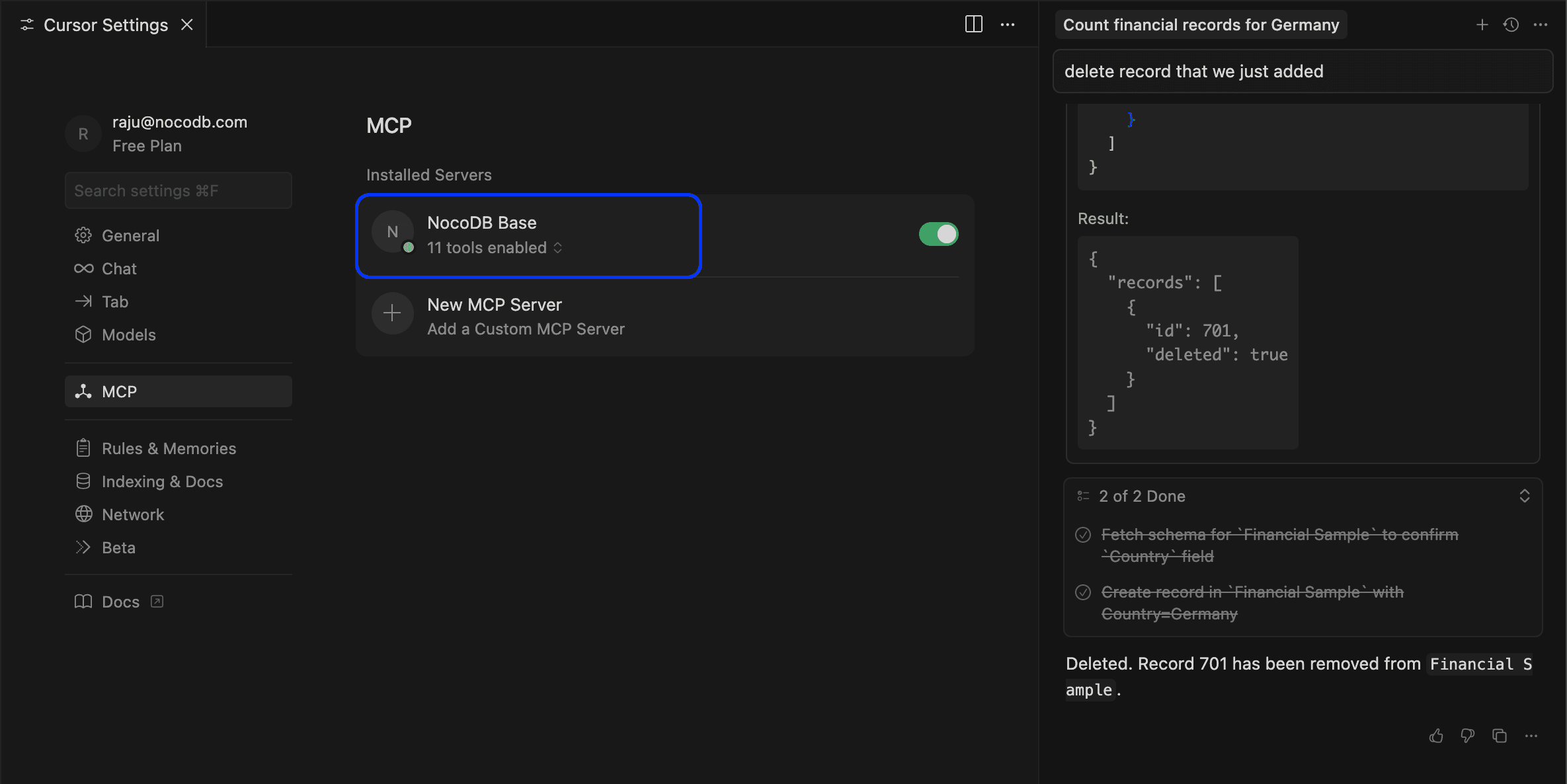
On success, you will see the number of tools enabled below the MCP Server just installed. If you see an error, double-check the JSON configuration.
Configuration example
Cursor and Windsurf connect over HTTP, so their block carries the endpoint URL and the token header. Cursor names the address url, and Windsurf names it serverUrl:
{
  "mcpServers": {
    "NocoDB MCP": {
      "url": "https://your-domain.com/mcp/<ncId>",
      "headers": { "x-api-key": "<ncToken>" }
    }
  }
}
The JSON block contains your MCP token, which gives access to your NocoDB projects. Do not put it in source control.
Related
Last updated on
Latest product updates?See Changelog