Connect Claude to NocoDB
NocoDB is in the Claude Connectors directory. Connect it from there, sign in to NocoDB, and Claude can work with your projects. You do not copy a token or edit a configuration file.
| Your NocoDB | How to connect |
|---|---|
| NocoDB Cloud | Connectors directory |
| Licensed self-hosted | Custom connector with your own URL |
| Community Edition | Claude Desktop with an MCP connection |
Connect from the Connectors directory
- In Claude, open Settings > Connectors, and browse the connectors directory.
- Select NocoDB, then click Connect. The NocoDB authorization screen opens.
- Sign in to NocoDB if it asks you to.
- Below Access, add the projects that Claude can reach. Below Tools & Permissions, allow the tools that Claude can call.
- Click Authorize. The connector shows as connected in Claude.
- Try it: start a new chat and ask "List my NocoDB workspaces and projects."
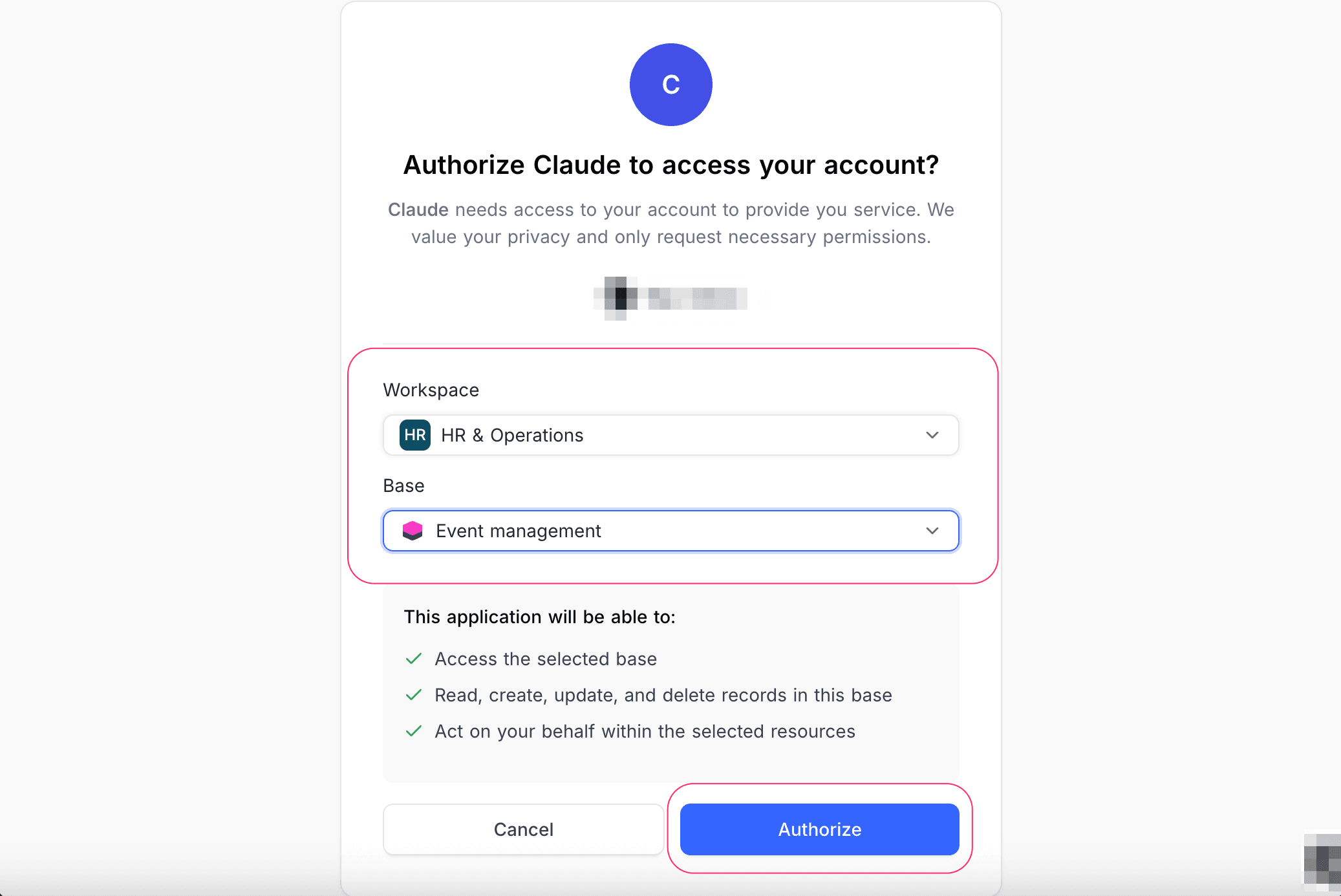
Authorize stays disabled until you add a minimum of one resource and allow a minimum of one tool.
Self-hosted NocoDB
On a licensed self-hosted deployment, add NocoDB as a custom connector with the address of your instance.
- In Claude, open Settings > Connectors and click Add custom connector.
- Type a name, and enter your server URL:
https://<your-nocodb-host>/mcp. Click Add. - On the new connector, click Connect, then authorize as in step 3 to 5 above.
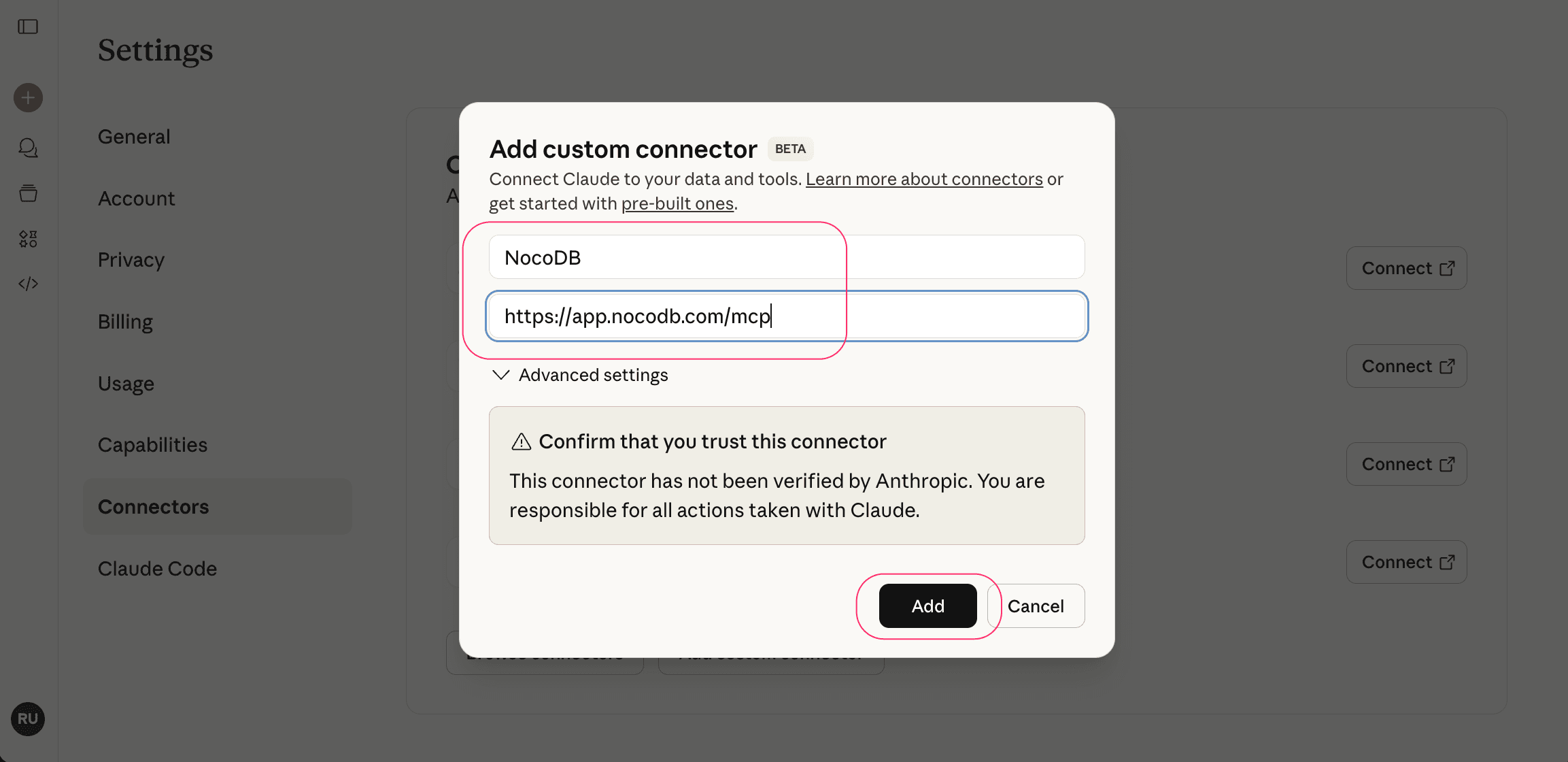
The server URL must be the public HTTPS address of your instance. NocoDB builds its sign-in addresses from NC_SITE_URL (or NC_PUBLIC_URL), so set it to that address.
Tool permissions in Claude
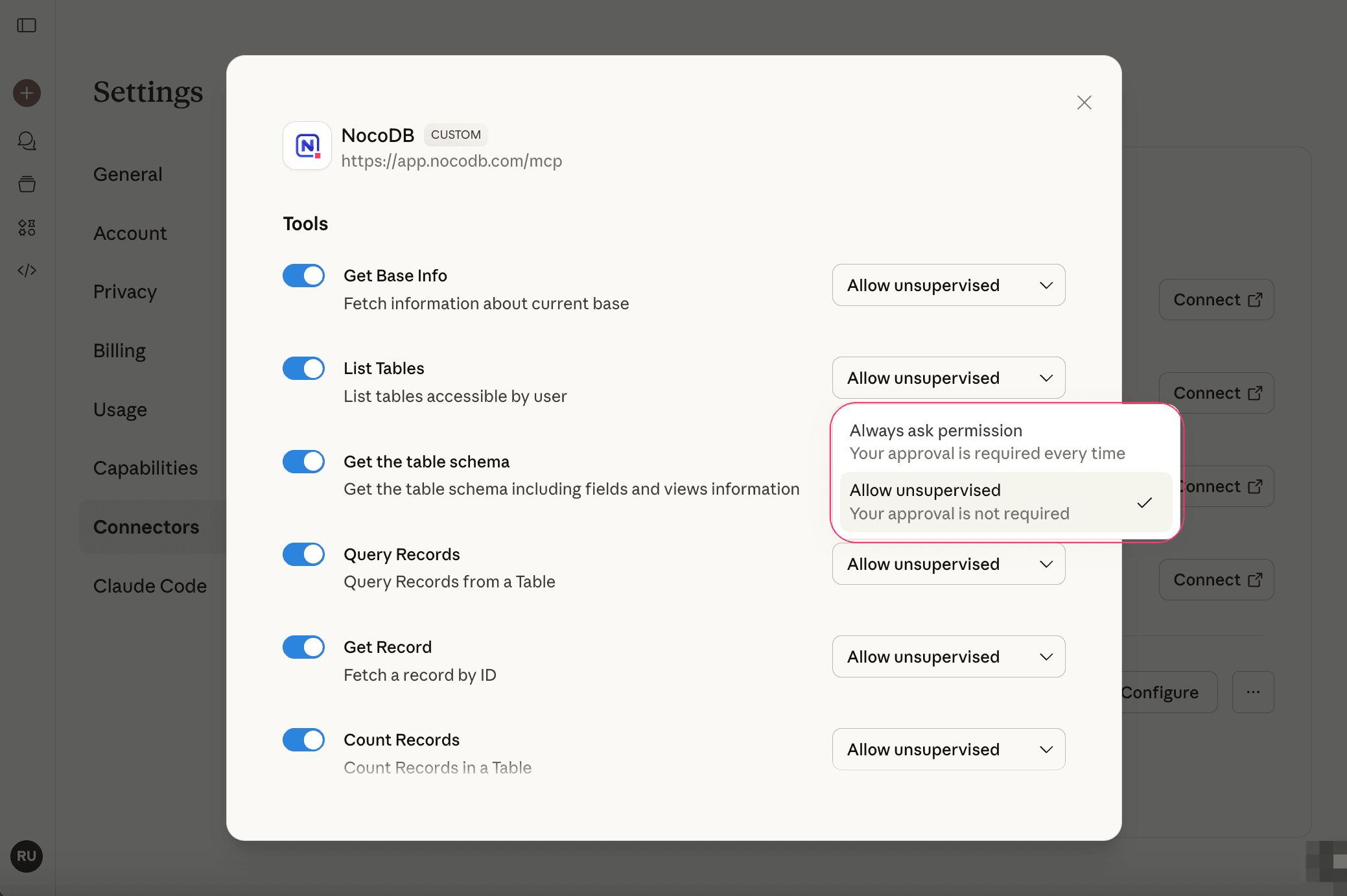
Claude asks for your approval before it uses a NocoDB tool. To let Claude use a tool without asking, open Settings > Connectors, click Configure on the NocoDB connector, and set the tool to Allow unsupervised.
Claude Desktop with an MCP connection
Use an MCP connection when you want to pin Claude to the projects of one connection, or on the Community Edition, which has no OAuth.
- Create an MCP connection and copy the JSON block from its Claude Desktop tab.
- Open Claude Desktop Preferences (
⌘+,). Under Develop, click Edit Config. - Insert the JSON block in
claude_desktop_config.json, and save the file. - Restart Claude Desktop.
Claude Desktop starts the server as a local command, so the block runs the mcp-remote bridge:
{
  "mcpServers": {
    "NocoDB MCP": {
      "command": "npx",
      "args": [
        "-y",
        "mcp-remote",
        "https://your-domain.com/mcp/<ncId>",
        "--transport",
        "http-only",
        "--header",
        "x-api-key:<ncToken>"
      ]
    }
  }
}Good to know
- A connector you add in Claude on the web also works in Claude Desktop and the Claude mobile apps.
- To see which workspaces and projects the connector can reach, ask Claude to use the Get Project Info tool.
- Only authorize projects and tools that you trust Claude to use for you.
Related
Last updated on