MCP Connections and Access
An MCP connection decides what an MCP client can do in NocoDB: the projects it can reach and the tools it can call. Desktop and CLI clients use a connection that you create. Web clients get the same choices on the OAuth authorization screen.
Server Configuration (NocoDB)
Each MCP endpoint in NocoDB gives a secure URL. You can link this URL to an MCP-compatible client. After you configure it, the LLM can do database operations in your workspace from natural language prompts. You do not write SQL or scripts.
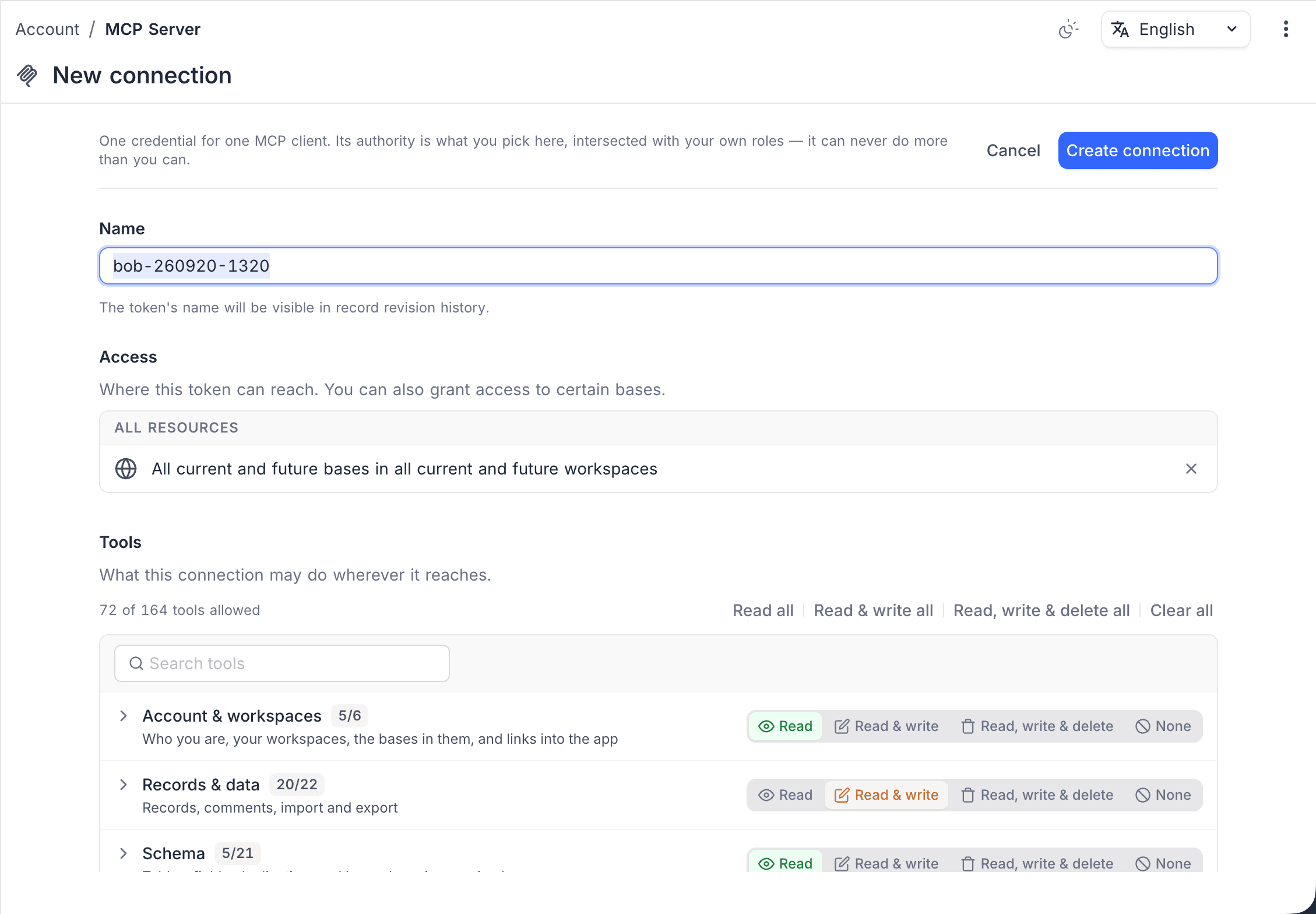
- Open Account Settings and select the MCP tab.
- Click New connection.
- Type a name for the connection.
- Below Access, add the projects that it can reach, or give access to all resources.
- Below Tools & Permissions, allow the tools that this connection can call.
- Click Create connection. NocoDB generates the configuration for each supported client.
- Select the tab of your LLM client and copy its configuration. The Claude Code tab gives a command, the Codex tab gives a TOML block, and the other tabs give a JSON block.
The MCP Server screen of a project lists the connections that reach that project. New connections that you create there are pinned to that project. Thus this screen does not show Access when you create or edit a connection. To change the access of a connection, use the MCP tab in Account Settings.
In the Community Edition, you create connections for each project:
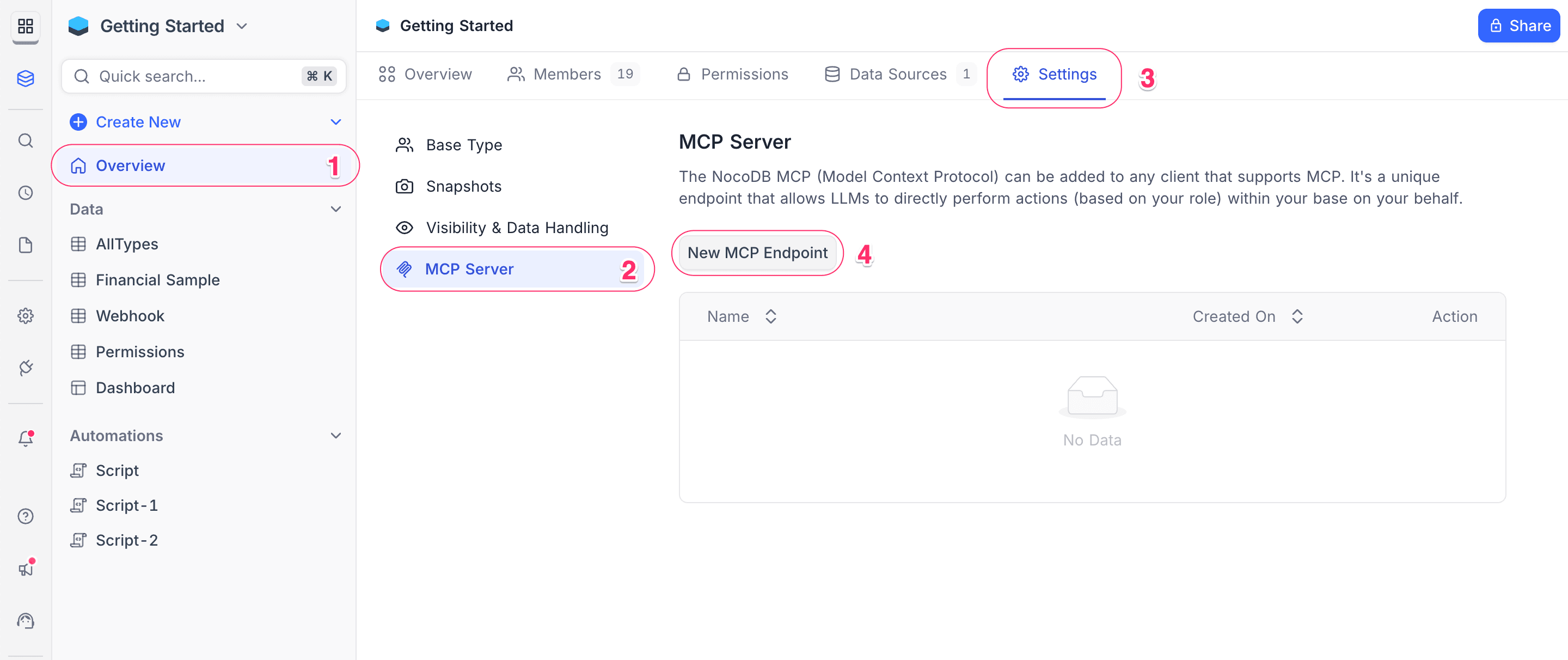
- In the left sidebar, click Overview.
- Select the Settings tab.
- Select Model Context Protocol.
- Click New MCP Endpoint. This creates a new MCP config JSON for your project.
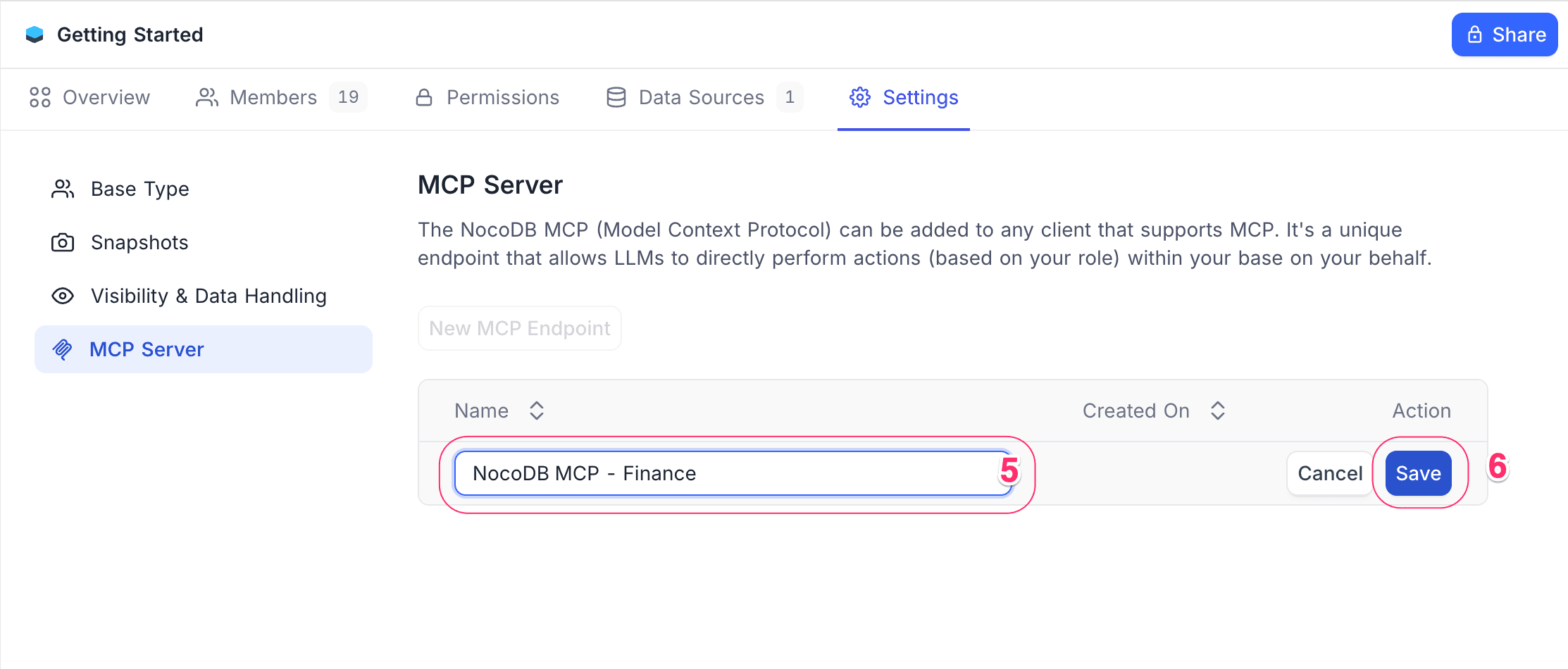
- Type a name for the MCP endpoint.
- Click Create. NocoDB generates the MCP Config JSON.
- Copy the generated JSON configuration. You use it in the configuration of your LLM client.
xc-mcp-token header, so existing configurations using it keep working.Connection tools and access
On all editions except the Community Edition, you create an MCP connection for your account, not for a single project. When you create it, you select what it can do. Use one connection for one MCP client.
Access sets what the connection can reach. Add the projects that it can use, or give it all resources.
Tools & Permissions is an allowlist of the tools that the connection can call. NocoDB does not register a tool that you do not allow, so the tool does not show in the tool list of the client. Set each section to Read, Read & write, Read, write & delete, or None. To allow single tools instead, expand the section. A new connection starts every section at Read, write & delete, so narrow the ones that a client does not need.
| Section | What it covers |
|---|---|
| Records & data | Records, comments, import and export |
| Schema | Tables, fields, duplicating, and how a project is organized |
| Views | Views, filters, sorts, sharing, form fields, row colors |
| Automation | Workflows, webhooks, scripts, and agents |
| Interfaces, dashboards & docs | Interface pages, dashboards, widgets, and documents |
| Account & workspaces | Who you are, your workspaces, the projects in them, and links into the app |
| Access & security | Field and table permissions, row-level security |
| Platform | Integrations, environments, and apps |
You can change a connection after you create it:
- Open the connection from the list, or click Edit connection in its row menu.
- Rename the connection, or change its Access and Tools & Permissions.
The change applies on the next call of the client, and the key stays the same. NocoDB shows the key only when you create or regenerate a connection.
Opt-in tools
Opt-in tools delete for good or act outside NocoDB. A connection never gets an opt-in tool unless you switch it on under Opt-in tools when you create or edit the connection. A section level such as Read, write & delete does not include them.
| Tool | What it does |
|---|---|
deleteBase | Delete a project that this connection created. You cannot restore the project, over MCP or in the app. NocoDB also removes the link fields in other projects that point into it. The tool first shows a preview, and deletes only when the client sends the exact project title. |
executeWorkflow | Run the published version of a workflow now. Its nodes write records, call external services and send messages. |
testHook | Fire a webhook once with a sample payload. This sends a real request, email or message. |
Tools that the client finds on demand
The NocoDB MCP server keeps its schema, automation and configuration write tools out of the tool list to save the context of the client. Read tools and the record create, update and delete tools are in the list directly. The client uses two tools to reach the others:
| Tool | What it does |
|---|---|
listTools | Show the write tools of one category, with their argument schemas. |
callTool | Run a tool that listTools showed. NocoDB checks the arguments against the schema of that tool. |
These two tools give no extra access. callTool runs only the tools that the connection allows.
A connection can never do more than you can. Its authority is the part of your selection that your own roles also permit. NocoDB resolves this authority on each tool call, so a role change applies from the next call. Two rules are outside the access list:
- A connection can always reach a project that it creates.
- MCP connections cannot create a workspace.
Web based LLM Clients (OAuth)
Connect NocoDB to web-based LLM applications with OAuth. The LLM then gets database access directly from the browser, and you do not set up a desktop client. This method gives granular permission controls, and you do not configure JSON manually.
The authorization screen has the same Access and Tools & Permissions pickers as an MCP connection. Thus a client reaches only the projects that you add and calls only the tools that you allow. The screen starts every section at Read, write & delete.
Some clients name the permissions that they need in the authorization request. They use <category>:<level> pairs, for example records:read or tables:write. The level is read, write or delete. For these clients:
- The screen shows the requested permissions below Requested permissions, in place of the Tools & Permissions picker.
- You cannot edit this list. Authorize it as it is, or cancel.
- You still select the projects that the client reaches, below Access.
- The screen marks a permission that NocoDB does not offer. If you authorize, the client gets an
invalid_scopeerror, not a grant.
Managing and removing access
| To remove access of | Do this |
|---|---|
| A client connected with OAuth, for example Claude or ChatGPT | Open Account Settings > External Integrations. The list shows each authorized application, what it can access and when you authorized it. In the row of the application, open the actions menu and click Revoke. |
| An MCP connection | Open Account Settings > MCP, then edit the connection or delete it. A client that uses a deleted connection can no longer connect. |
External Integrations shows "No authorized applications" until you authorize a client with OAuth. It is available on NocoDB Cloud and licensed self-hosted deployments, the editions that have OAuth.
API call usage
A tool call counts toward the API Calls allowance of the workspace. It counts as the same work would cost over the REST API, not as one call for each request. If a client sends several tool calls in one request, NocoDB charges each of them.
| Tool | Counts as |
|---|---|
| Link records, unlink records | one call per record, since the REST route takes one record at a time |
| Create, update, delete records | one call per 10 records, the REST bulk limit |
| Export CSV | one call per 1,000 rows returned |
| Upload attachments, import CSV | one call, since the REST route takes the whole set or file in one request |
| Submit feedback | nothing, NocoDB does not charge a feedback report |
| Every other tool | one call |
Related
Last updated on