Connect ChatGPT to NocoDB
To connect ChatGPT to NocoDB, create a connector with the URL https://app.nocodb.com/mcp and sign in to NocoDB. You do not copy a token or edit a configuration file.
Connect ChatGPT
- Open ChatGPT Settings > Apps & Connectors, and click Create.
- Type a name, enter the URL
https://app.nocodb.com/mcp, select I trust this application, and click Create. The NocoDB authorization screen opens. - Sign in to NocoDB if it asks you to. Below Access, add the projects that ChatGPT can reach. Below Tools & Permissions, allow the tools that ChatGPT can call. Click Authorize.
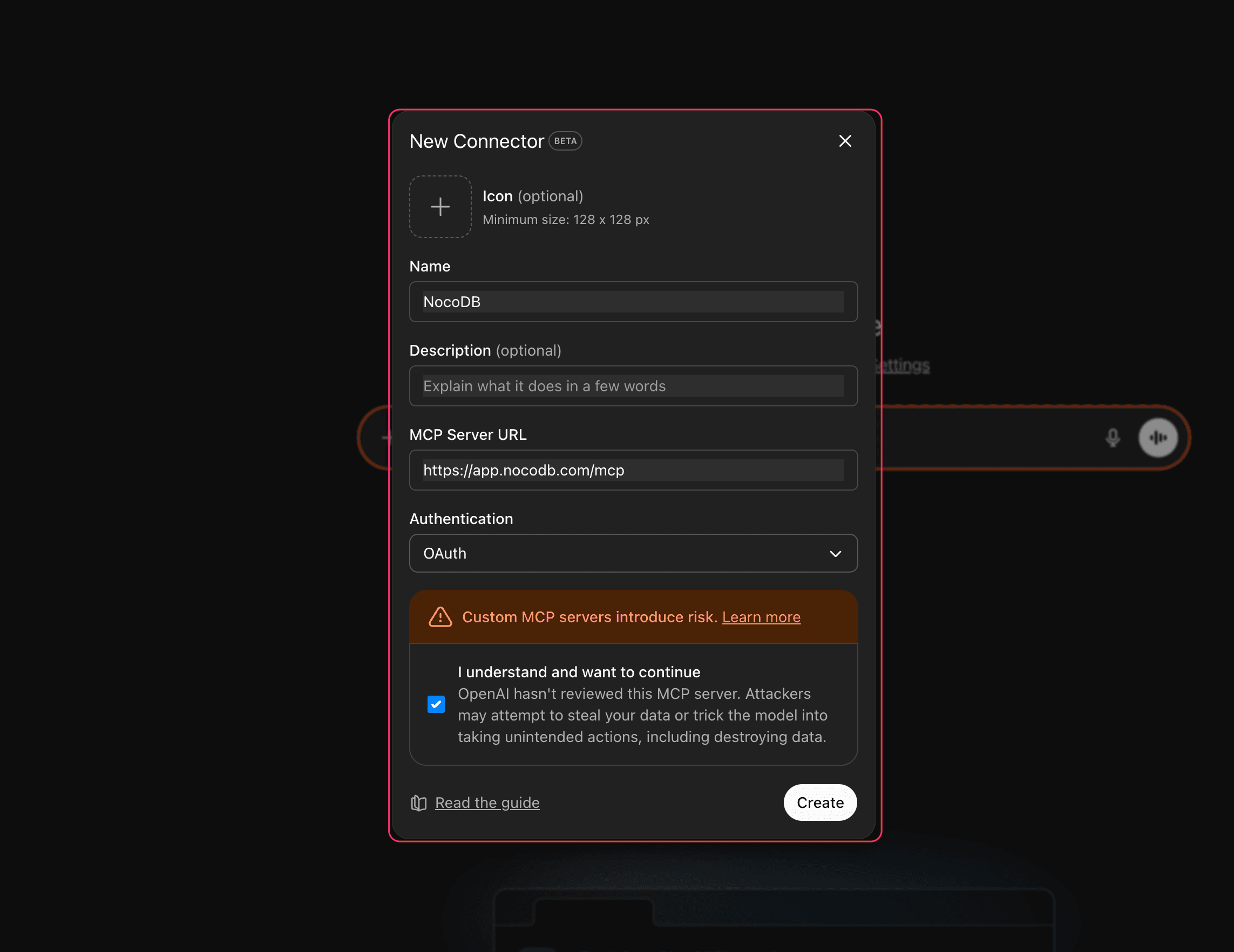
ChatGPT shows that the NocoDB connector is connected. Try it: in a new chat, turn on the connector as below and ask "List my NocoDB workspaces and projects."
On a licensed self-hosted deployment, use https://<your-nocodb-host>/mcp. The URL must be the public HTTPS address of your instance, set in NC_SITE_URL (or NC_PUBLIC_URL).
Use NocoDB in a chat
- In a new conversation, click the + icon, then More.
- Select the NocoDB connector, and turn it on.
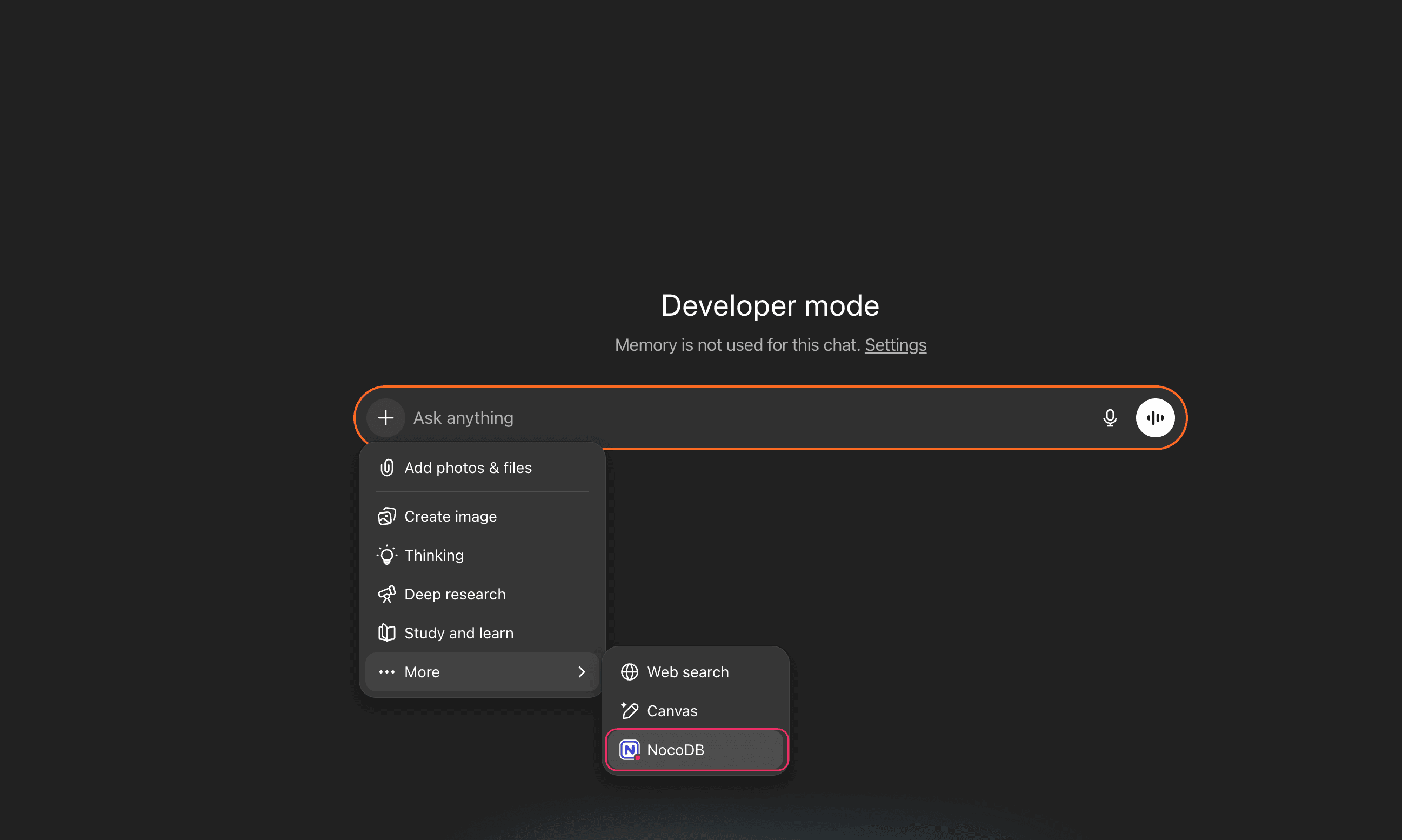
Then ask in plain language, for example "List all open support tickets assigned to me". ChatGPT works within the projects and tools that you authorized.
Good to know
- A connector you add on chatgpt.com also works in the ChatGPT desktop app.
- The Community Edition has no OAuth, so ChatGPT cannot connect to it.
- Only authorize projects and tools that you trust ChatGPT to use for you.
Related
Last updated on
Latest product updates?See Changelog