Preferences
The Preferences page holds the settings that change how NocoDB looks and reads for you. The settings change nothing for your collaborators. Week starts on and Colourblind-friendly colours are saved on your account. Theme and Language are saved in your browser, so set them again on another browser or device.
To open the page, click your profile picture in the bottom-left corner, then select Preferences. You can also open it from the Account Settings sidebar. The page groups the settings under Appearance, Language & region and Accessibility.
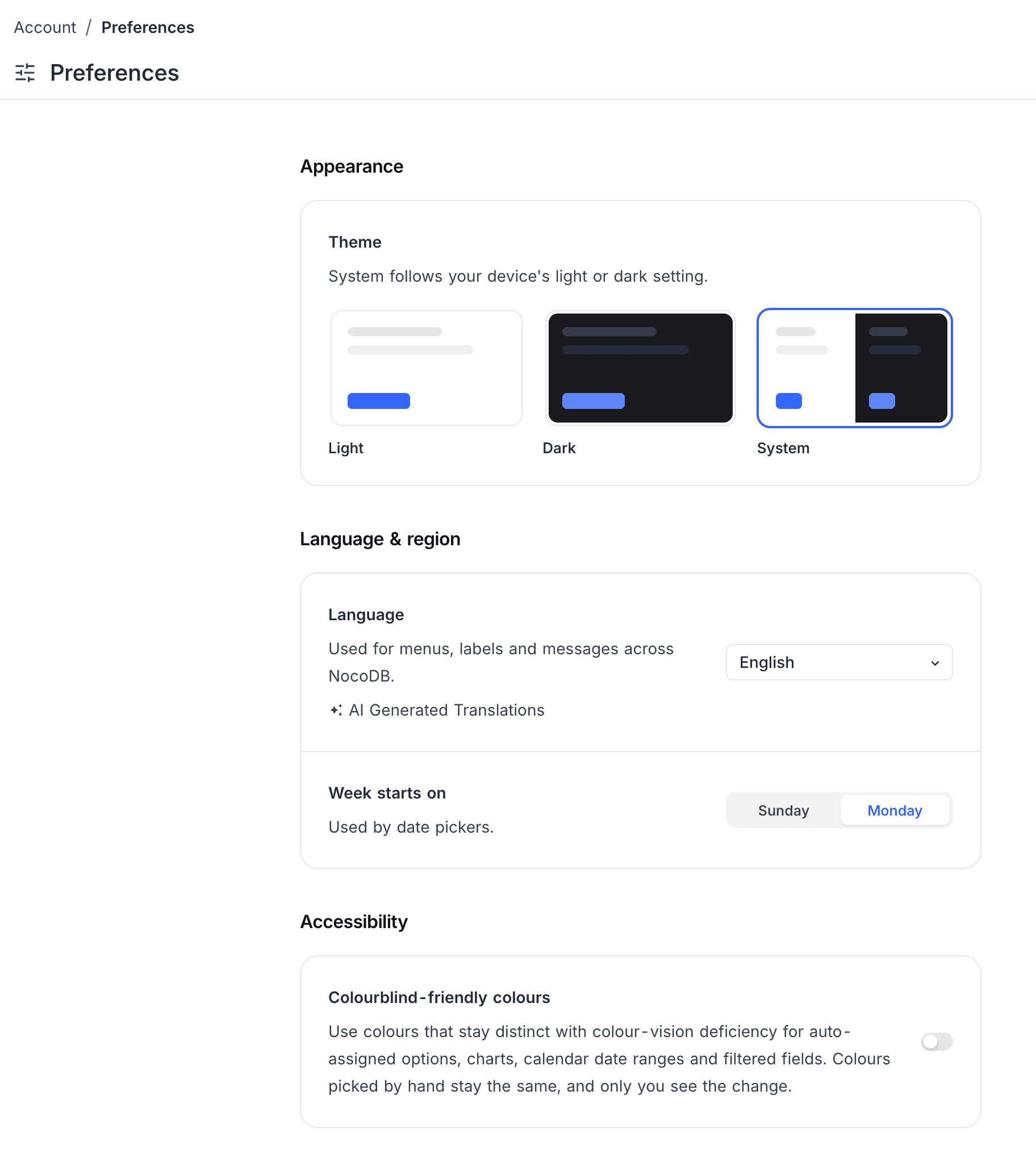
Theme
Theme sets the appearance of NocoDB to Light, Dark or System. System follows the light or dark setting of your device, and changes with it. For more details, refer to Appearance.
Language
Language sets the language of the menus, labels and messages of NocoDB. For more details, refer to Language settings.
Week starts on
Week starts on decides which day a week starts on in the NocoDB date pickers. Select Monday or Sunday. The default is Monday. NocoDB stores this one with your account, so it follows you to another browser or device.
The setting applies to the date pickers that you open from a cell, a filter, a field default or a date range. Calendar, Timeline and Gantt views keep their own week layout, but the date pickers in the Gantt record panel follow the setting.
Colourblind-friendly colours
Colourblind-friendly colours shows the colors of the NocoDB palette in colors that stay apart with color vision deficiency. Turn it on under Accessibility.
The setting covers:
- the colors of select options, and anything that takes its color from them, such as Kanban stacks and record coloring by a select field
- the palette of a chart
- the accent of each date range in a Calendar view
- the highlight on a field that a filter uses, which turns purple so that it stays apart from the orange of a sorted field
- the highlighted dependency chain in a Gantt view
A custom color that you enter as a hex code stays as you set it. No collaborator sees the change.
A chart uses the safe palette in place of the palette set on the widget, except Contrast, which is already safe. The chart settings say so below the palette picker.
Last updated on