Profile Page
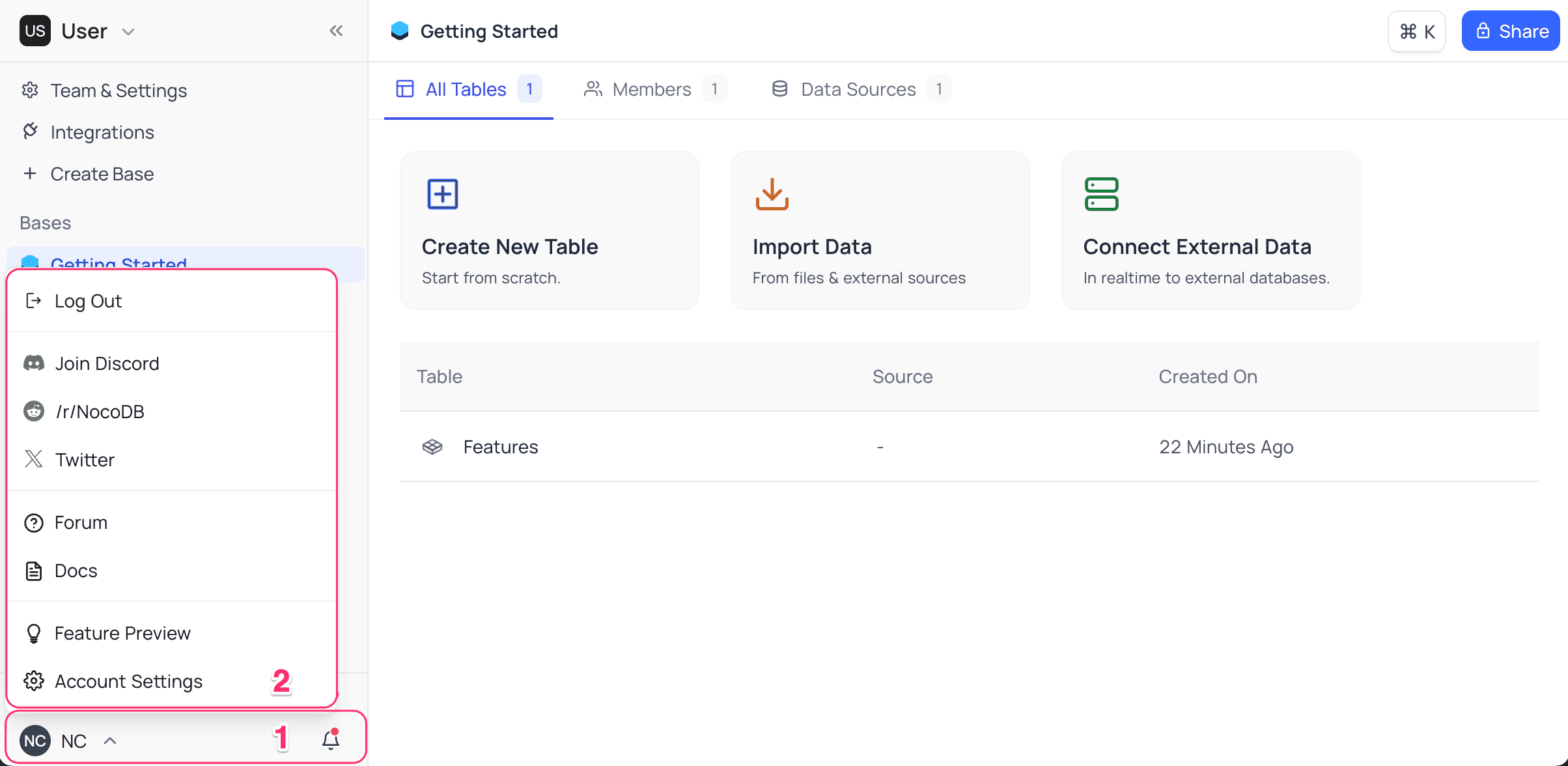
Profile page is the place where you can manage your profile information. Currently, only a custom username can be setup as part of profile configuration. To access your profile page,
- Click on
User menuin the bottom left corner of the sidebar, - Select
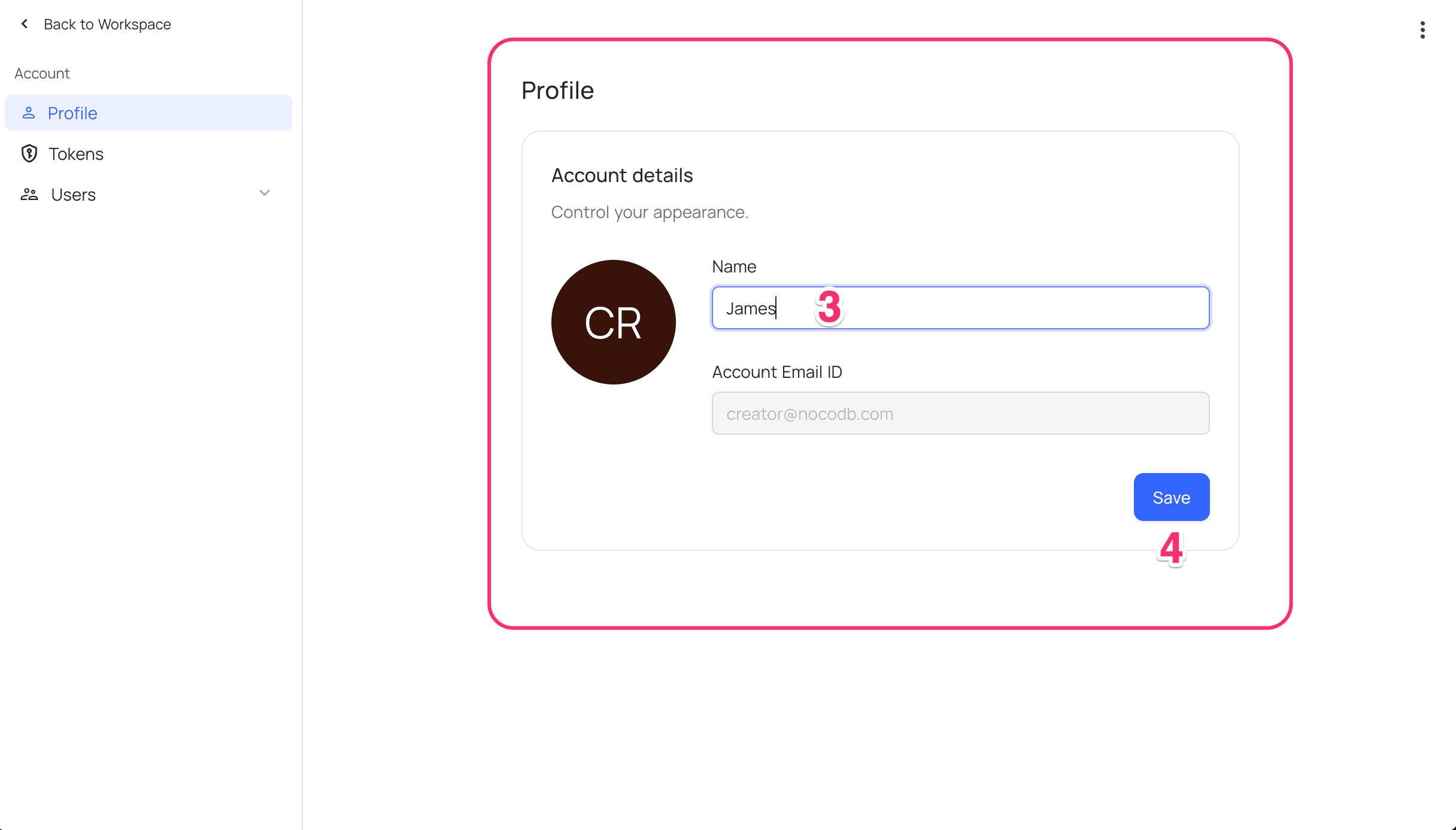
Account Settingsfrom the dropdown - Change
Profile name - Click on
Savebutton to save the changes
Delete Account
Deleting your account is currently available only on NocoDB Cloud.
To delete your account permanently,
- Click on
User menuin the bottom left corner of the sidebar, - Select
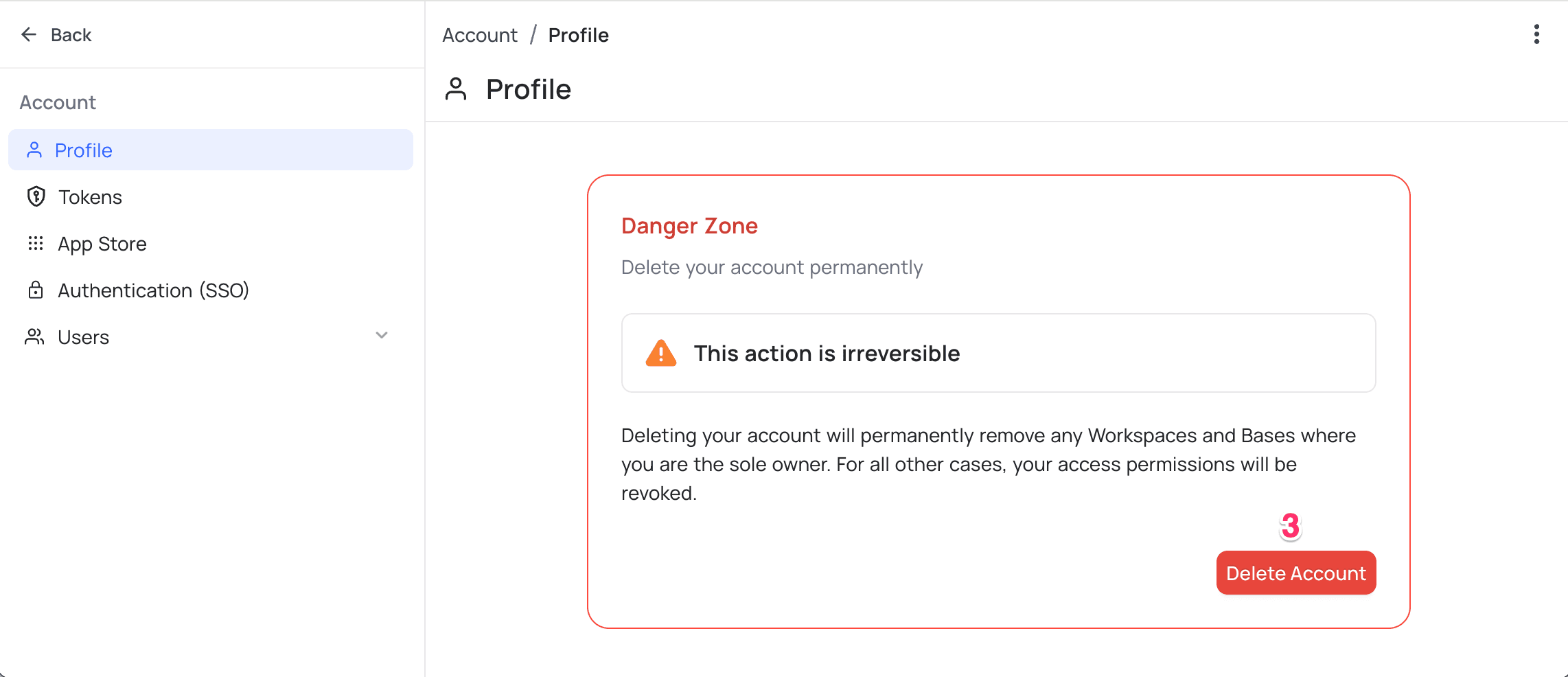
Account Settingsfrom the dropdown - In the section for delete account, click on
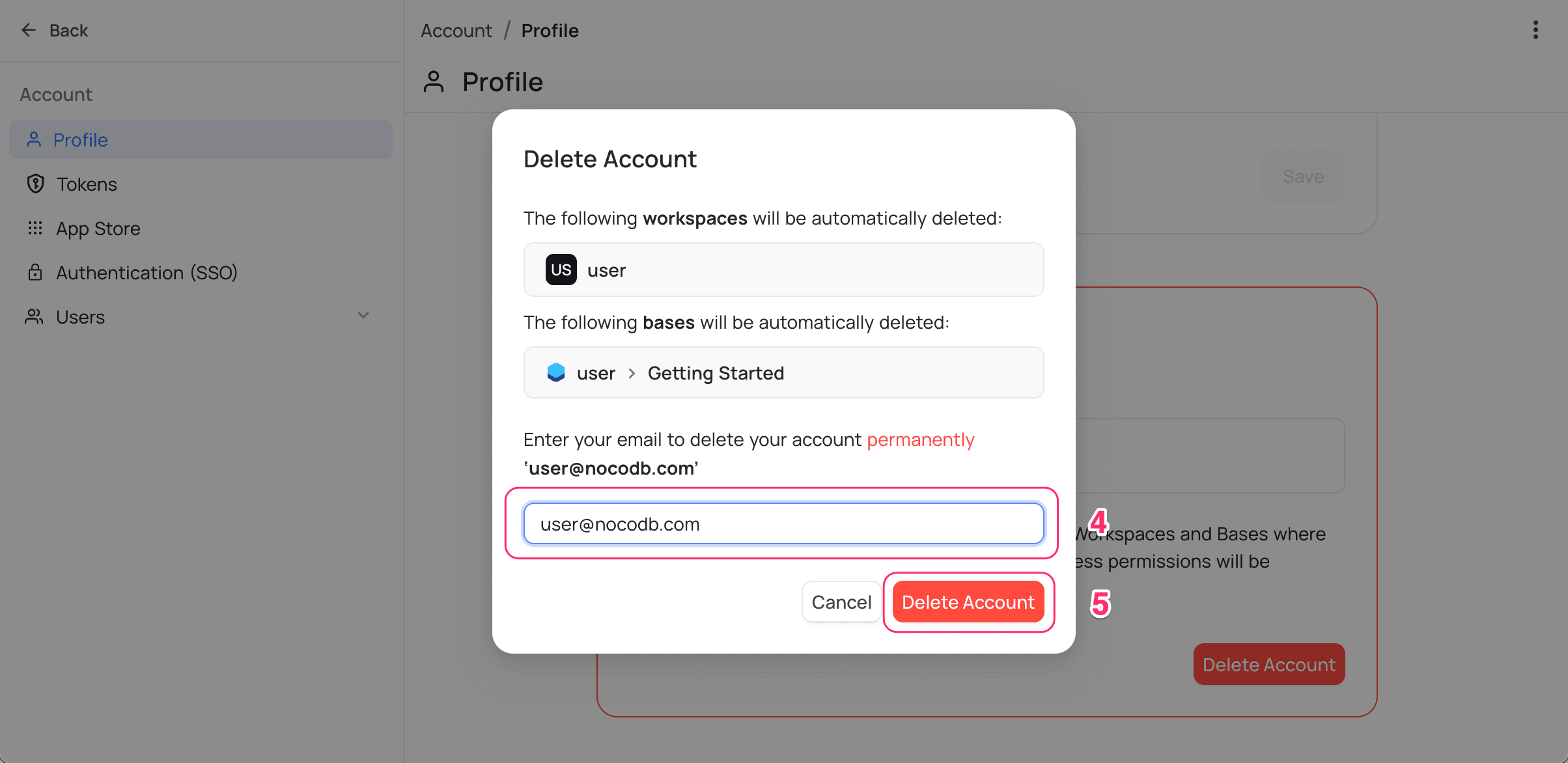
Delete Accountbutton - Confirmation modal displays the Workspaces, Bases & Tokens that will be invalidated upon deletion. As a confirmation step, you will be asked to enter your email address associated with the account.
- Click on
Delete Accountbutton to delete the account permanently.
- Deleting the account is irreversible and all the data associated with the account will be lost permanently.
- All the workspaces & bases for which you are the sole owner will be deleted. For all other workspaces & bases, you access permissions will be revoked.
- All the tokens associated with the account will be invalidated.
- You will be allowed to re-register with the same email address. However, you will require invite from the existing workspace owner to access the workspaces & bases.
Last updated on
Latest product updates?See Changelog