Record Templates
Learn how to create and use record templates in NocoDB to quickly add records with pre-filled values.
Record Templates allow you to define reusable sets of pre-filled field values for a table. When you use a template, NocoDB creates a new record with all the values you defined — including linked records up to three levels deep. This is useful when you frequently create records that share common field values, eliminating the need to fill in the same information repeatedly.
Manage Templates
The Manage Templates modal lets you view, create, edit, enable/disable, and delete all record templates across every table in the current base.
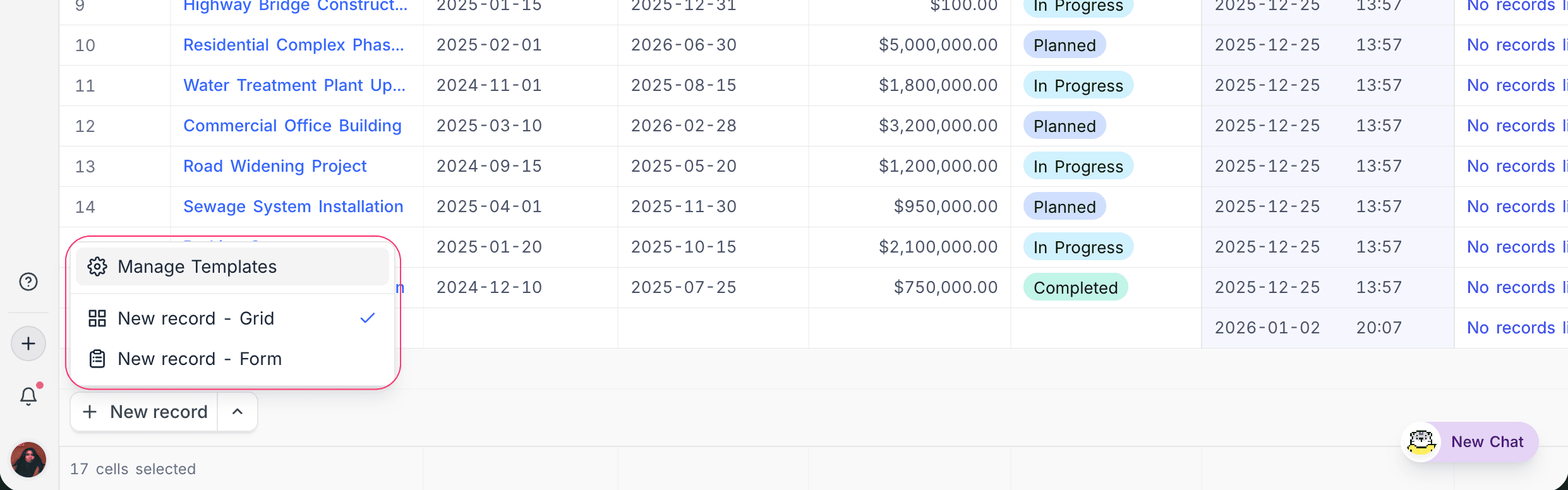
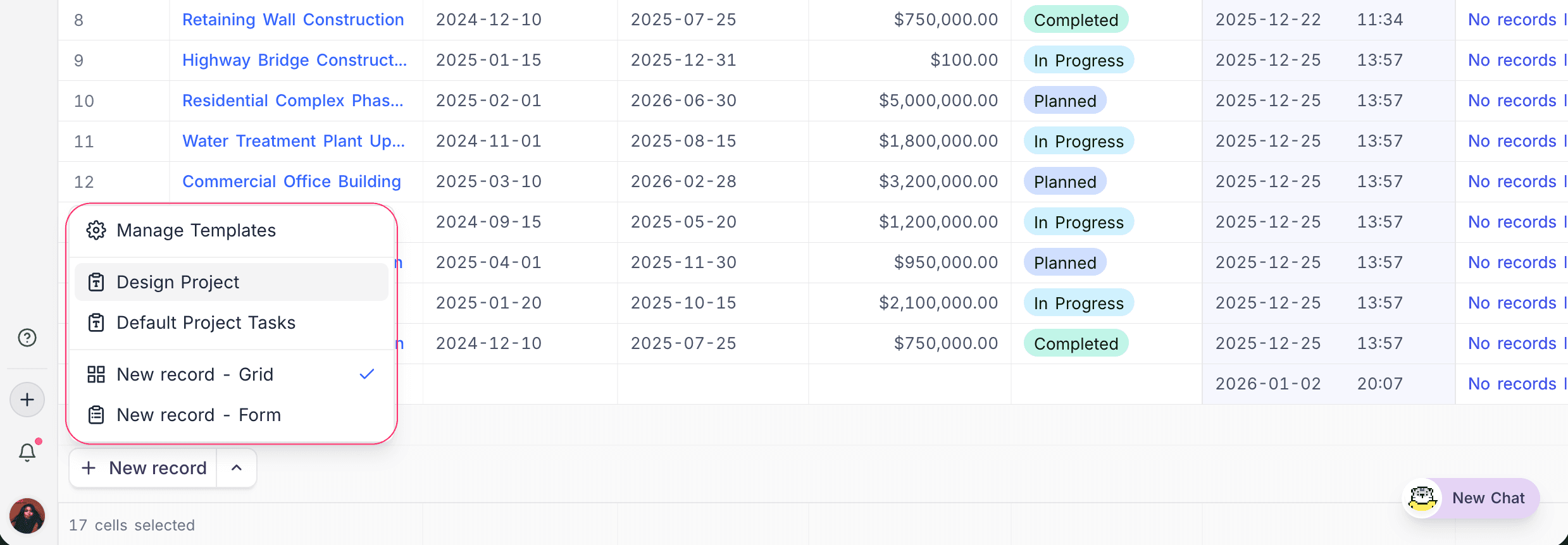
To open the modal, click the up-arrow on the New Record button at the bottom of the grid view and select Manage Templates.
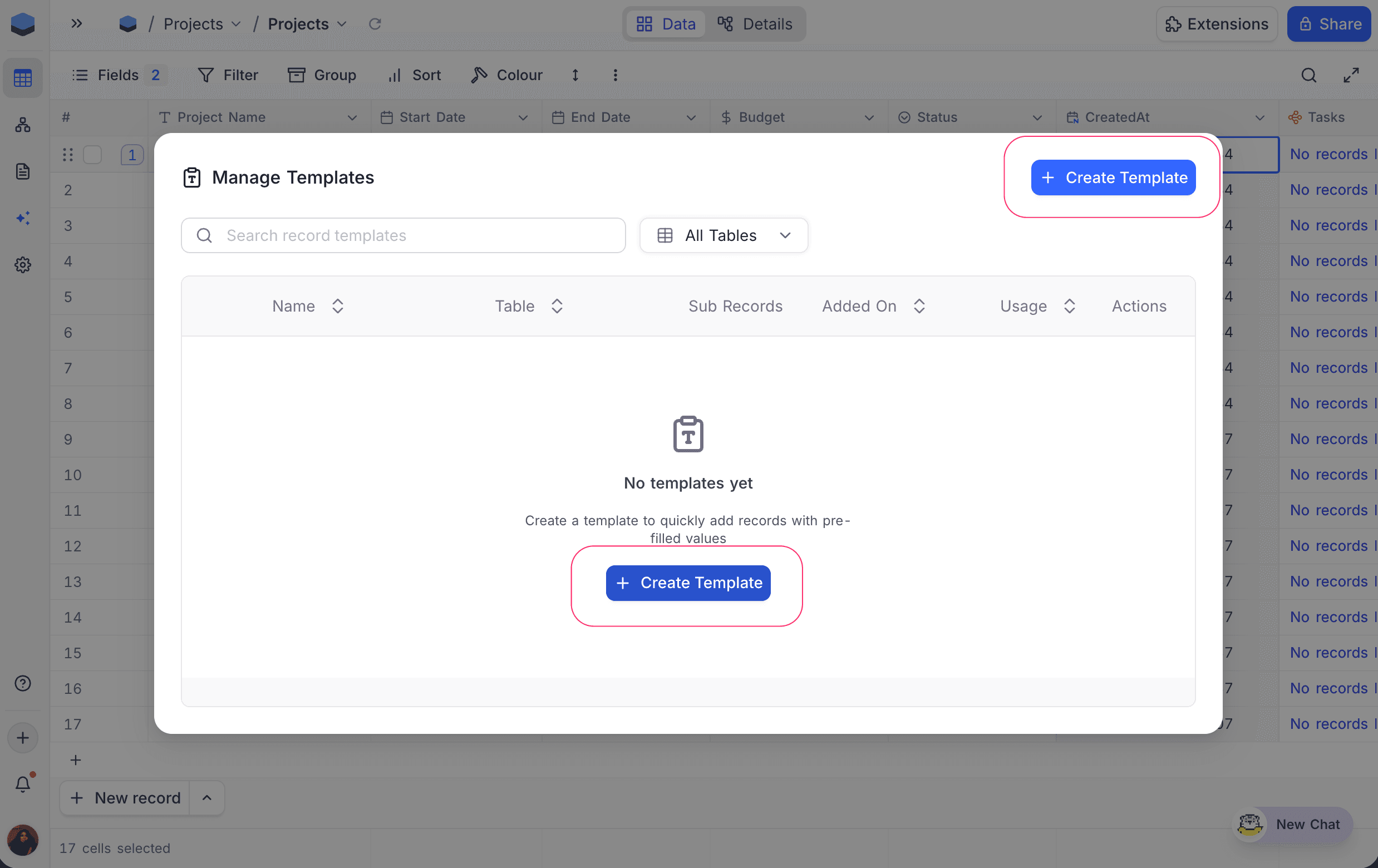
When no templates have been created yet, the modal displays an empty state with a prompt to create your first template.
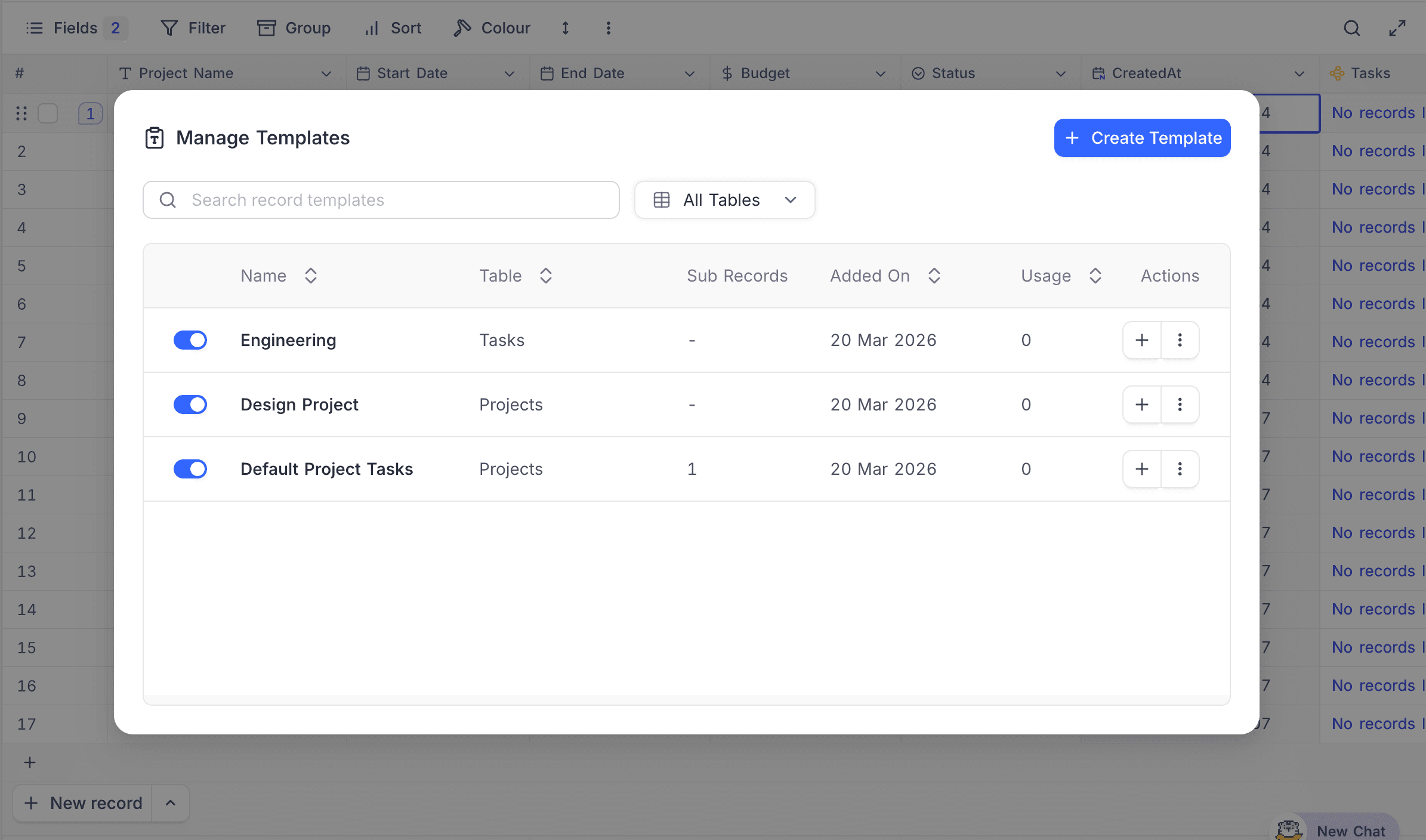
Once templates exist, the modal displays a table with the following columns:
- Enabled — Toggle to enable or disable a template. Disabled templates are hidden from the add-new-row menu but remain available in the manager.
- Name — Template name (must be unique per table).
- Table — The table this template belongs to.
- Sub Records — Number of linked sub-records (blueprints) defined in the template.
- Added On — Date the template was created.
- Usage — Number of times the template has been used.
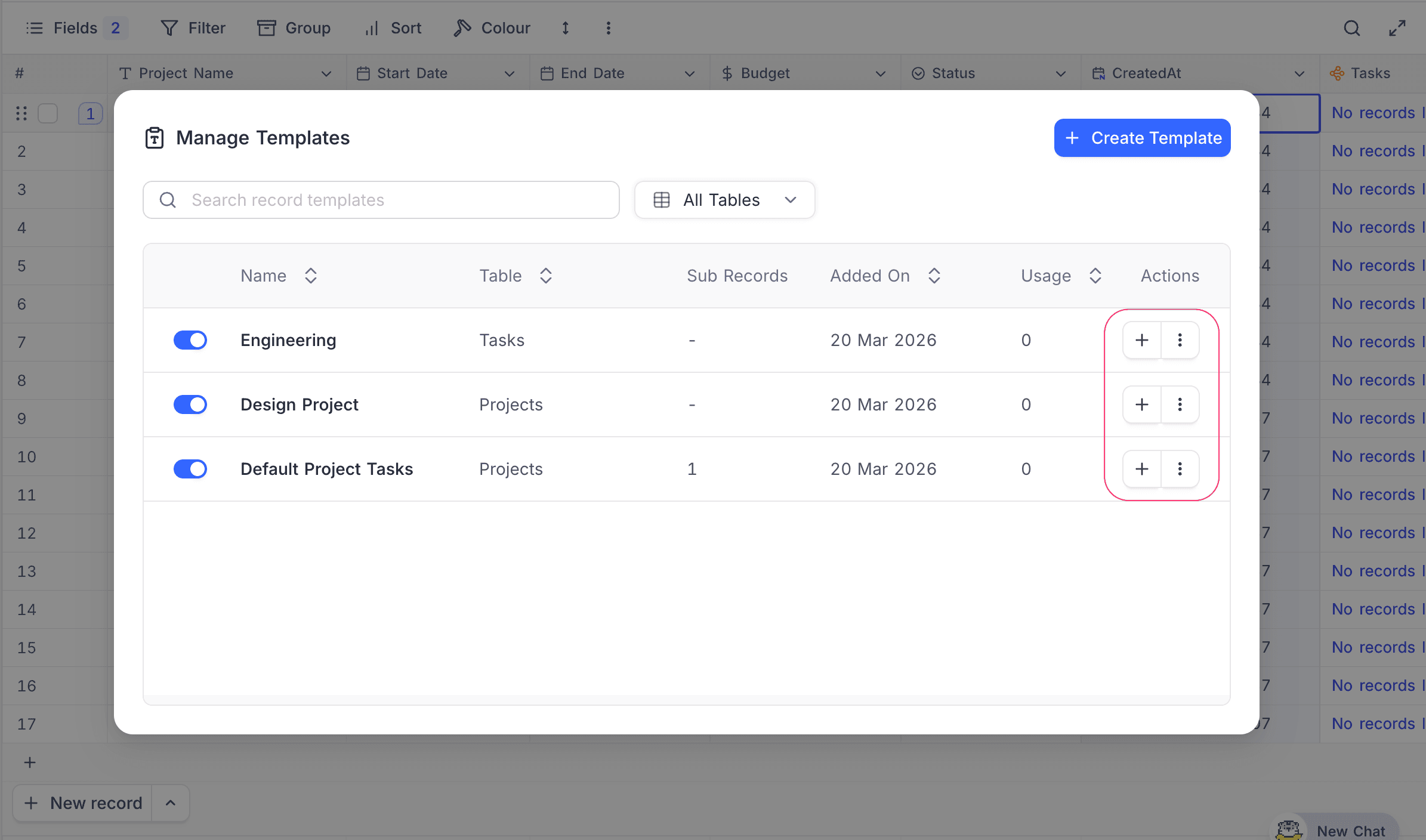
- Actions — Use (
+), Edit, or Delete the template.
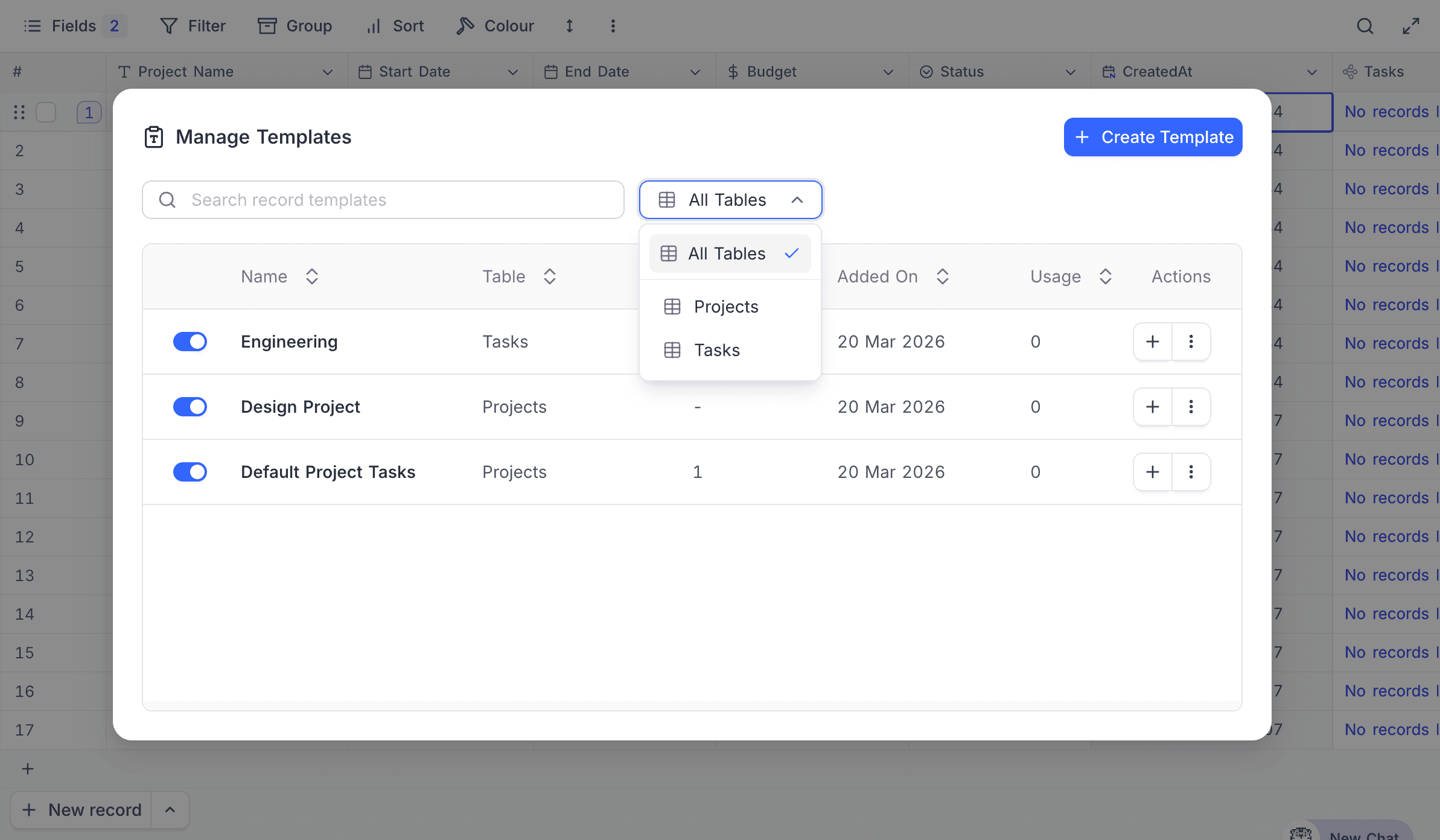
You can search templates by name using the search bar, and filter templates by table using the table filter dropdown.
Create a template
- Open the
Manage Templatesmodal. - Click the
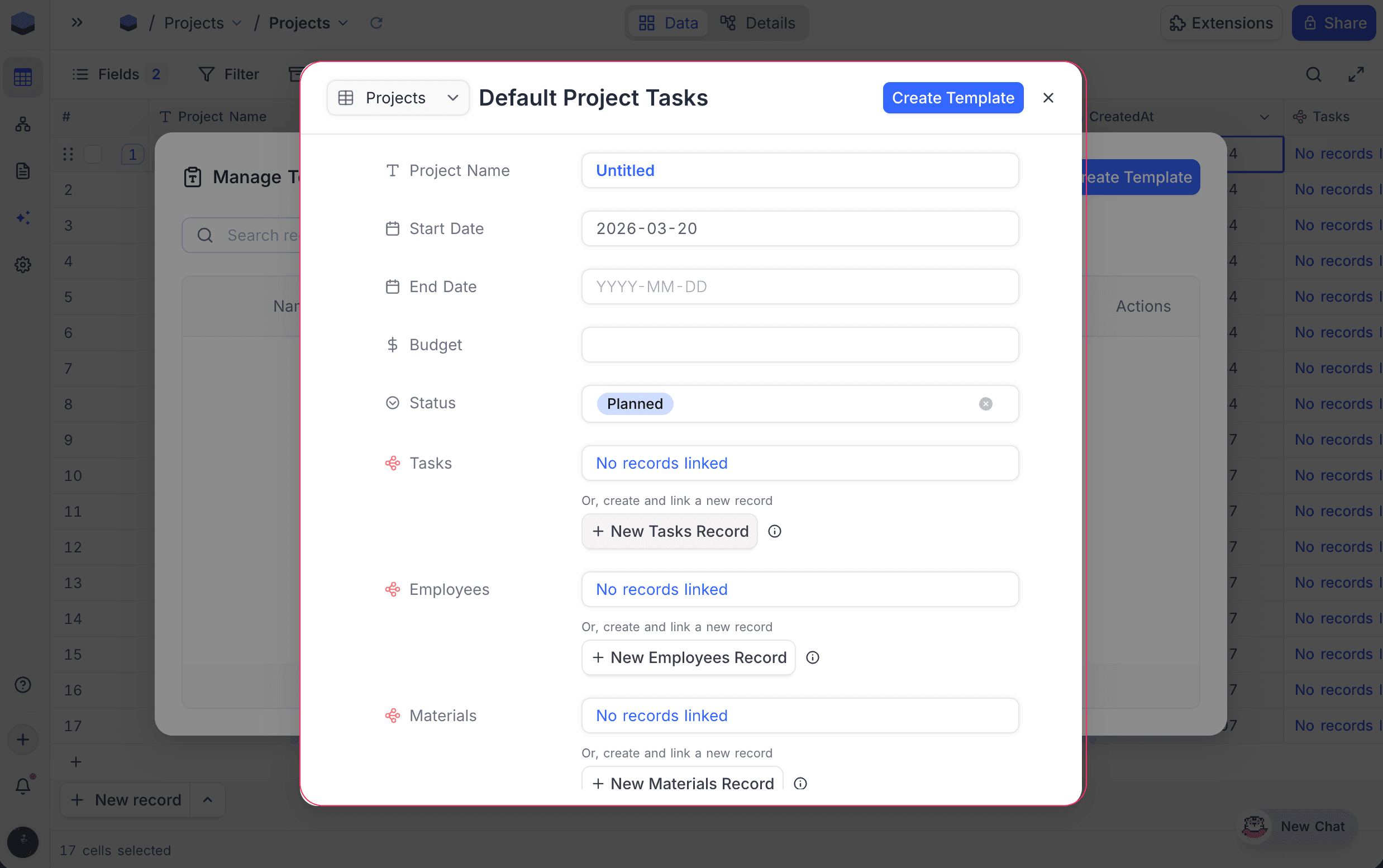
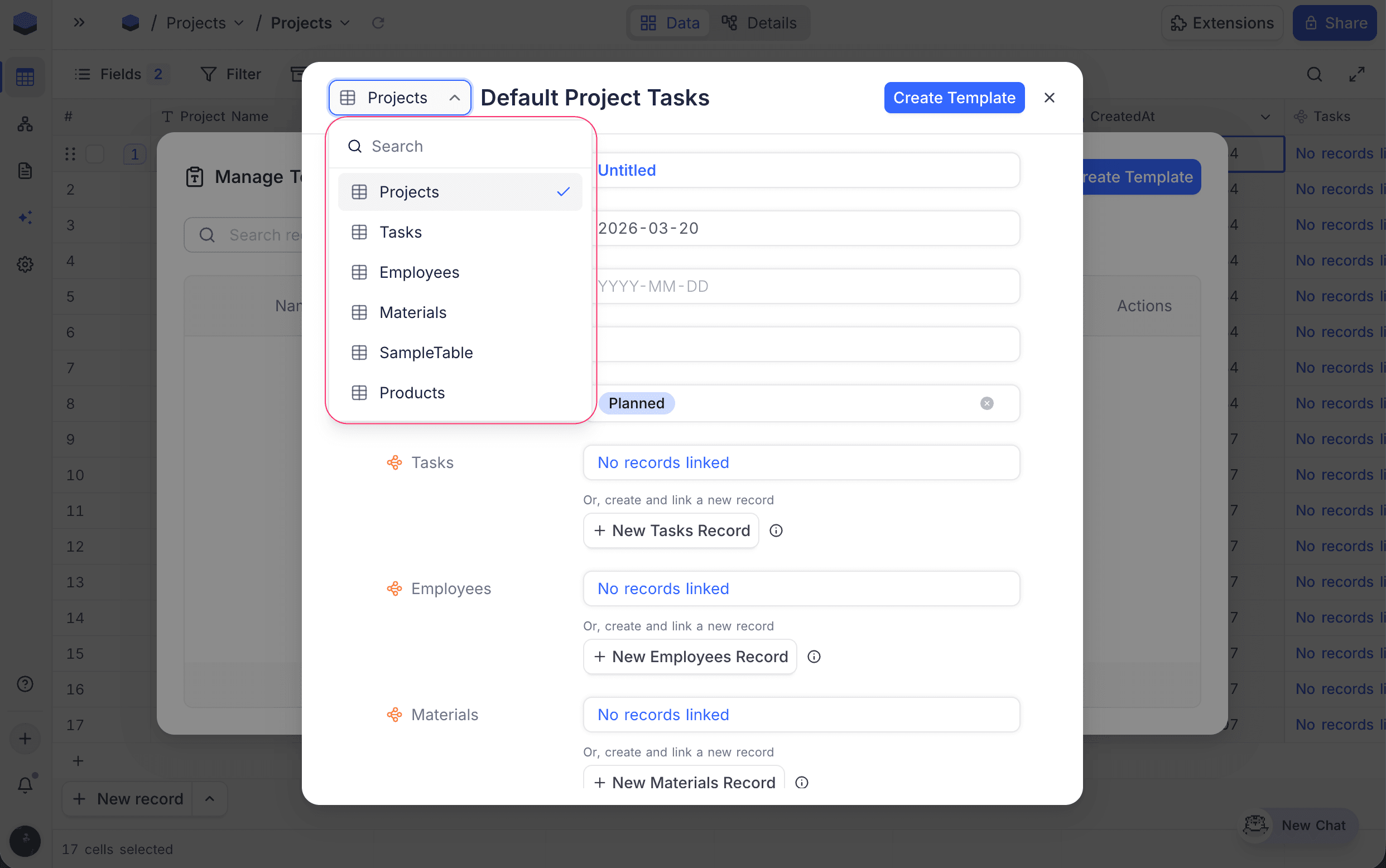
Create Templatebutton. - Select the table for the template using the table selector dropdown at the top left.
- Enter a template name. The name must be unique within the table.
- Fill in the desired default values for the fields you want pre-populated when the template is used. Leave fields empty to have them remain blank.
- Optionally, configure linked record fields to include sub-records (see Sub-records below).
- Click
Create Templateto save.
Edit a template
- Open the
Manage Templatesmodal. - Click the context menu (
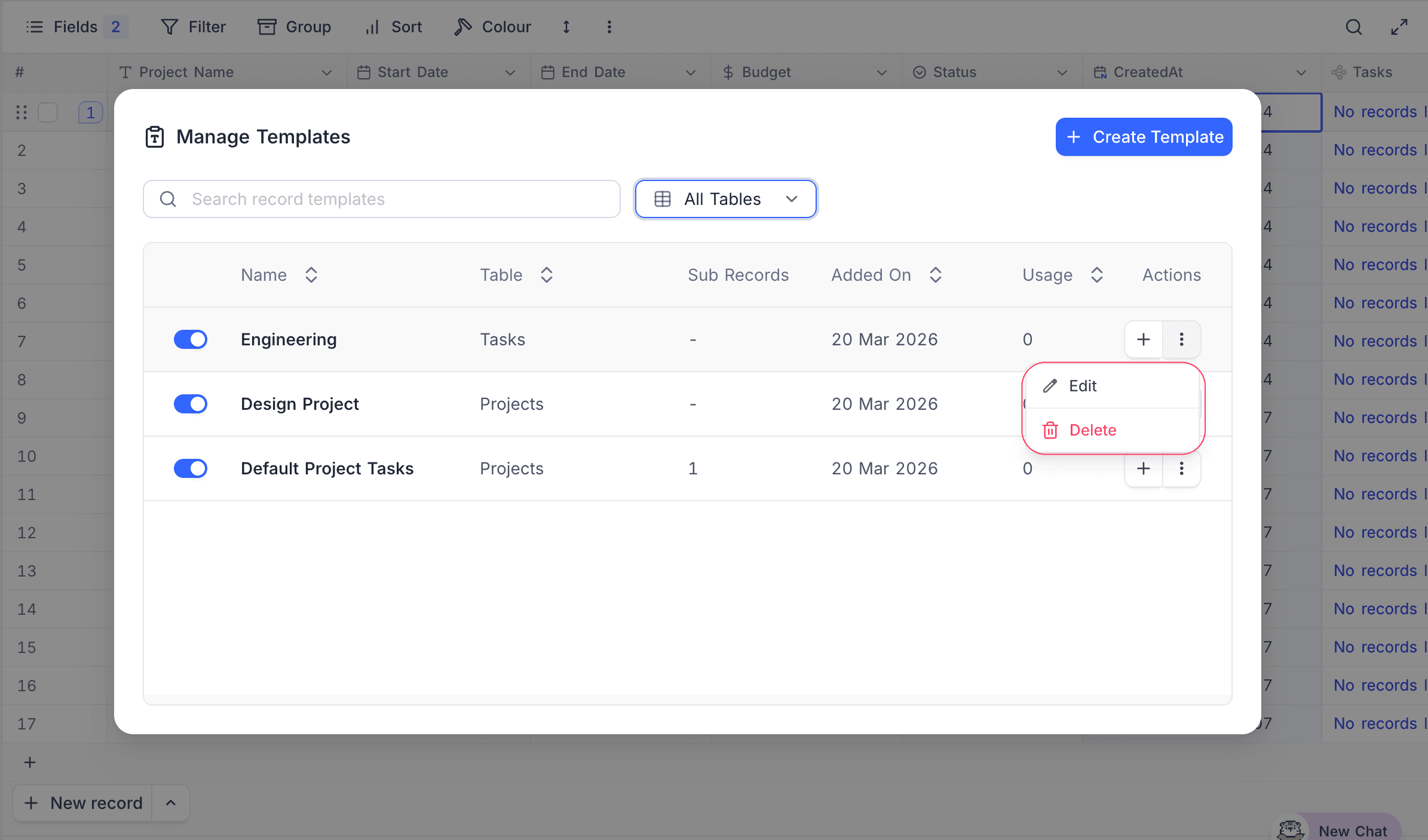
⋮) on the template row and selectEdit. - Modify the template name, field values, or linked record configuration as needed.
- Click
Save Templateto apply changes.
Delete a template
- Open the
Manage Templatesmodal. - Click the context menu (
⋮) on the template row and selectDelete. - Confirm the deletion in the dialog that appears.
Use a template
There are two ways to create a new record from a template:
From the Manage Templates modal
Click the Use (+) action button next to any template in the manager. A new record will be created in the corresponding table with all the template's pre-filled values.
From the Add New Row menu
- Click the up-arrow on the
New Recordbutton at the bottom of the grid view. - Select a template from the list. Only enabled templates for the current table are shown.
- A new record is created with the template's pre-filled values.
Sub-records (Blueprints)
Record templates can include sub-records for linked record fields (Link to Another Record). When a template is used, NocoDB will automatically create the linked records alongside the main record.
Sub-records support nesting up to 3 levels deep. For example, a Project template could include linked Task records, each of which could include linked Subtask records.
To add sub-records to a template:
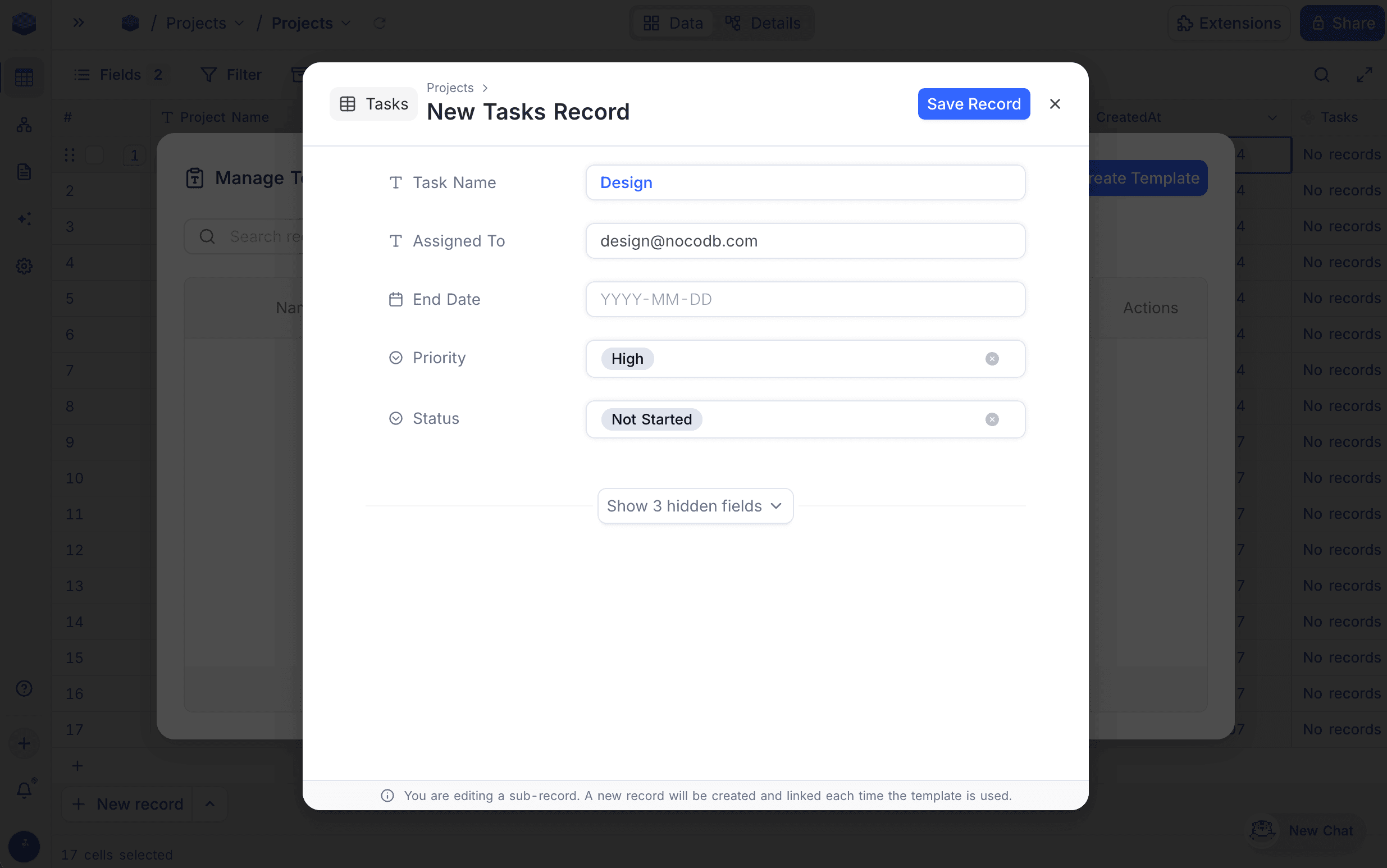
- While creating or editing a template, click
+ New <Table> Recordbelow a linked record field. - Fill in the desired field values for the sub-record. A banner at the bottom confirms you are editing a sub-record that will be created and linked each time the template is used.
- You can add further nested sub-records in the same way, up to 3 levels.
Enable / Disable a template
Use the toggle in the Enabled column of the Manage Templates modal to enable or disable a template. Disabled templates:
- Are not shown in the add-new-row template dropdown.
- Remain visible in the Manage Templates modal and can be re-enabled at any time.