Live Screen and Preview
Copy a prompt, paste it into NocoAI in a factory session, and replace the words in [brackets] with your own.
- Start the dev server and open the app in the browser
- Open [the checkout page] in the browser and check that [the total updates]
- Run the app on port [3000] so I can try it in Preview
The side panel of a Noco Factory session shows the machine of the session. Live screen streams the machine's desktop, so you can watch NocoAI use the browser and other apps. Preview shows the app that NocoAI runs on the machine, as a web page that you can use.
The side panel
The side panel of a Noco Factory session is next to the chat. It has five tabs, always in this order:
| Tab | What it shows |
|---|---|
| Live screen | The desktop of the machine. See Live screen. |
| Preview | A web app that runs on the machine. See Preview. |
| Terminal | Shells on the machine. See Terminal and files. |
| Changes | The changes of the session, as a diff. See Review changes. |
| Files | The files of the repository on the machine. See Terminal and files. |
A session opens with the side panel open on Live screen. To show or hide the panel, click Side panel in the session header. To give the chat and the panel more room, click Full screen. It hides the list of sessions. When the panel is narrow, the tabs show only icons; hover over an icon to see its name.
A tab loads the first time you open it. Then it stays loaded for the rest of the visit.
Live screen
Live screen streams the desktop of the session's machine. The machine runs Ubuntu with a desktop, and has Chrome, Firefox and VS Code. When NocoAI opens the app in a browser to check its work, you see it here.
The person who started the session can use the desktop with the mouse and keyboard. Other members see it with a View only badge: "View only: only the person who started this session can control it".
To load the stream again, click Reload. To open it in a separate browser tab, click Open in new tab.
While the machine starts
While the machine starts, Live screen shows the current boot step over an animation with cards for CPU, Memory, Network, Repository, Services and Terminal. When the desktop is ready, the animation fades out.
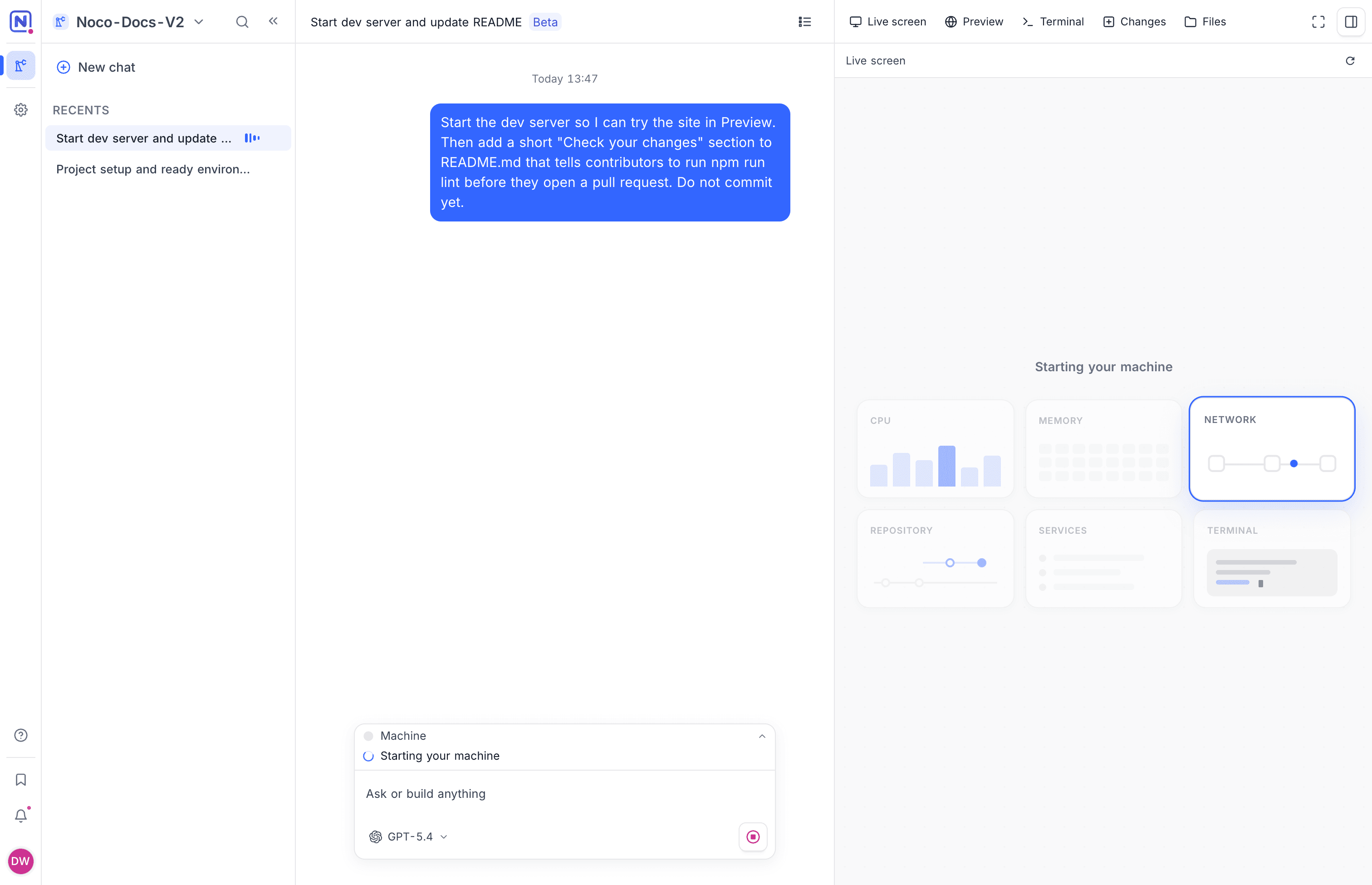
If the screen cannot load, the tab shows "This session has no screen to show". Click Retry. If the session has no machine, send a message in the chat to start one.
Preview
Preview shows a web app that runs on the machine, for example the dev server of your project. Use it to click through the app and test the work of NocoAI.
- Ask NocoAI to start the app, for example "Start the dev server".
- Open the Preview tab.
- Select the port of the app in the port menu.
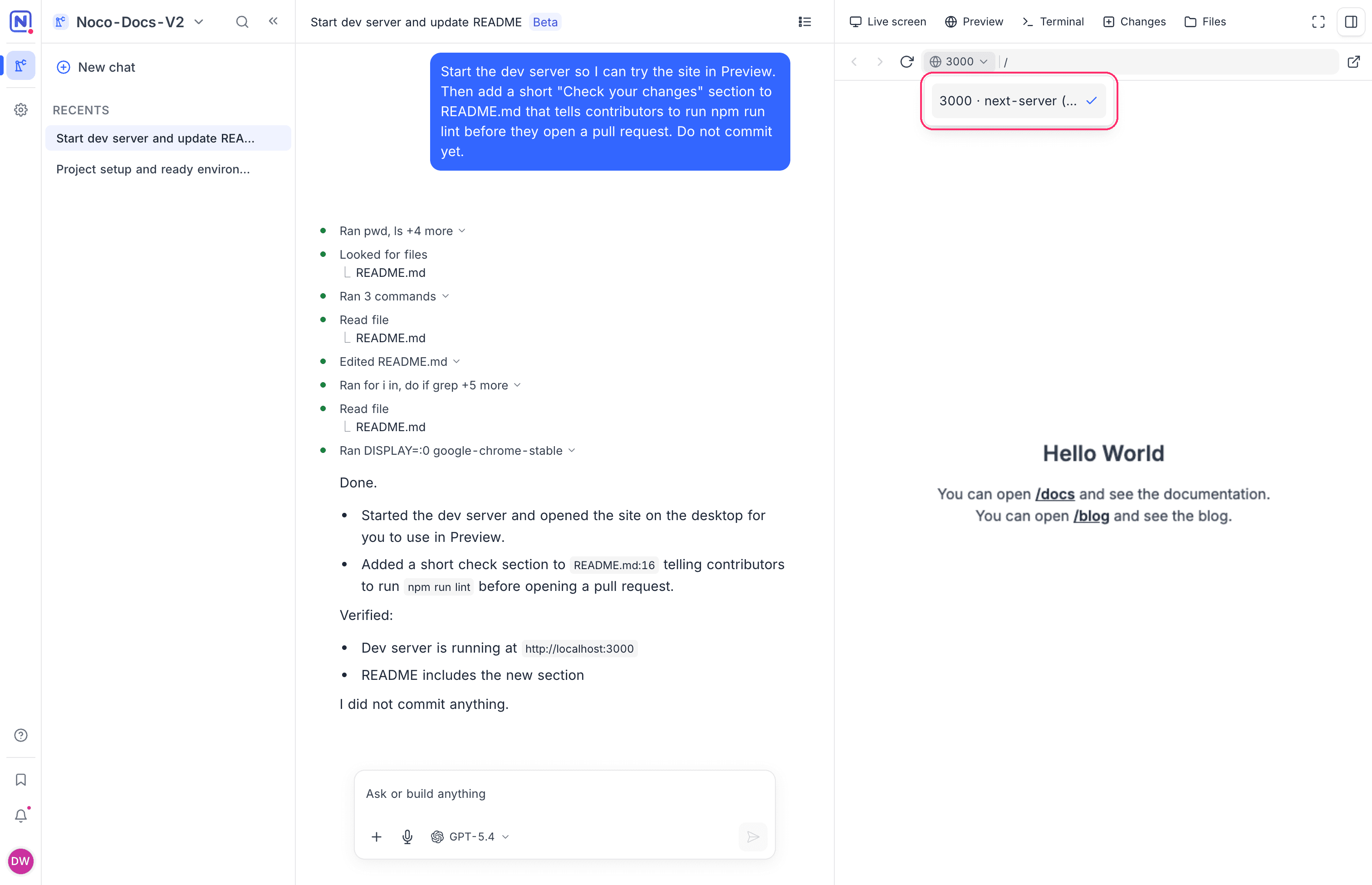
If no app runs on the machine, the tab shows "Nothing is listening yet. Ask the agent to start the app." When the app runs, click Refresh.
The Preview tab has Back, Forward and Reload buttons and an address bar. To open the app in a separate browser tab, click Open in new tab.
When a port opens
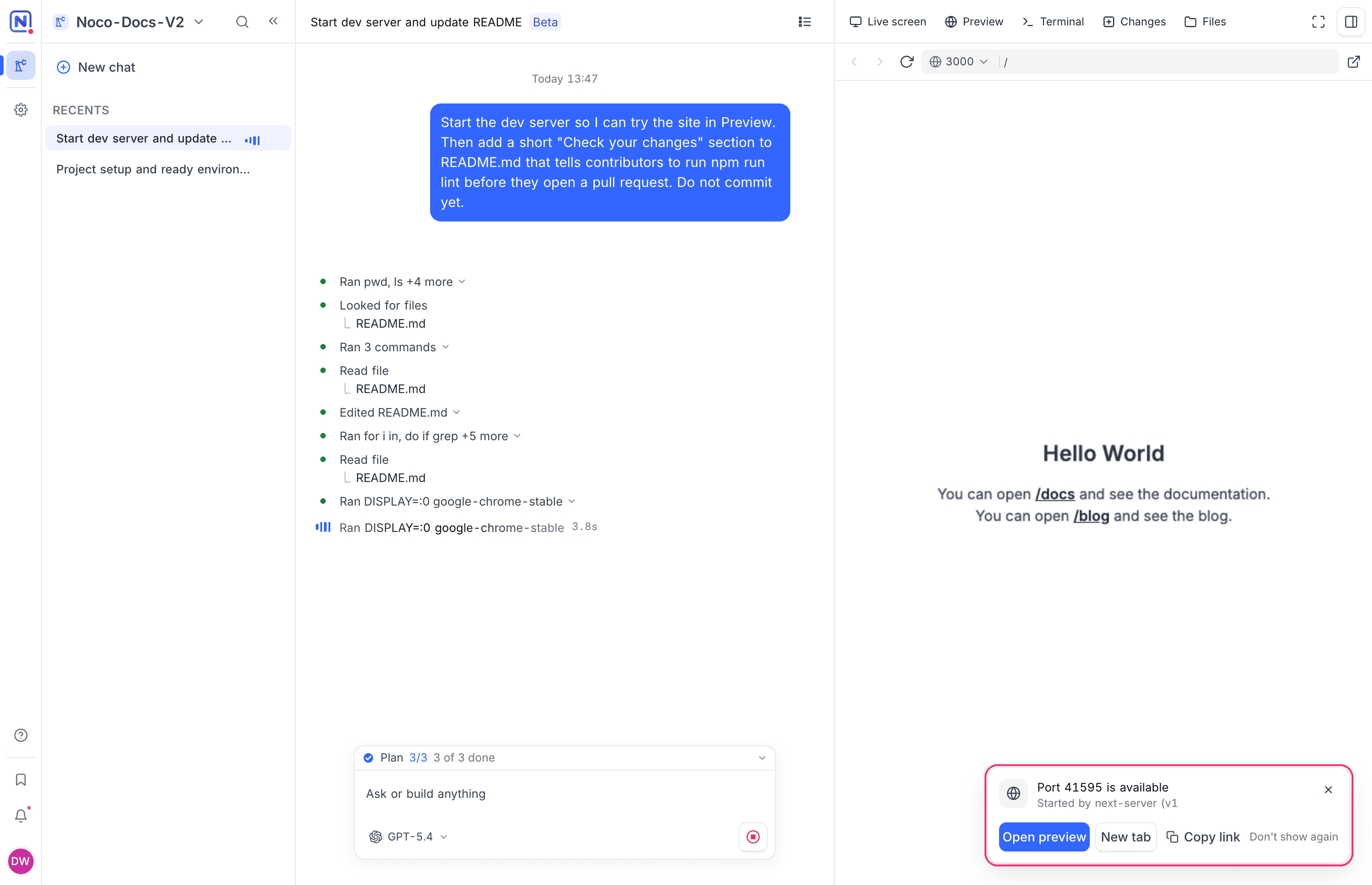
When an app on the machine starts to listen on a port, NocoDB shows a pop-up: Port [port] is available, started by the process that opened it. Select one of these options:
| Option | What it does |
|---|---|
| Open preview | Opens the port in the Preview tab. |
| New tab | Opens the port in a separate browser tab. |
| Copy link | Copies the preview address. |
| Don't show again | Stops these pop-ups in this browser. |
Who can open a preview
Each port of a session has its own preview address. Only signed-in members with the Developer role or above in the factory can open it. A preview address does not work for people outside the factory.
Good to know
- The first time you start a session in a factory, the side panel follows the boot on Live screen. When the app starts to serve, the panel opens Preview.
- An open preview keeps the machine awake. See When a machine sleeps.
Related
Last updated on