AI App Builder
Copy a prompt, paste it into NocoAI in any base, and replace the words in [brackets] with your own.
- Add a page that lists [open requests] sorted by [due date]
- Add a button on [the booking page] that sends [a confirmation email]
- Let only [the managers team] [approve expenses]
- Change the home page to show [this week's numbers] at the top
NocoDB's AI app builder is the page where you build an app with AI. It has a live preview of the app and the NocoAI chat. You describe a change in the chat. NocoAI changes the app, and the preview updates. The AI app builder has no visual editor: you make every change through the chat.
To open the AI app builder, open the base and click App in the mini sidebar.
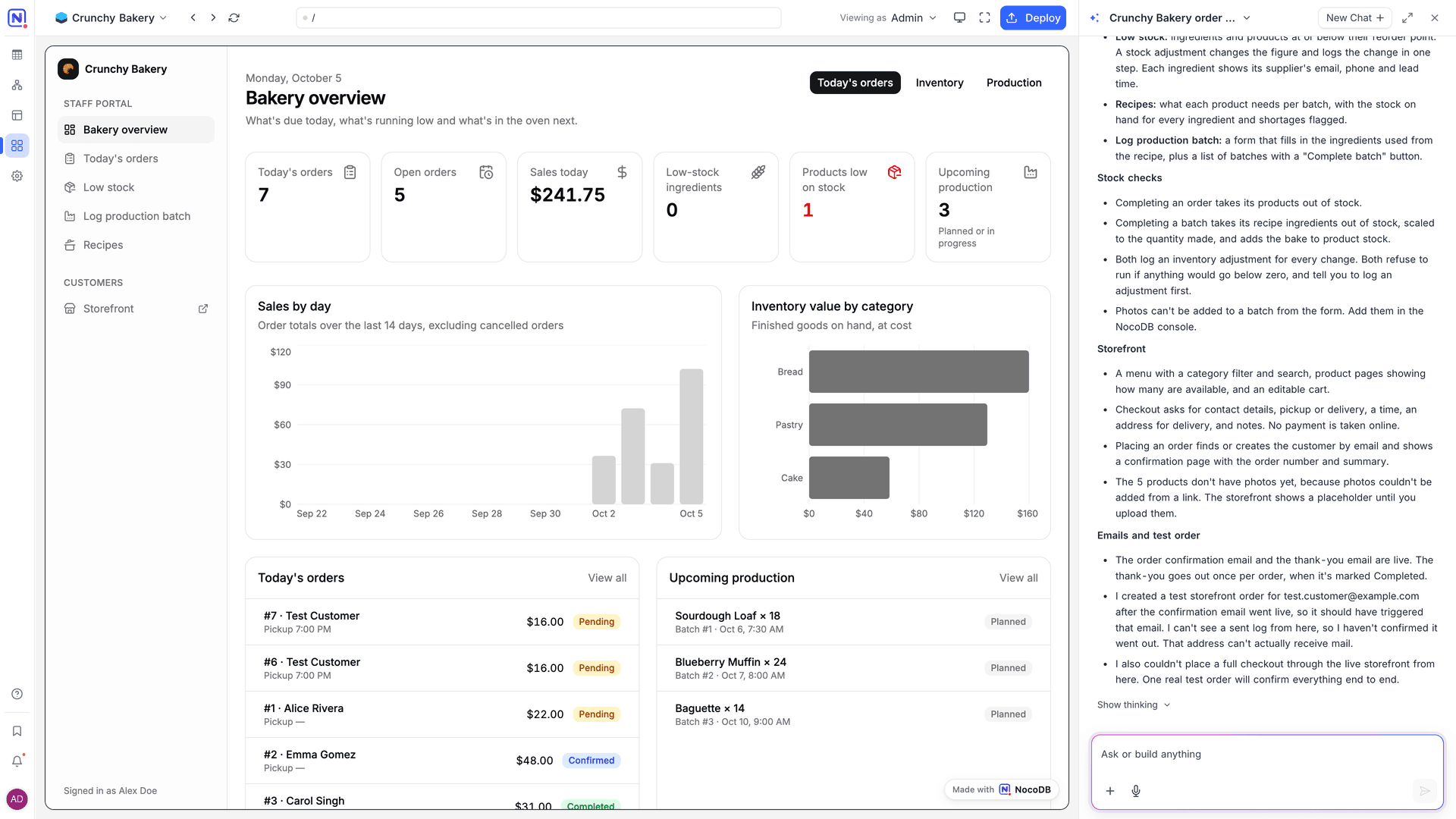
Parts of the app builder
| Part | What it does |
|---|---|
| Topbar | Holds the preview controls, the app address, Viewing as, the screen width, Full screen and Deploy. |
| Preview | Runs the current build of the app. You can click through it and test it with real data. Before the first build, it shows "Describe what you'd like to build in the chat. Your app will appear here." |
| Chat | The NocoAI chat. It opens automatically for builders. If you close it, click Expand chat in the topbar to open it again. |
The topbar has these controls:
| Control | What it does |
|---|---|
| Back, Forward, Refresh | Move through the pages of the preview, or load the page again. |
| App address | Shows the address of the app. Click the address to copy it. Click Open app to open the deployed app in a new tab. |
| Build status | Shows Building… while NocoAI changes the app, and Build failed when a build does not complete. Hover over Build failed to see the error. |
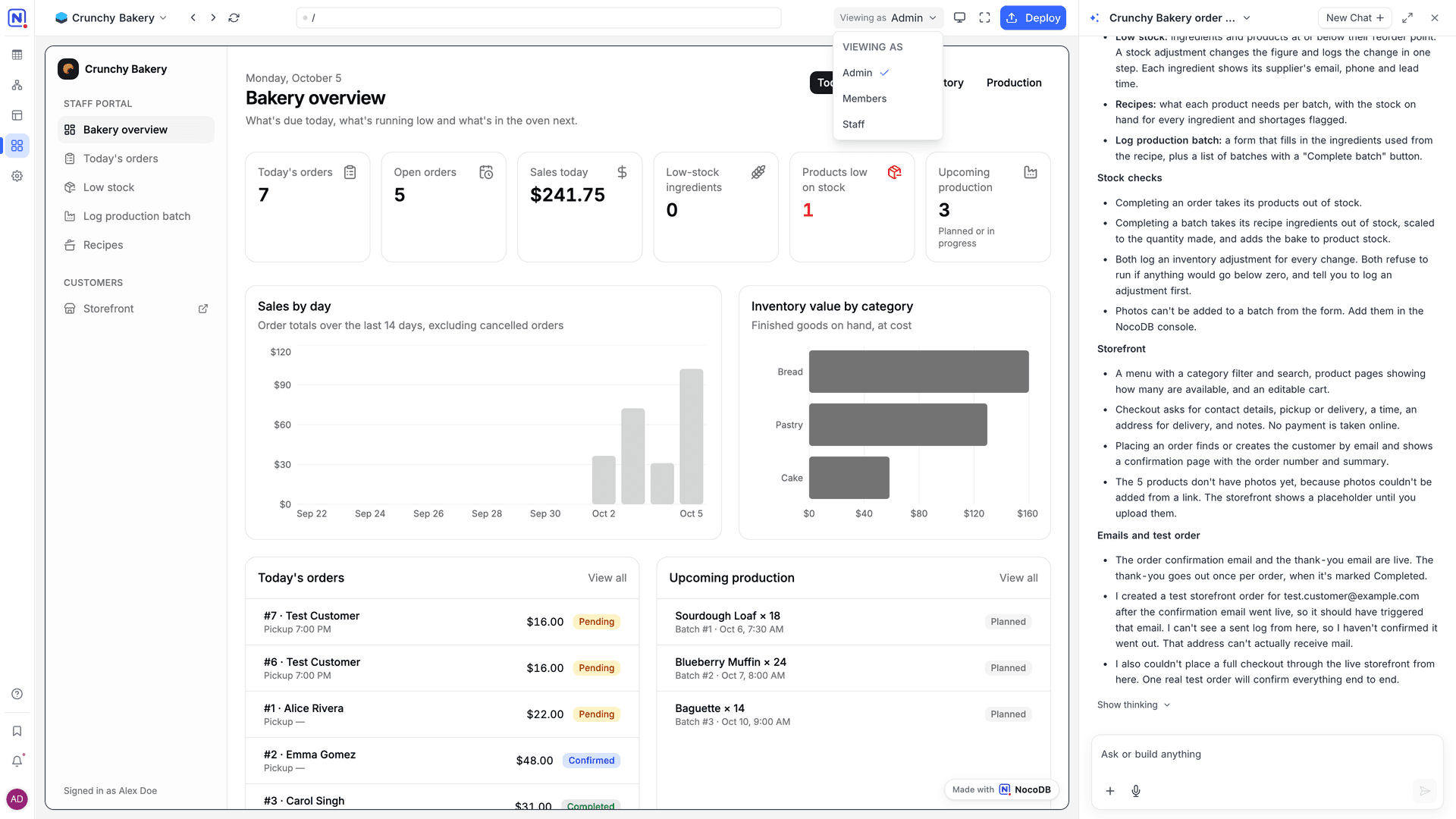
| Viewing as | Shows the preview as a member of a team would see it. See Preview as a team. |
| Screen width | Shows the preview at Desktop width, Tablet width or Mobile width. |
| Full screen | Shows the AI app builder in full screen. Click Exit full screen to go back. |
| Deploy | Makes the current build live at the app address. See Deploy an app. |
Build with the chat
- In the chat, describe the change. Give one goal at a time, or a list of related changes.
- Send the message. NocoAI shows a Plan card with its steps and the progress, for example "3/7".
- Wait for the build. The topbar shows Building…. The preview updates when the build is complete.
- When the app is ready, the chat shows a card with Open app, Publish and Keep editing.
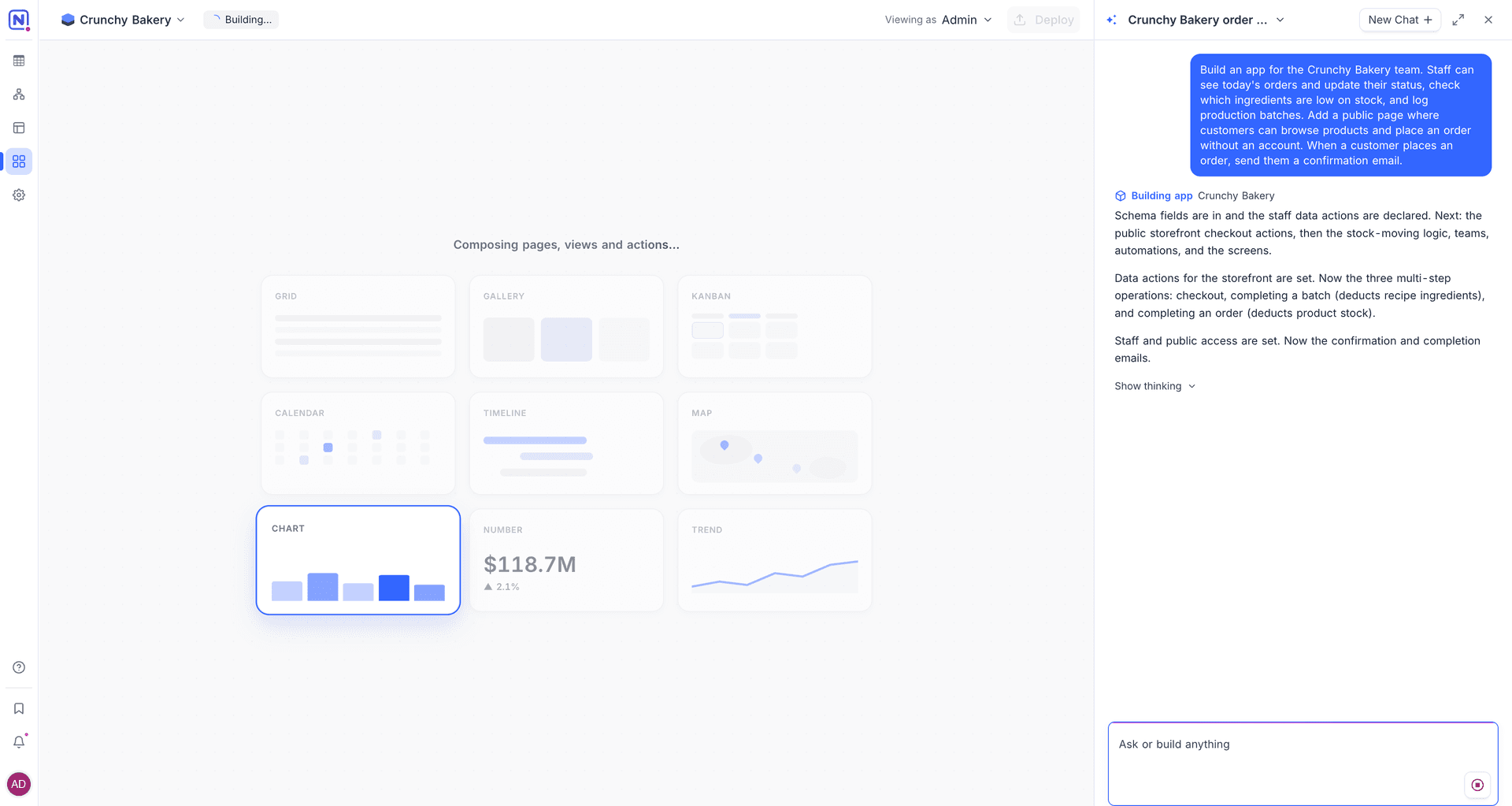
Only one person can build an app at a time. When another builder is at work, the chat shows "[name] is building…". Wait until that build is complete.
What NocoAI can build
NocoAI changes more than the pages of the app. In one conversation it can:
| Area | Examples |
|---|---|
| Pages and navigation | Screens, menus, forms, lists, dashboards and the layout of each page. |
| Tables and fields | New tables and fields in the base, when the app needs data that the base does not have. |
| Actions | The operations that the app runs: create, read, update and delete records, run custom code, or call a connection. NocoAI tests the actions that it writes. |
| Connections | The external services that the app needs, for example an email or AI provider. See Connections. |
| Teams and access | Teams, the actions that each team can run, and record rules such as "members see only their own records". See Members and teams. |
| Public pages | Pages that visitors can open without an account. See Public access. |
| Workflows | NocoDB workflows for scheduled and event-based work, for example a daily reminder. |
Fix errors
When the preview hits an error, the chat shows Something broke on [page]. Click Fix it. The chat fills in a message that describes the error. Send it, or add details first.
When a build does not complete, the topbar shows Build failed. Hover over it to read the error, then ask NocoAI to fix it in the chat.
Preview as a team
Each team sees only the pages and actions that it can use. To check what a team sees, click Viewing as in the topbar and select the team. The preview loads again as a member of that team.
Good to know
- Changes in the AI app builder do not reach the people who use the app until you deploy. The preview always shows the current build.
- NocoAI uses credits for each build. When the workspace has no credits left, the chat tells you. Workspace owners can buy more credits from the chat.
- Use Mobile width to check how the app looks on a phone before you deploy.
Related
Last updated on