Deploy an App
Copy a prompt, paste it into NocoAI in any base, and replace the words in [brackets] with your own.
- Publish this app
- What changes since the last deploy of this app?
Deploying a NocoDB app saves the current build as a numbered version, for example v4, and makes it live at the app address. People who use the app get the new version the next time they load a page. Until you deploy, your changes show only in the AI app builder preview.
In the app, Deploy and Publish do the same thing. The Publish button on the chat ready card opens the same flow.
Before you begin
- You need the Owner or Creator role in the base.
- Wait until the build is complete. The Deploy button is not available while the topbar shows Building….
Deploy the app
- In the AI app builder topbar, click Deploy. The Deploy to Production panel opens. It shows the version that is Live now and the app URL.
- Click Deploy now. NocoDB deploys the app and shows "[version] is live".
- Click Open app to open the deployed app, or click Done.
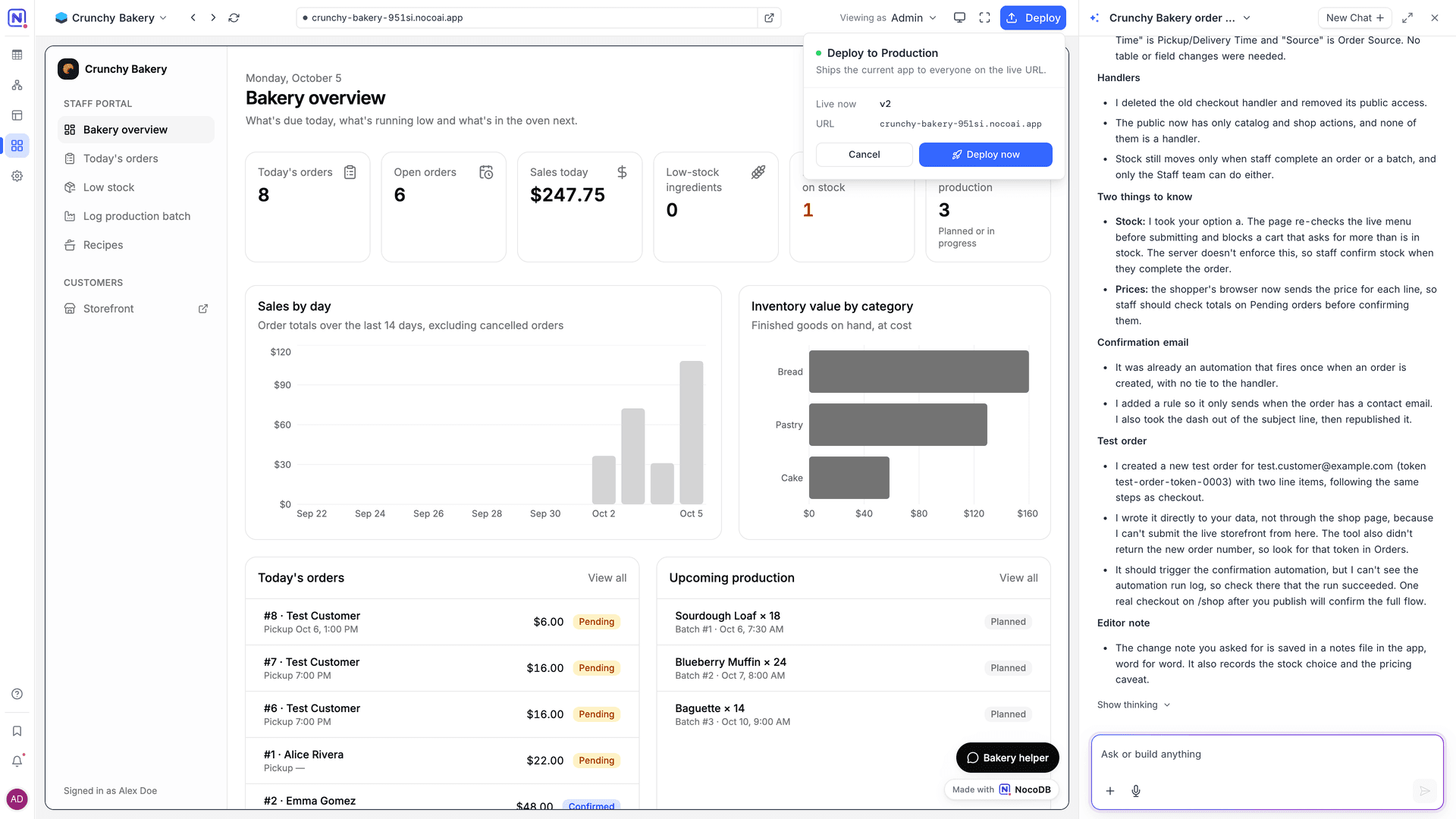
The panel shows Up to date when there is nothing new to deploy. It shows Nothing to deploy yet before the first build.
On the first deploy, NocoDB completes the app address with a random code. To change the address, see App URL.
Review a deploy
Some deploys can lose data or open the app to people who do not sign in. For these deploys, the panel shows "This deploy needs a review first." and a Review button instead of Deploy now. A deploy needs a review when it:
| Change | What the review shows |
|---|---|
| Deletes data | The fields or tables that the deploy removes. "Publishing again does not bring it back." |
| Makes pages public | The pages that go on the internet. "Anyone with the link can read them. No sign-in, no invitation." |
| Lets visitors run actions | The actions that anonymous visitors can run, and the tables and fields each action reads or writes. |
To deploy after a review:
- Click Review. The publish dialog opens.
- Check the app address and click Next. On the first deploy, you can change the address here.
- Read each item on the review step. The most serious items show first.
- Click the main button. Its label tells what it does, for example Publish v5 or Publish and drop 2 fields.
- When the deploy is complete, click Close.
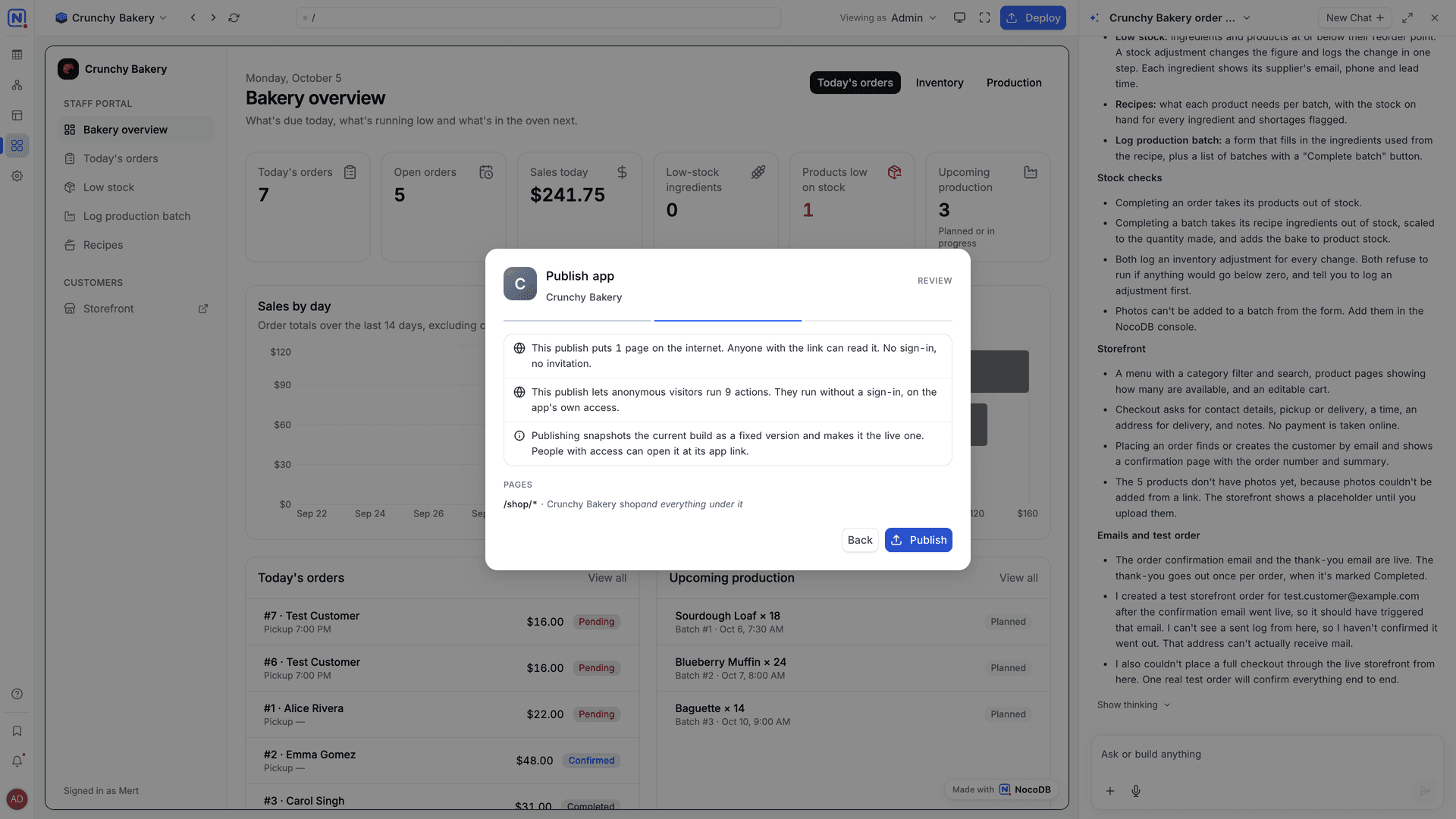
When NocoAI changes the app while the dialog is open, the dialog tells you that the app was rebuilt. Review the list again before you publish.
When a deploy is refused
NocoDB does not deploy an app that is not ready. The publish dialog tells you why, for example:
| Message | What to do |
|---|---|
| Build not ready | Wait for the build to complete, then deploy again. |
| Missing actions | Ask NocoAI to fix the actions that the app uses, then deploy again. |
| Integration access required | Give the app access to the connection it needs. Click Connections. |
| Public actions are not sealed | Ask NocoAI to fix the public actions in the list, then deploy again. For example, an action that runs custom code cannot be public. |
| Publish stopped part-way | Click Publish again. The deploy continues from the change that failed. |
Version history
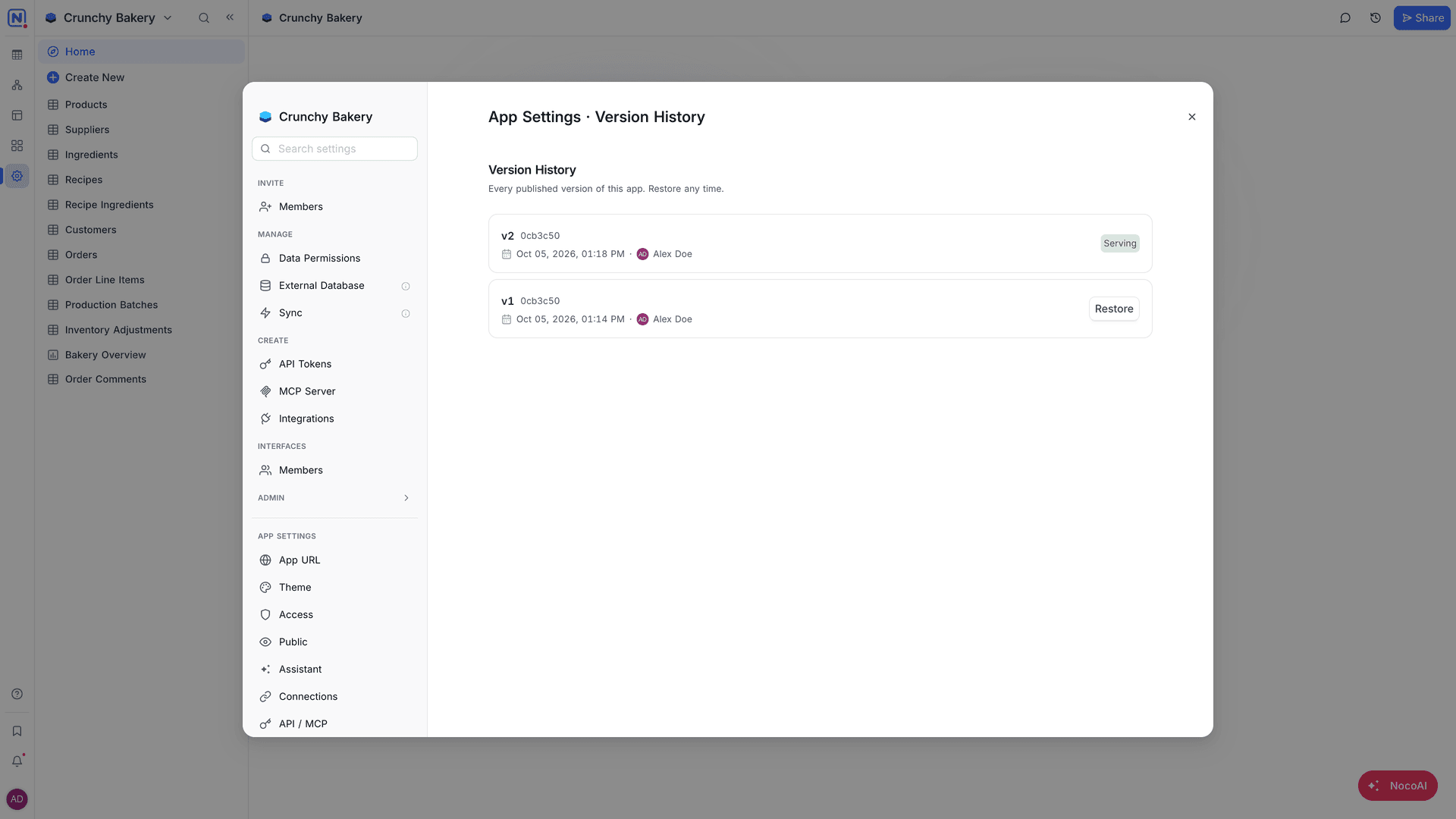
Each deploy adds a version to the history. To see it, open App Settings → Version History. Each row shows the version number, the date and the person who deployed it. The version that people use now has the Serving badge.
Restore a version
- In Version History, find the version.
- Click Restore. The Restore v[version] dialog opens.
- Confirm. Visitors get that version again from the next page load.
Restoring changes only the version that the app address serves. The version that served before stays in the history. The build in the AI app builder does not change, so the next deploy ships the current build again.
Good to know
- Team grants and public pages take effect only when you deploy. See Members and teams and Public access.
- Changes to Theme and Assistant in App settings apply without a deploy.
- A deploy always goes to Production, the live app address. When you deploy from an environment, NocoDB first applies the changes of that environment to Production.
Related
Last updated on