Keyboard Shortcuts
Quick Actions
Use ⌘ + K (or Ctrl + K on Windows) to run an action, go to a workspace, table, view or menu item, and ask for data in plain words. The menu lists the actions for the screen that you have open. Refer to Command Palette for the full list of levels, keys and typed requests.
For example, to go to the "API Tokens" page:
- Press ⌘+K. The command palette opens.
- Type "Token" in the search box.
- Press Enter.
People often call this shortcut "Command-K". It saves time when you move around NocoDB.
You can also open it from the Quick search box or the search button in the sidebar of a project.
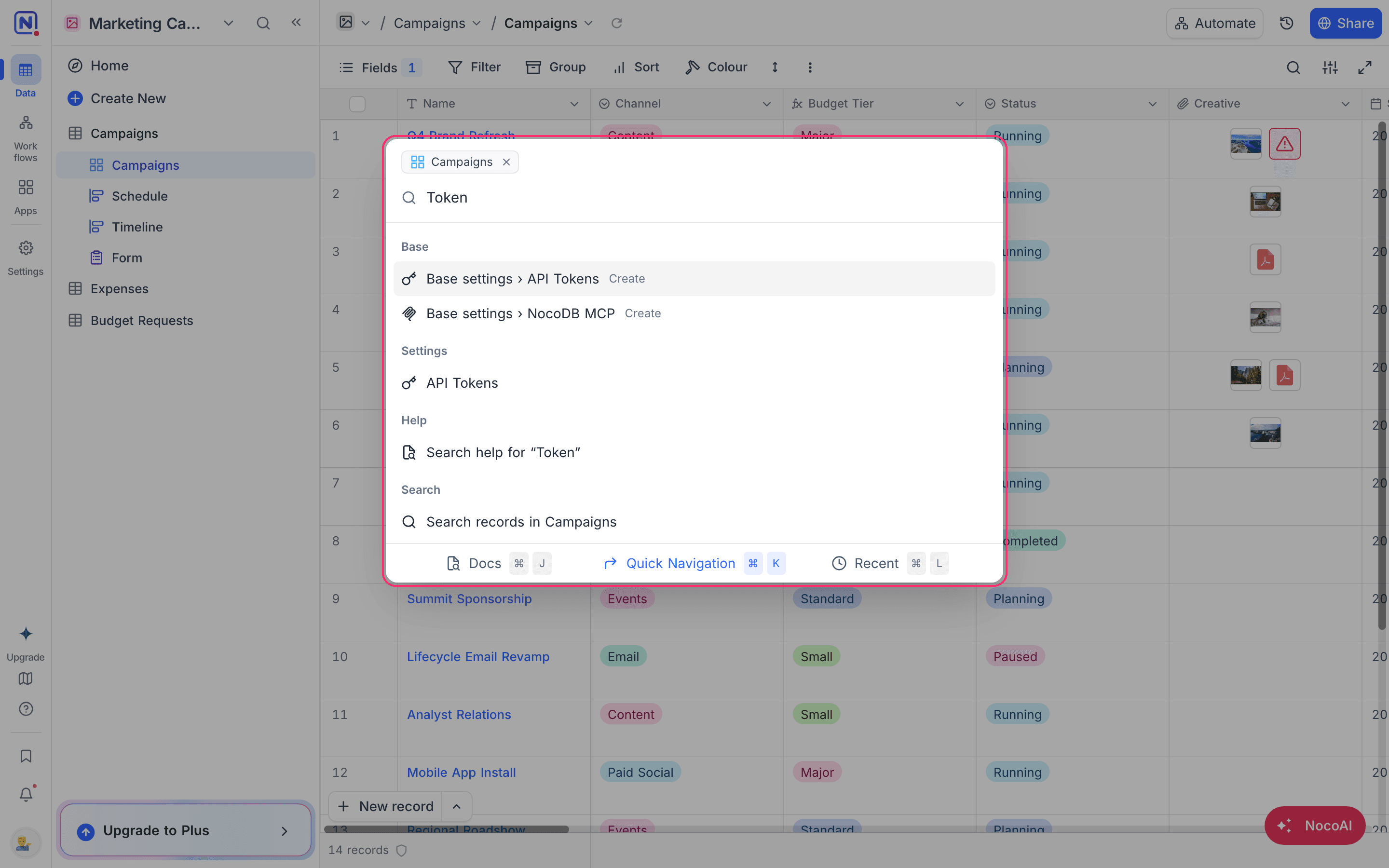
To move in the ⌘+K menu:
- Use
↑↓to move between listed items - Use
Enterto select an item - Use
Backspaceto move to parent menu - Use
Escto close the menu
Recent Views
To open recently visited views quickly, use ⌘ + L (or Ctrl + L on Windows). The search results show in a modal window. To open a view, click its result.
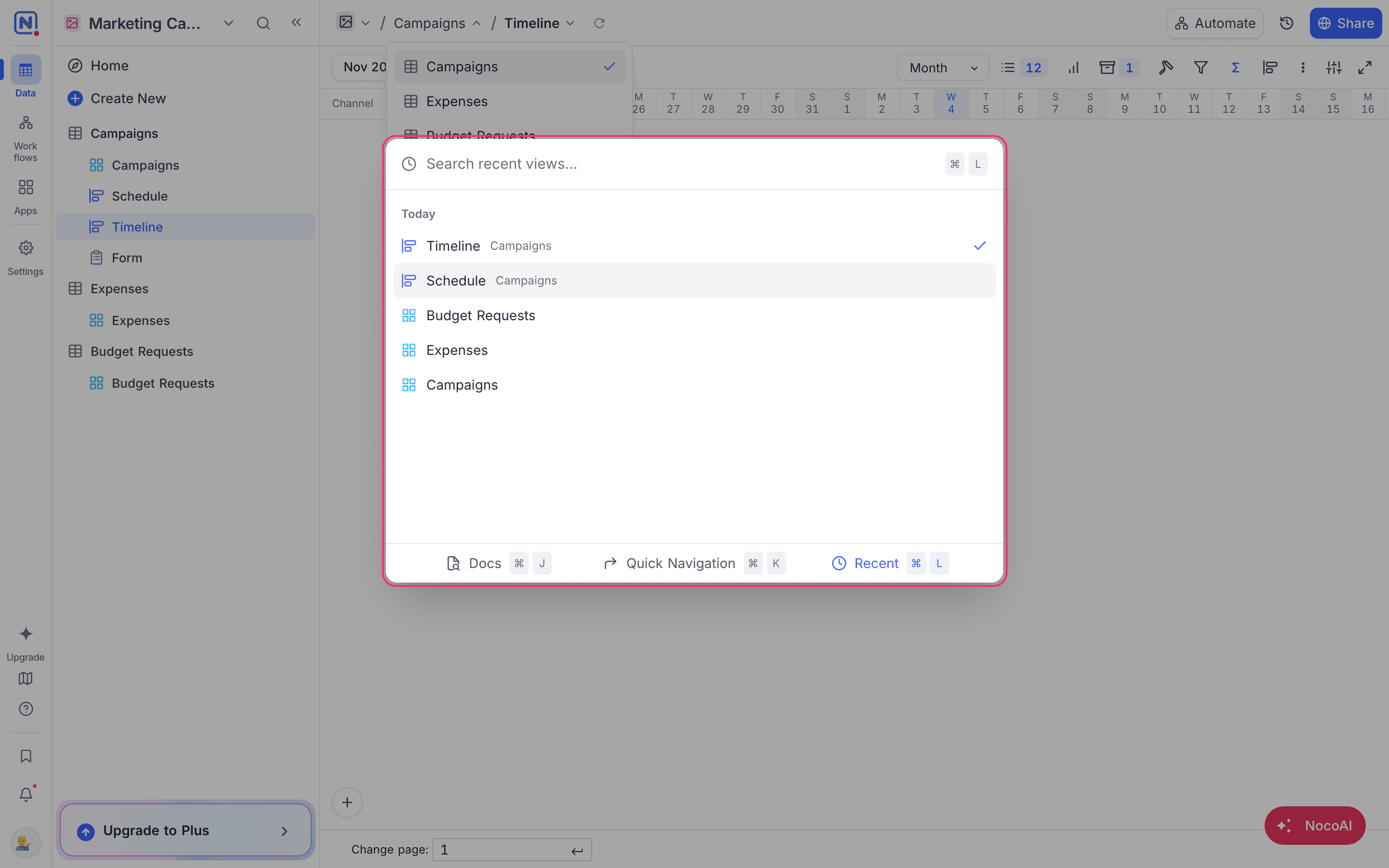
To move in the ⌘+L menu:
- Use
↑↓to move between listed items - Use
Enterto select an item - Use
Backspaceto move to parent menu - Use
Escto close the menu
Search in Docs
To search the docs from the NocoDB UI, use ⌘ + J (or Ctrl + J on Windows). The search results show in a modal window. To open a page in a new tab, click its result.
To move in the ⌘+J menu:
- Use
↑↓to move between listed items - Use
Enterto select an item - Use
Backspaceto move to parent menu - Use
Escto close the menu
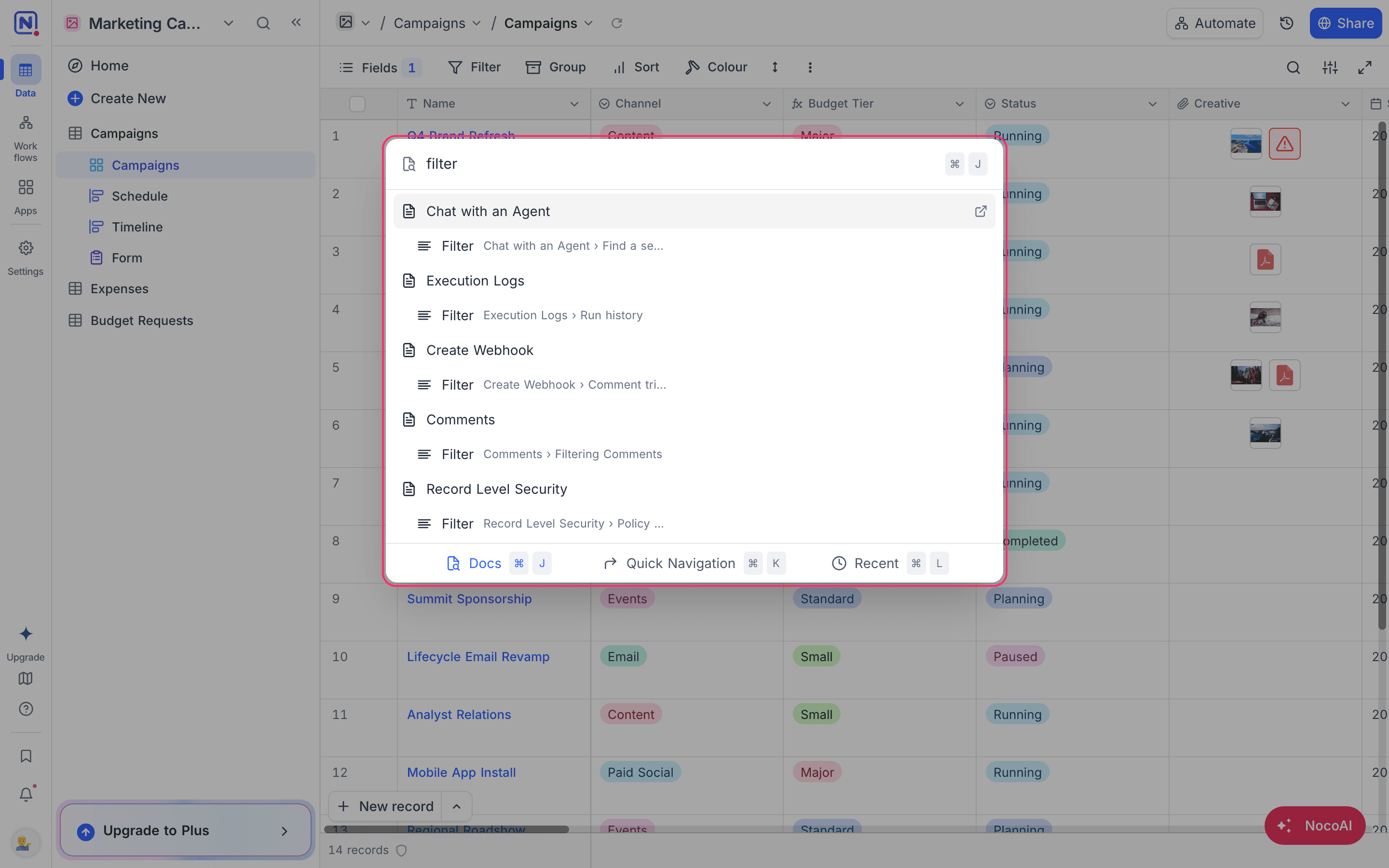
General shortcuts
| Key | Behavior |
|---|---|
alt + t | Opens new table modal |
alt + c | Opens new field modal |
alt + f | Toggles fullscreen mode |
alt + i | Opens share button modal |
⌘ + k | Opens Quick Actions modal |
⌘ + l | Opens Recent Views modal |
⌘ + j | Opens Search in Docs modal |
⌘ + / | Opens Keyboard shortcut modal |
Grid view shortcuts
| Key | Behavior |
|---|---|
← → ↑ ↓ | General cell navigation |
Delete | Clear cell |
Space | Expand current record |
Shift + Space | Expand current cell |
Tab | Move to next cell horizontally; if on last cell, move to beginning of next record |
Esc | Exit cell EDIT mode |
Enter | Switch cell in focus to EDIT mode; opens modal/picker if cell is associated with one |
⌘ + ↑ | Jump to first record in this field (in same page) |
⌘ + ↓ | Jump to last record in this field (in same page) |
⌘ + ← | Jump to first field in this record |
⌘ + → | Jump to last field in this record |
⌘ + c | Copy cell contents |
⌘ + v | Paste copied contents |
alt + r | Inserts new record in grid view |
alt + ↑ | Jump to last page in this view (obsolete) |
alt + ↓ | Jump to first page in this view (obsolete) |
alt + ← | Jump to previous page in this view (obsolete) |
alt + → | Jump to next page in this view (obsolete) |
Field type specific shortcuts
| Datatype | Key | Behavior |
|---|---|---|
| Text & Numerical cells | ← → | Move cursor to the left / right |
↑ ↓ | Move cursor to the beginning / end | |
| Single Select | ↑ ↓ | Move between options |
Enter | Select option | |
| Multi Select | ↑ ↓ | Move between options |
Enter | Select / deselect option | |
| Link | ↑ ↓ | Move between options |
Enter | Link current selection | |
| Checkbox | Enter | Toggle |
| Rating | <0 ~ Max> | Enter number to toggle rating |
| Date / Time / DateTime / Year | ⌘ + ; | Select today's date |
Expanded form shortcuts
| Key | Behavior |
|---|---|
⌘ + Enter | Save current expanded form item |
alt + → | Switch to next record |
alt + ← | Switch to previous record |
alt + S | Save current expanded form record |
alt + N | Create a new record |
Last updated on