Create Record
A new record can be added by using the New Record button in the bottom left corner of the grid view. Default behaviour of this button is to add a new empty record at the end of the grid view. Fields for a record can be populated by clicking on the cell and entering the value.
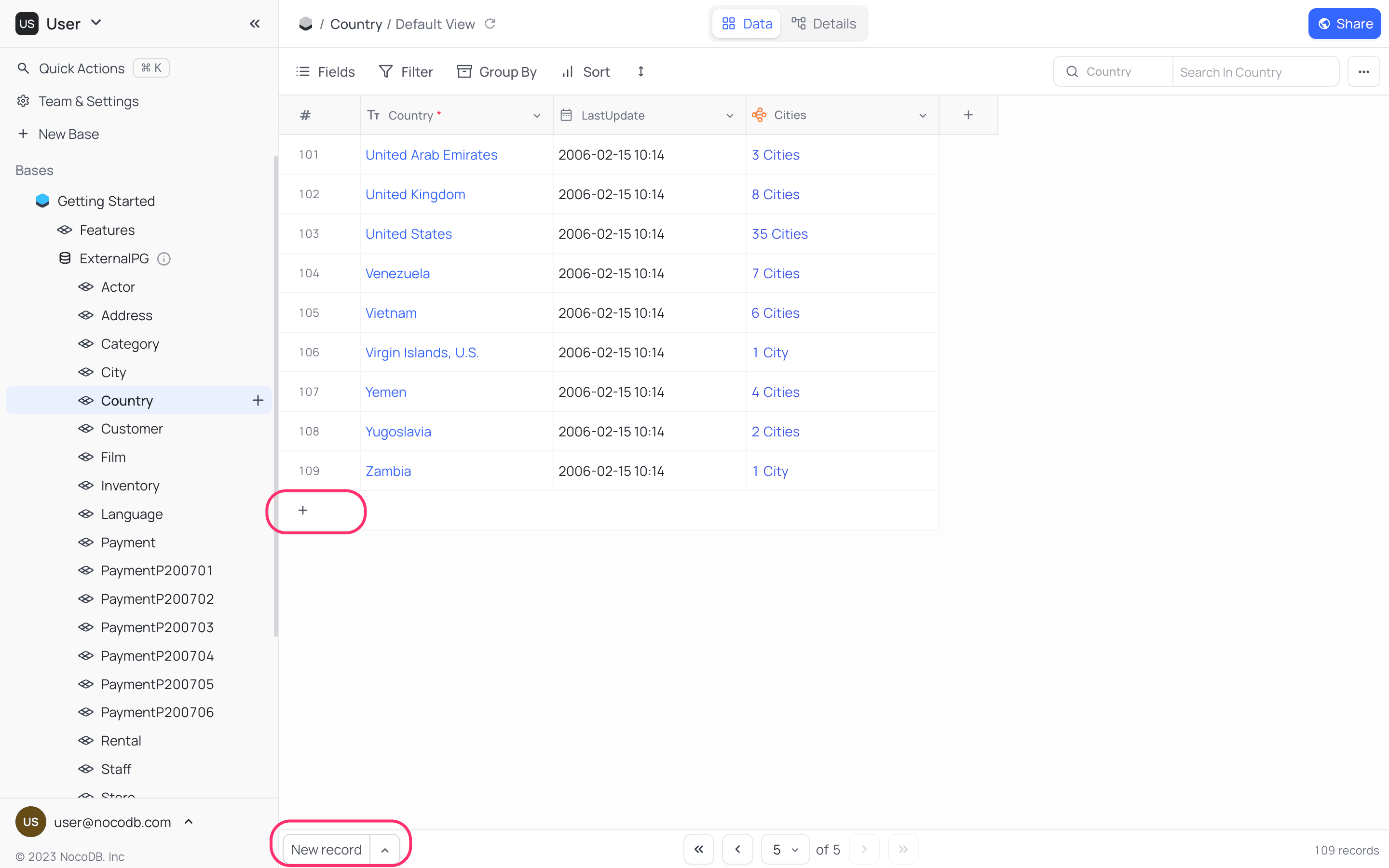
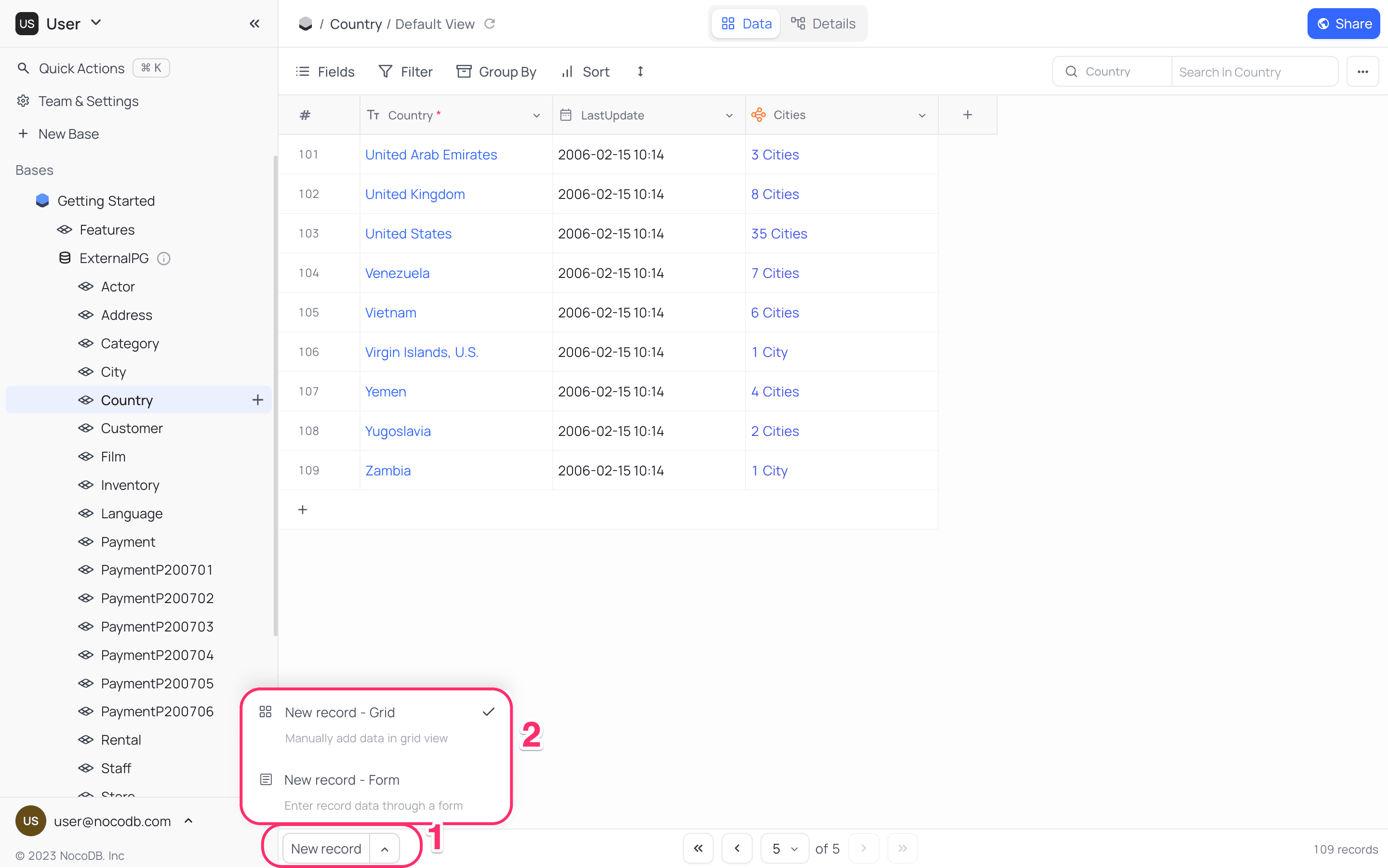
NocoDB also provides convenience of a form to populate fields in a record. To add a new record using a form,
- Click on the up-arrow in
New Recordbutton; this expands options for adding a new record. - Select
New Record - Formoption. This will reconfigure default behaviour ofNew Recordbutton to add a new record using a form.
Ask NocoAI
Copy a prompt, paste it into NocoAI in any base, and replace the words in [brackets] with your own.
- Add a record with [Name] set to [Acme Inc] and [Status] set to [Active]
- Add [5] realistic sample records to this table
- Create records from the list in the attached file
Insert Anywhere
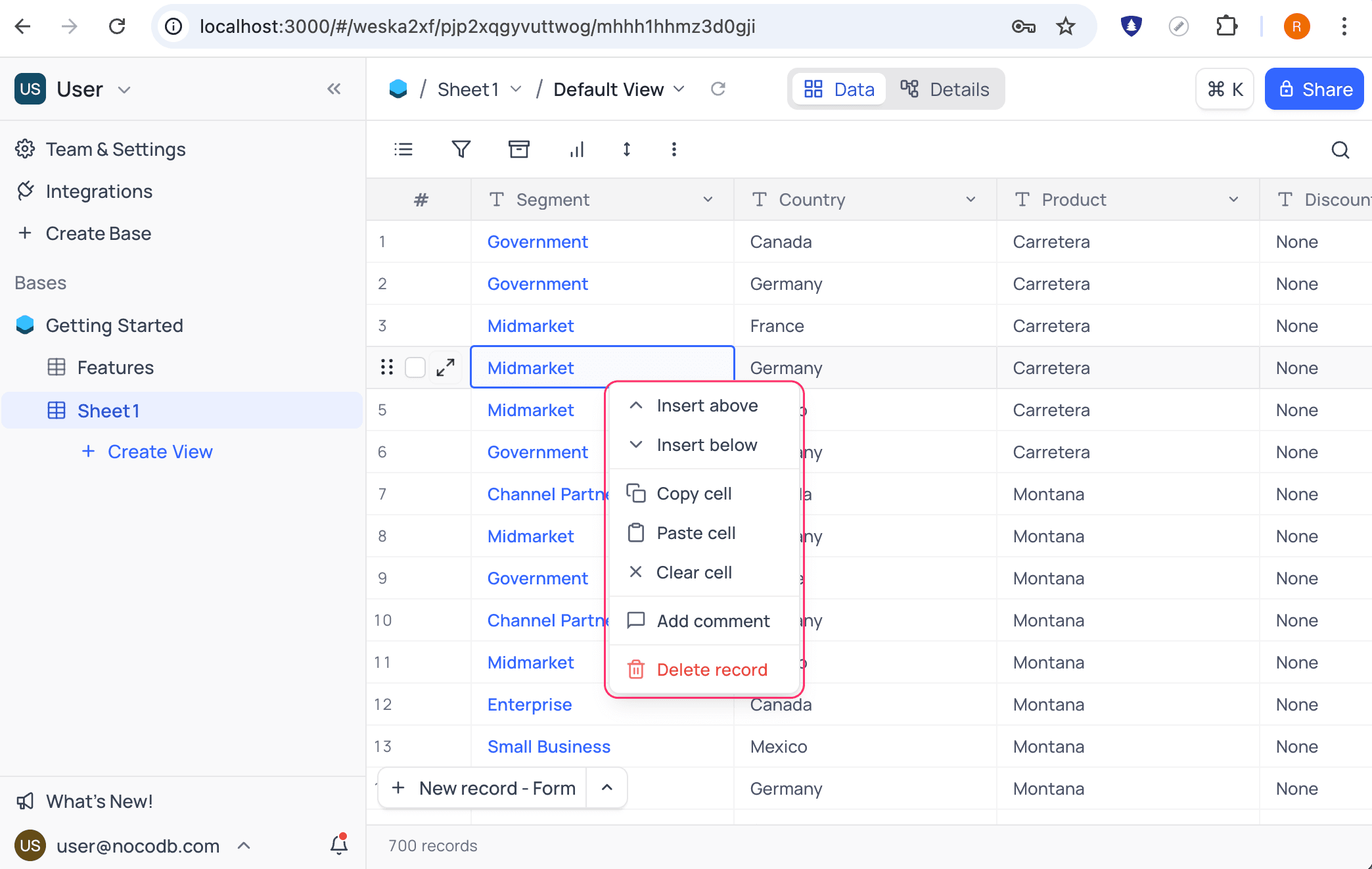
You can insert a new record anywhere in the grid view by using right-click context menu. Click on any record and select from Insert above or Insert below options. A new empty record will be added above or below the selected record.
Good to know
- An empty record can also be added by using
+icon in the last record of the grid view. - When on last record,
Enterkey can be used to add a new empty record to the grid view. - To revert back to default behaviour of
New Recordbutton, click on the up-arrow inNew Recordbutton and selectNew Record - Gridoption
Related
Last updated on
Latest product updates?See Changelog