Number
The section here details various configuration options available for the Number widget in NocoDB dashboards. This widget is designed to display key performance indicators (KPIs) and metric summaries in a clear, concise format.
Ask NocoAI
Copy a prompt, paste it into NocoAI in any base, and replace the words in [brackets] with your own.
- Add a metric widget showing the total [Amount] this [quarter]
- Add a metric widget showing the number of [open] [tickets]
- Add metric widgets for [total, open and closed] [tasks] in one row
Title & description
- Title: Enter a title for the number widget. This will be displayed prominently at the top of the widget.
- Description: Optionally, add a description to provide context or details about the metric being displayed. This will appear below the title.

Data source
- Table: Select the table from which you want to pull data for the number widget. This is the primary source of records for the metric.
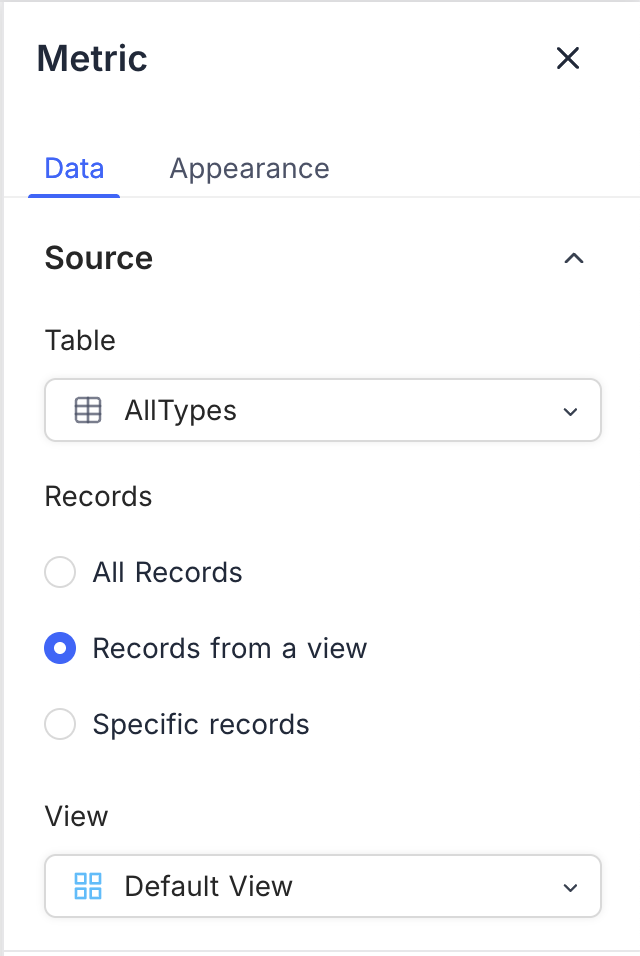
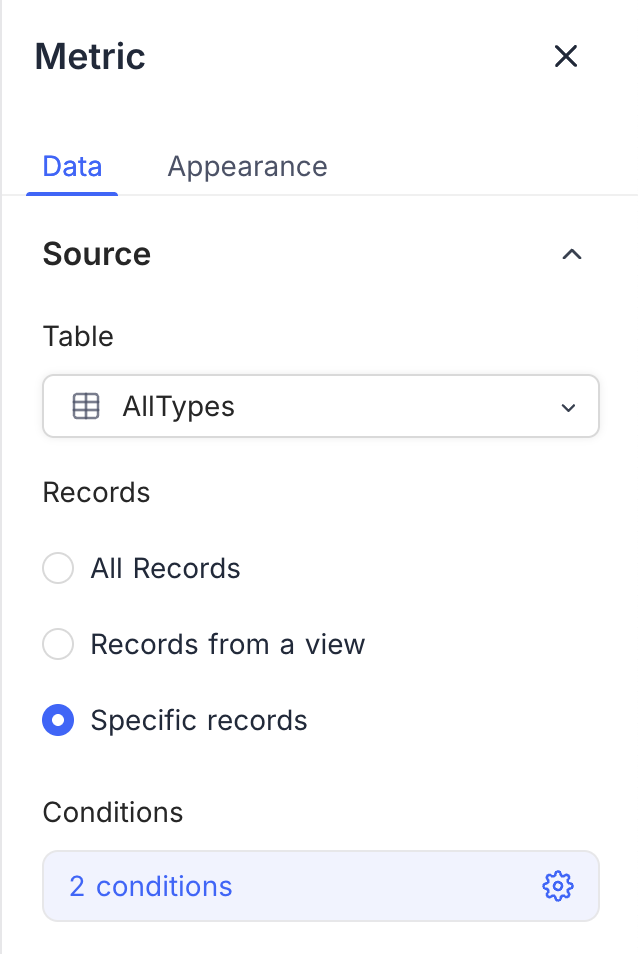
- Record: Select records from the chosen table to be included in the metric calculation. You can choose from:
- All Records: Displays the total count of records in the selected table.
- Records from a view: Allows you to filter records based on a specific view, enabling focused metrics. You need to select a view from the dropdown.
- Specific Records: Apply filters to select specific records for the metric. This is useful for showing metrics based on certain criteria. You can add multiple filters to refine the selection.
Display
- Record Count: Displays the total number of records in the selected source.
- Field Summary: Shows the sum, average, minimum, maximum, or count of a specific field across the selected records. Available options vary based on the field type.

Appearance
Number Format: Choose how the number is displayed, such as:
- Default: Standard numeric format.
- Filled: Displays the number with a filled background.
- Coloured Text: Uses color to highlight the number, making it stand out.


Last updated on
Latest product updates?See Changelog