Teams
Overview
Teams let you group members and manage their permissions at scale. Do not set the same role for each person on each project. Add the users to a team, and give that team a role on one or more projects.
NocoDB has two scopes of teams:
| Workspace Teams | Organization Teams | |
|---|---|---|
| Scope | Single workspace | Entire organization |
| Managed in | Workspace sidebar > Teams | Admin Panel > Teams |
| Availability | Cloud Business+ / self-hosted Scale+ | Cloud Enterprise / self-hosted Scale+ |
When to use which:
| Use | For |
|---|---|
| Org teams | Company-wide groups, such as departments (Engineering, Marketing, HR), that need the same access in many workspaces. The Org Admin manages them from one place. You can give them roles in any workspace. |
| Workspace teams | Groups for one project or one workspace. For example, a "Sprint Team" or an "External Contractors" group that needs access in a single workspace only. |
Use teams to:
- Organize members by department, project, or function.
- Manage permissions with roles for teams, not for individual members.
- Scale access control without individual user permissions.
- Maintain flexibility with inheritance and overrides.
- Create sub-teams for a more detailed structure, with up to 4 levels of nesting.
Create Team
- In the workspace sidebar, click Teams.
- Click New Team.
- Enter a team name.
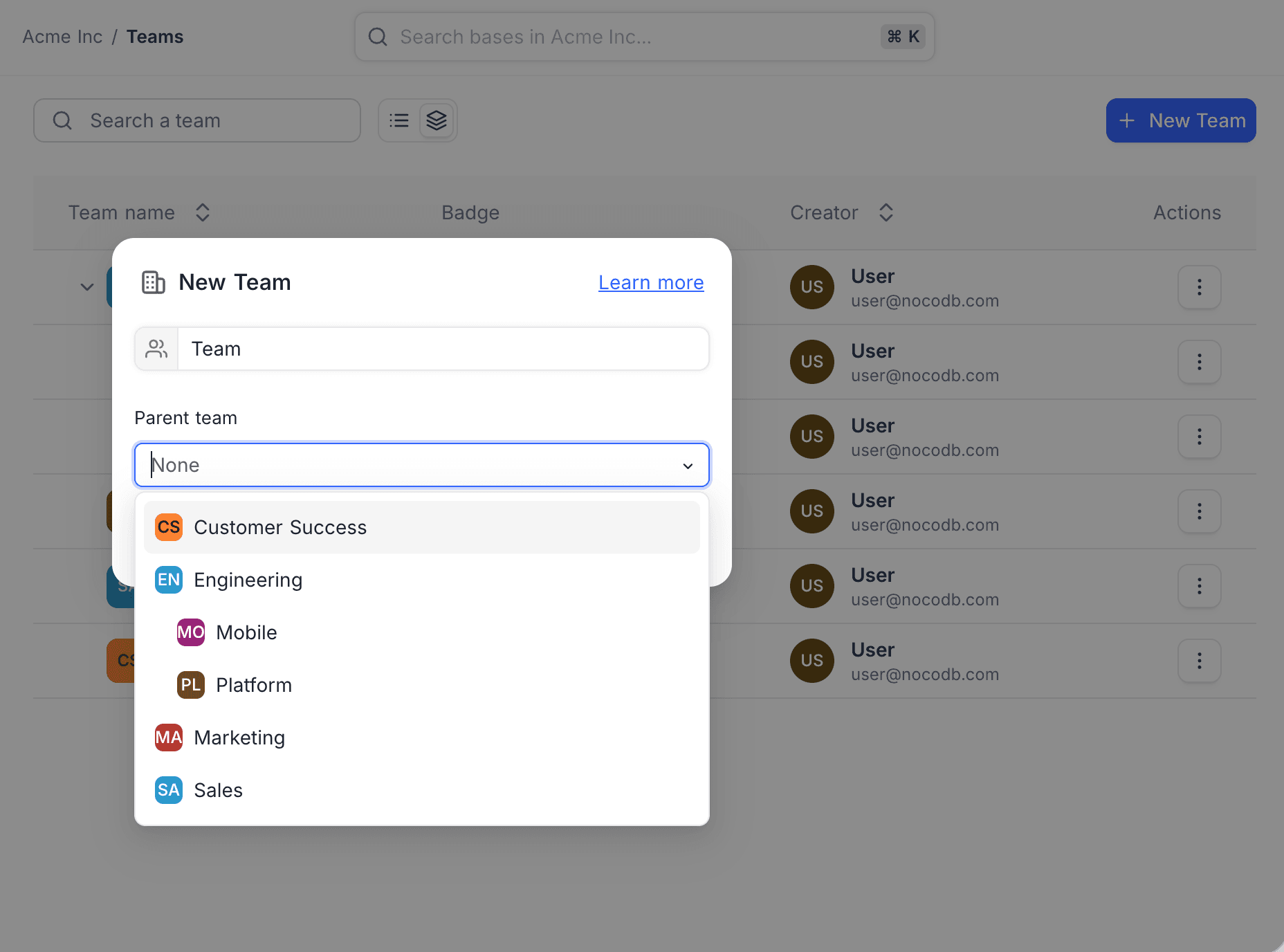
- Optional: to create this team as a sub-team, select a Parent team. For a top-level team, keep None.
- Click Create Team.
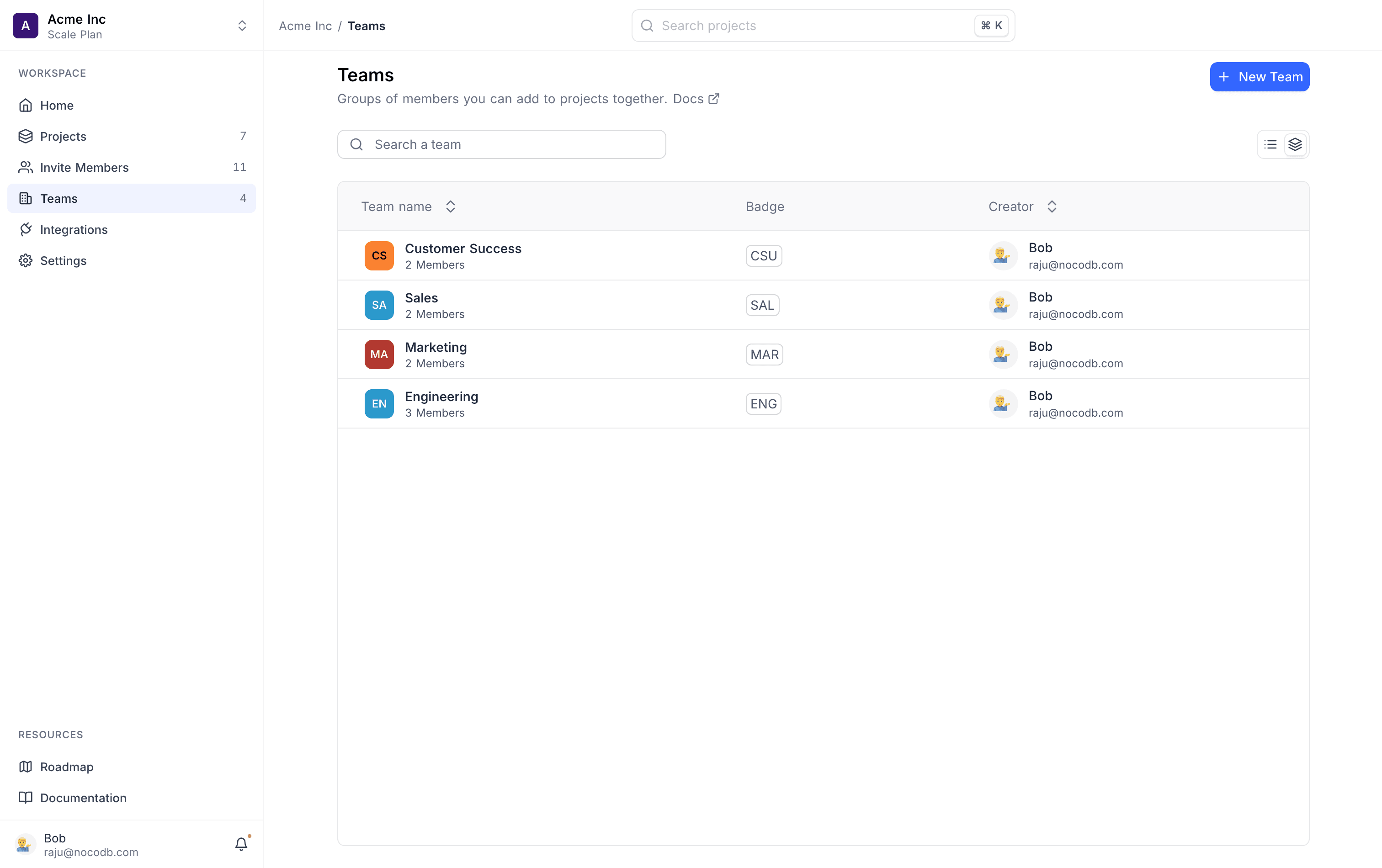
The Teams page lists all teams. For each team, it shows the badge, the number of members, and the creator. A team with sub-teams shows a chevron. Expand the chevron to see the hierarchy.
The Parent team list shows the existing teams indented by hierarchy. You can see where the new team will be.
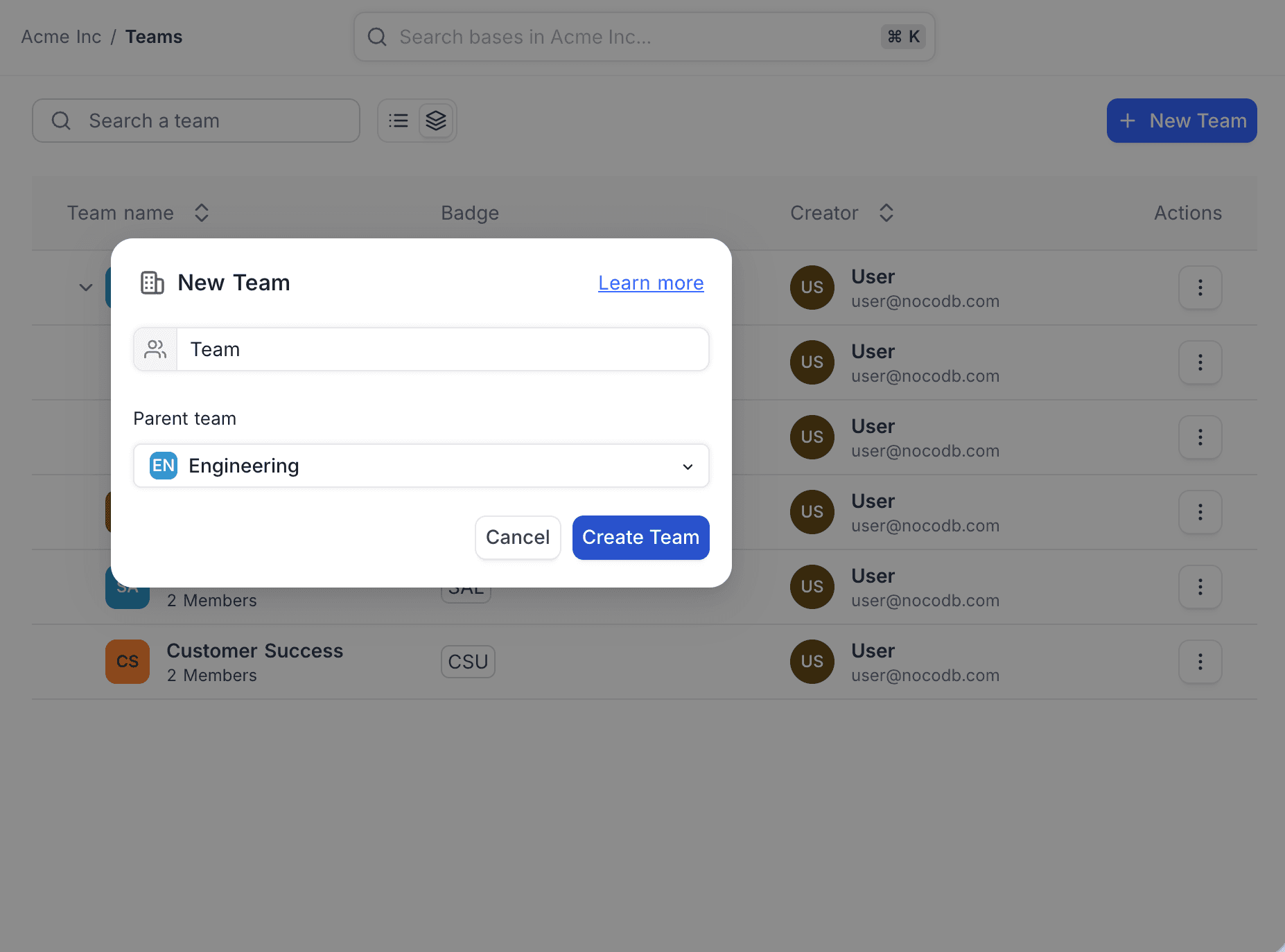
When you create a team, NocoDB adds you as its first member and makes you the Team Owner. A Team Owner has full administrative privileges. A Team Owner can add and remove members, rename the team, and delete the team. A team can have more than one owner, but it must always have at least one owner.
Add Members to a Team
On the Teams page, select the team. Then do these steps:
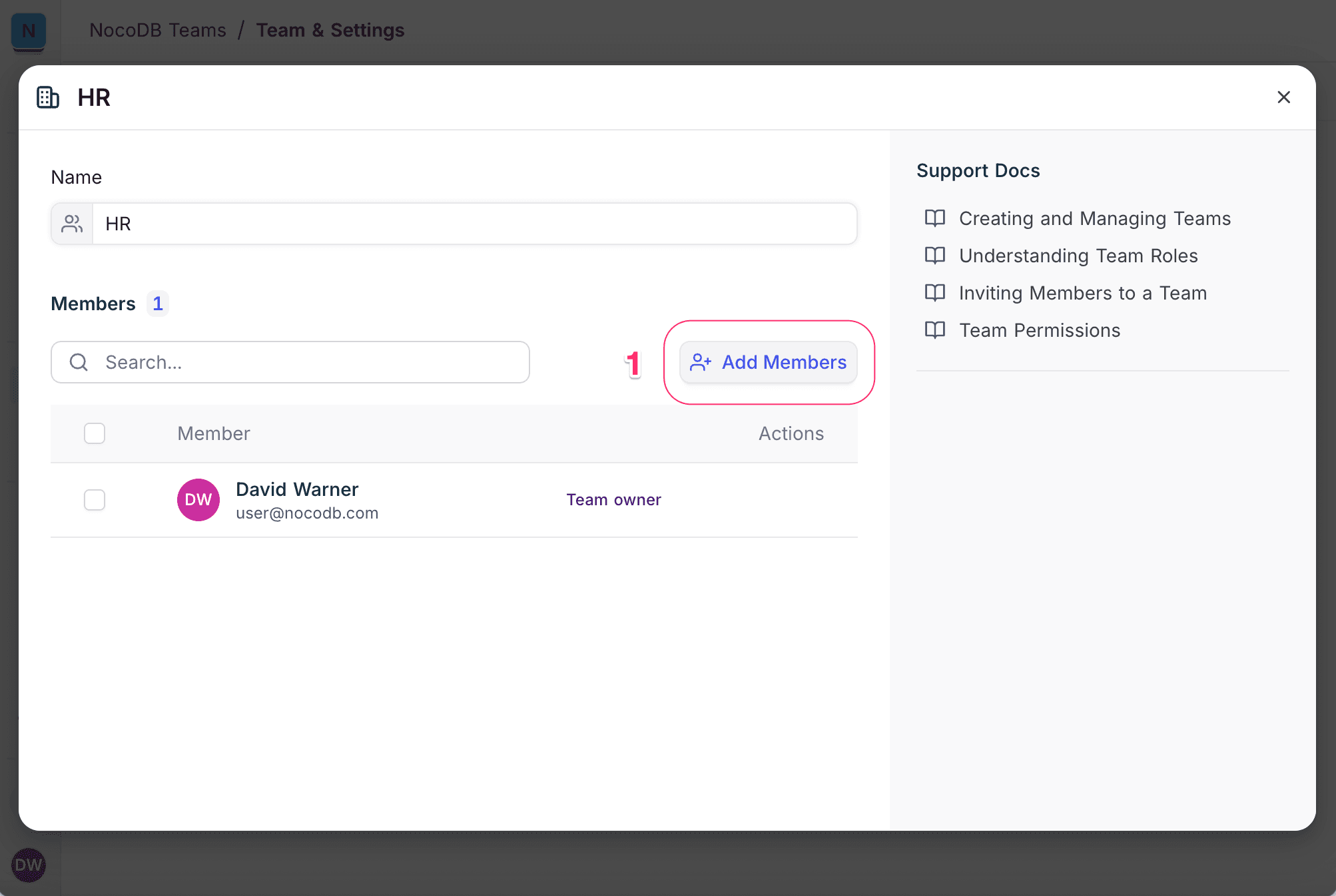
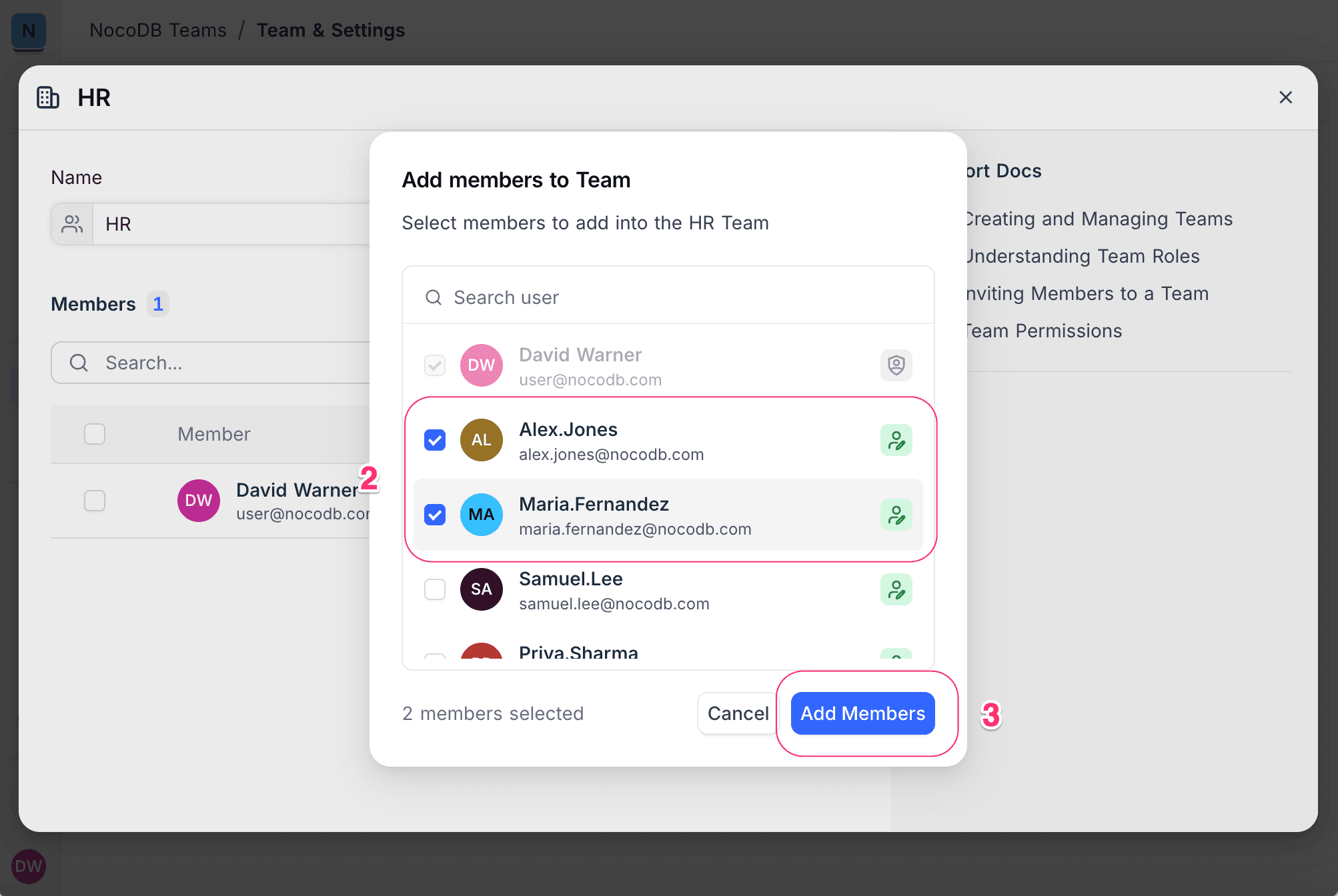
- Click Add Members.
- Use the toggles to select the workspace members to add. The list marks the members that are already in the team.
- Click Add Members again to confirm.
To find a user, search by name or email. The toggles of existing team members are disabled, so you cannot add a member two times. The list shows the workspace role of each member next to the name.
Remove Members from a Team
On the Teams page, select the team. Then do these steps:
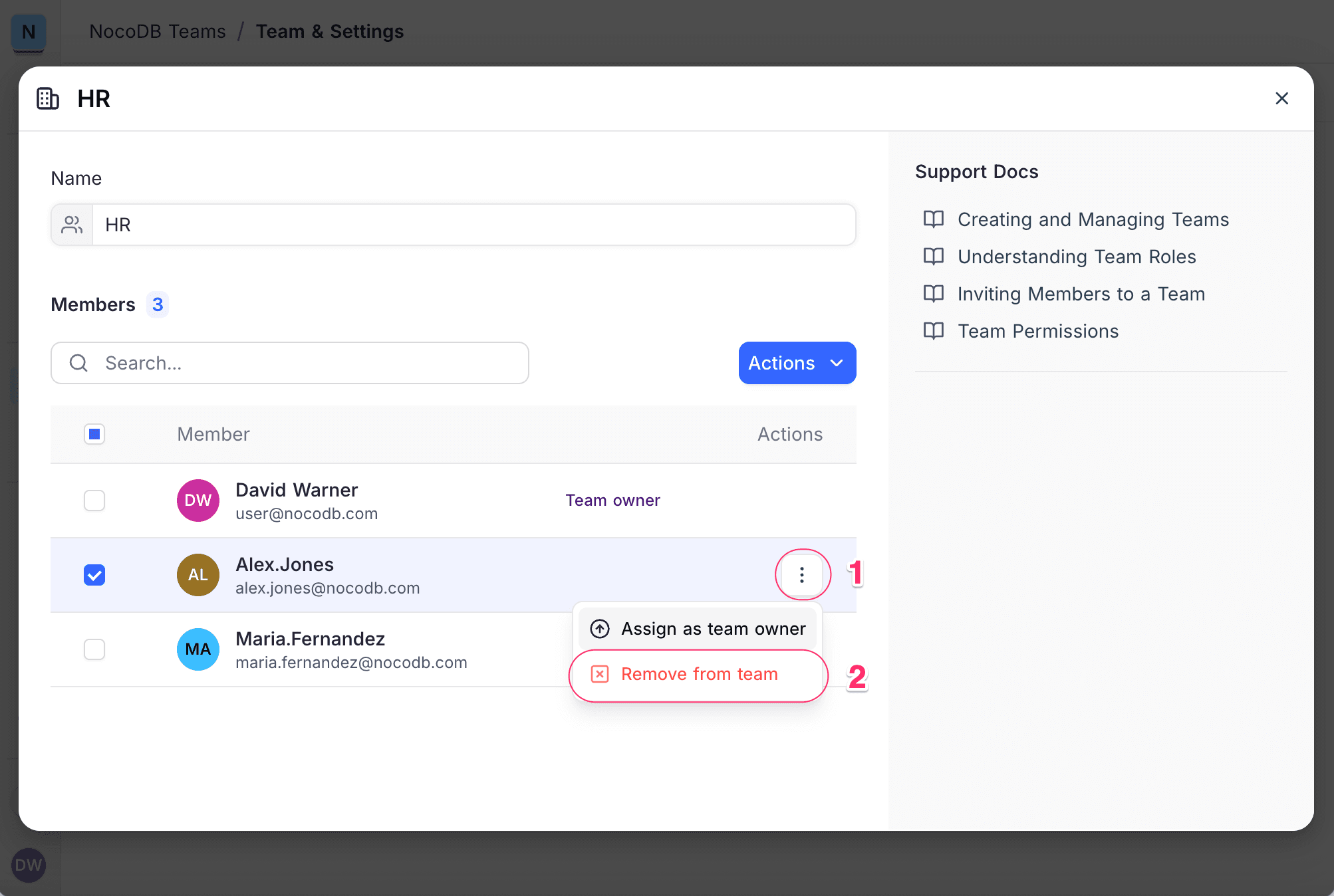
- Find the member. If necessary, use the search bar.
- Next to the name of the member, open the Actions (three dots) menu.
- Select Remove Member.
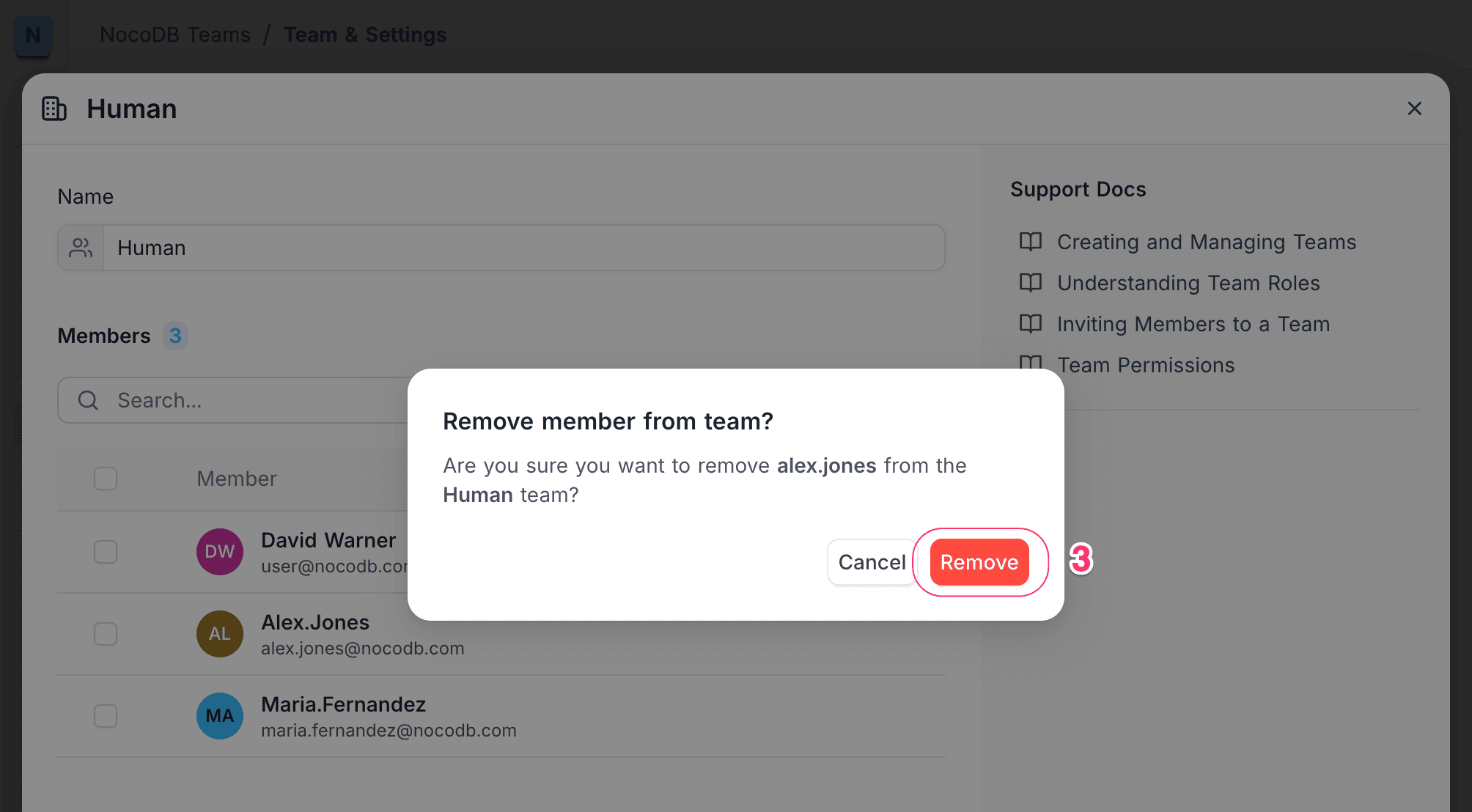
- Confirm the action.
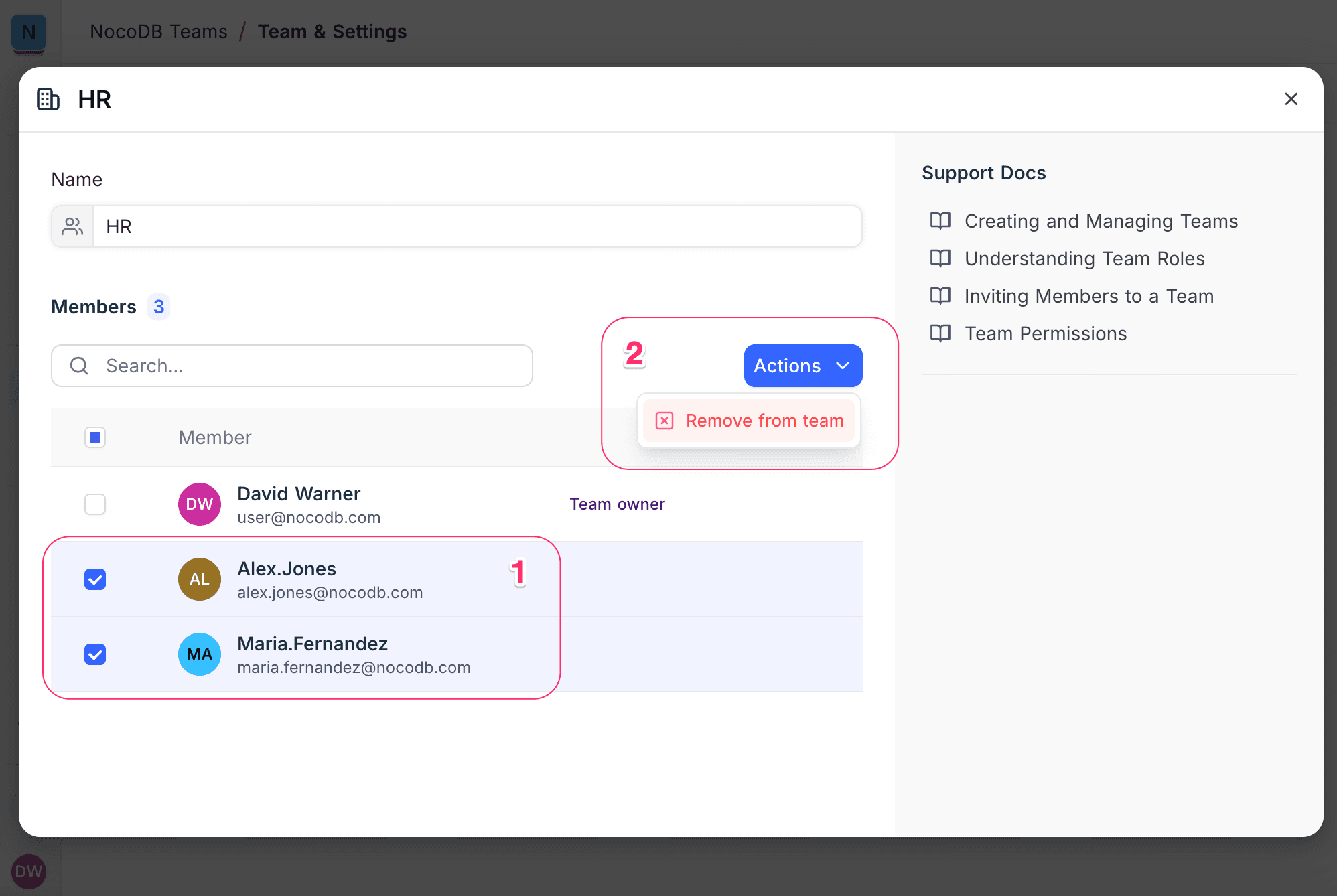
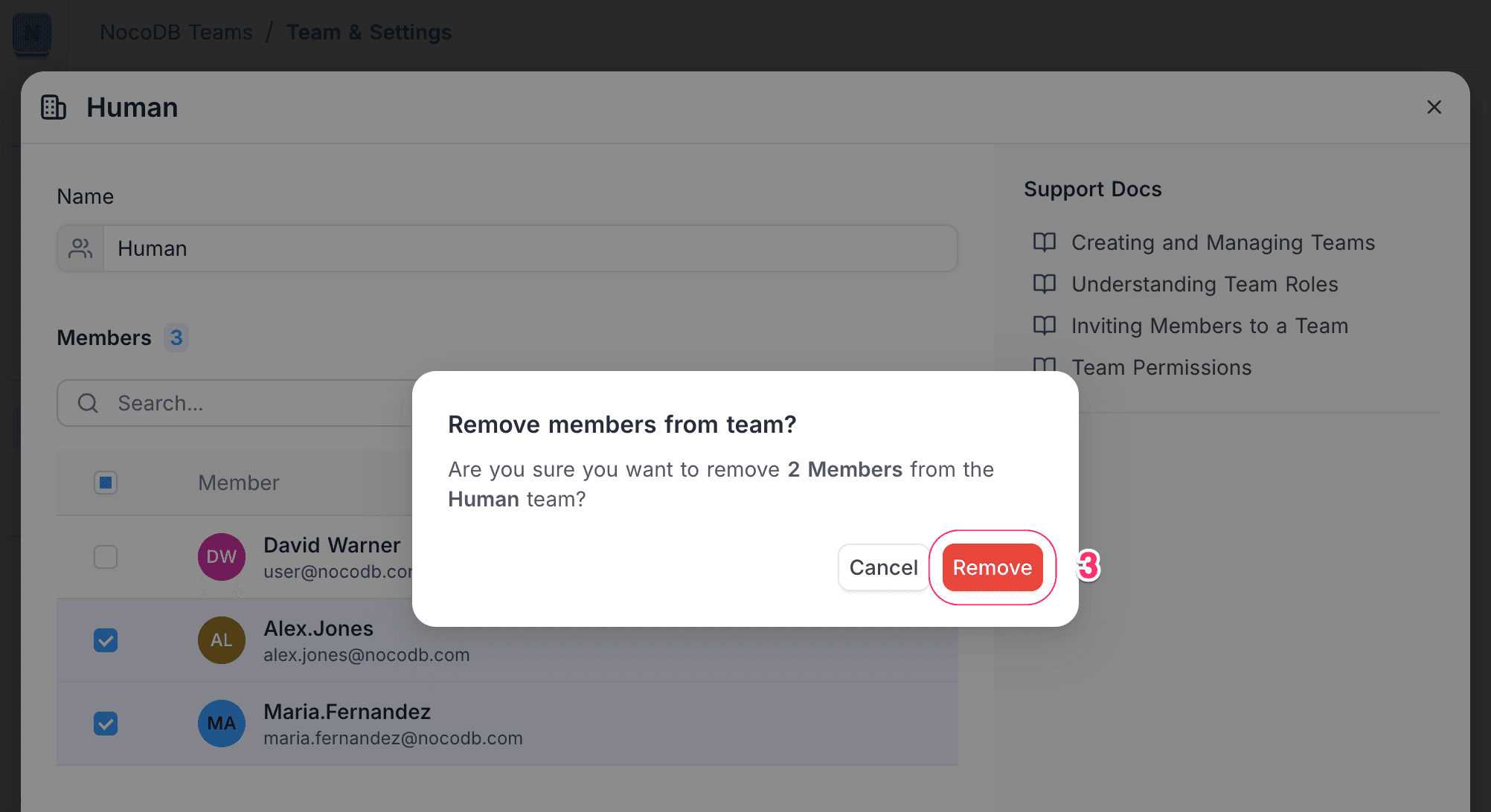
To remove multiple members at the same time:
- Use the checkboxes to select the members.
- At the top of the member list, click Actions > Remove from Team.
- Confirm the action.
Manage Team Owners
A team can have more than one owner, but it must always have at least one owner.
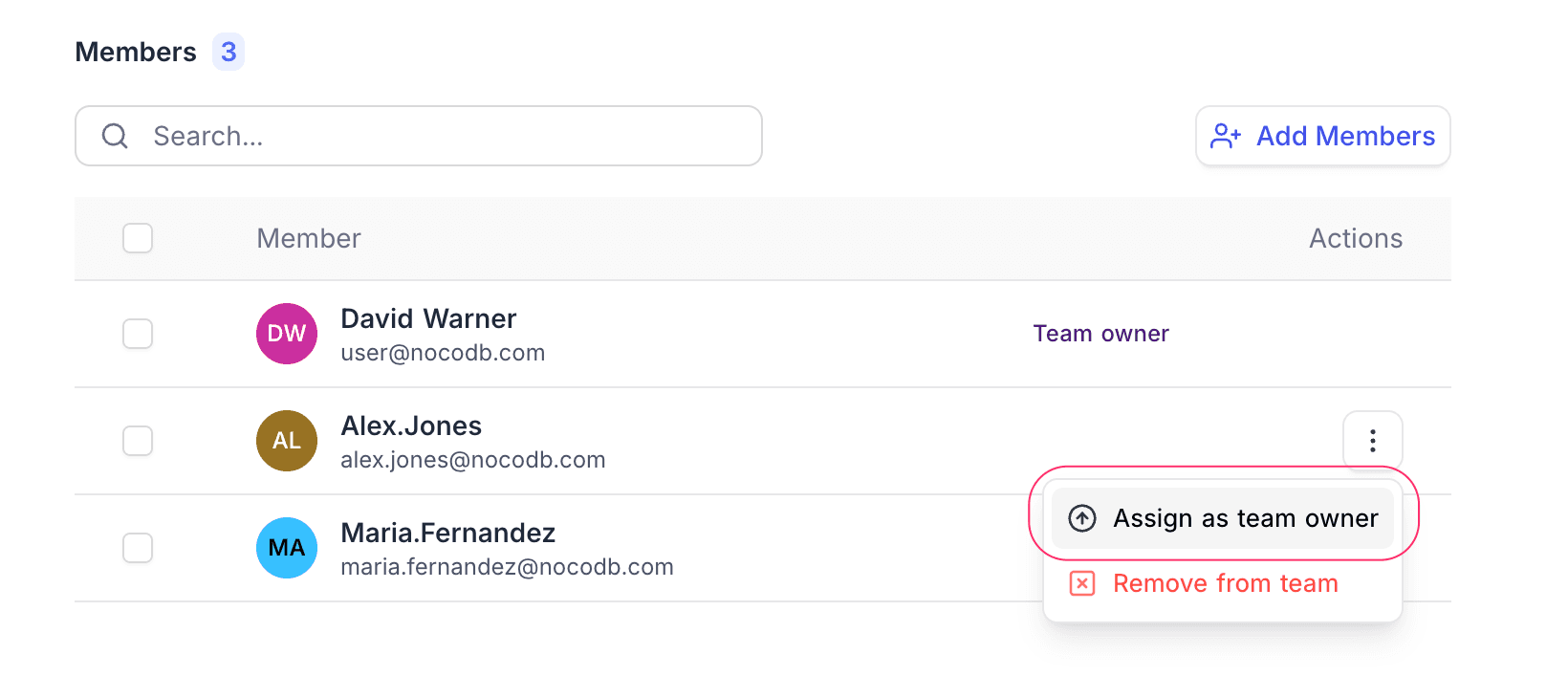
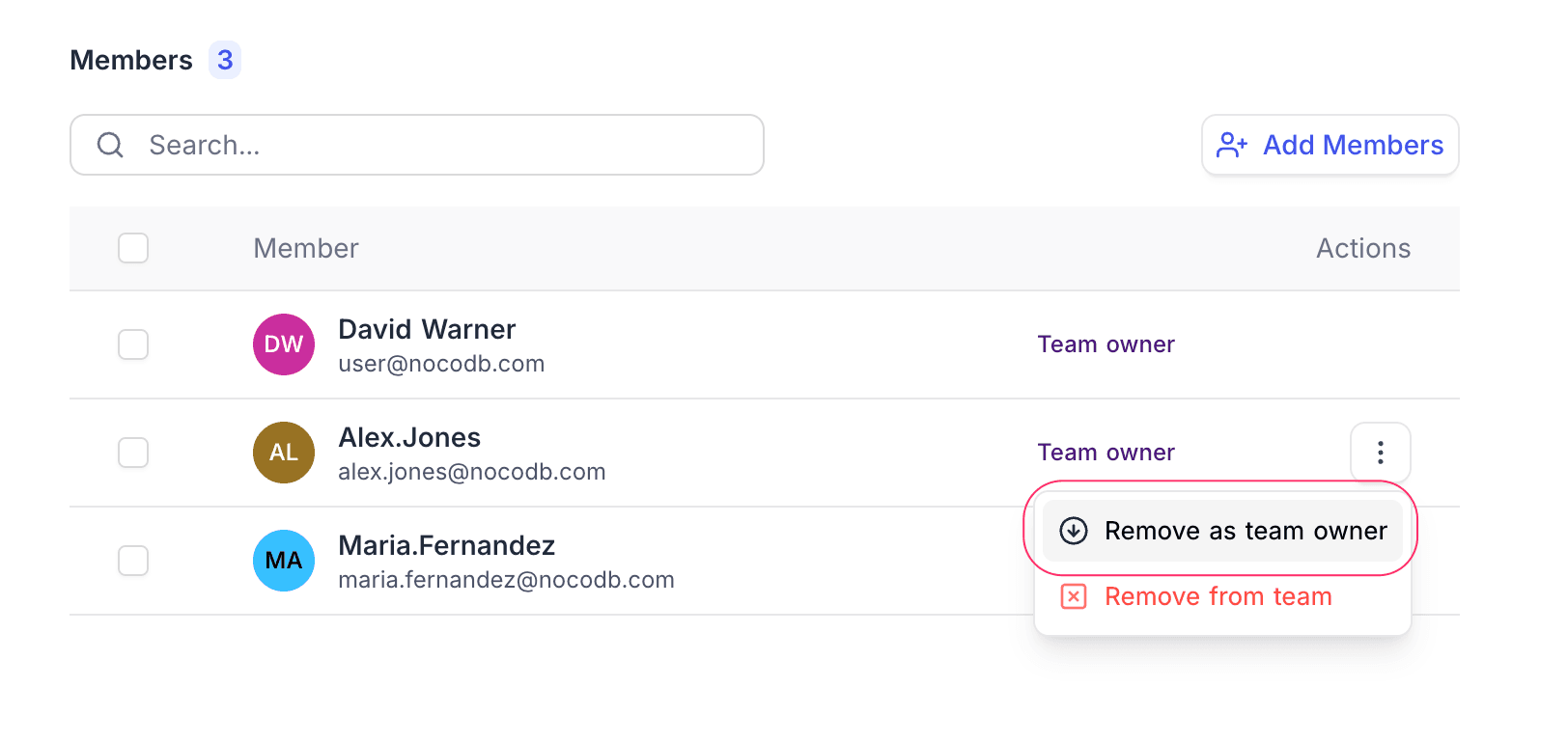
To add or remove a team owner:
- On the Teams page, select the team.
- Find the member. If necessary, use the search bar.
- Next to the name of the member, open the Actions (three dots) menu.
- Select one of these options:
- To give ownership, select Assign as Team Owner.
- To remove ownership, select Remove as Team Owner.
Leave Team
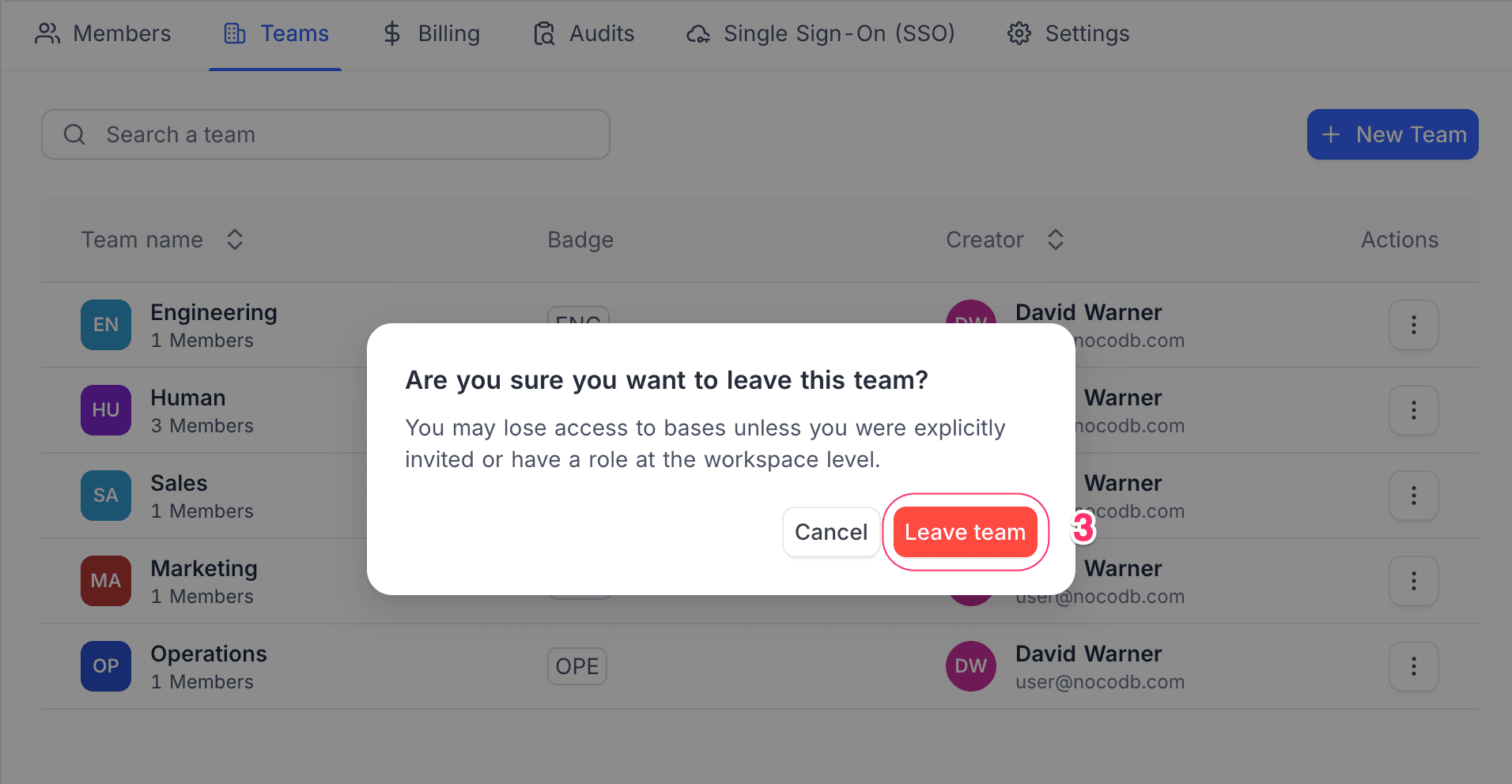
A member can leave a team at any time. All team members can leave, not only owners, if at least one owner stays in the team.
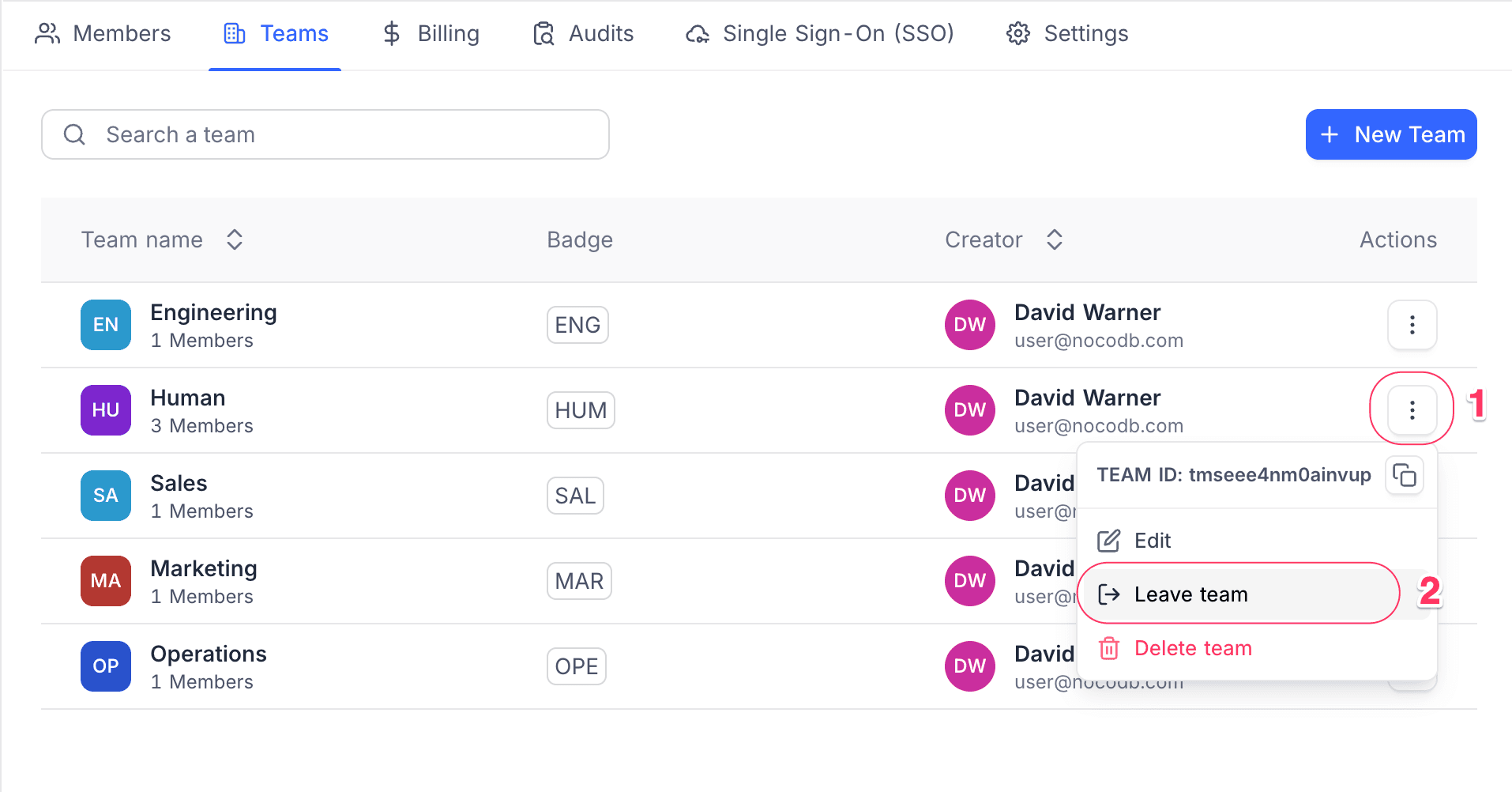
To leave a team:
- On the Teams page, next to the team name, click the Actions (three dots) button. The team menu opens.
- Click Leave Team.
- Confirm the action.
Rename Team
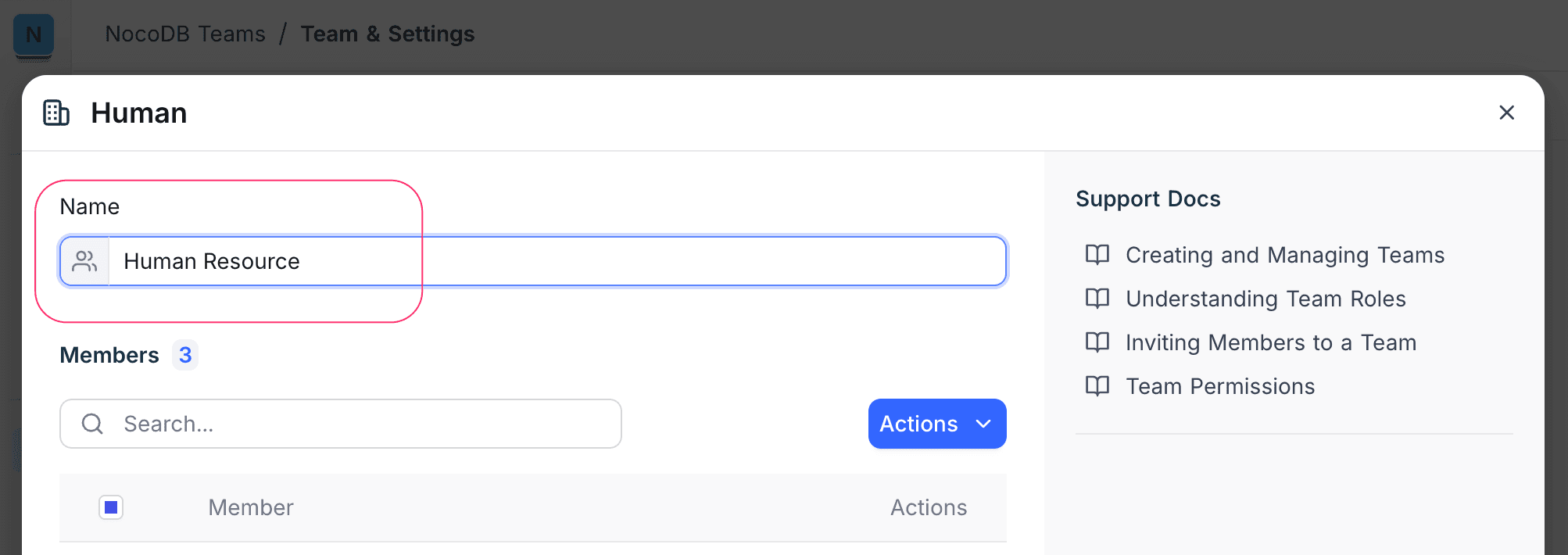
- On the Teams page, select the team.
- Edit the team name. NocoDB saves the change automatically.
Delete Team
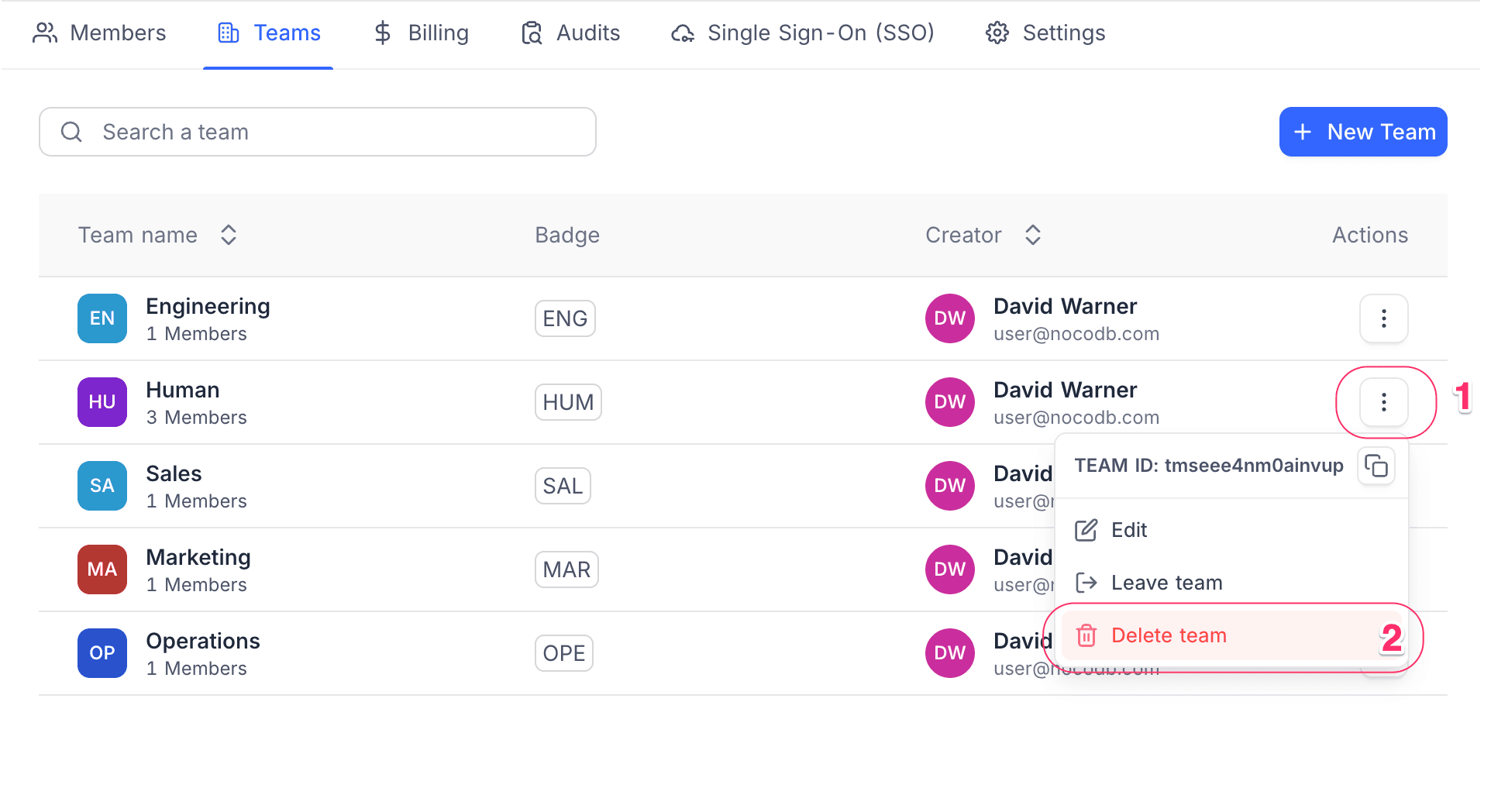
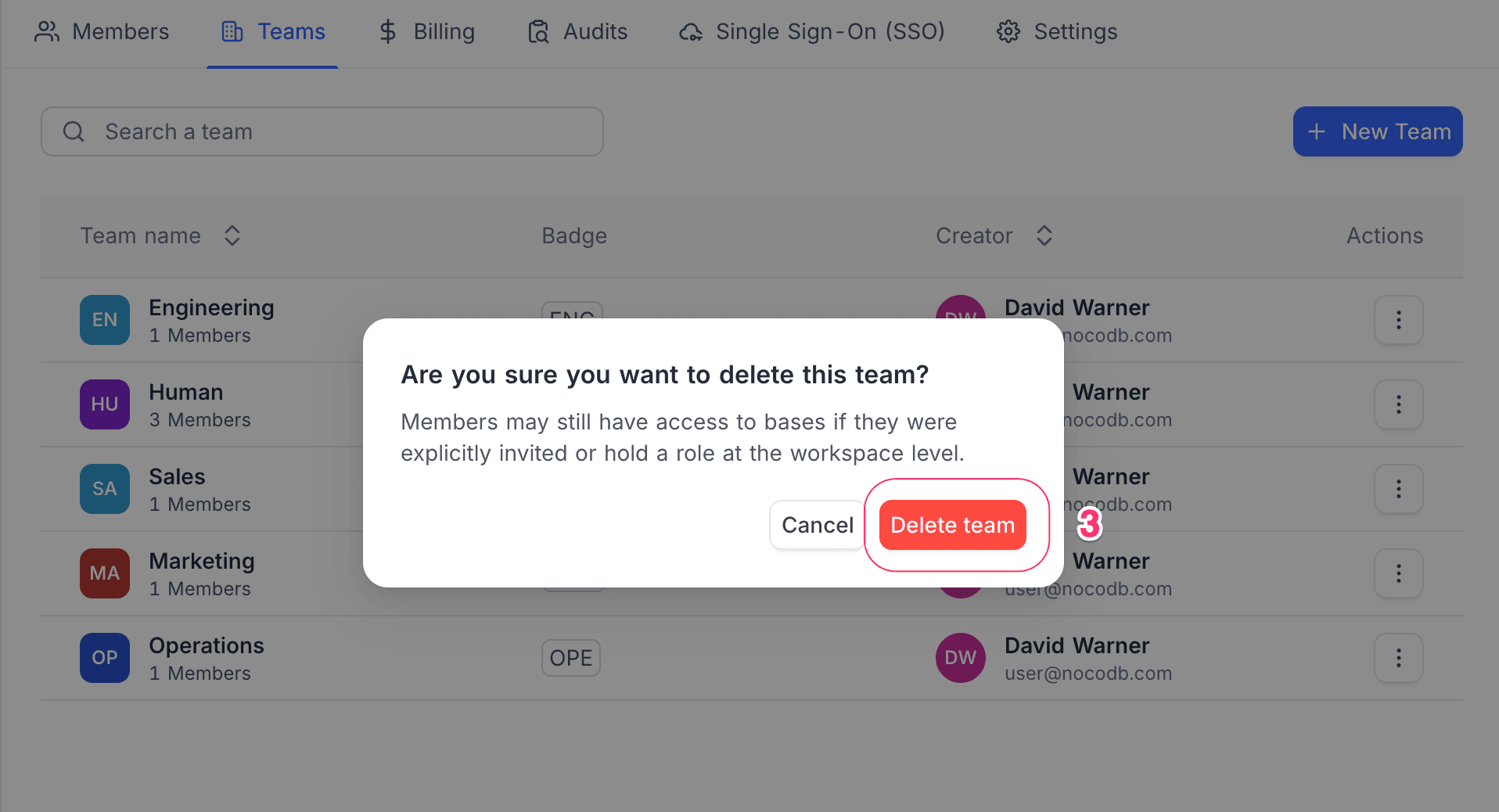
To delete a team:
- On the Teams page, next to the team name, click the Actions (three dots) button. The team menu opens.
- Click Delete Team.
- Confirm the action.
Sub-teams
You can nest teams up to four levels deep. Nesting changes how roles and permissions apply. Refer to Sub-Teams.
Organization Teams
Organization teams have the whole organization as their scope. You manage them from the Admin Panel, and you can give them roles in any workspace. Refer to Organization Teams.
Team roles
Each team member is an Owner or a Member.
| Role | What they can do |
|---|---|
| Owner | Manage the team: rename, move, delete, add and remove people, create sub-teams |
| Member | Be part of the team and get the workspace and project roles of the team |
- The person who creates a team is automatically its first Owner.
- A team can have more than one Owner, but it must always have at least one Owner.
- Team roles (Owner and Member) are different from workspace and project roles (Creator, Editor, Viewer, and others).
Assign roles to teams
You can give a team a role on a workspace or on a project, the same as for an individual user. When a team gets a role, all members of the team get that access.
| Role for a team | Access |
|---|---|
| Creator | Full control, but no deletion |
| Editor | Add, edit, and delete records |
| Commenter | View and comment on records |
| Viewer | Read-only access |
| No Access | No access at all |
For step-by-step instructions:
Effective role resolution
A person can be in one or more teams and have an individual role. NocoDB then uses this order to find the role that applies:
For a project
| Priority | Where the role comes from |
|---|---|
| 1 (highest) | Role assigned directly to the user on this project |
| 2 | Highest role from any team assigned to this project |
| 3 | Role assigned directly to the user on the workspace |
| 4 | Highest role from any team assigned to the workspace |
| 5 (lowest) | No access |
For a workspace
| Priority | Where the role comes from |
|---|---|
| 1 (highest) | Role assigned directly to the user on the workspace |
| 2 | Highest role from any team assigned to the workspace |
| 3 (lowest) | No access |
Rules to remember
| Rule | What it means |
|---|---|
| Individual roles always win over team roles | This applies at the same level. |
| Project-level roles win over workspace-level roles | A role on a specific project has priority. |
| Highest team role wins | If you are in two teams with different roles, you get the higher role. For example, Viewer + Editor = Editor. |
| "Inherit" at workspace level | "Inherit" means "use my team role." All other workspace roles override team roles. |
| "No Access" at workspace level blocks everything | Team roles cannot override it. |
Examples
Team role only
Alice is in the "Marketing" team. This team has Editor access on Workspace X. Alice has no individual role.
→ Alice gets Editor access on the workspace and on all its projects.
Individual role overrides team
Bob is in "Marketing" (Editor on Workspace X). Bob also has the individual role Viewer on Workspace X.
→ Bob gets Viewer. Individual roles always have priority, also when they give less access.
Multiple teams
Carol is in "Marketing" (Viewer on Project A) and in "Content" (Editor on Project A).
→ Carol gets Editor on Project A. The higher team role wins.
Project-level override
Dave is in "Engineering" (Editor on Workspace X). Dave also has the individual role Creator on Project B.
→ Dave gets Creator on Project B and Editor on all other projects.
Sub-team role flowing upward
"Frontend" is a sub-team of "Engineering." "Frontend" has Editor on Workspace X.
→ Frontend members get Editor. → Engineering members also get Editor. Members of a parent team automatically get the roles of its sub-teams.
Best practices
- Invite users with the "Inherit" role at workspace level. Then teams fully control their access. (Note: "No Access" at workspace level blocks all team roles.)
- Match your org chart. Create top-level teams for departments and sub-teams for groups in them.
- Put managers in parent teams. They automatically get access to all that their sub-teams can see.
- Use individual roles only for exceptions. Teams handle the usual cases. Individual roles handle the special cases.
- Use clear team names (for example,
Eng - Backend,Ops - HR). Clear names make teams easy to find and manage. - Review membership regularly. Remove people who left or who changed roles.
- Add multiple team owners. Then the team does not get stuck if one owner is not available.
Availability
- Workspace Teams are available on NocoDB Cloud (Business plan and above) and licensed self-hosted deployments (Scale plan and above). Organization Teams are available on NocoDB Cloud (Enterprise plan) and licensed self-hosted deployments (Scale plan and above).
Last updated on