Create workflow
Learn how to create a workflow in NocoDB.
Accessing workflow page
Workflow's in NocoDB are base specific. To create a new workflow, open the desired base and
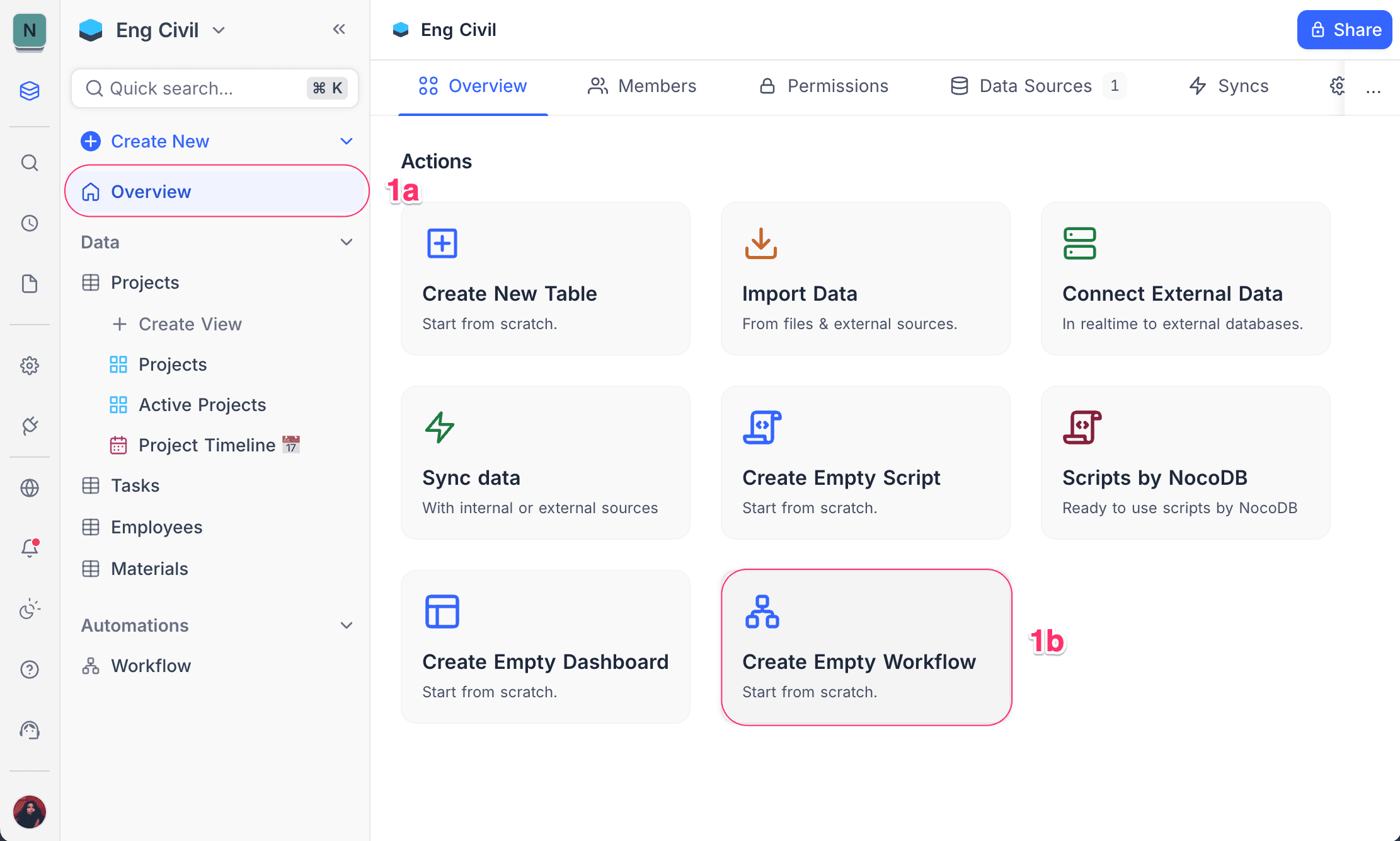
- From base Overview page, click on the Create Empty Workflow button.
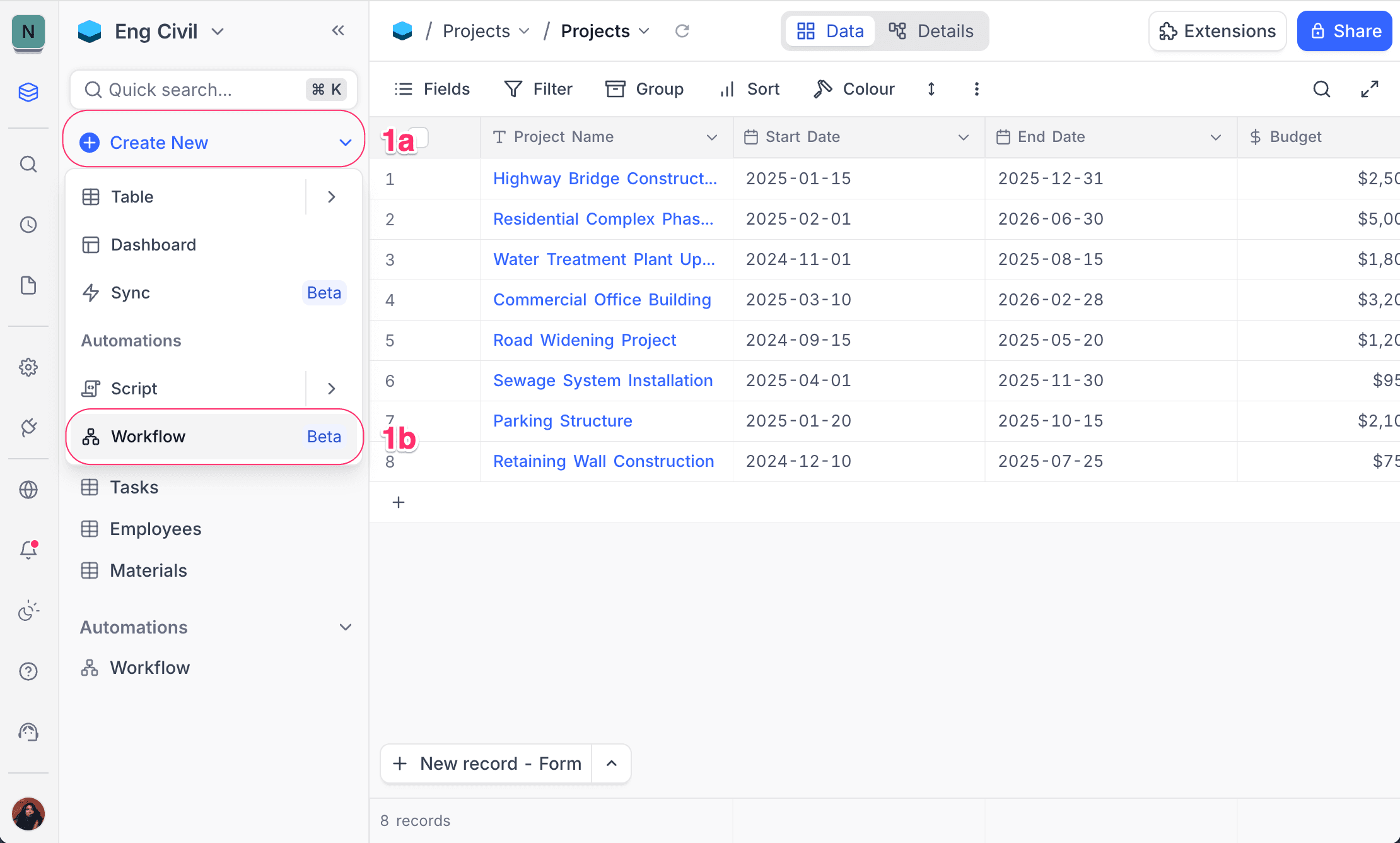
- Alternatively, Click Create New in the left sidebar and select Workflow.
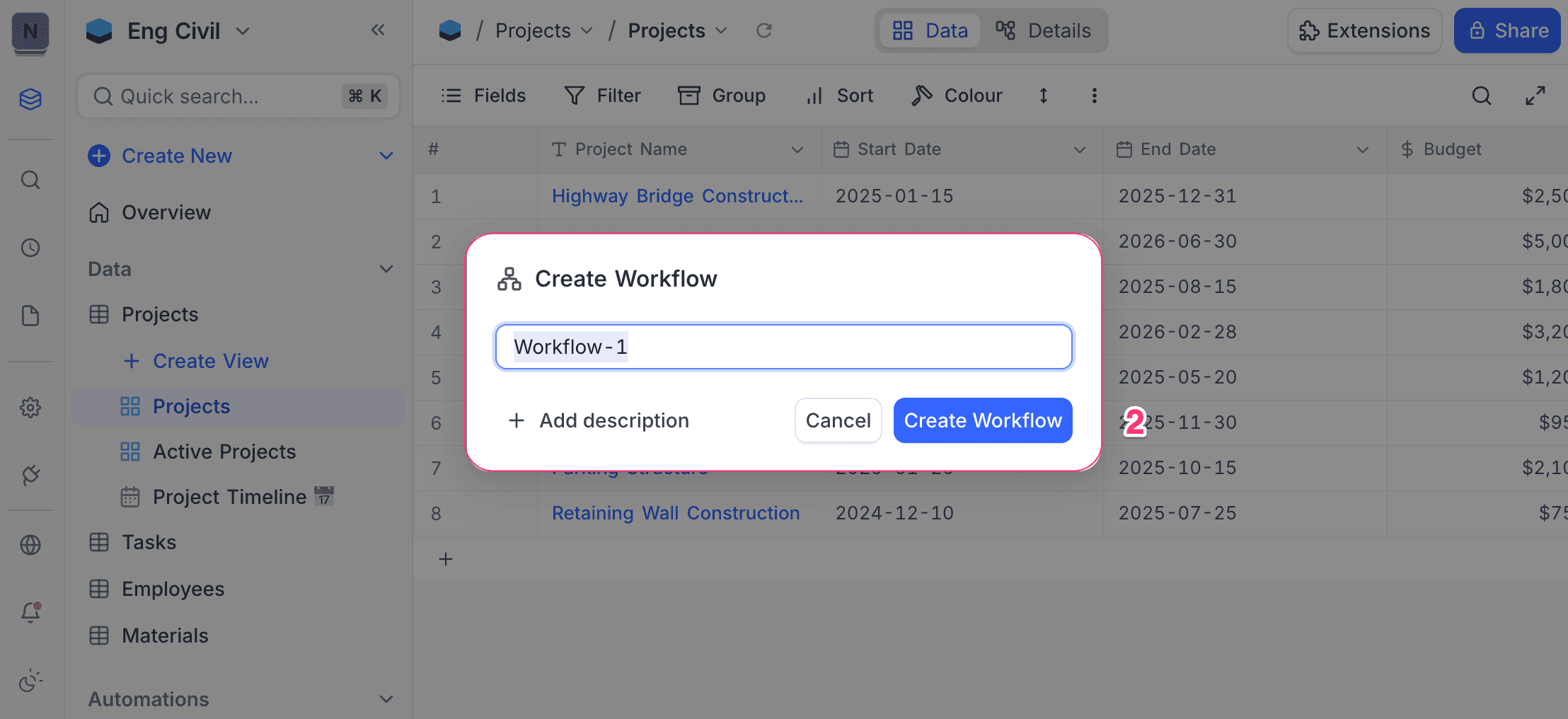
- Specify a name for the workflow and click Create Workflow.
- Optionally, provide a description to explain the workflow's purpose.
You will land on the workflow editor page to configure the workflow.
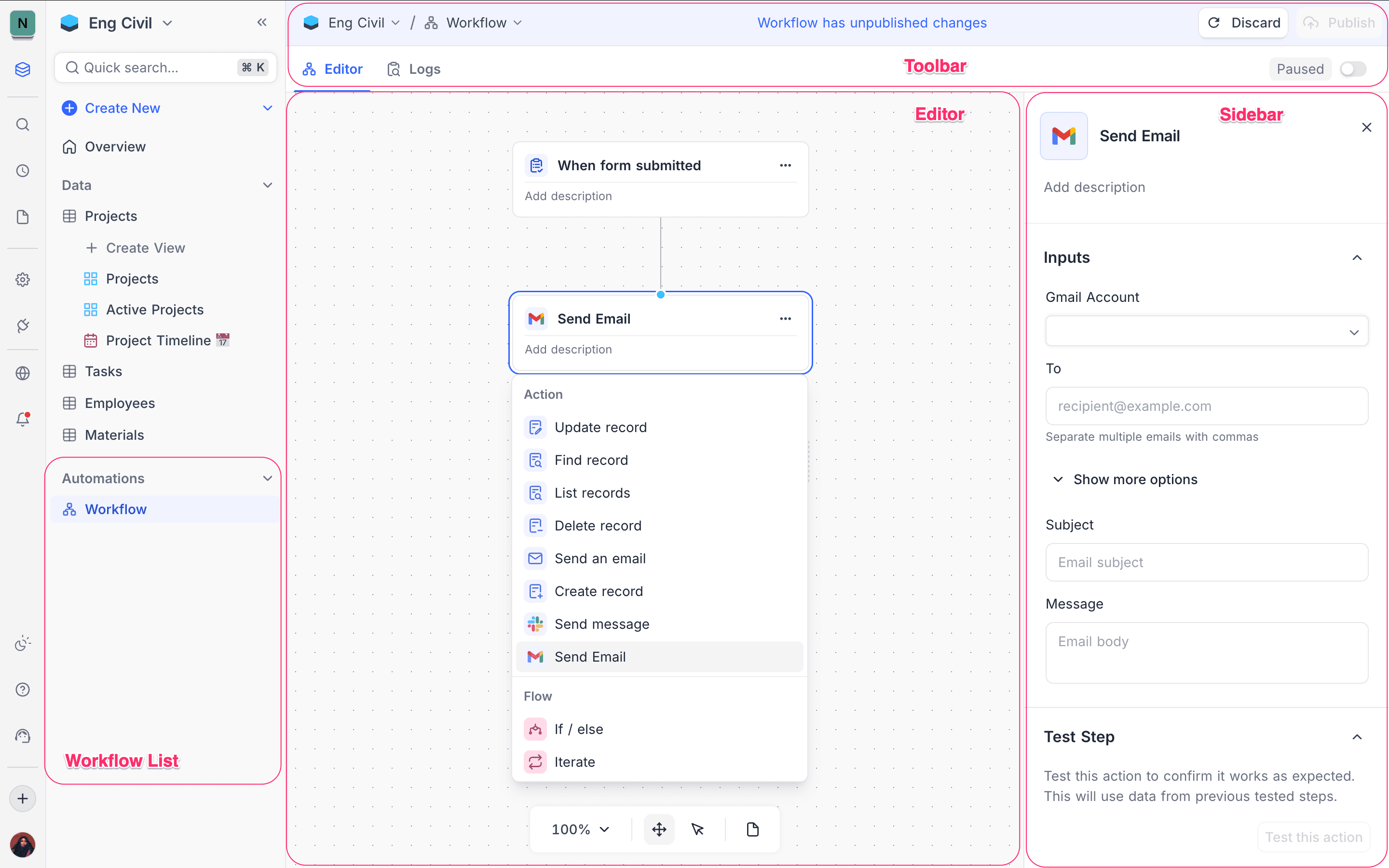
- Workflow list : View all workflows in the base in the left sidebar
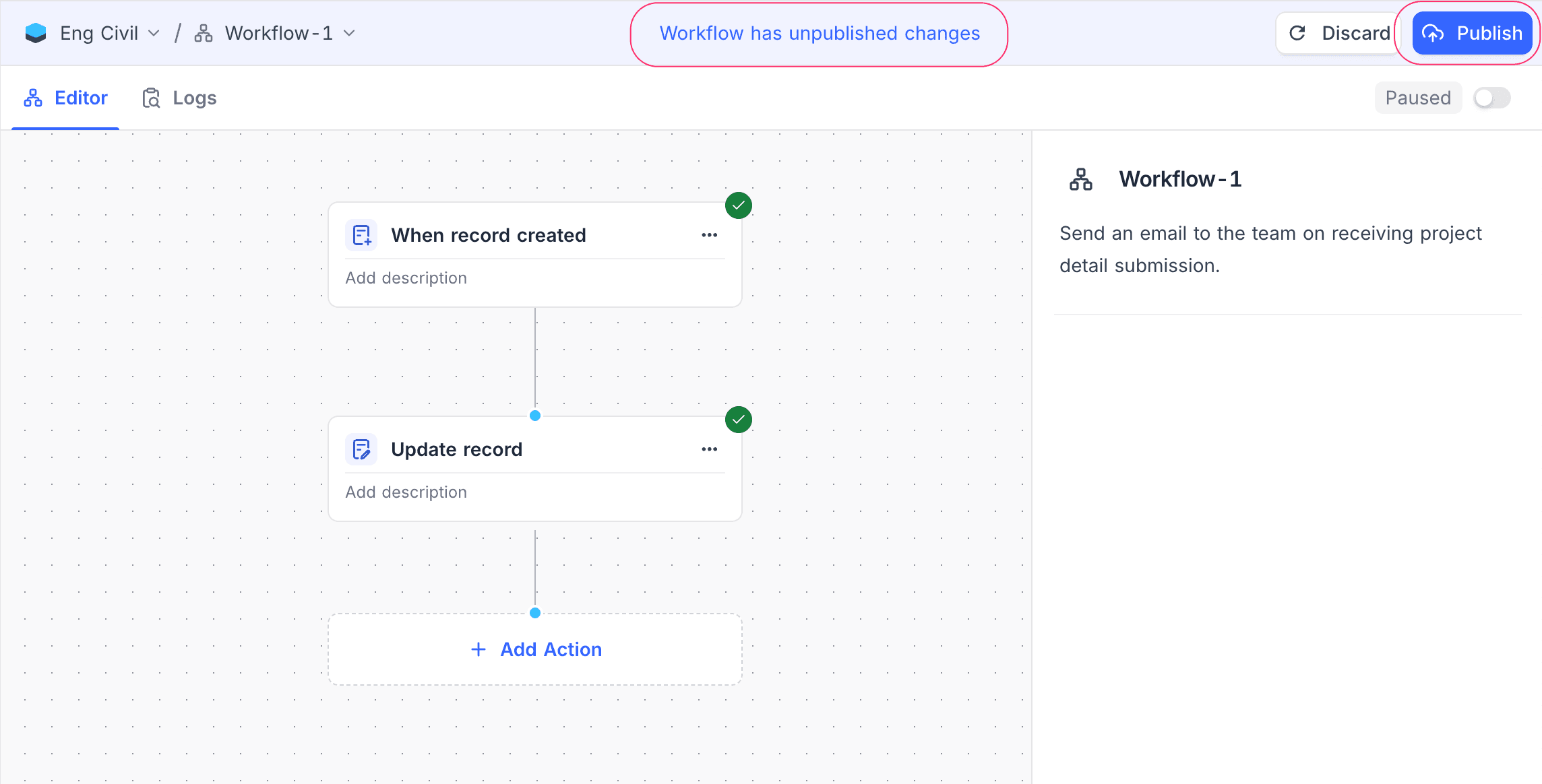
- Toolbar : Access workflow actions and settings
- Editor canvas : Design the workflow by adding and connecting nodes
- Sidebar : Configure selected node properties
Configuring workflow
NocoDB Workflow builder provides a visual interface to design automation logic using interconnected nodes. To configure a workflow, follow these steps:
-
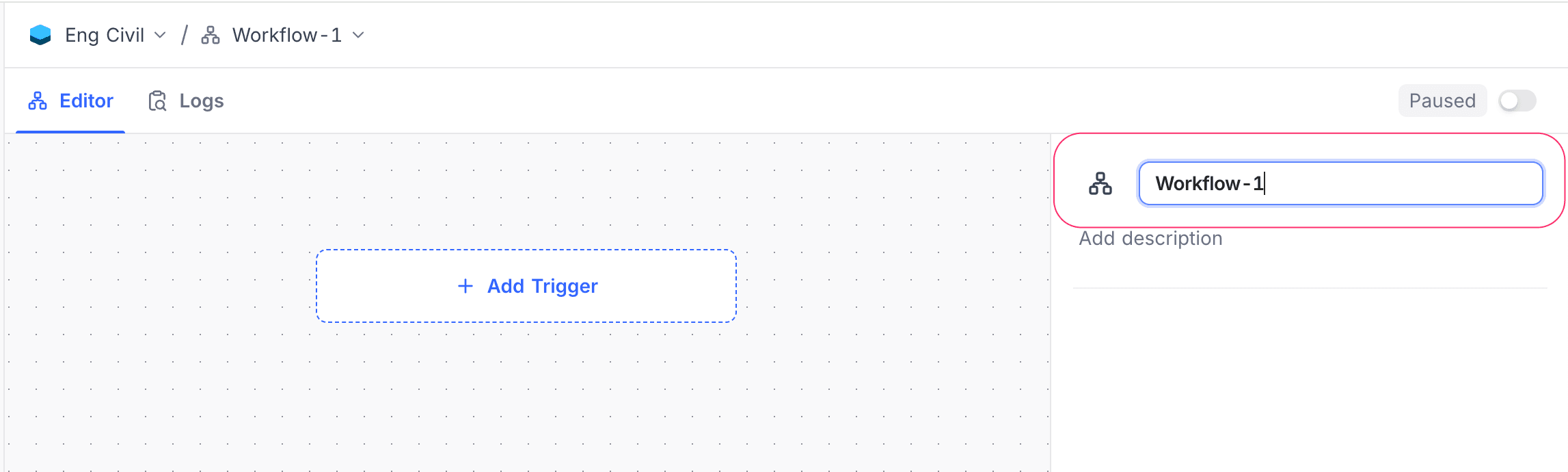
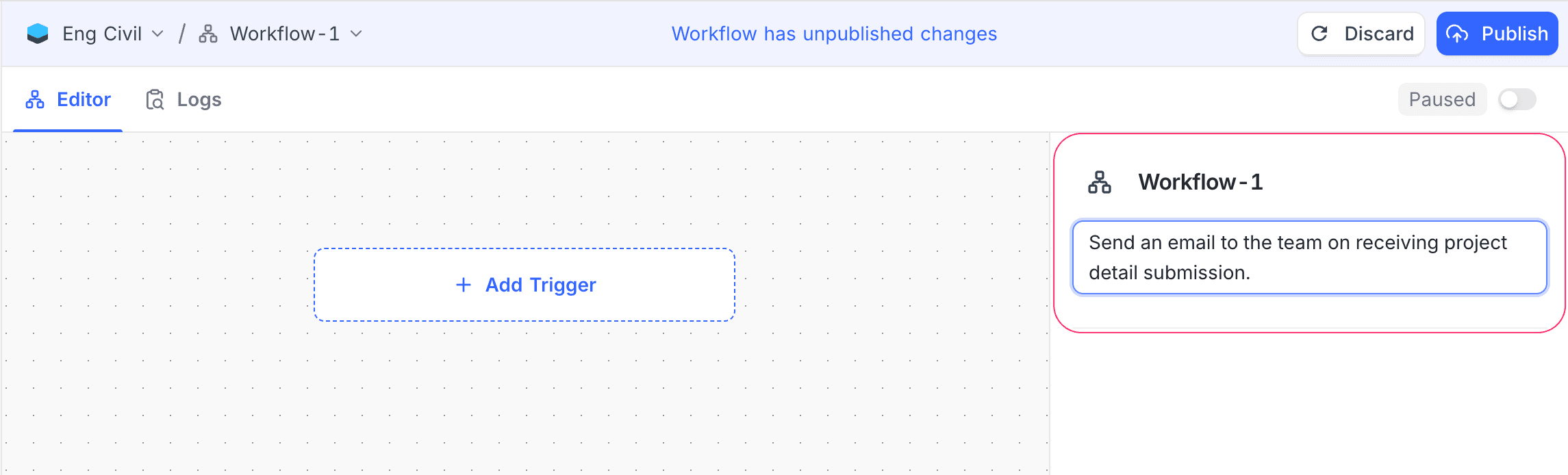
Name the workflow: Provide a clear and descriptive name to identify the workflow easily. Optionally, add a description to explain its purpose.
-
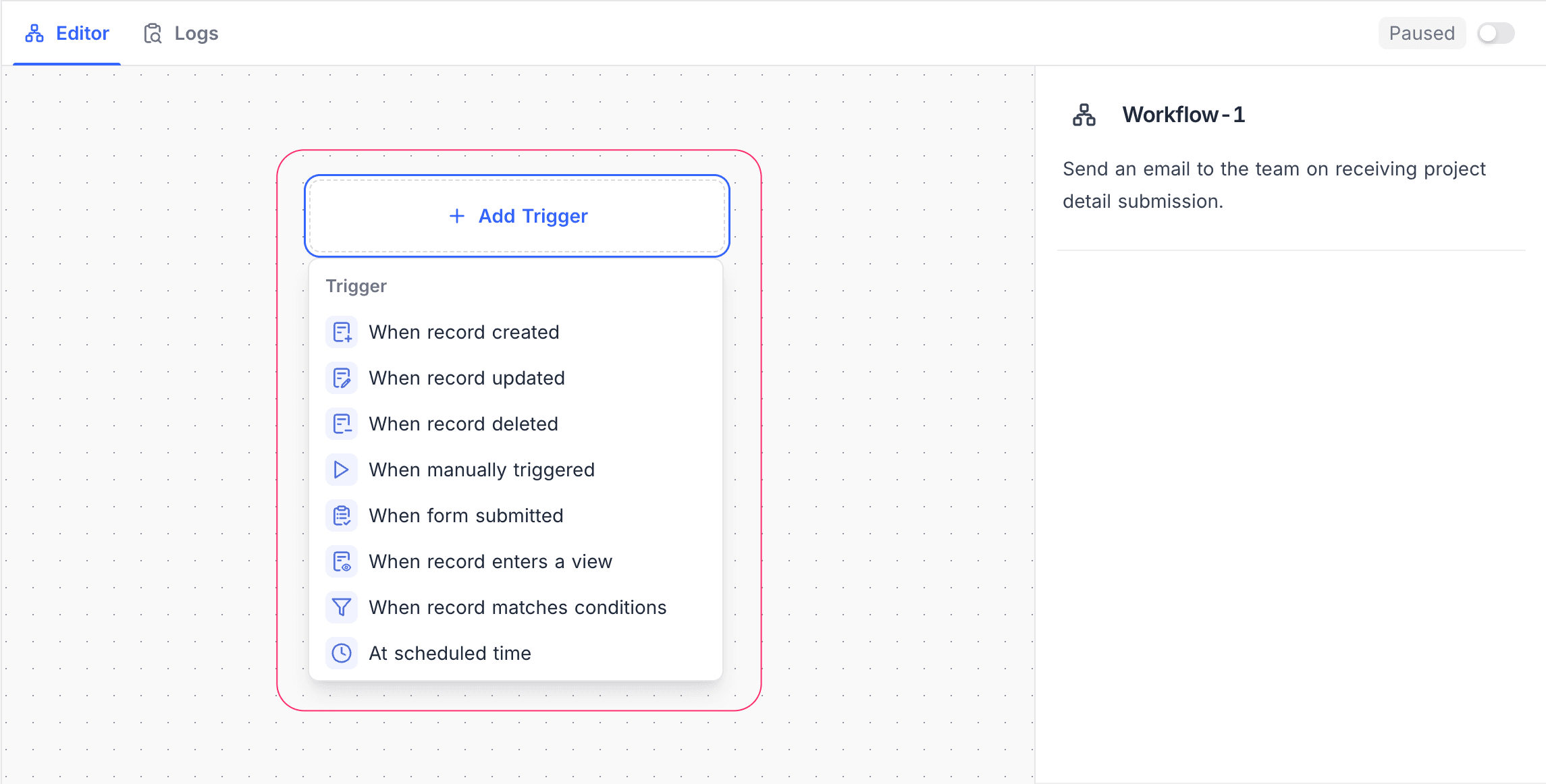
Select Trigger: Choose how the workflow should be initiated & configure additional node specific settings (resource & conditions) as required. There can be only one trigger node per workflow. Supported trigger types include:
- Record trigger – Runs when a record is created, updated, or deleted
- Comment trigger – Runs when a comment is added, edited, deleted, resolved, or reopened
- Manual trigger – Runs when triggered manually by a user
- Scheduled trigger – Runs at specified time intervals
-
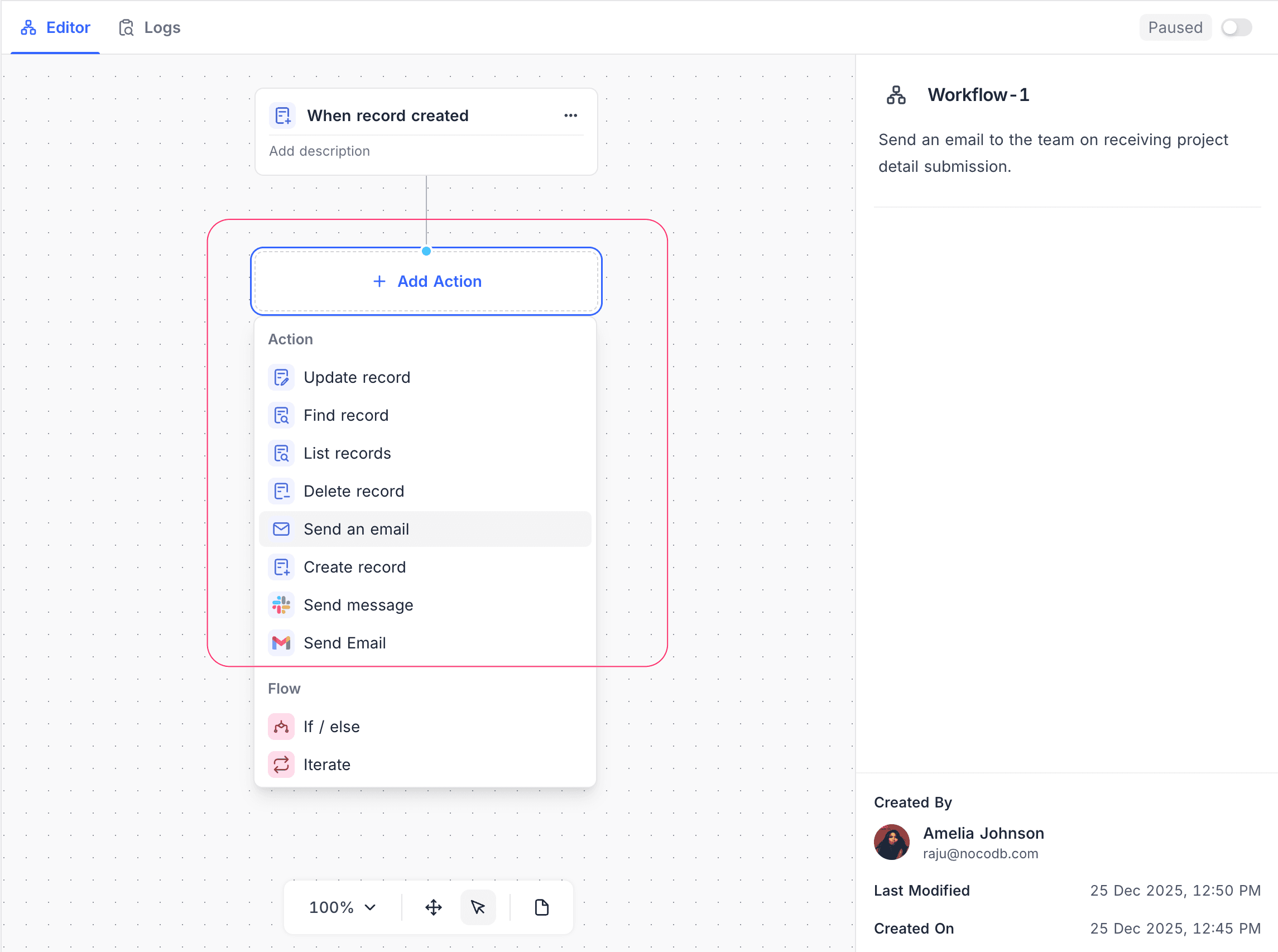
Add Action nodes: Define what happens when the workflow is triggered. You can chain multiple action nodes to perform sequential operations. Common action nodes include:
- Create / Update Record – Modify data in a table
- Send Notification – Notify users via supported channels
-
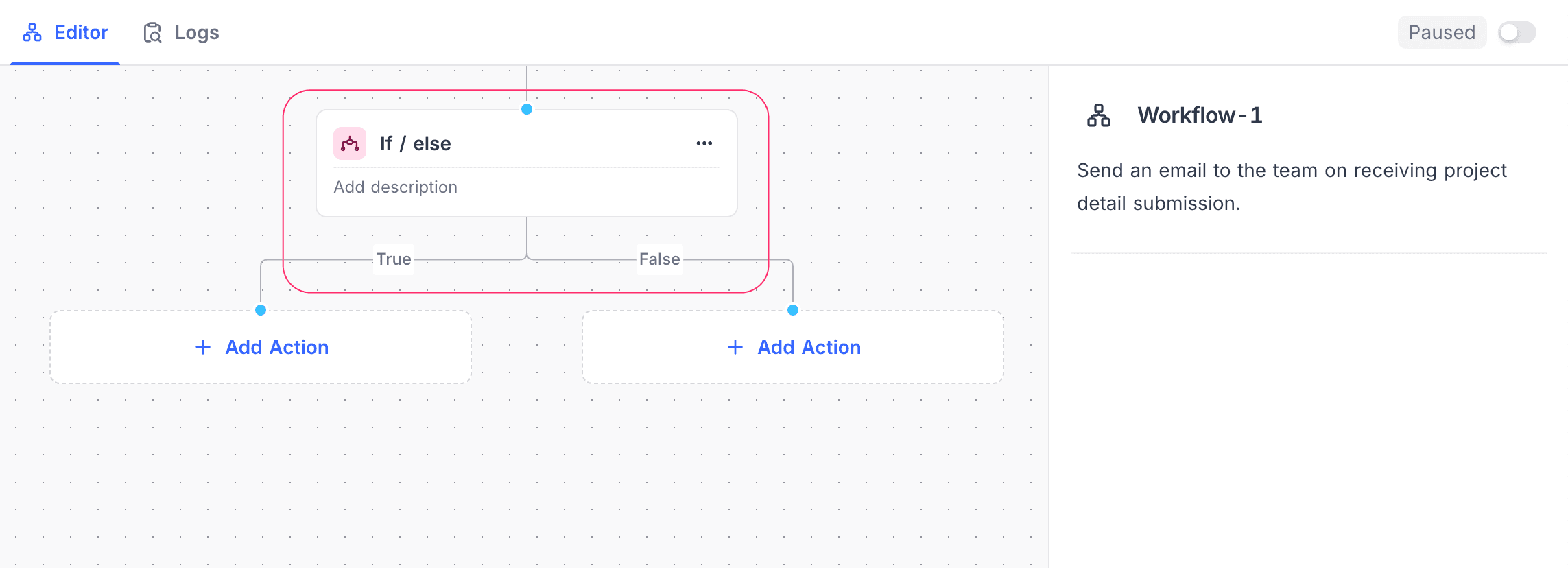
Include Flow control nodes: [Optional] Add flow control nodes to manage execution logic, such as:
- If / else – Conditional branching based on field values or runtime data
- Iterate – Loop through a list of items and perform actions for each item
-
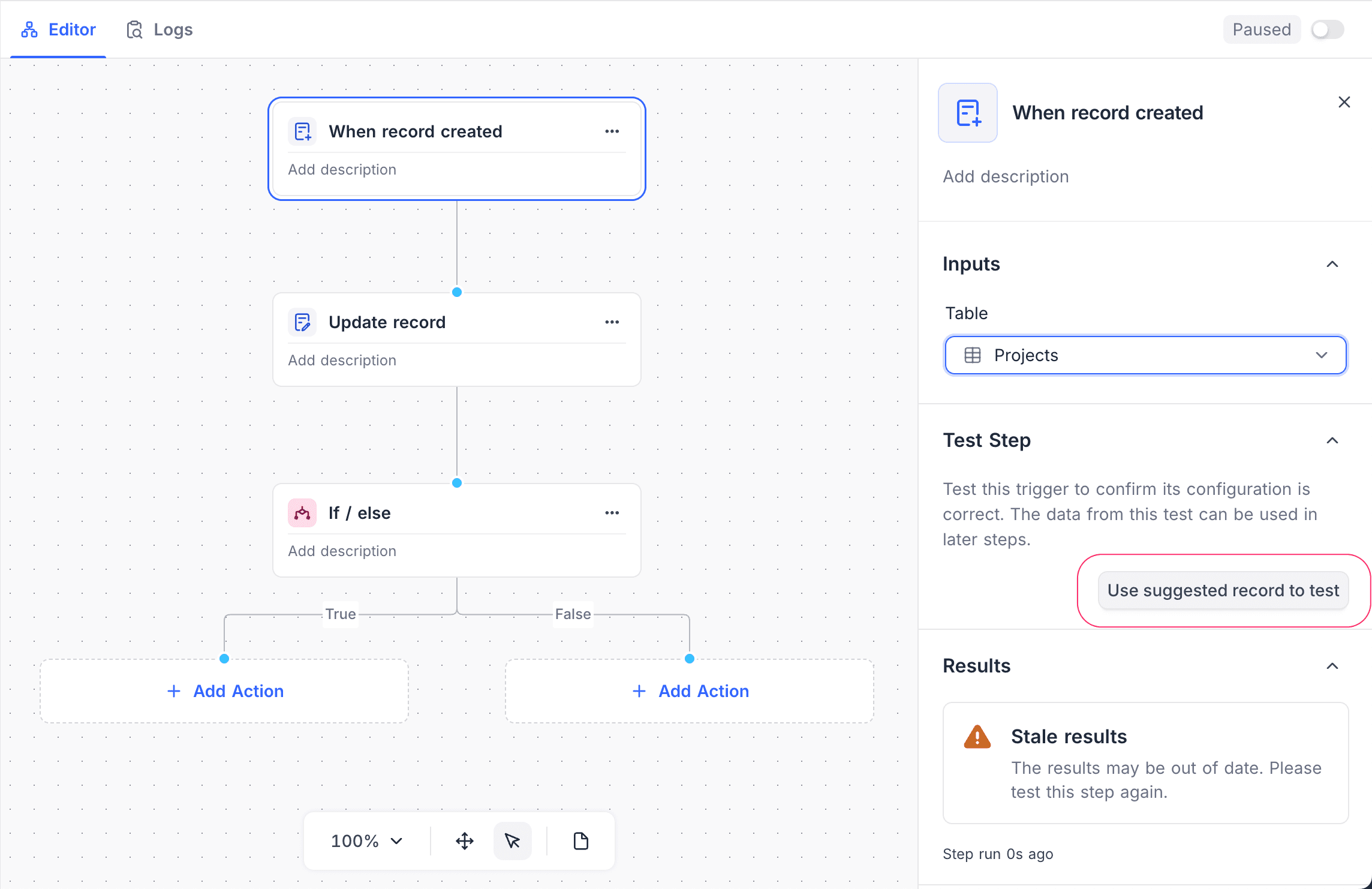
Test workflow: Use Test Step to validate individual nodes to verify correct configuration and expected behavior.
-
Publish workflow: Once satisfied with the configuration, use toggle button in the toolbar to enable the workflow & click Publish to save changes. An enabled workflow will run automatically when triggered.