Form
Form pages let users create new records through a guided, customisable form.
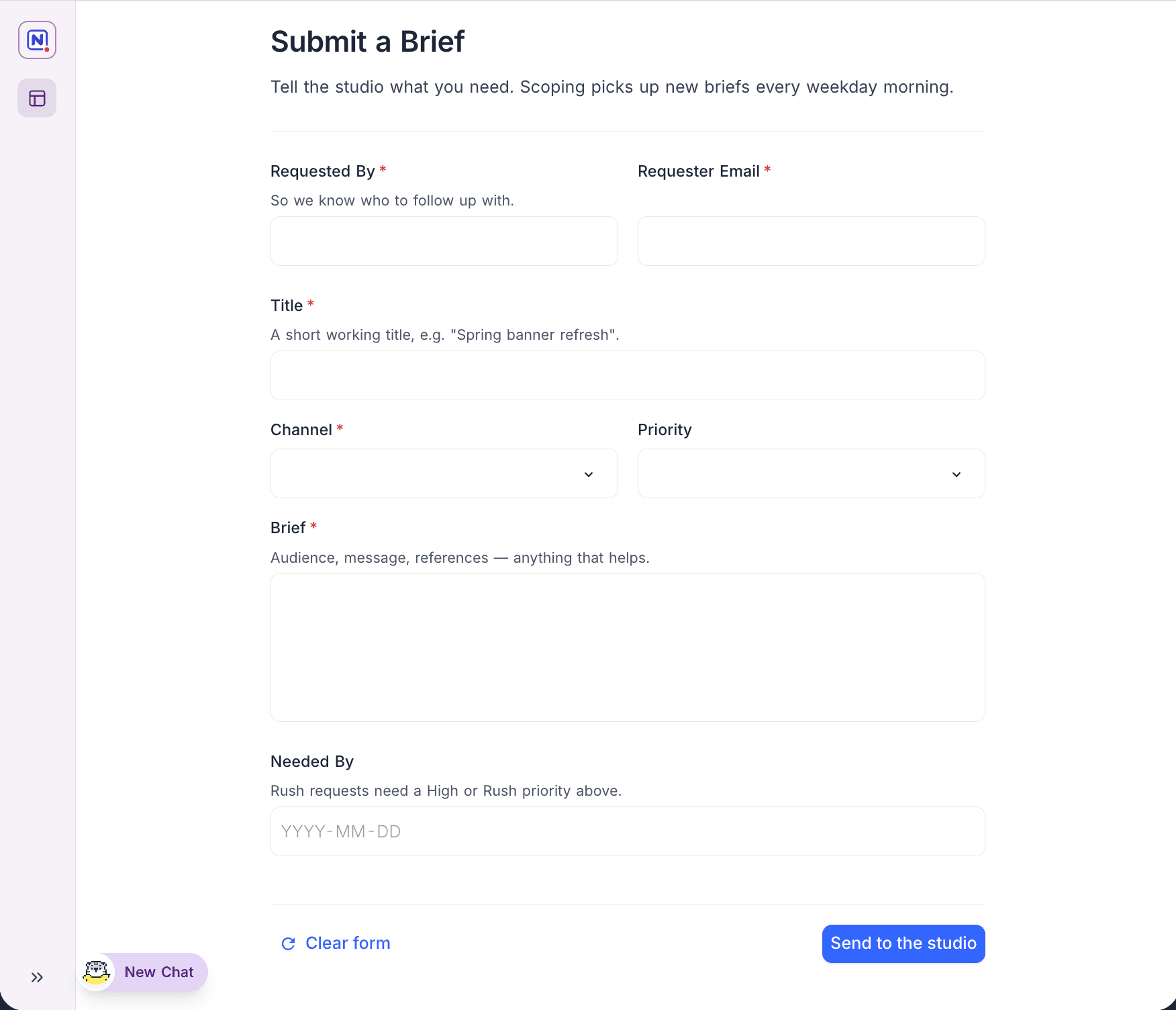
A Form page lets users create new records in the connected table. You control exactly which fields appear, how they're labelled and arranged, and what rules apply, so the form stays simple even when the underlying table is not.
Designing the form
Add the fields users should fill in, then configure each one in the properties panel. Fields can be organised into groups with a title and description, and placed side by side in rows to build multi-column forms. Drag fields, rows, and groups to rearrange them.
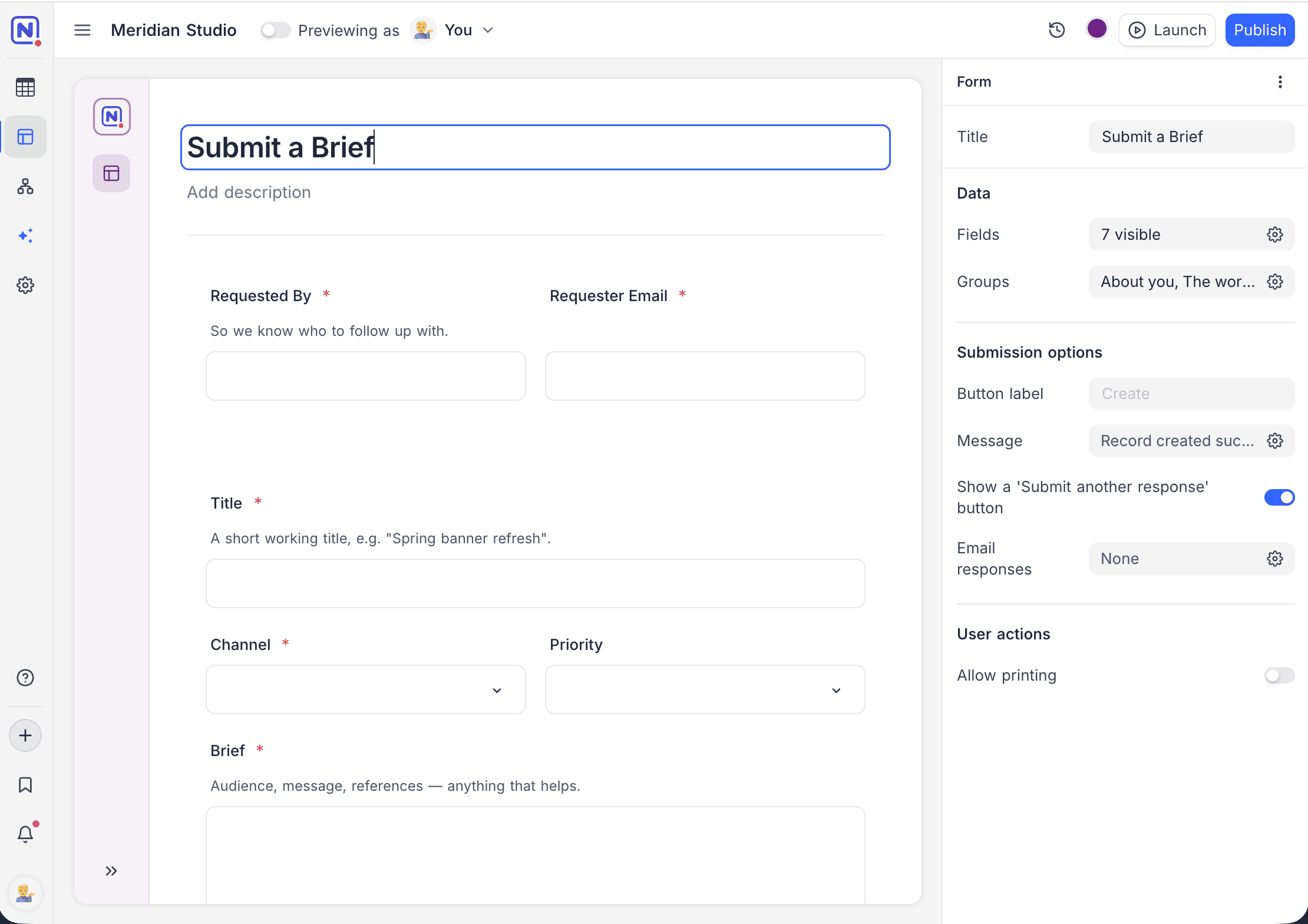
Every field can carry its own label and helper text, so the form speaks the reader's language even when the underlying field names don't, and a default value can pre-fill the input.
To keep submissions clean, mark fields as required and add validation rules or a character limit to text inputs, so bad data is caught in the form rather than in the table. For select fields, limit options restricts which choices are offered, and can optionally let users add a new option when none of the existing ones fit.
Appearance options control the input size (default, large, or extra large), style variants for select fields, and the field's width: a third, half, or the full row, which is how side-by-side layouts are built.
Conditional visibility shows or hides a field based on the values of other fields, so the form only asks for what's relevant: for example, reveal a "Needed by" date only when the priority is set to Rush.
See Fields, buttons & filters for the full reference on field elements.
Submission options
The form's properties panel controls what happens around a submission: the submit button label, the confirmation message shown after a record is created, and whether a 'Submit another response' button appears so users can file several entries in a row. Email responses can notify chosen recipients on each submission, and allow printing lets users print the filled form.