Purchasing a License
NocoDB offers self-serve licensing for self-hosted deployments. Business and Scale plan licenses can be purchased directly through your NocoDB Cloud account and activated on your instance by pasting the license key. No manual provisioning or sales engagement required. Enterprise plans are tailored to your organization's requirements and provisioned by the NocoDB Sales team.
Prerequisites
License activation requires your NocoDB instance to use Postgres as its database. If you are running SQLite or MySQL, the license cannot be activated. Migrate to Postgres before proceeding.
- A self-hosted NocoDB instance running on Postgres.
- A NocoDB Cloud account for purchasing and managing licenses.
Purchasing a license
1. Navigate to Self-Hosted Licenses
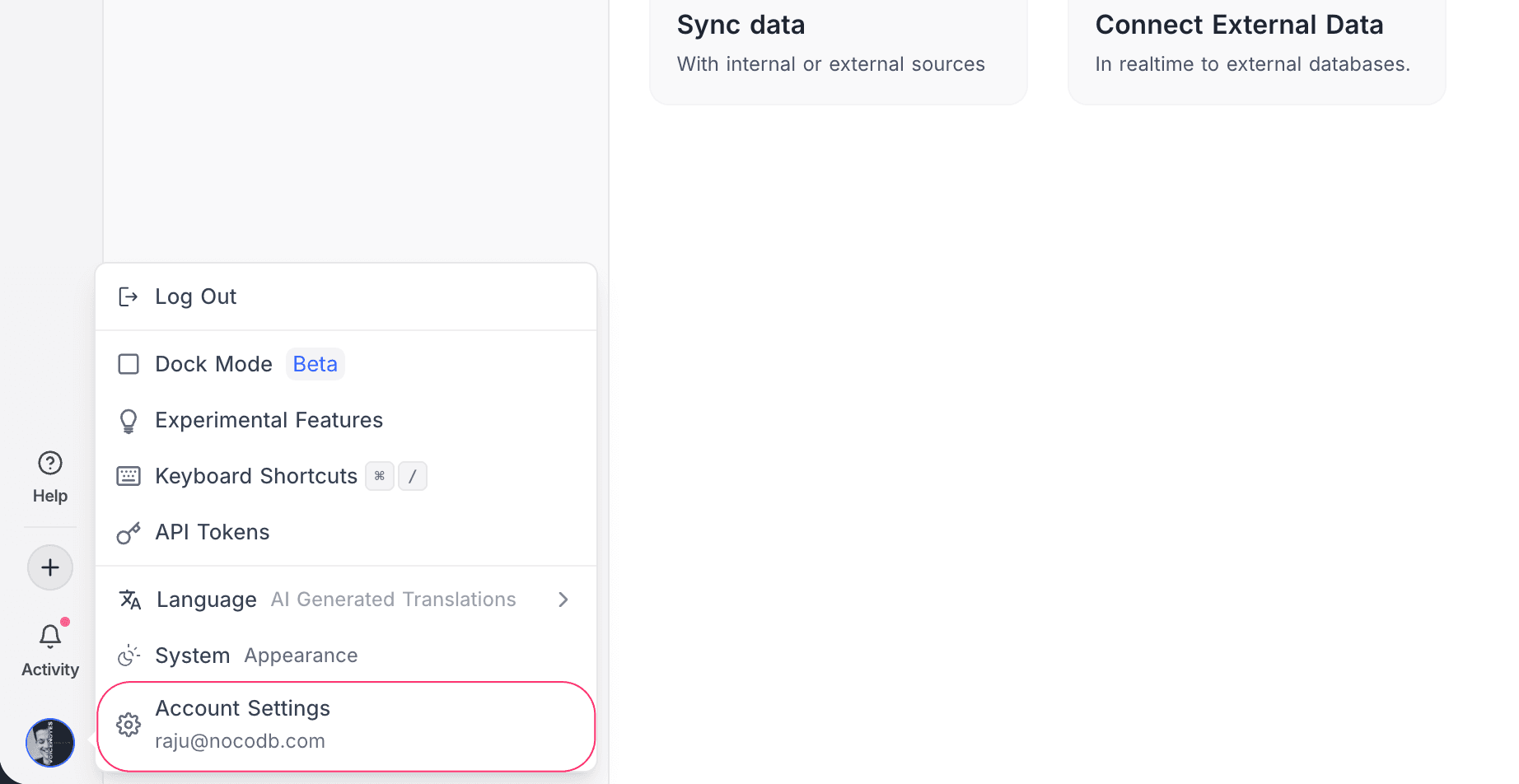
Log in to your NocoDB Cloud account. Click your avatar in the bottom-left corner and select Account Settings.
From the account settings sidebar, open Self-Hosted Licenses. If you have no licenses yet, you will see the empty state:
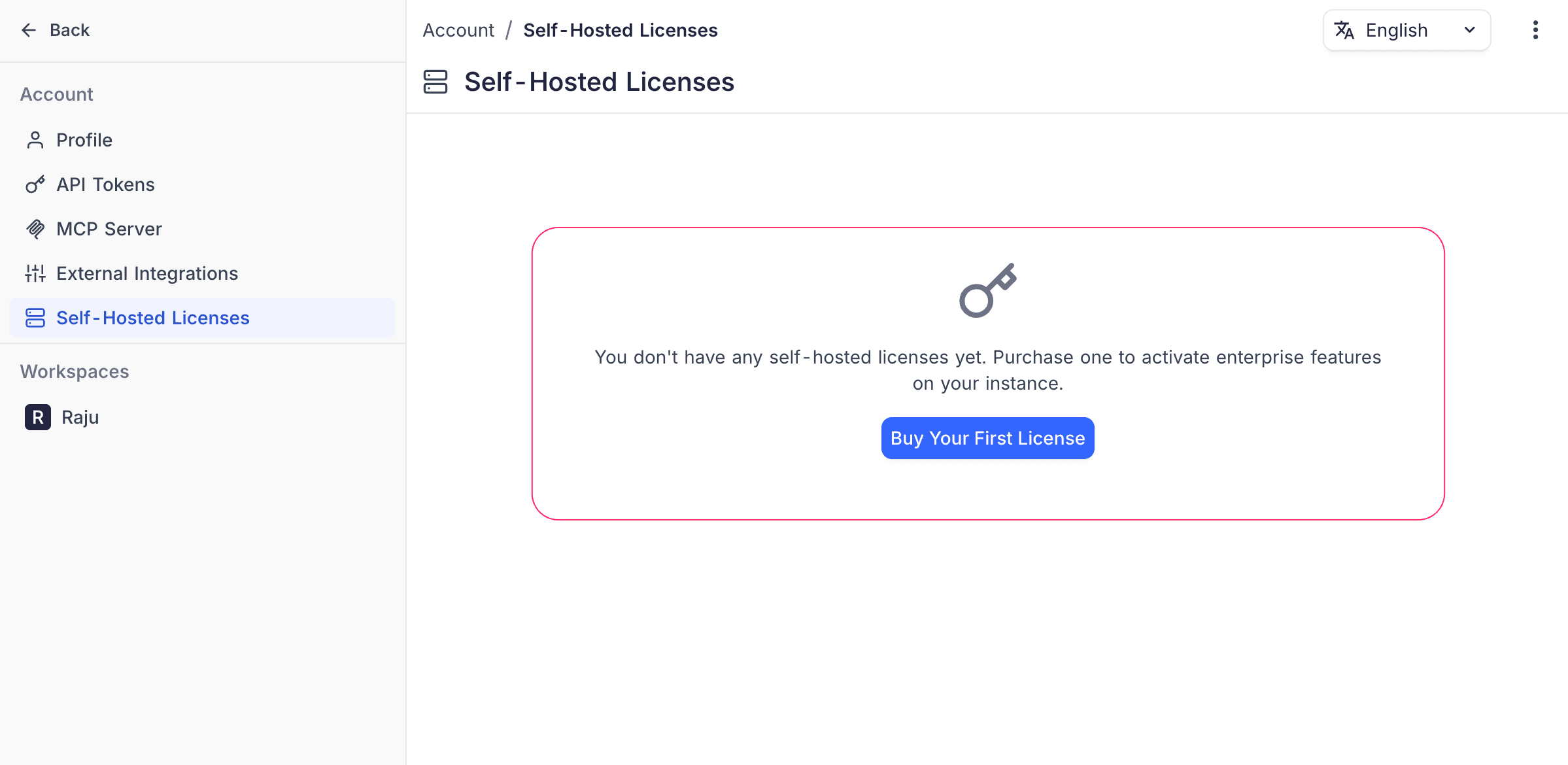
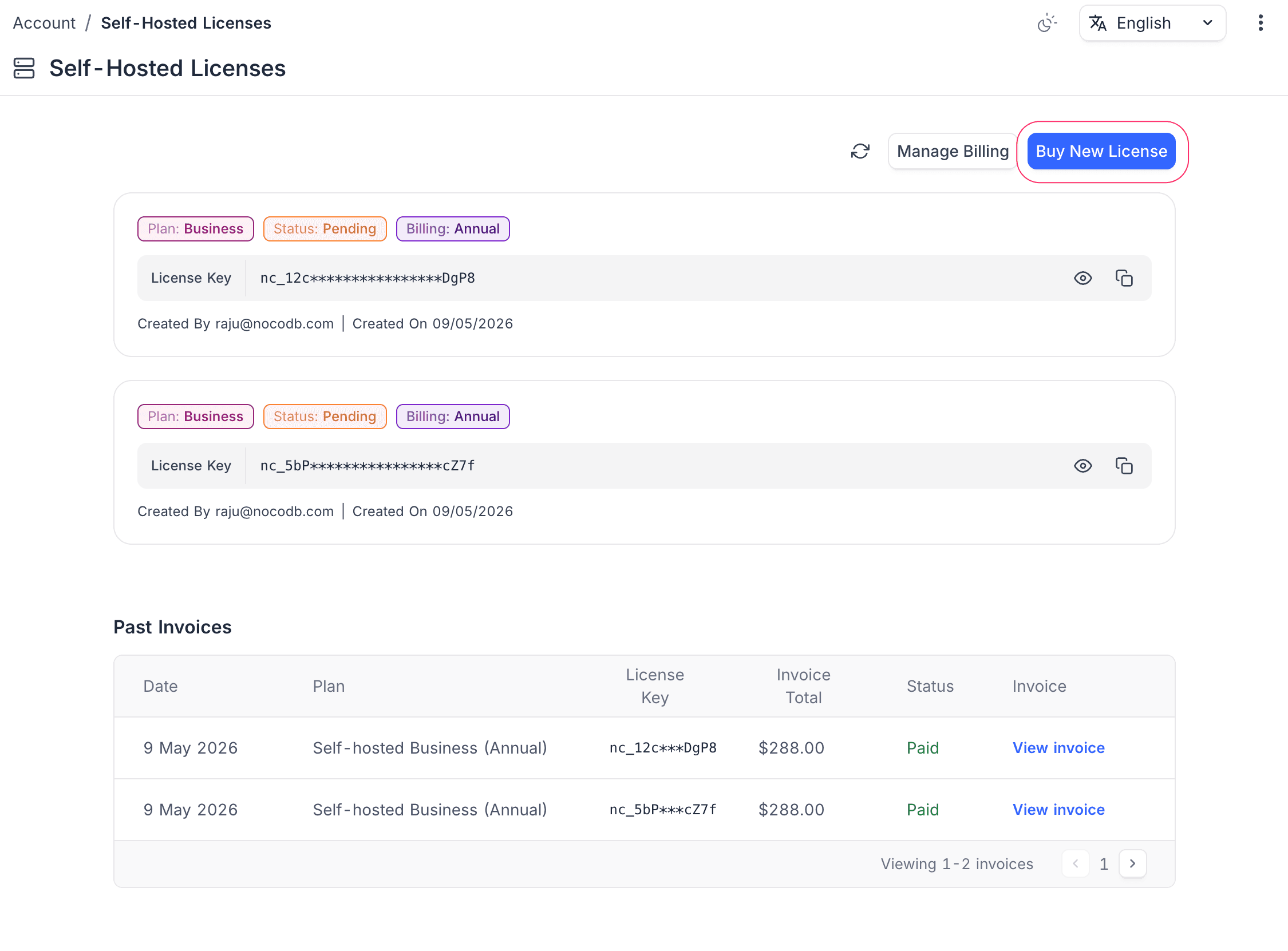
Click Buy Your First License to proceed to plan selection. If you already have licenses, click Buy New License from the list view.
2. Select a plan
Choose your billing period and plan.
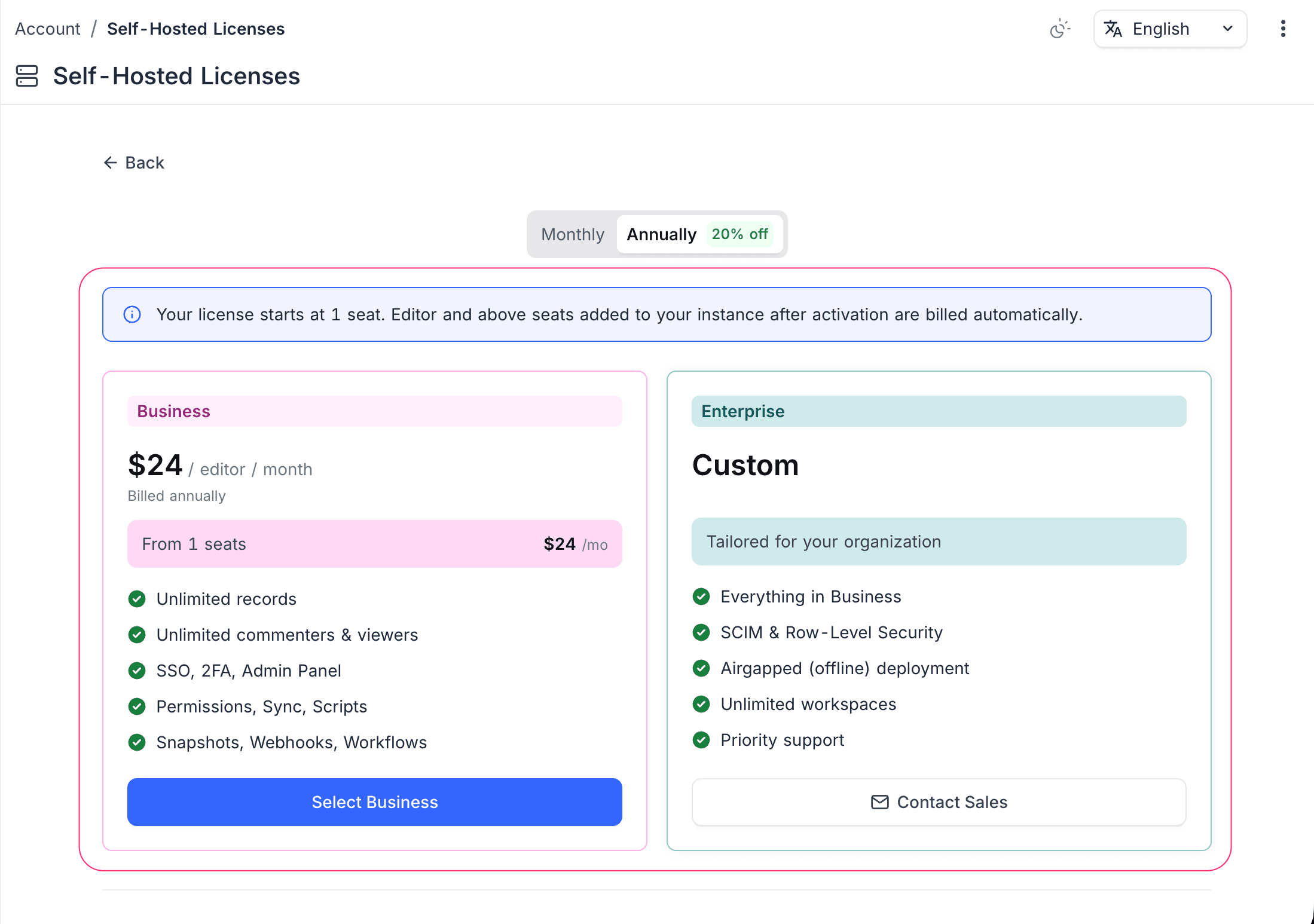
- Billing period. Toggle between Monthly and Annually. Annual billing is offered at a discount.
- Business. Self-serve plan billed per editor, starting at 1 seat. Includes SSO, table- and field-level permissions, teams, external-app sync, and single-provider AI. Click Select Business to proceed to checkout.
- Scale. Self-serve plan for growing teams, billed per editor with a 3-seat minimum. Everything in Business plus unlimited workspaces, audit logs, row-level security, team hierarchy, and multi-provider AI. Click Select Scale to proceed to checkout.
- Enterprise. Tailored to your organization. Everything in Scale plus SCIM, airgapped installation, a staging environment, priority support, and invoice-based payments. Click Contact Sales to get in touch with the NocoDB team.
For both self-serve plans, editor (and above) seats added to your instance after activation are billed automatically based on your actual usage.
3. Complete payment
A Stripe embedded checkout form will appear. Enter your payment details and click Subscribe.
4. Copy your license key
After successful payment, your license key is displayed on the confirmation screen.
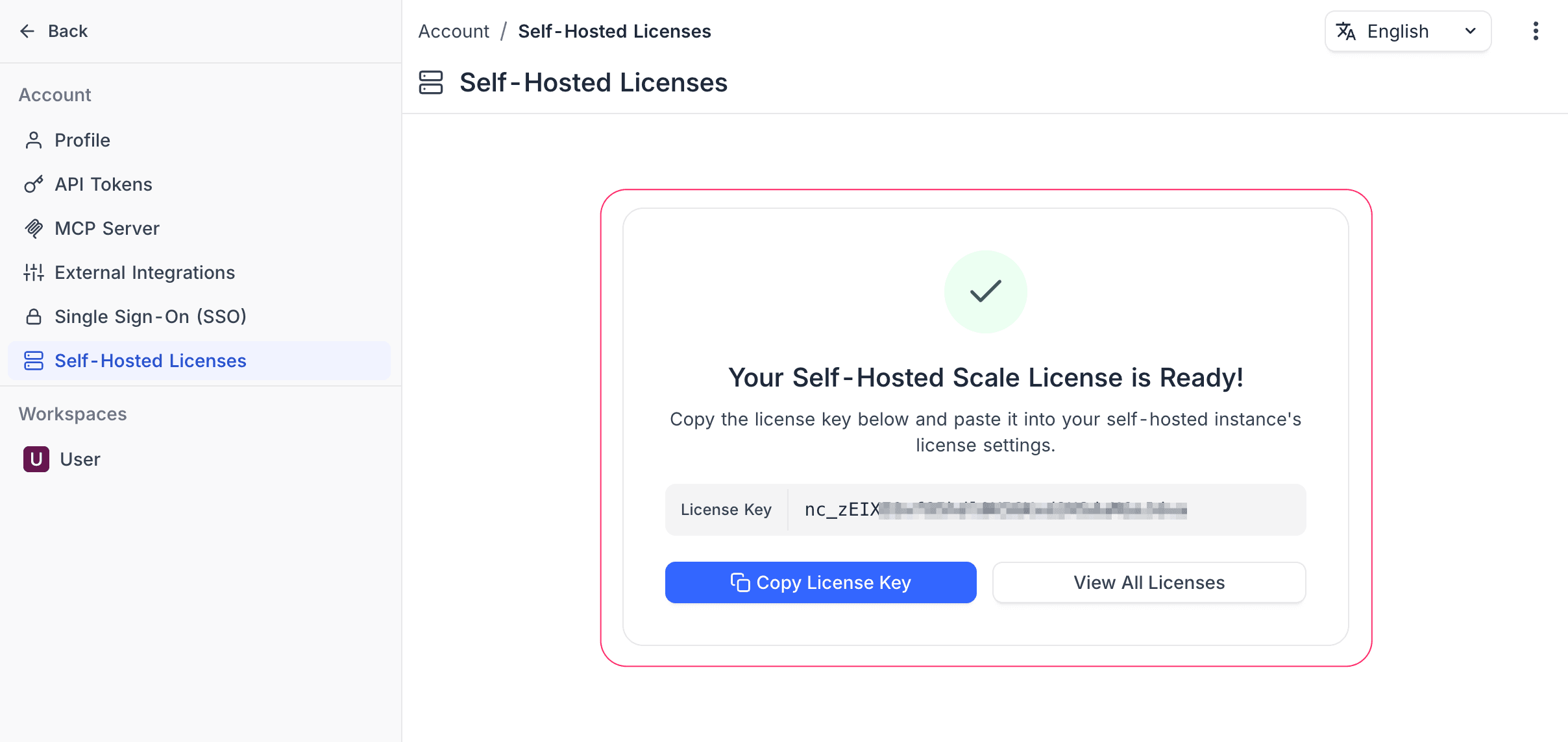
Click Copy License Key to copy it to your clipboard. You can also view all your licenses and retrieve the key later from the Self-Hosted Licenses list.
Once you have the key, follow License Activation to activate it on your instance.
Manage billing
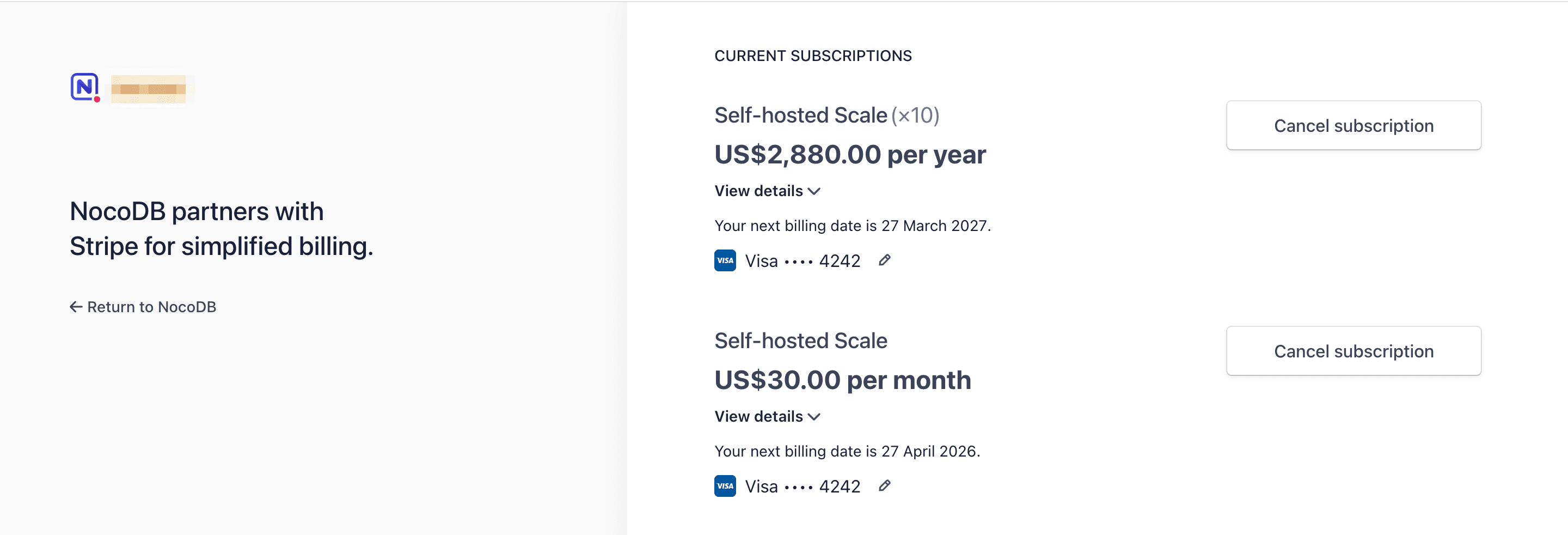
The Stripe billing portal is available from two places:
- From your instance. Once a license is active, the second card on the Admin Panel → License page changes to Manage License. Click it to open the billing portal.
- From NocoDB Cloud. Go to Account → Self-Hosted Licenses → Manage Billing.
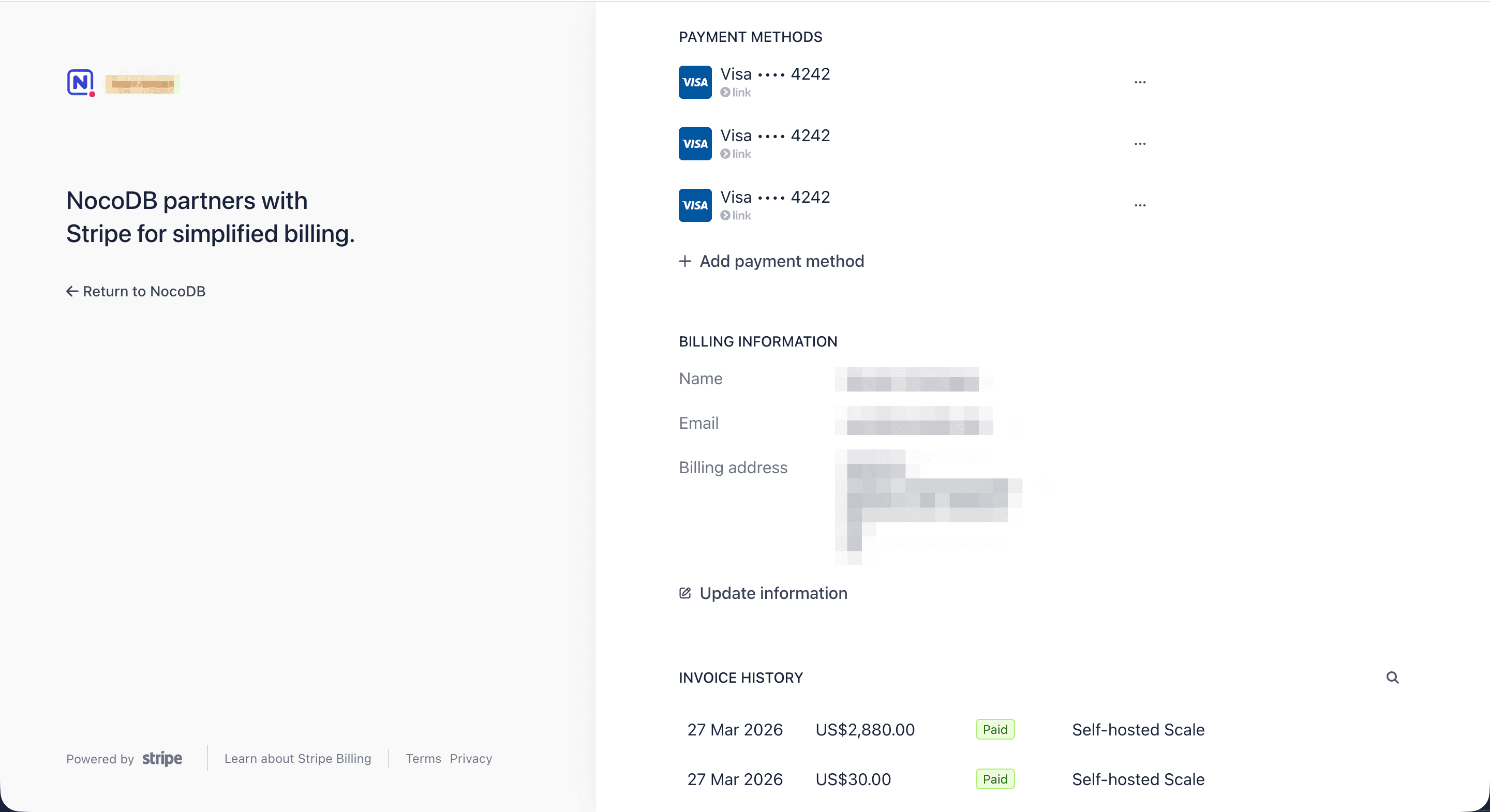
The billing portal lets you:
- View current subscriptions and next billing dates
- Update or add payment methods
- Update billing information
- View invoice history
- Cancel a subscription
Last updated on