Interface Builder
Design interface pages with the builder: edit elements on the canvas, configure them in the properties panel, and preview before publishing.
The interface builder is where you design and edit pages. Open an interface as a base creator or owner and it opens directly in the builder, with the first page of the navigation selected, ready to edit. Everyone else opens the published interface instead.
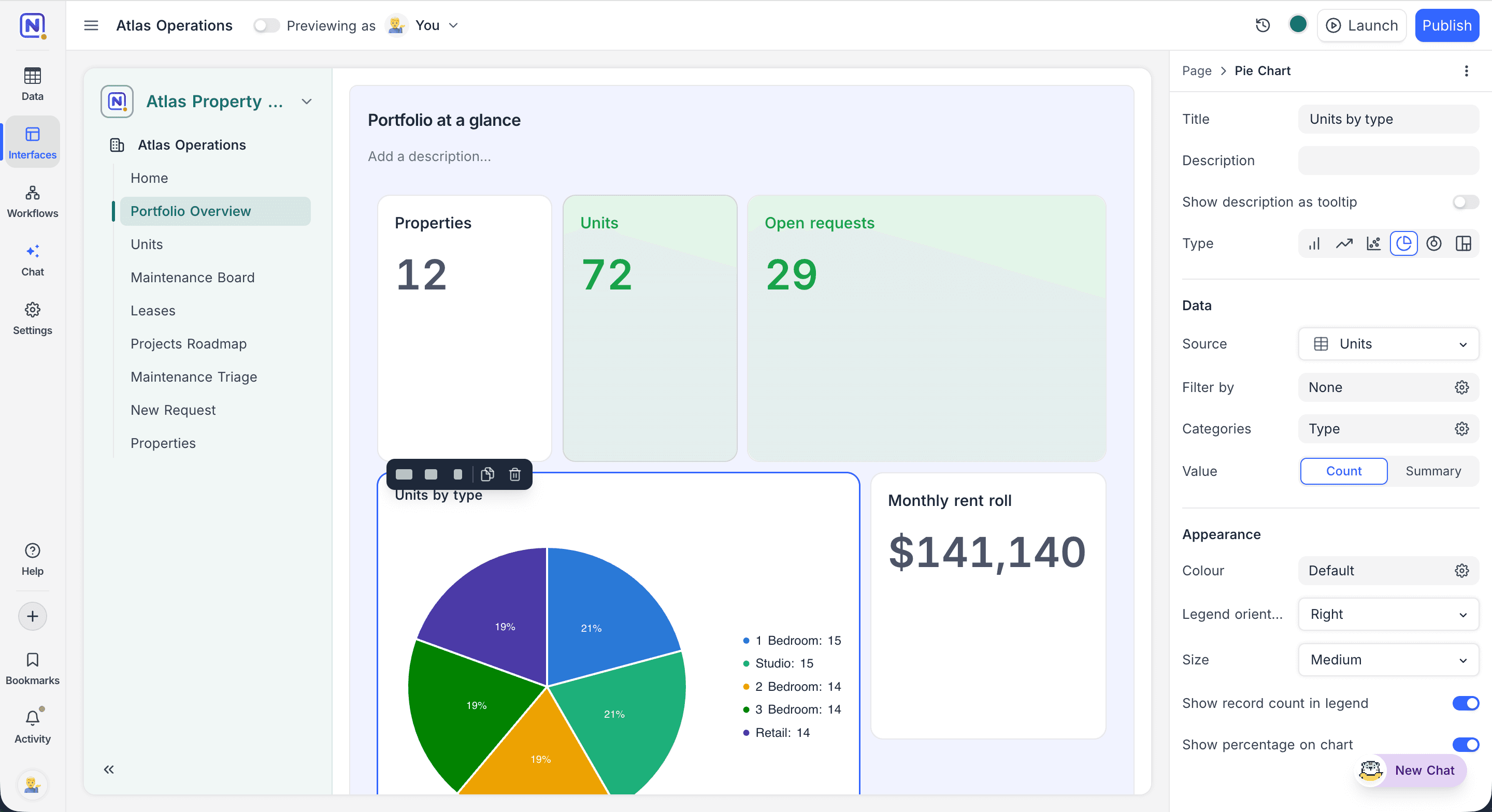
Builder anatomy
| Area | Description |
|---|---|
| Topbar | Holds the preview switch and Previewing as selector next to the interface name, and the Launch and Publish buttons on the right. |
| Canvas | A live preview of the page. Click any element to select it. |
| Properties panel | Opens on the right when you select an element. All configuration happens here: data source, filters, appearance, and behaviour. |
| Page list | The interface's pages, shown in the navigation. Drag to reorder, rename inline, or manage pages from their context menu. |
Editing pages
- Select and configure: Click an element on the canvas to open its settings in the properties panel.
- Reorder by dragging: Pages, fields, groups, widgets, and filters can all be reordered with drag and drop.
- Resize and arrange widgets: On dashboard pages, widgets sit on a 12-column grid and can be dragged and resized freely while editing.
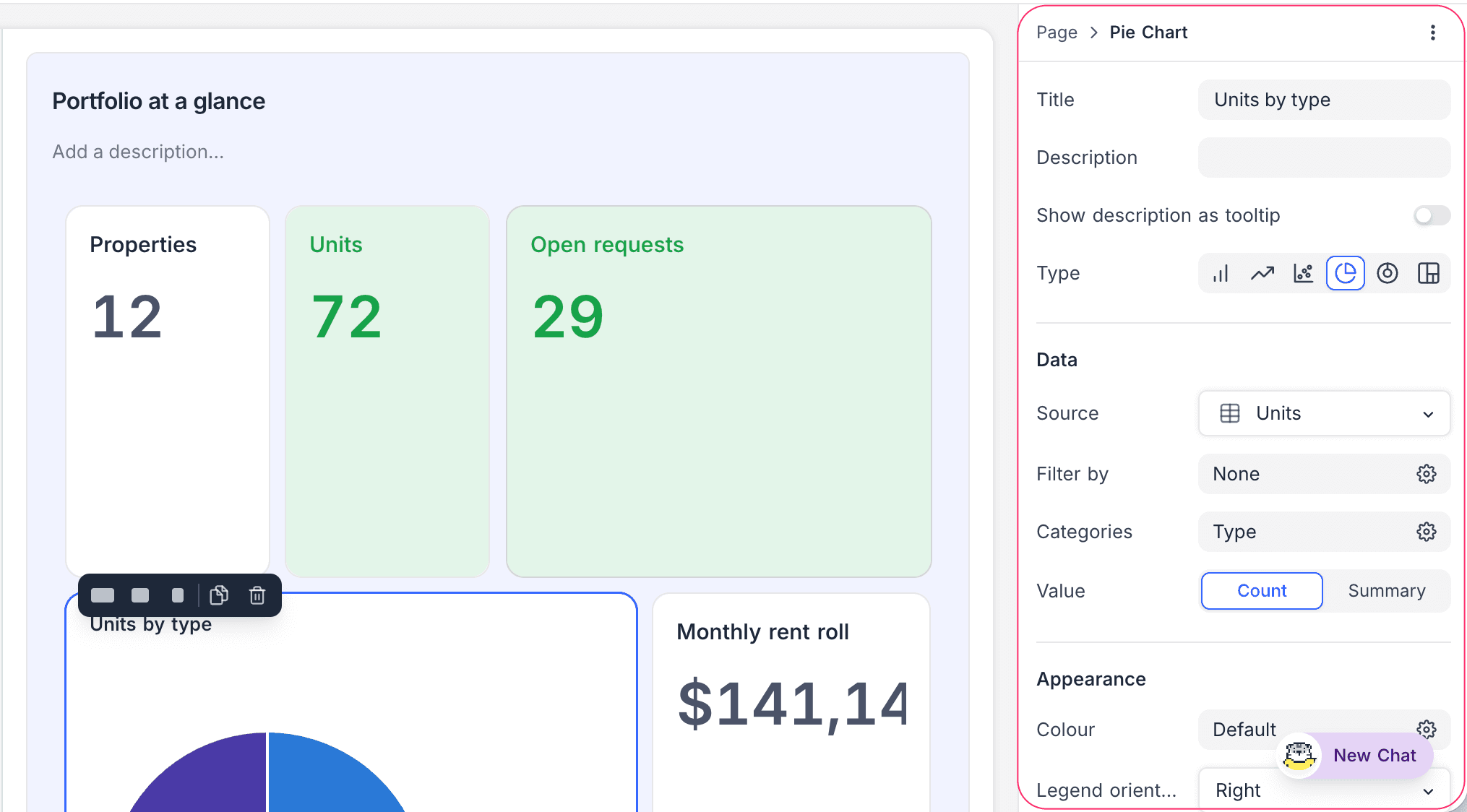
Preview your work
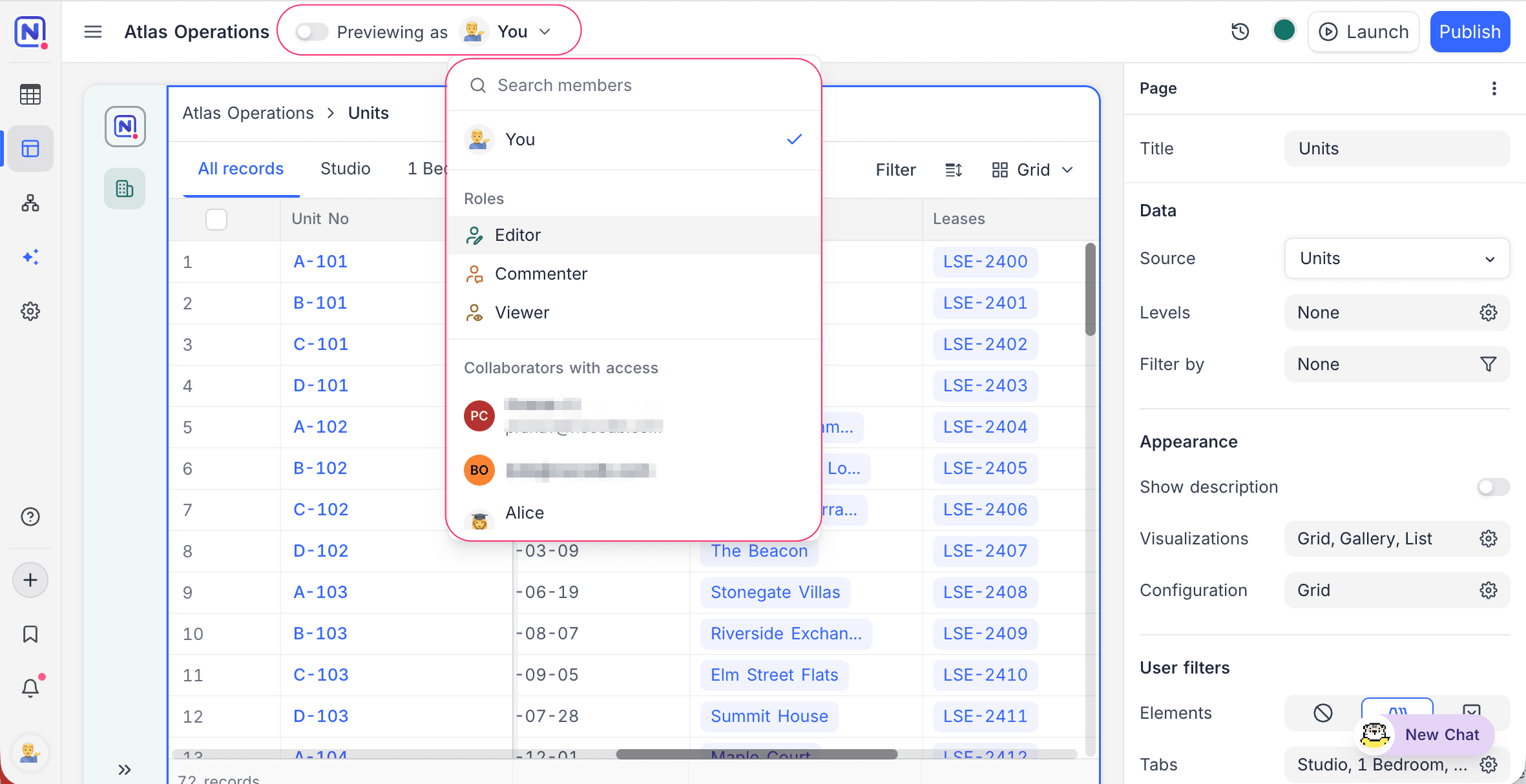
Use the preview switch in the topbar to flip the current page into preview mode and interact with it exactly as your users will. The builder chrome stays in place, so you can switch back at any point to continue editing.
To leave the builder entirely and open the interface as the running app, use Launch.
To validate role-based behaviour, use the Previewing as selector to view the interface as someone else. It offers a generic role under Roles (Editor, Commenter, or Viewer), or a named person under Collaborators with access, which you can search by name or email. This is particularly useful when pages or fields are configured with conditional visibility or restricted editing.
Page settings
Beyond its elements, each page has settings in the properties panel that control what end users can do:
- User filters: Add tabs or dropdown filters that let users narrow the records on the page. See Fields, buttons & filters.
- Editability: Allow or prevent inline editing and adding or deleting records.
- Advanced actions: Enable CSV export and Print for the page.
- Record actions: On record-centric pages, toggle Comments and Revision history for the records shown.
Draft and published versions
All edits in the builder are saved to the page's draft. Users of the interface keep seeing the last published version until you publish your changes. Draft availability can vary depending on your plan. See Publish an interface.