Find IDs
Most NocoDB API endpoints take IDs in the path, for example /api/v3/data/{baseId}/{tableId}/records. Before you make API calls, find and copy the IDs that your endpoints need. This page tells you where to find each ID. In the NocoDB app, a base is called a project.
| ID | Starts with | Where to find it |
|---|---|---|
| Workspace ID | w | URL bar, workspace switcher, Settings > General > Appearance |
| Base ID | p | URL, base context menu |
| Table ID | m | URL, table context menu |
| View ID | v | URL, view context menu, view toolbar |
| Field ID | c | URL, field context menu, Tools > Manage fields |
| Record ID | A number, from 1 | ID field, URL of an expanded record |
| User ID | u | Workspace Members or Project Members page |
| Data Source ID | Data source context menu, Data Source settings page |
Workspace ID
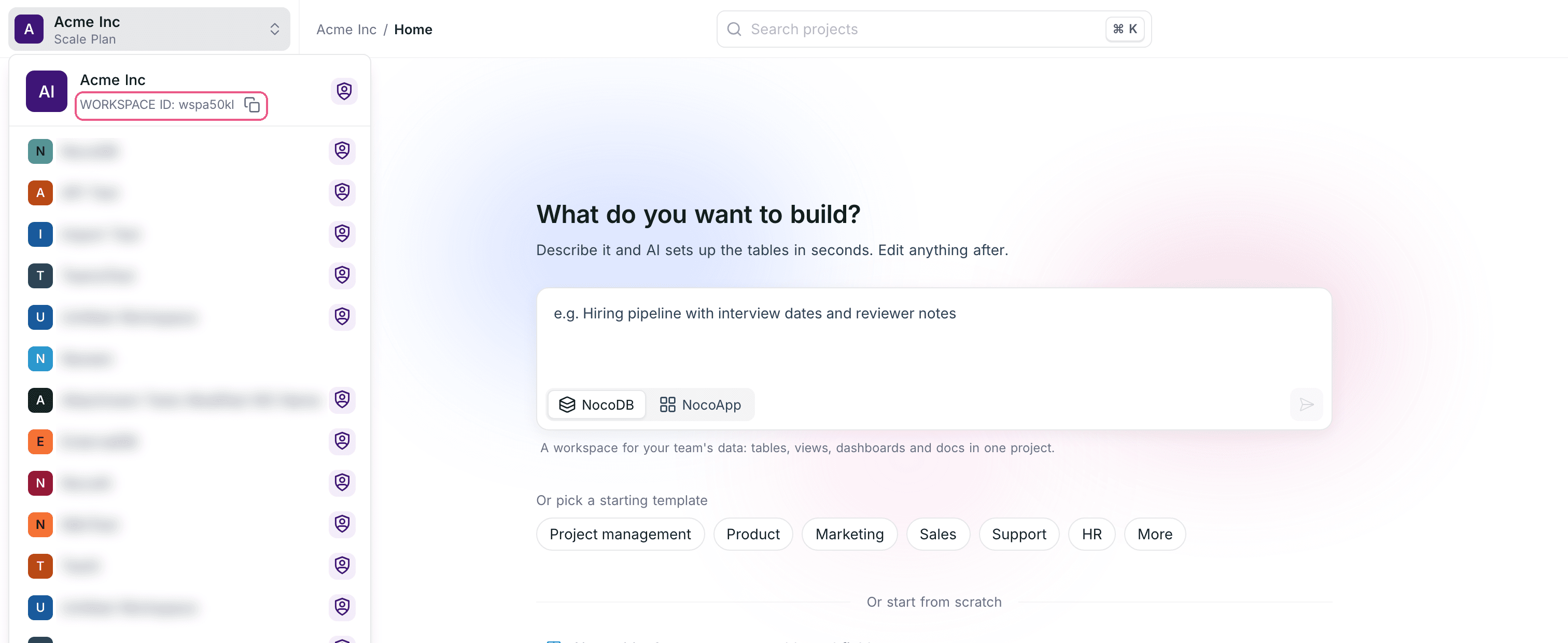
Workspace ID is a unique alphanumeric identifier for your workspace in NocoDB. It starts with w (for workspace). It shows in the URL bar when you open a project in the workspace.
You can also find it in the workspace switcher, at the top of the workspace sidebar. Click the ID to copy it to your clipboard.
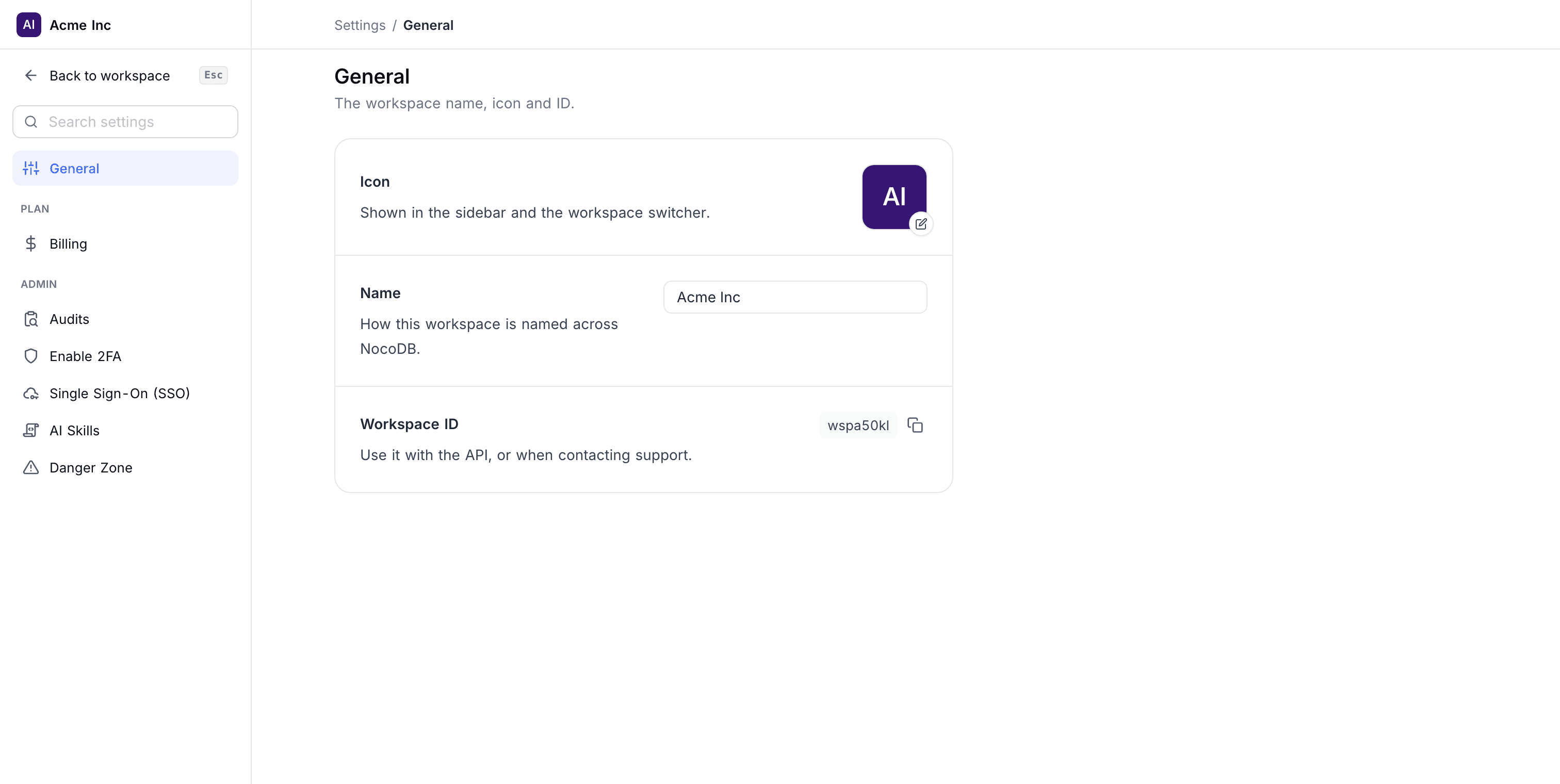
The Workspace ID also shows in Settings > General > Appearance.
Base ID
Metadata APIs and administrative operations need the Base ID. It is a unique identifier for one database (or base) in your workspace.
The Base ID is an alphanumeric identifier that starts with p (for project). It shows in the URL when you open a table or the base settings. You can also find it in the base context menu in the left sidebar. To open this menu, click the chevron next to the base name. Click the ID to copy it to your clipboard.
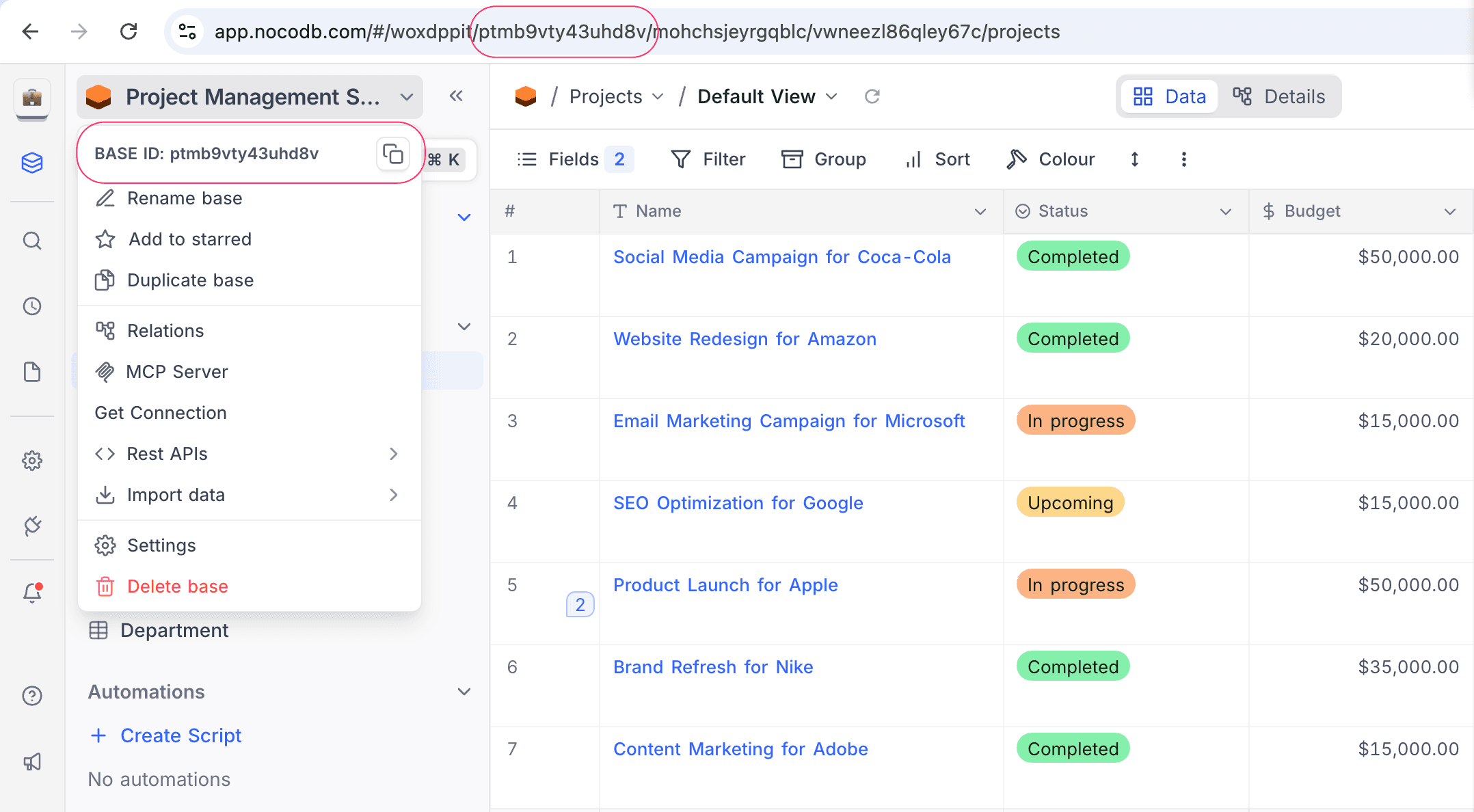
Table ID
Table ID is the identifier that you use most. All data API calls need it. It is a unique identifier for one table in your project.
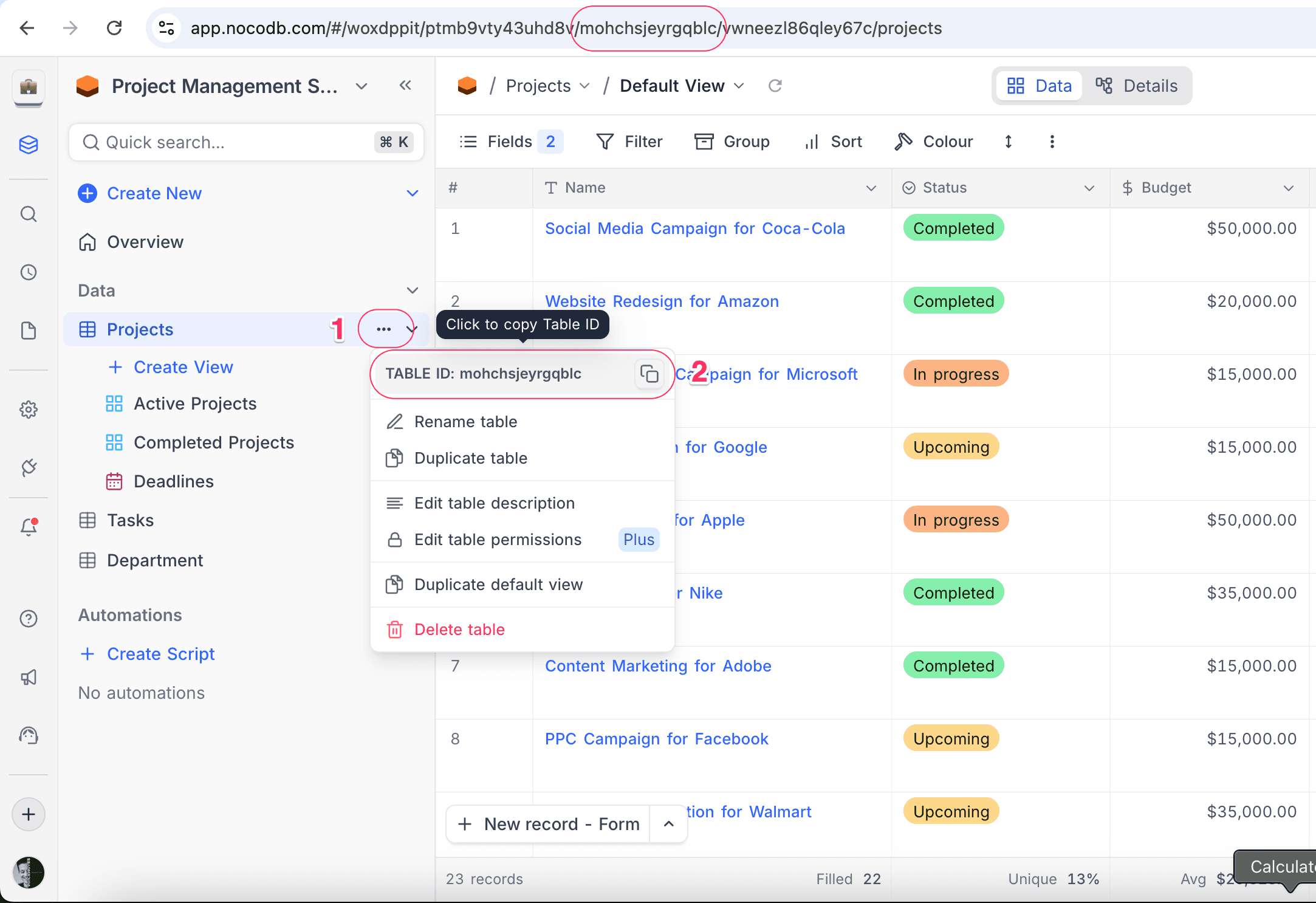
The Table ID is an alphanumeric string that starts with m (for model). When you open a table, it shows in the URL, immediately after the Base ID. You can also find it in the table context menu in the left sidebar. To open this menu, click the three dots next to the table name. Click the ID to copy it to your clipboard.
View ID
Use the View ID for API operations on a view, for example to get records from one view. It is a unique identifier for one view in a table.
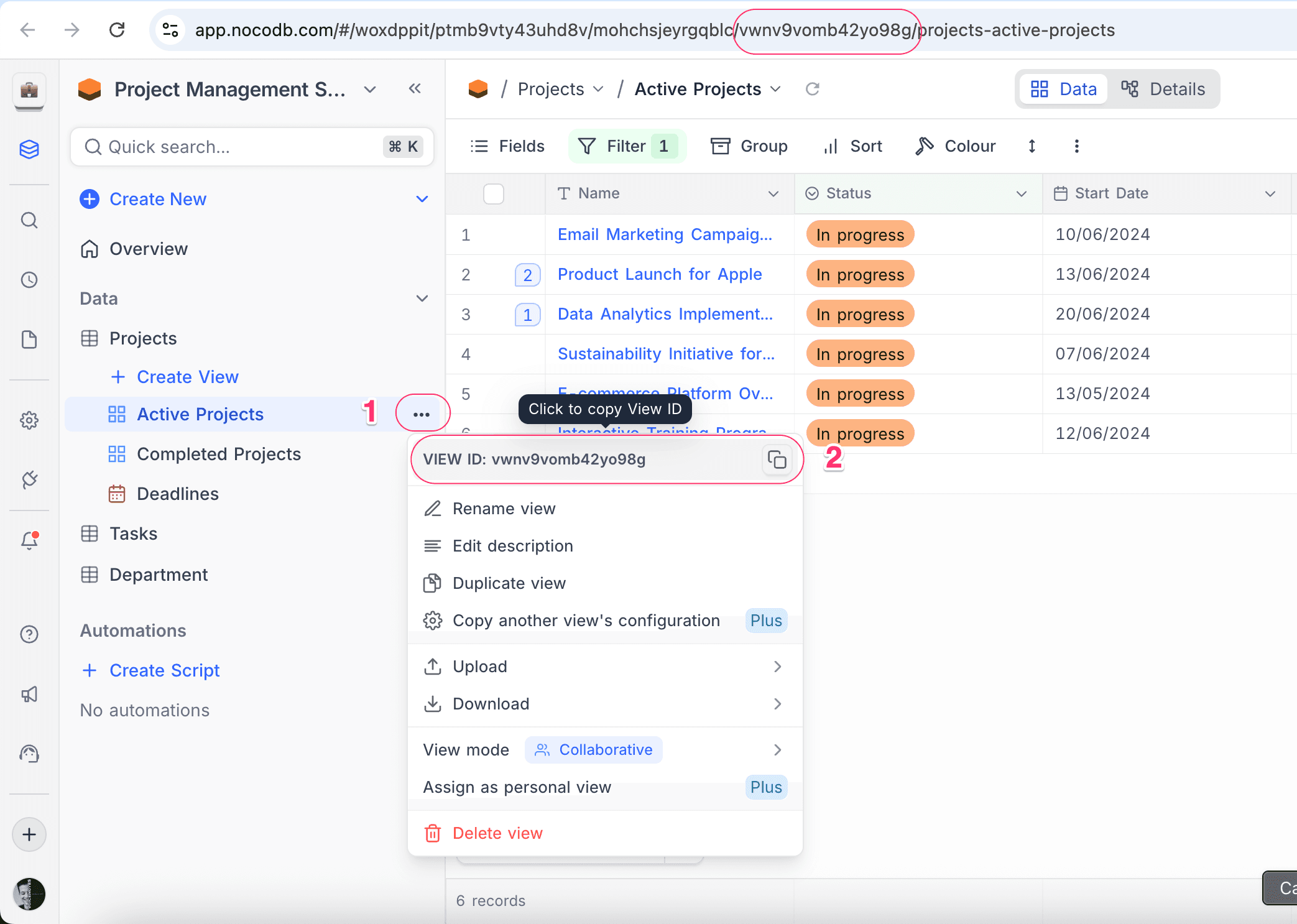
The View ID is an alphanumeric string that starts with v (for view). It shows in the URL when a view is open. You can also find it in the view context menu in the left sidebar. To open this menu, click the three dots next to the view name. Click the ID to copy it to your clipboard.
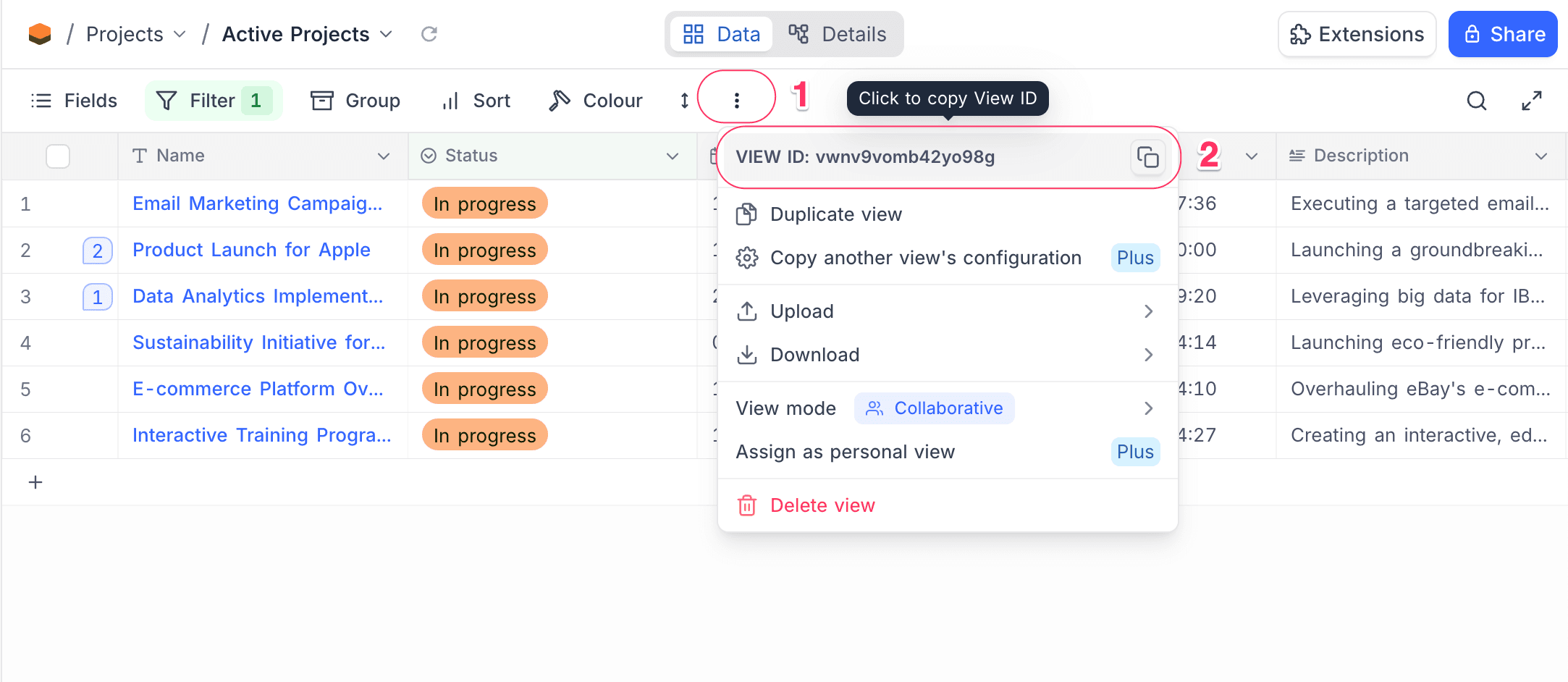
You can also get the View ID from the view toolbar > more actions (3 dots) menu.
Field ID
Use the Field ID for API operations on a field, for example to update field properties. It is a unique identifier for one column in a table.
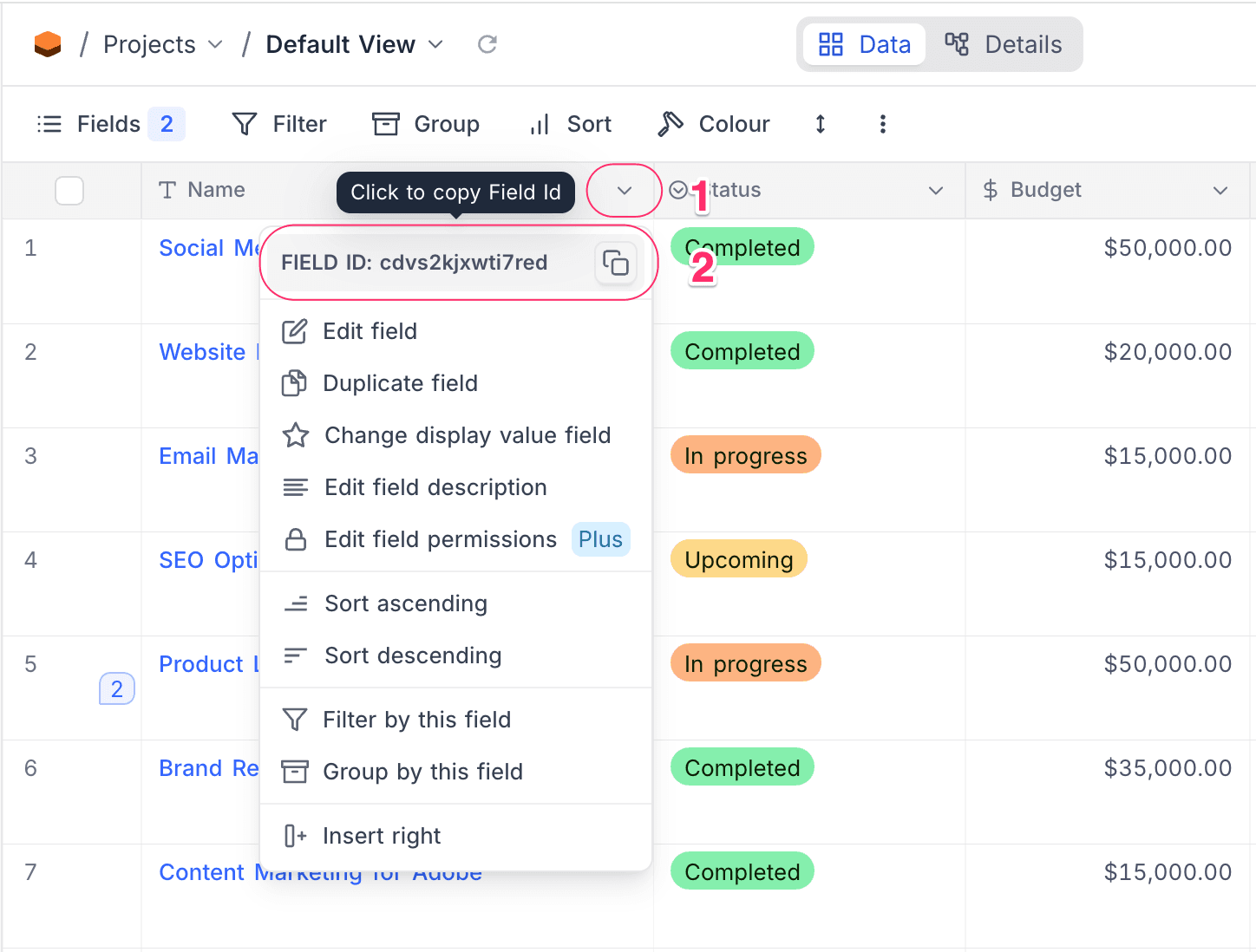
The Field ID is an alphanumeric string that starts with c (for column). It shows in the URL when you view or edit the settings of a field. You can also find it in the field context menu in the field header bar. To open this menu, click the chevron next to the field name. Click the ID to copy it to your clipboard.
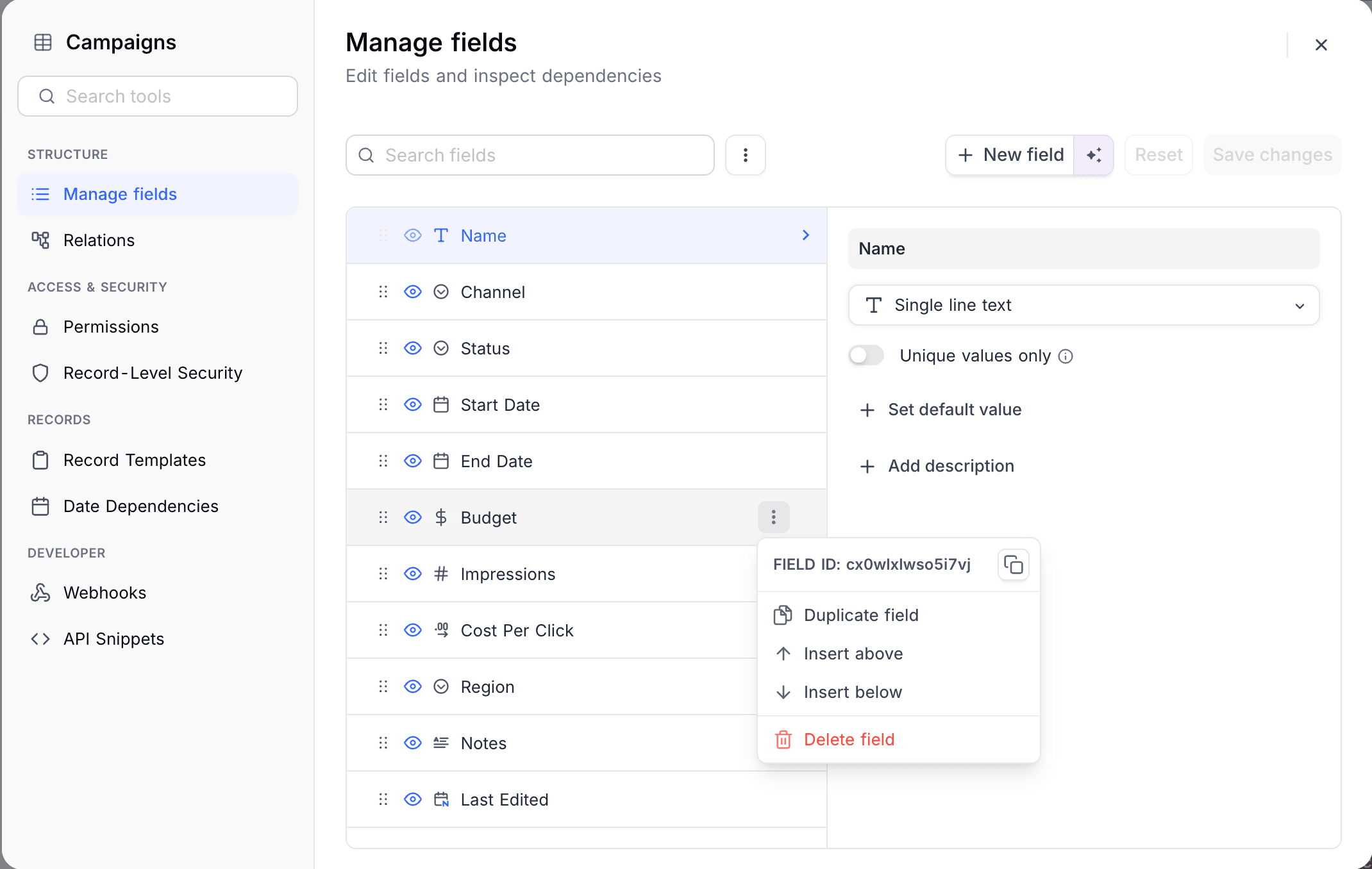
You can also get the Field ID from Tools > Manage fields.
Record ID
Use the Record ID for API operations on a record, for example to get or update one record. It is a unique identifier for one row in a table.
By default, the Record ID is a number that starts at 1. The ID field shows the Record ID. To show the ID field, do these steps:
- In the toolbar, open the Fields menu.
- Enable Show System Fields.
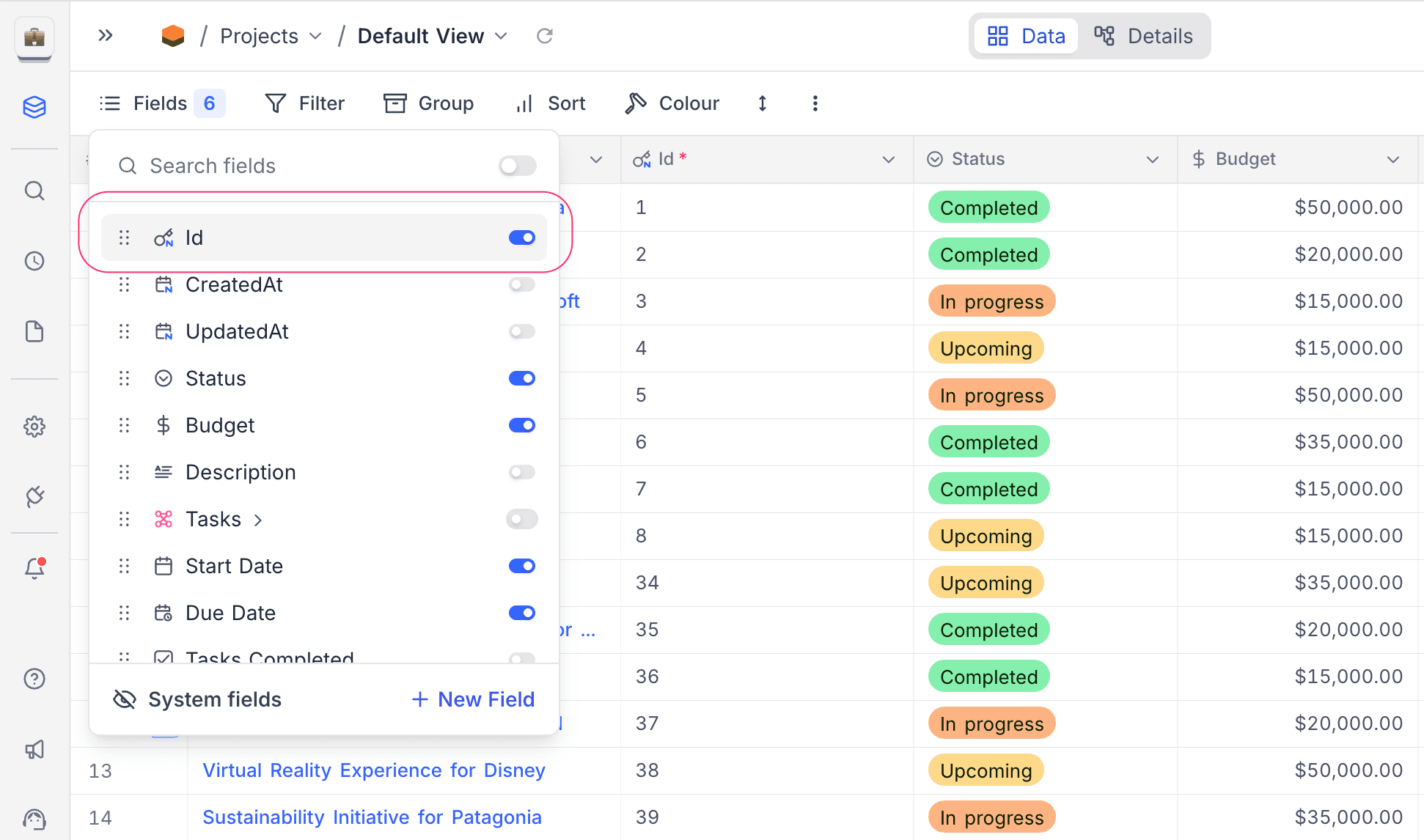
You can also find it in the URL when you open a record (expanded record view).

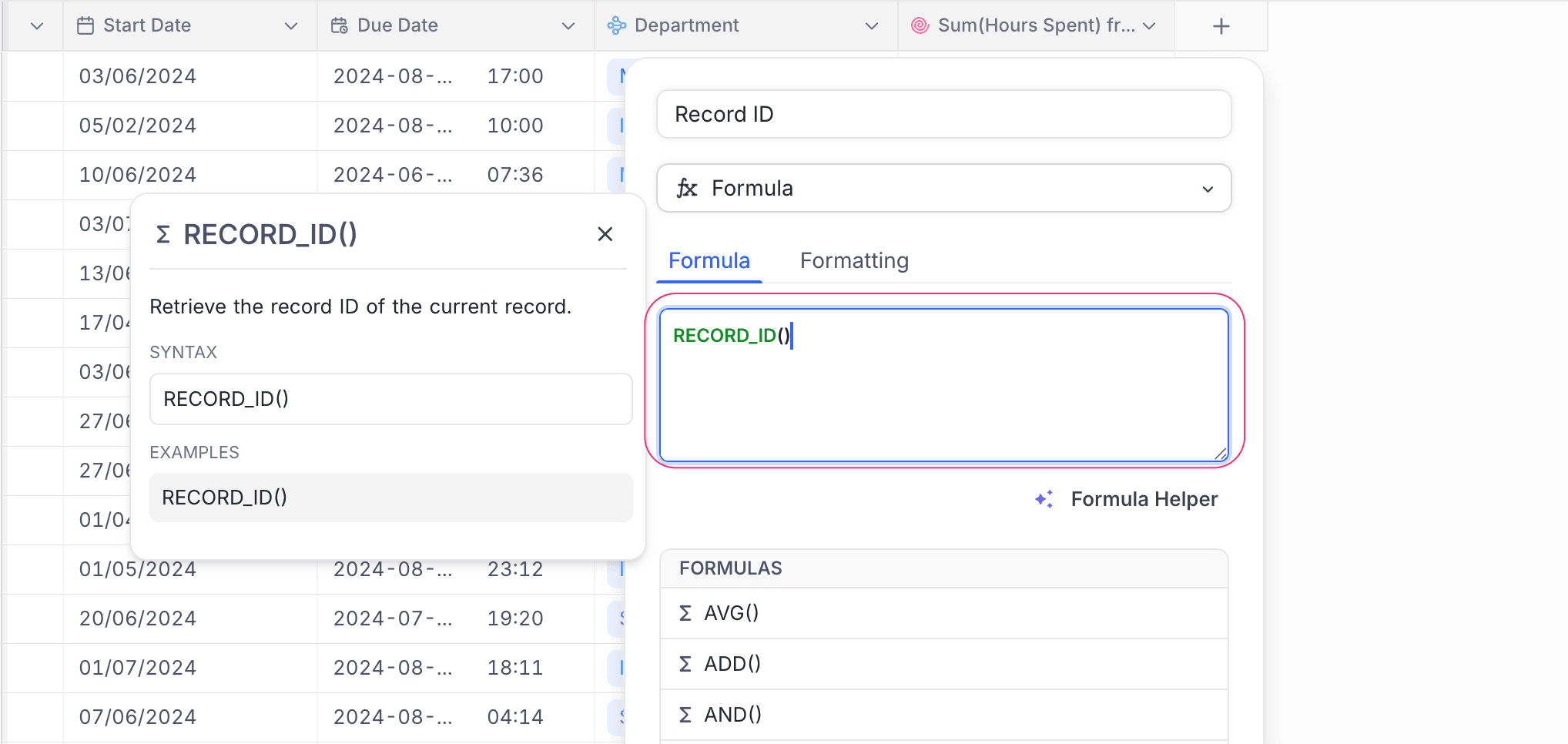
You can also use the Record ID in formulas. In the formula editor, select ID from the list of available fields, or use the RECORD_ID() function.
User ID
Use the User ID for API operations on a user, for example to get user details. It is a unique identifier for one user in your workspace or organization.
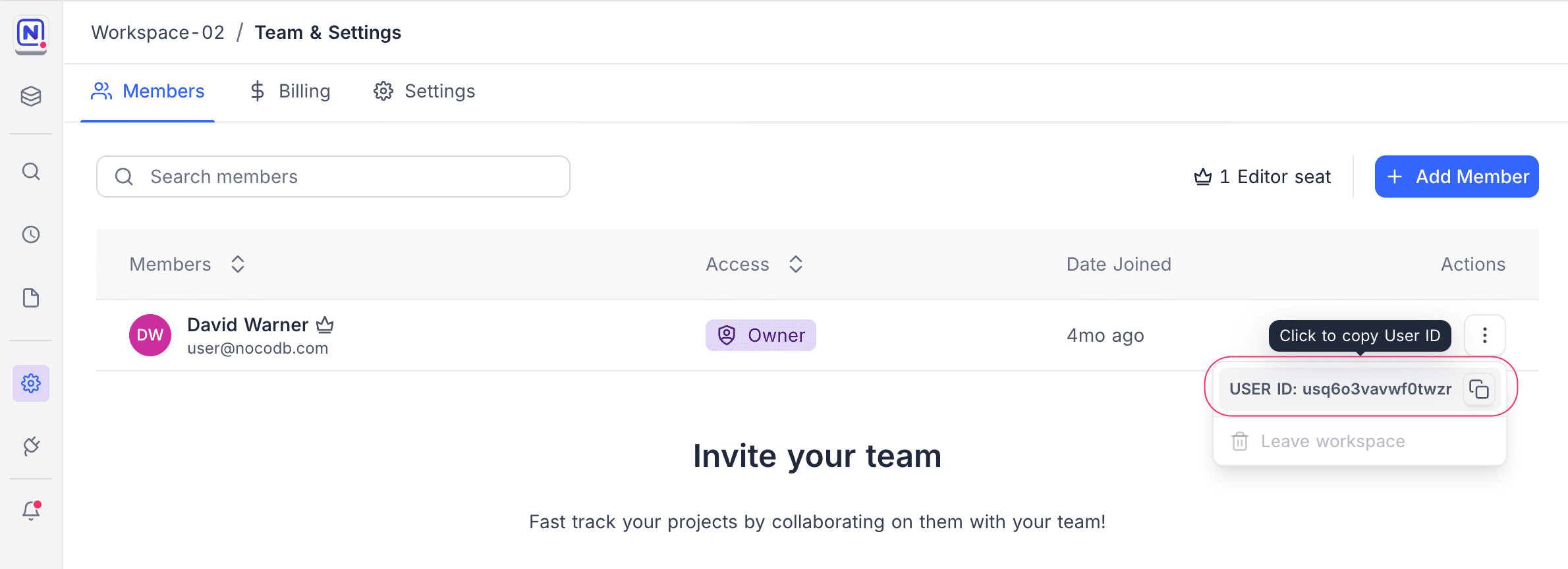
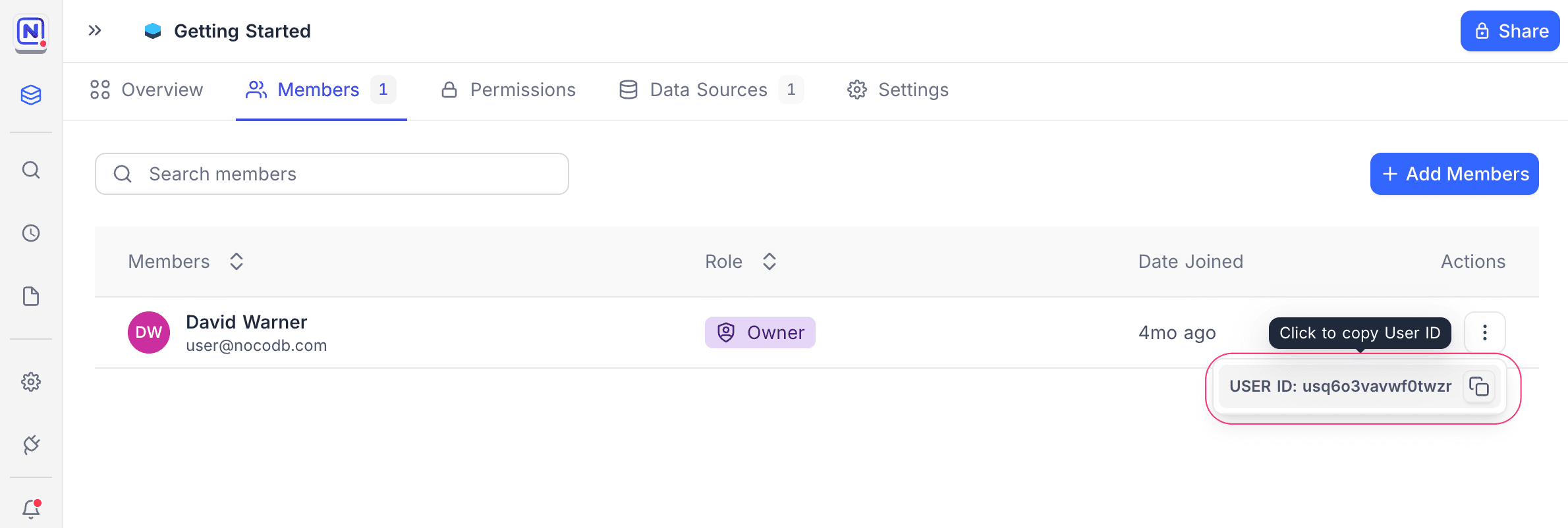
The User ID is an alphanumeric string that starts with u (for user). To find it, open the Workspace Members page or the Project Members page. Then click the three dots menu next to the name of the user. Click the ID to copy it to your clipboard.
Data Source ID
For external data sources that are connected to NocoDB (for example Postgres or MySQL), data API operations also need the Data Source ID.
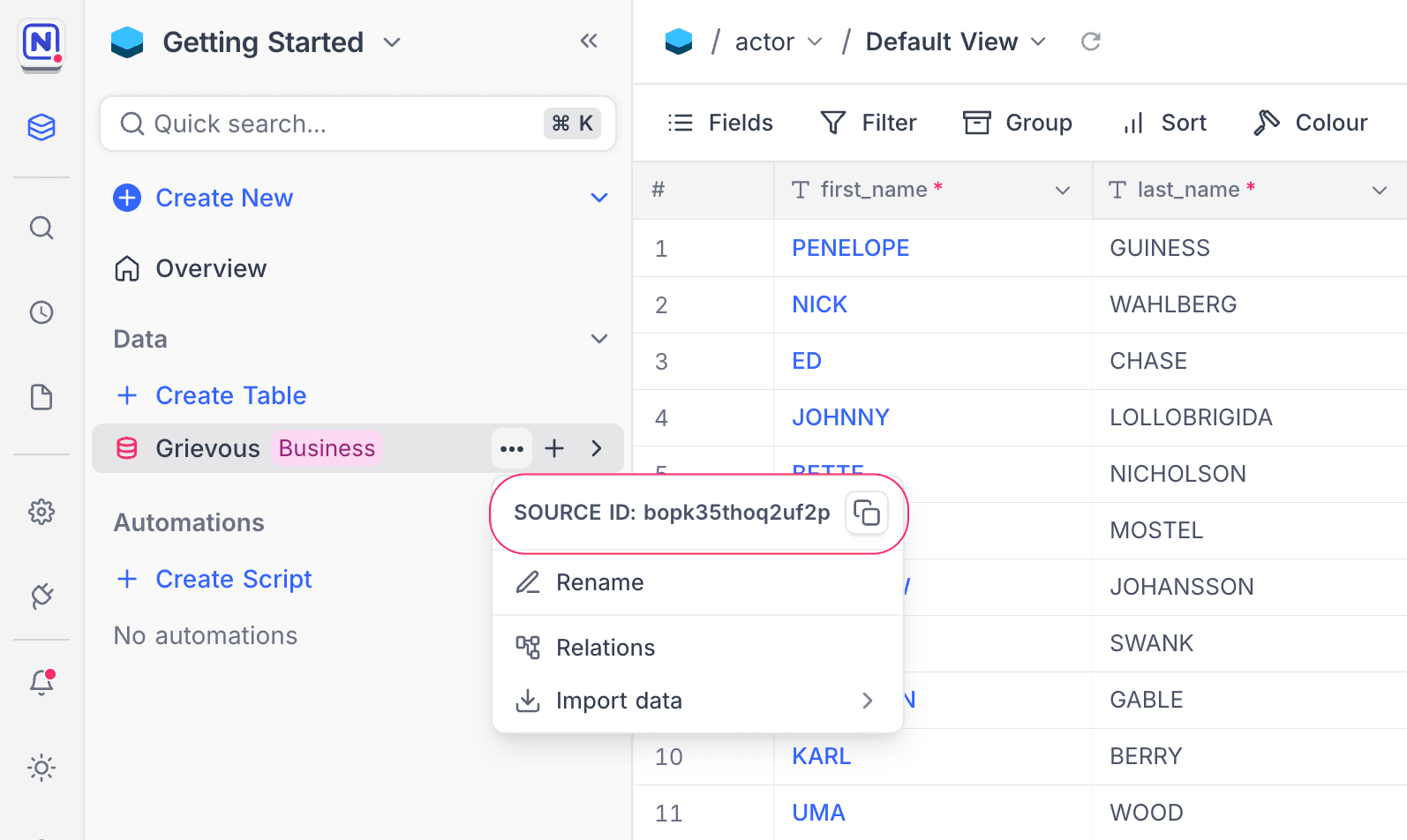
The Data Source ID is a unique alphanumeric string for the connected data source. To find it, click the three dots next to the data source name in the left sidebar. The context menu opens. Click the ID to copy it to your clipboard.
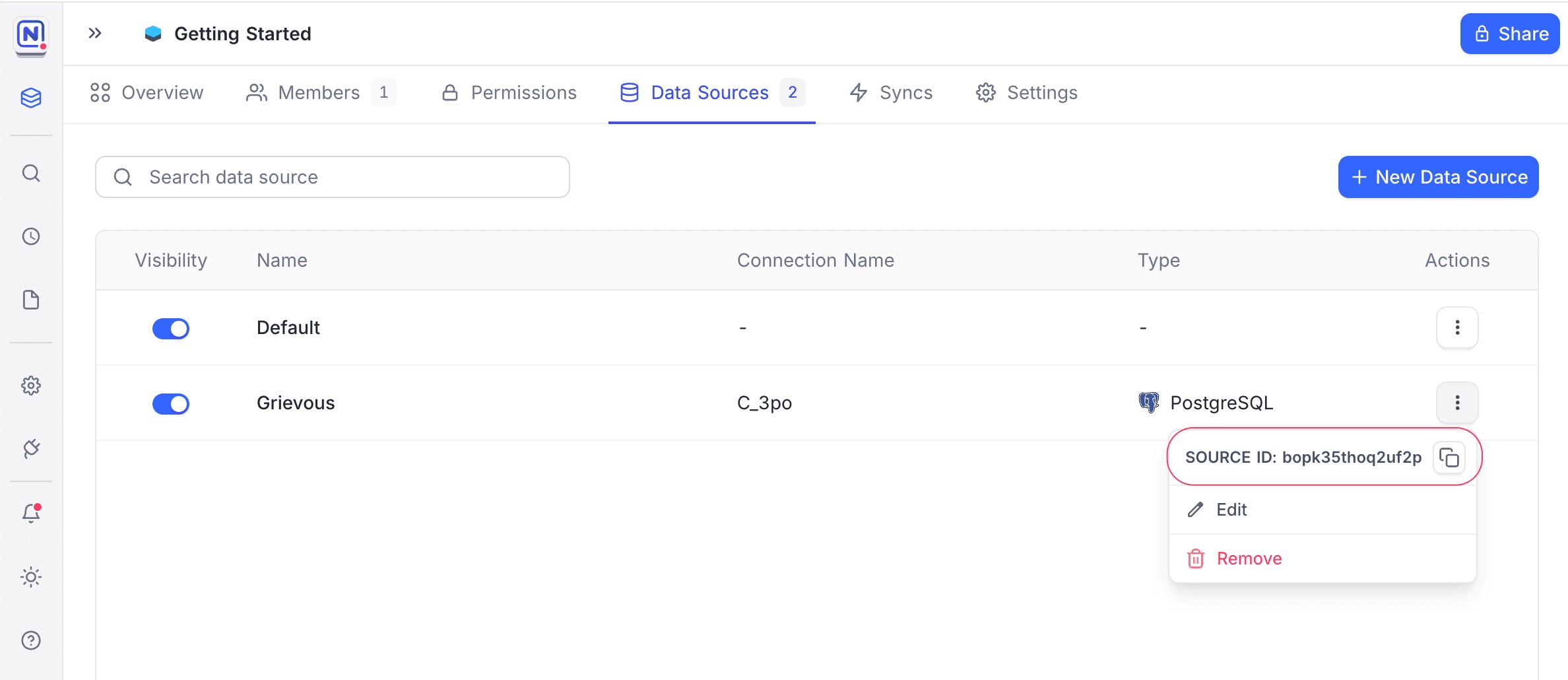
You can also find it on the Data Source settings page.
Last updated on