REST APIs
NocoDB provides a comprehensive set of REST APIs that allow you to interact programmatically with your data, metadata, and workspace resources. These APIs make it possible to integrate NocoDB with external applications, automate workflows, build custom tools, or manage your bases at scale.
Whether you want to query records, update fields, manage tables, or retrieve metadata, NocoDB exposes clear and consistent API surfaces designed for both simple and advanced use cases. This document outlines the available API types, explains how to construct endpoints, and guides you through locating the required IDs for making requests.
Use this reference as your starting point for building reliable, API-driven integrations with NocoDB.
When querying using v3 apis, see v3 Where Clause for a slight difference between the two version's where clause.
Finding Your API IDs
Before making API calls, you'll need to identify and copy the relevant IDs required for constructing your endpoints. This section walks you through locating each essential identifier.
Workspace ID
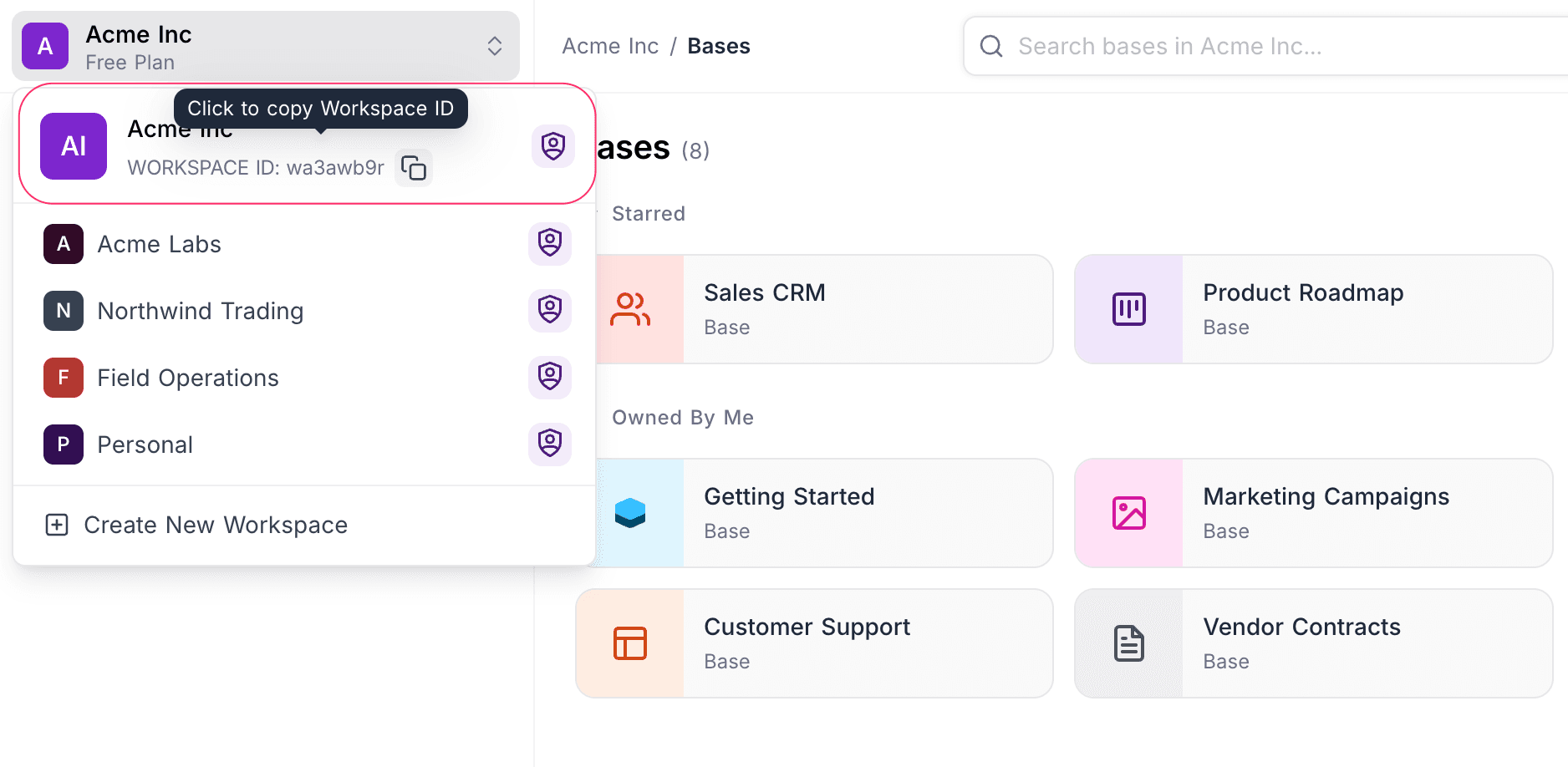
Workspace ID is an alphanumeric identifier prefixed with w (representing workspace) that uniquely identifies your workspace in NocoDB. It appears in the URL bar when viewing any base within the workspace.
You can also find it in the workspace switcher at the top of the workspace sidebar. Click the ID to copy it to your clipboard.
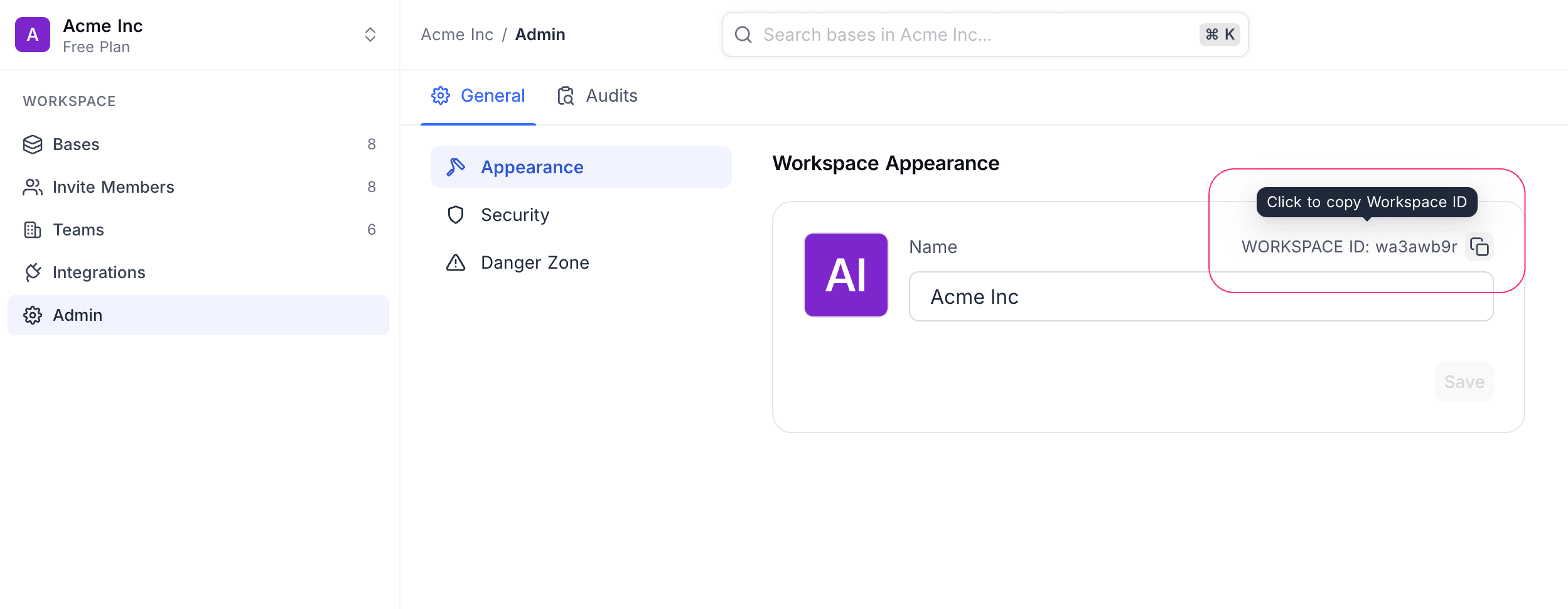
Workspace ID is also shown under Settings > General > Appearance.
Base ID
Base ID is required for metadata APIs and administrative operations. It uniquely identifies a specific database (or base) within your workspace.
The Base ID is an alphanumeric identifier prefixed with p (representing project), visible in the URL when accessing any table or base-level settings. You can also find it in the base context menu (chevron next to the base name) in the left sidebar, where you can click the ID to copy it to your clipboard.
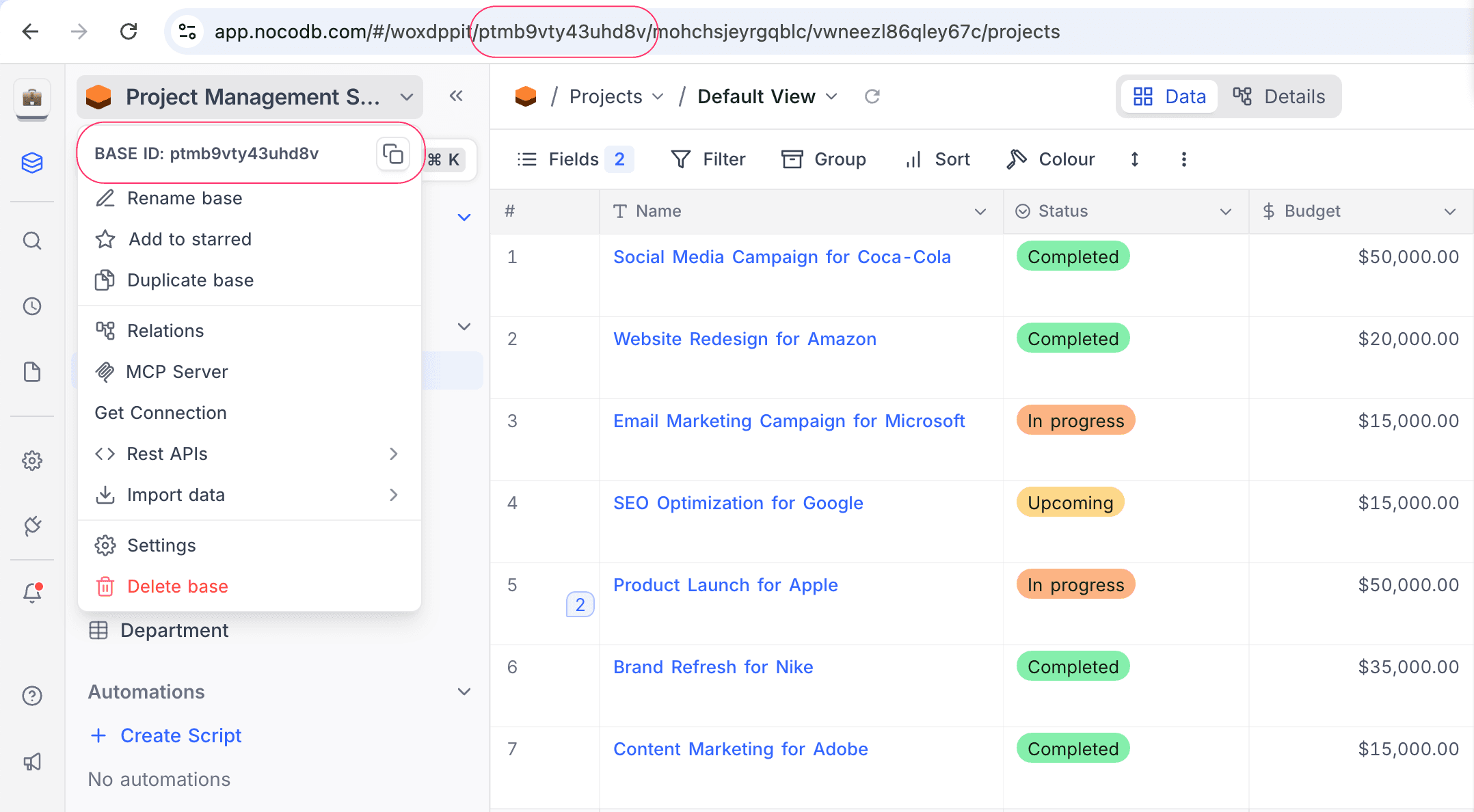
Table ID
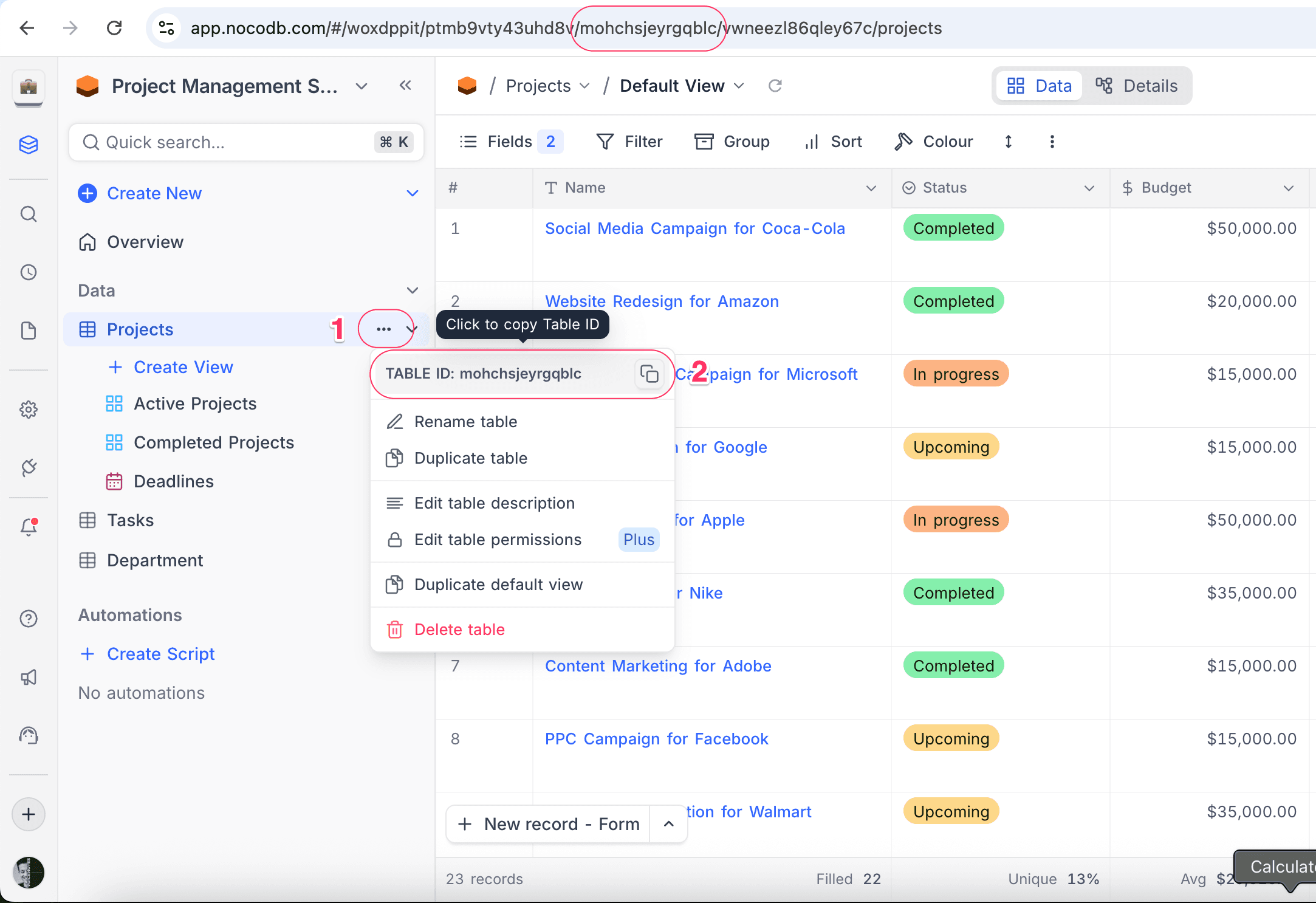
Table ID is the most commonly used identifier and is required for all data API calls. It uniquely identifies a specific table within your base.
The Table ID is an alphanumeric string prefixed with m (representing model), visible in the URL immediately after the Base ID when viewing a table. You can also find it in the table context menu (three dots next to the table name) in the left sidebar. Click the ID to copy it to your clipboard.
View ID
View ID is used for view-specific API operations, such as fetching records from a particular view. It uniquely identifies a specific view within a table.
The View ID is an alphanumeric string prefixed with v (representing view), visible in the URL when a specific view is open. You can also find it in the view context menu (three dots next to the view name) in the left sidebar. Click the ID to copy it to your clipboard.
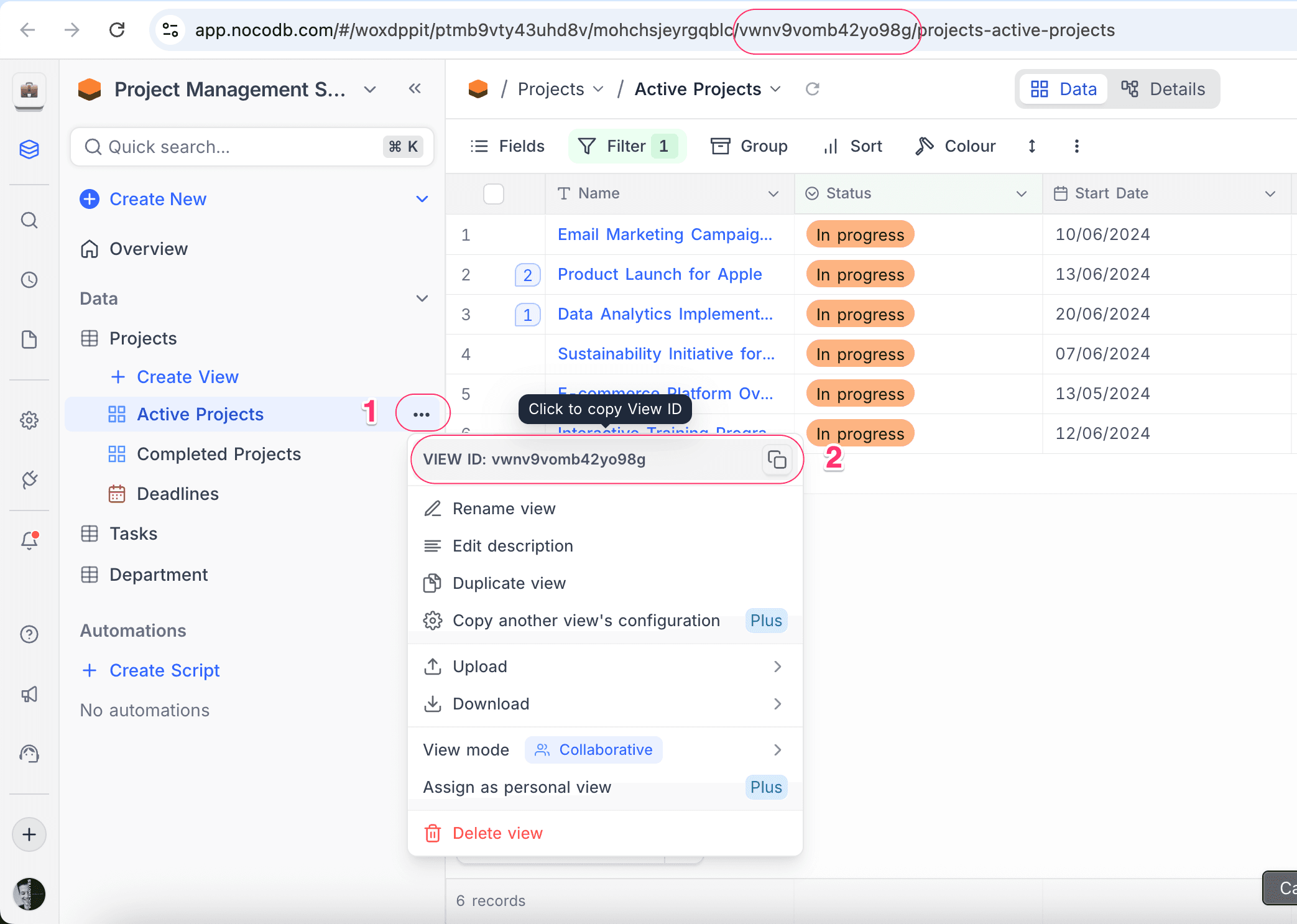
View ID can also be retrieved from view toolbar > more actions (3 dots) menu

Field ID
Field ID is used for field-specific API operations, such as updating field properties. It uniquely identifies a specific column within a table.
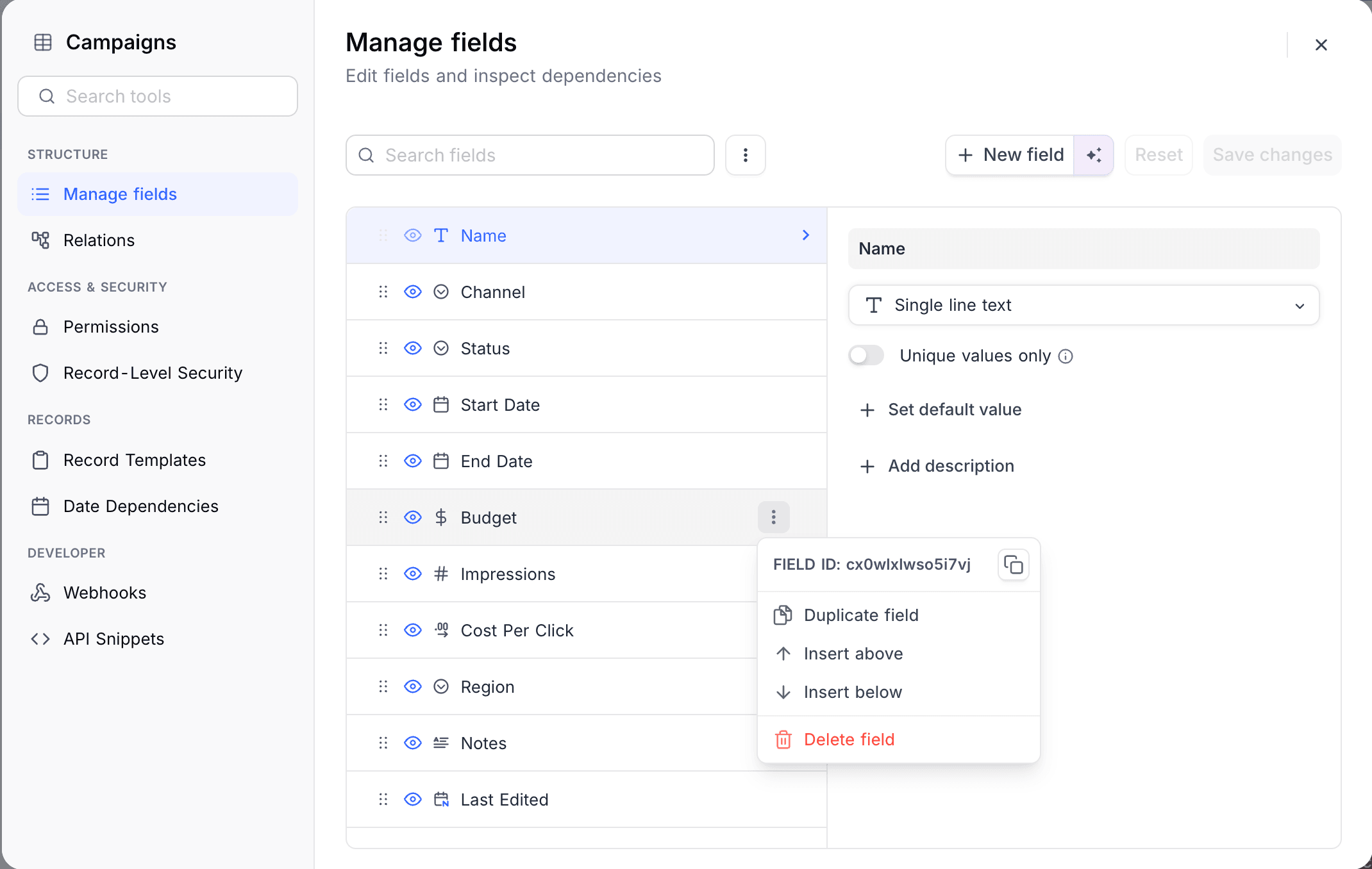
The Field ID is an alphanumeric string prefixed with c (representing column), visible in the URL when viewing or editing a field’s settings. You can also find it in the field context menu (chevron next to the field name) in the field header bar. Click the ID to copy it to your clipboard.
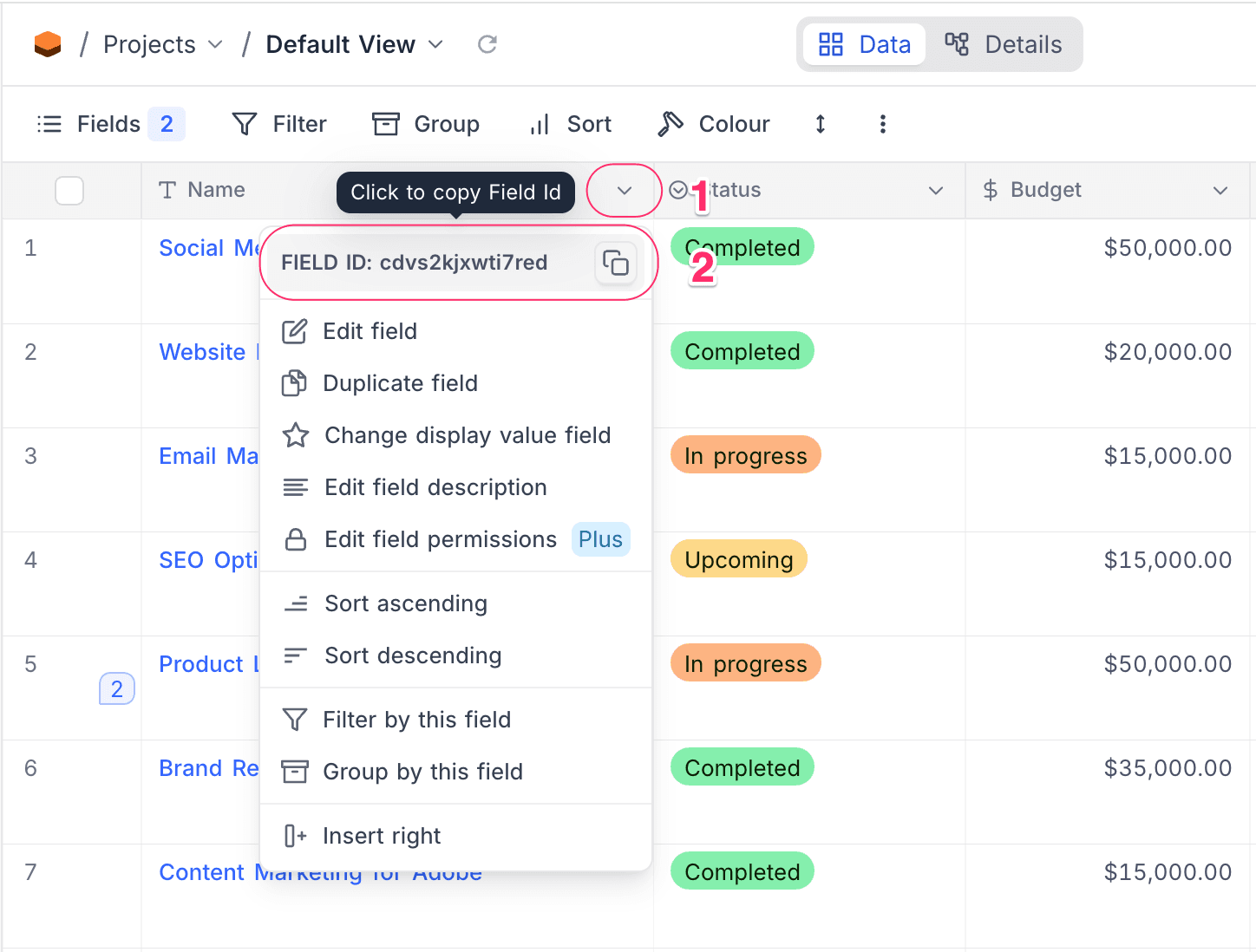
Field ID can also be retrieved from Tools > Manage fields
Record ID
Record ID is used for record-specific API operations, such as retrieving or updating an individual record. It uniquely identifies a specific row within a table.
By default, the Record ID is a numeric value starting from 1. You can display the ID field (which corresponds to the Record ID) by opening the Fields menu in the toolbar and enabling Show System Fields.

You can also find it in the URL when viewing a specific record (expanded record view).

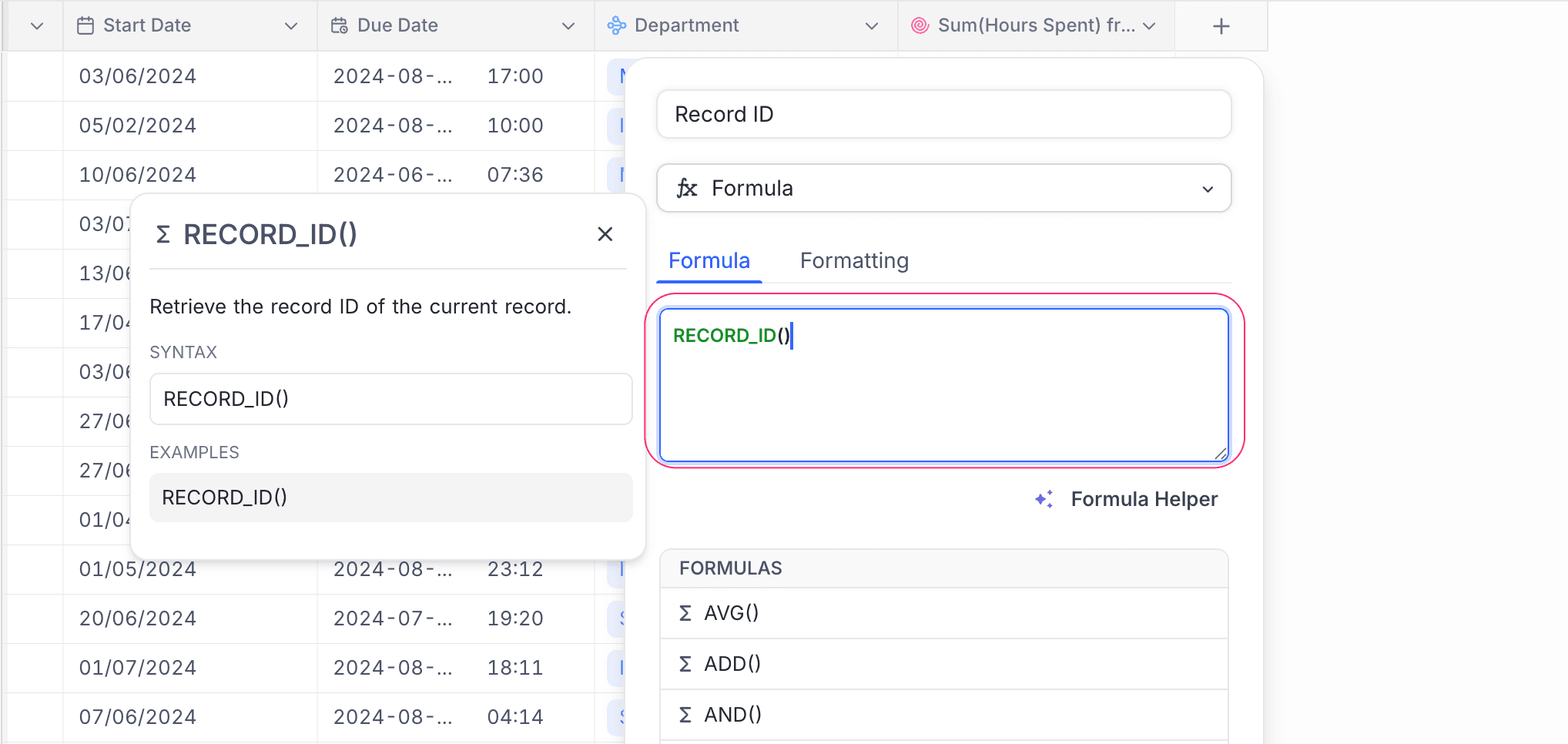
You can also access the Record ID in formulas by selecting ID from the list of available fields in the formula editor or by using the RECORD_ID() function.
User ID
User ID is used for user-specific API operations, such as retrieving user details. It uniquely identifies a specific user within your workspace or organization.
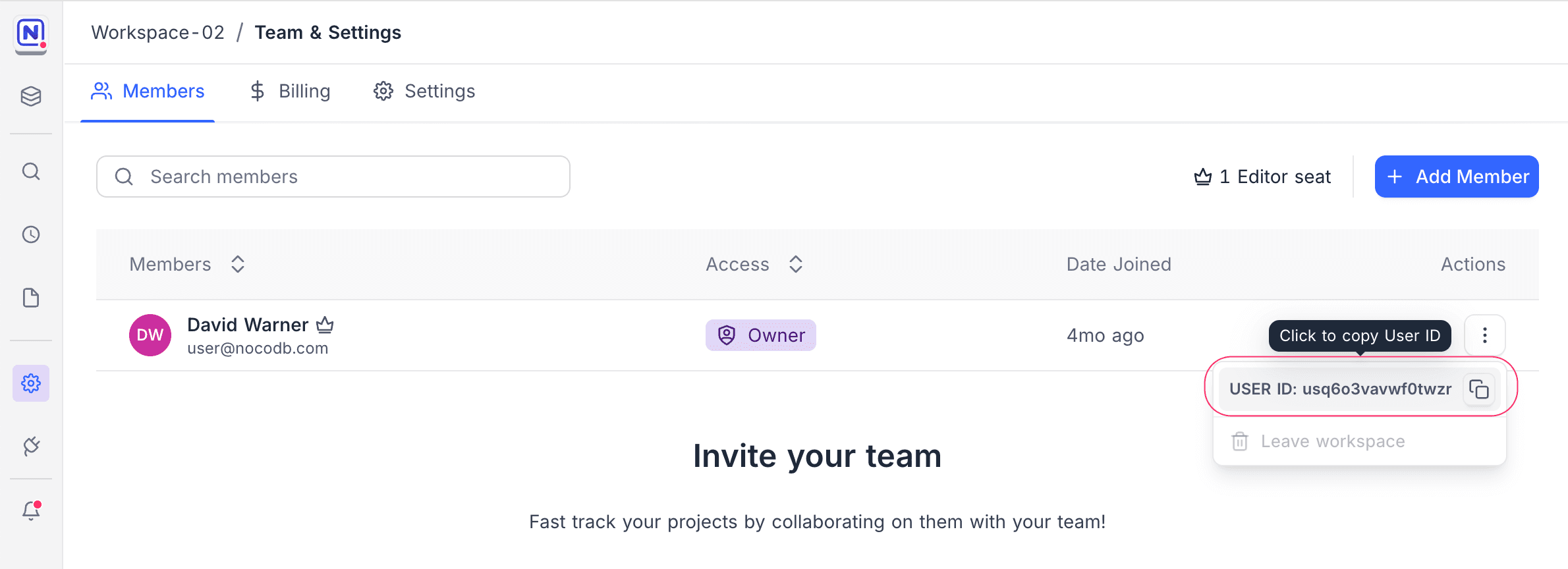
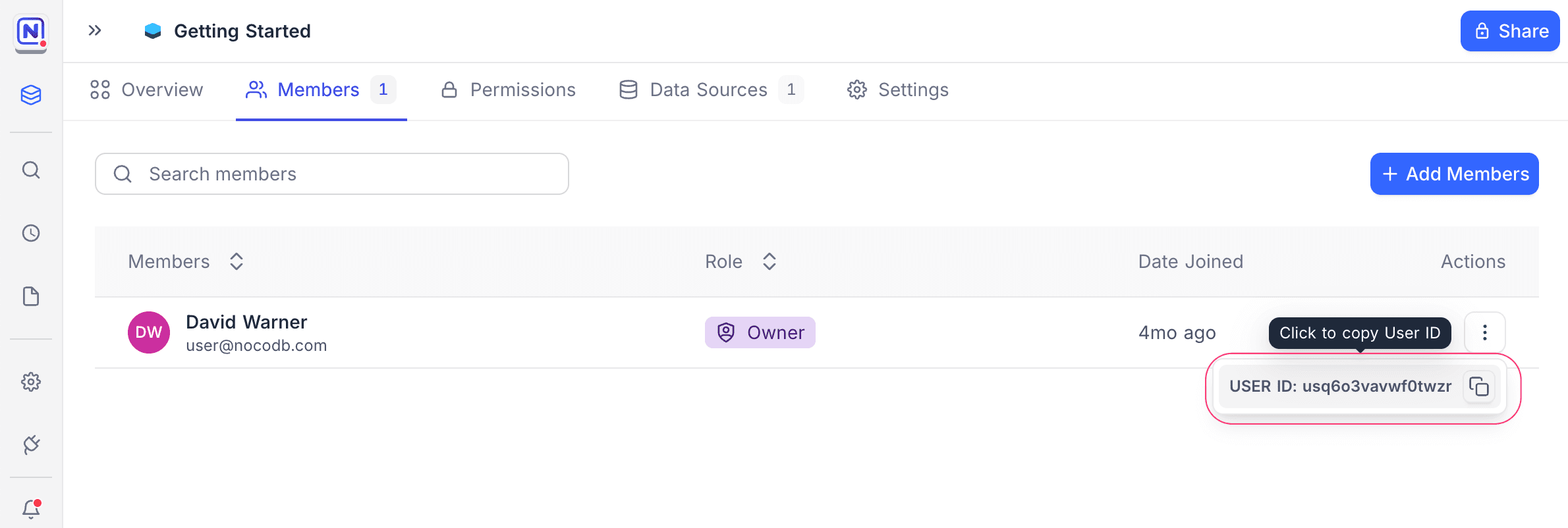
The User ID is an alphanumeric string prefixed with u (representing user). You can find it on either the Workspace Members page or the Base Members page by clicking the three dots menu next to a user’s name. Click the ID to copy it to your clipboard.
Data Source ID
For external data sources connected to NocoDB (such as Postgres or MySQL), the Data Source ID is additionally required to perform data API operations.
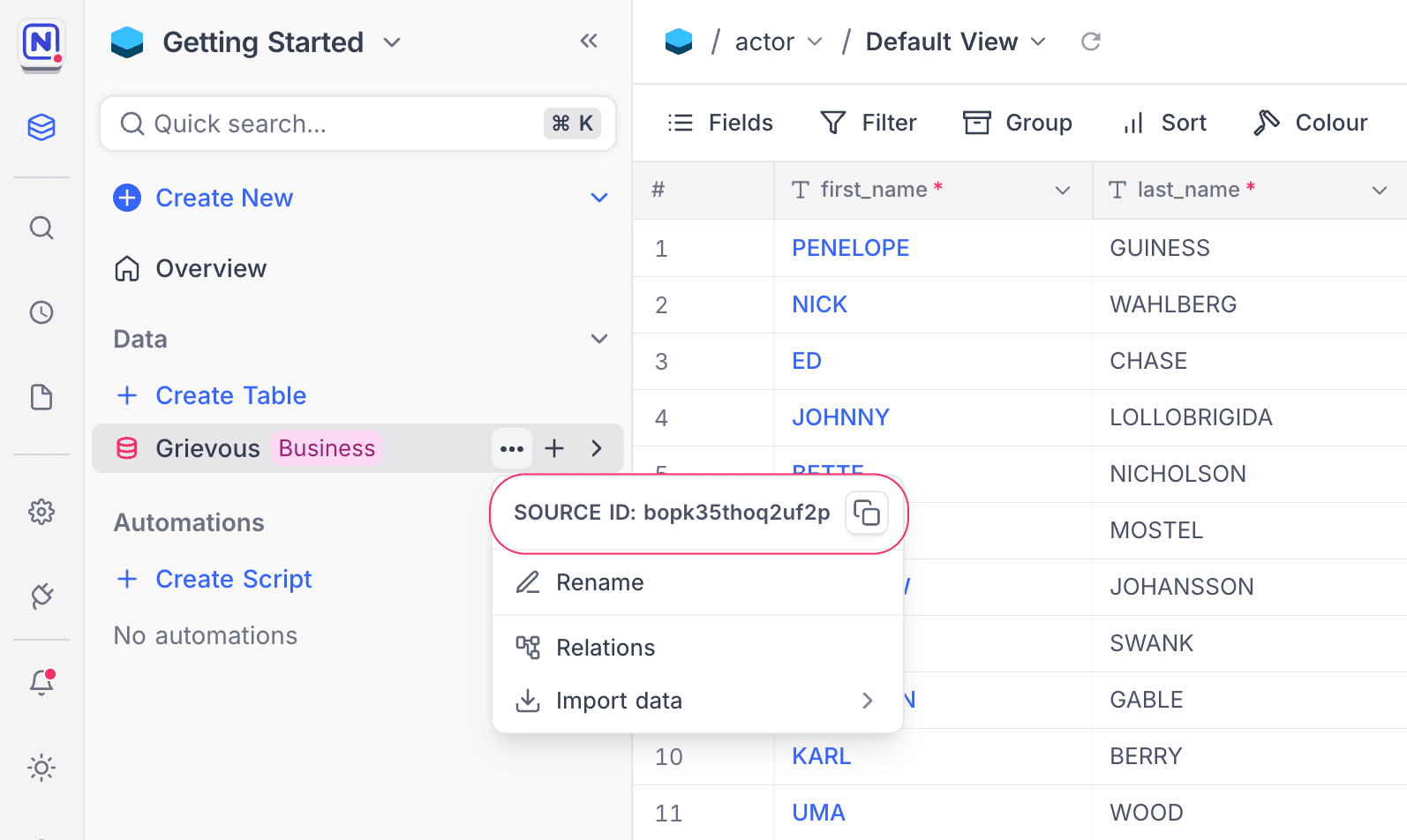
The Data Source ID is an alphanumeric string that uniquely identifies the connected data source. You can find it in the context menu by clicking the three dots next to the data source name in the left sidebar. Click the ID to copy it to your clipboard.
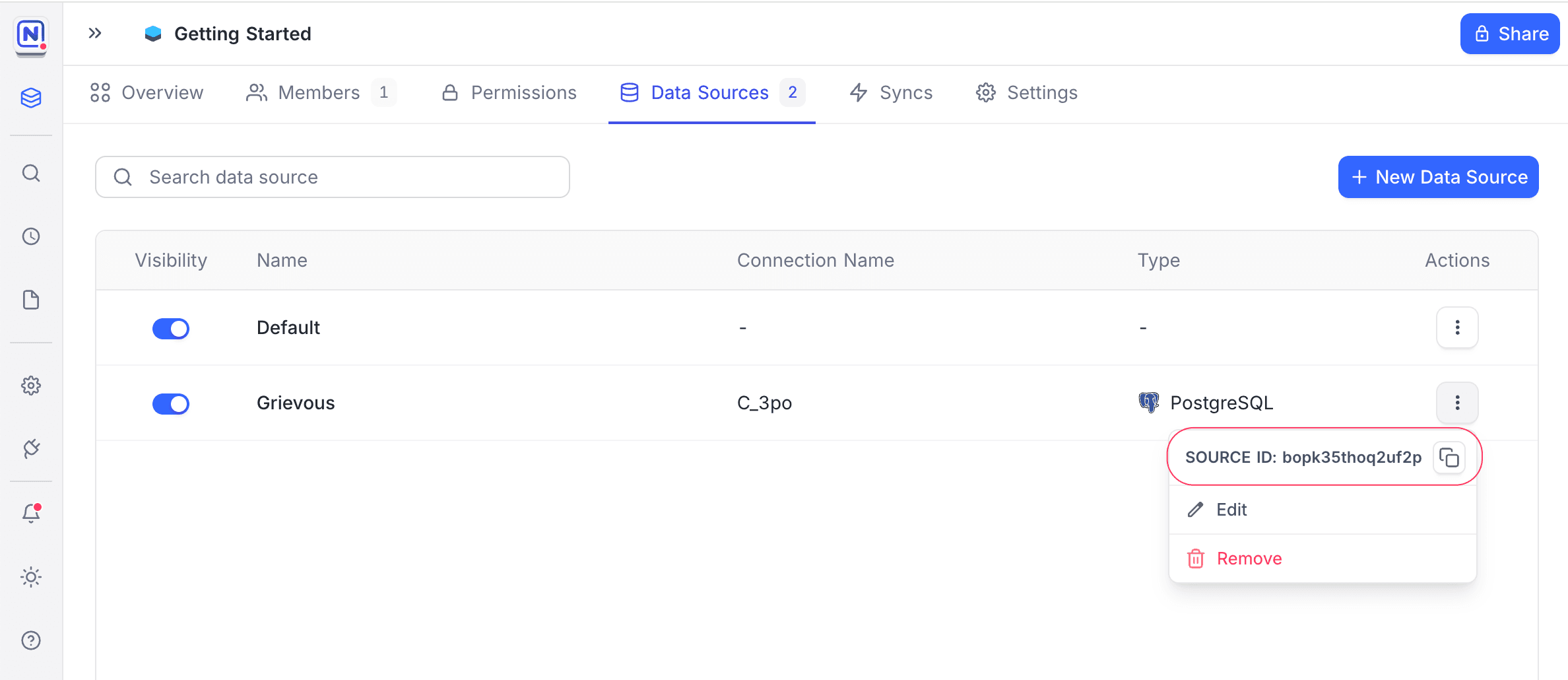
You can also find it in the Data Source settings page.
Rate Limits
NocoDB APIs are rate-limited to ensure fair usage and optimal performance for all users. The default rate limit is set to 5 requests per second per user. These limits are the same across all plans.
If these limits are exceeded, the API will return a 429 status code (Too Many Requests). You’ll need to wait 30 seconds before sending additional requests.
NocoDB may adjust these limits or introduce additional rate tiers based on pricing plans to maintain optimal service performance.
Query params
| Name | Alias | Use case | Default value | Example value |
|---|---|---|---|---|
| where | w | Complicated where conditions | (colName,eq,colValue)~or(colName2,gt,colValue2) Usage: Comparison operators Usage: Logical operators | |
| limit | l | Number of rows to get (SQL limit value) | 10 | 20 |
| offset | o | Offset for pagination (SQL offset value) | 0 | 20 |
| sort | s | Sort by column name, Use - as a prefix for descending sort | column_name | |
| fields | f | Required column names in result | * | column_name1,column_name2 |
| shuffle | r | Shuffle the result for pagination | 0 | 1 (Only allow 0 or 1. Other values would see it as 0) |
Comparison Operators
| Operation | Meaning | Example |
|---|---|---|
| eq | equal | (colName,eq,colValue) |
| neq | not equal | (colName,neq,colValue) |
| not | not equal (alias of neq) | (colName,not,colValue) |
| gt | greater than | (colName,gt,colValue) |
| ge | greater or equal | (colName,ge,colValue) |
| lt | less than | (colName,lt,colValue) |
| le | less or equal | (colName,le,colValue) |
| is | is | (colName,is,true/false/null) |
| isnot | is not | (colName,isnot,true/false/null) |
| in | in | (colName,in,val1,val2,val3,val4) |
| btw | between | (colName,btw,val1,val2) |
| nbtw | not between | (colName,nbtw,val1,val2) |
| like | like | (colName,like,%name) |
| nlike | not like | (colName,nlike,%name) |
| isWithin | is Within (Available in Date and DateTime only) | (colName,isWithin,sub_op) |
| allof | includes all of | (colName,allof,val1,val2,...) |
| anyof | includes any of | (colName,anyof,val1,val2,...) |
| nallof | does not include all of (includes none or some, but not all of) | (colName,nallof,val1,val2,...) |
| nanyof | does not include any of (includes none of) | (colName,nanyof,val1,val2,...) |
btw and nbtw are not supported on Number, Decimal, Currency, Percent, Rating, Duration, Date, DateTime, and Checkbox fields. Express the range with two bounds instead, which works on every field type a range makes sense for: (price,gte,10)~and(price,lte,100).
Comparison Sub-Operators
The following sub-operators are available in the Date and DateTime columns.
| Operation | Meaning | Example |
|---|---|---|
| today | today | (colName,eq,today) |
| tomorrow | tomorrow | (colName,eq,tomorrow) |
| yesterday | yesterday | (colName,eq,yesterday) |
| oneWeekAgo | one week ago | (colName,eq,oneWeekAgo) |
| oneWeekFromNow | one week from now | (colName,eq,oneWeekFromNow) |
| oneMonthAgo | one month ago | (colName,eq,oneMonthAgo) |
| oneMonthFromNow | one month from now | (colName,eq,oneMonthFromNow) |
| daysAgo | number of days ago | (colName,eq,daysAgo,10) |
| daysFromNow | number of days from now | (colName,eq,daysFromNow,10) |
| exactDate | exact date | (colName,eq,exactDate,2022-02-02) |
in matches any of several exact dates. It takes the exactDate sub-operator followed by a comma-separated list: (colName,in,exactDate,2022-02-02,2022-03-04).
For isWithin in Date and DateTime columns, the different set of sub-operators are used.
| Operation | Meaning | Example |
|---|---|---|
| pastWeek | the past week | (colName,isWithin,pastWeek) |
| pastMonth | the past month | (colName,isWithin,pastMonth) |
| pastYear | the past year | (colName,isWithin,pastYear) |
| nextWeek | the next week | (colName,isWithin,nextWeek) |
| nextMonth | the next month | (colName,isWithin,nextMonth) |
| nextYear | the next year | (colName,isWithin,nextYear) |
| nextNumberOfDays | the next number of days | (colName,isWithin,nextNumberOfDays,10) |
| pastNumberOfDays | the past number of days | (colName,isWithin,pastNumberOfDays,10) |
Logical Operators
| Operation | Example |
|---|---|
| ~or | (checkNumber,eq,JM555205)~or((amount,gt,200)~and(amount,lt,2000)) |
| ~and | (checkNumber,eq,JM555205)~and((amount,gt,200)~and(amount,lt,2000)) |
| ~not | ~not(checkNumber,eq,JM555205) |
v3 Where Query Parameter
When calling v3 data api, the where clause has a slight difference with the previous versions. It allows values to be wrapped with quotes (double quotes, single quotes, or backticks) to safely use special characters that might otherwise break older version where clauses. This is particularly useful for strings containing commas, parentheses, or other delimiters.
Example: Searching for a phrase with special characters:
("My Field", like, "Let's come home, and go straight to bed")
Another Example: Searching for a value that includes a comma:
("Product Name", eq, "Laptop, 15-inch")
Example: Using single quotes for a value:
(City, eq, 'New York')
Usage on v2 API
The v3 where clause can also be utilized when using the v2 API by prepending the where clause with an @ sign. This allows you to leverage the advanced capabilities of the v3 where clause even in v2 API calls.
Example: Using a v3 where clause to check for non-blank titles in a v2 API call:
@("Title", not, blank)
Another Example: Combining multiple conditions with special characters in a v2 API call:
@("Description", like, "High-performance, water-resistant")
Availability
- Collaboration related Meta APIs are available on NocoDB Cloud (Business plan and above) and licensed self-hosted deployments (Business plan and above). View & Script related Meta APIs are available on NocoDB Cloud (Enterprise plan) and licensed self-hosted deployments (Business plan and above).
Last updated on