# Hide & Reorder Fields
> Part of the NocoDB documentation (Product docs > Tables > Table Operations > Work with Data). Index of all pages: https://nocodb.com/llms.txt. Any docs page is available as Markdown by adding `.md` to its URL.
URL: https://nocodb.com/docs/product/tables/table-operations/field-operations
Last updated: 2026-09-25
Learn how to hide and reorder fields in NocoDB.
Use the **Fields** button in the toolbar to manage
* field visibility
* field order
* cover image in Gallery and Kanban views.
* show / hide system fields
* add new field
* add lookup field using existing relational fields
 Hide [Notes] and [Created By] in this view
Show only [Name, Status and Owner] in this view
Show all hidden fields in this view
## Show / hide fields
To show or hide fields, open the `Fields` menu and toggle the switch next to each field name.
For better customization, create multiple grid views with different sets of visible fields.
Hide [Notes] and [Created By] in this view
Show only [Name, Status and Owner] in this view
Show all hidden fields in this view
## Show / hide fields
To show or hide fields, open the `Fields` menu and toggle the switch next to each field name.
For better customization, create multiple grid views with different sets of visible fields.
 ## Rearranging fields
To rearrange field positions, open the `Fields` menu and drag fields using the `⋮⋮` (drag icon) next to each field name.
## Rearranging fields
To rearrange field positions, open the `Fields` menu and drag fields using the `⋮⋮` (drag icon) next to each field name.
 ## Show / hide system fields
By default, system fields are hidden — you can enable them by selecting **Show system fields**.
In Gallery and Kanban views, this option appears as
**Edit Cards**
in the toolbar.
## Show / hide system fields
By default, system fields are hidden — you can enable them by selecting **Show system fields**.
In Gallery and Kanban views, this option appears as
**Edit Cards**
in the toolbar.
 ## Change cover field
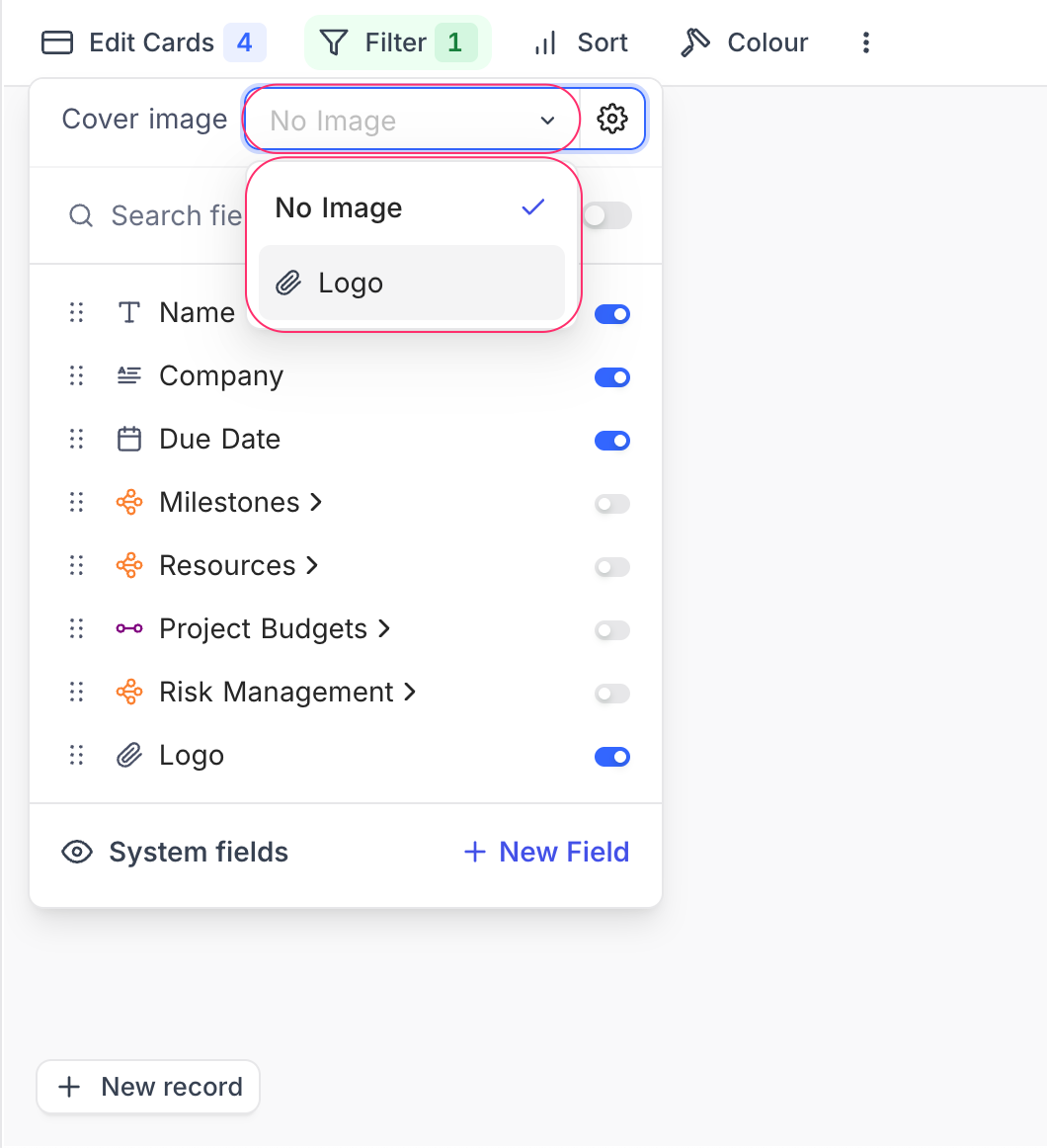
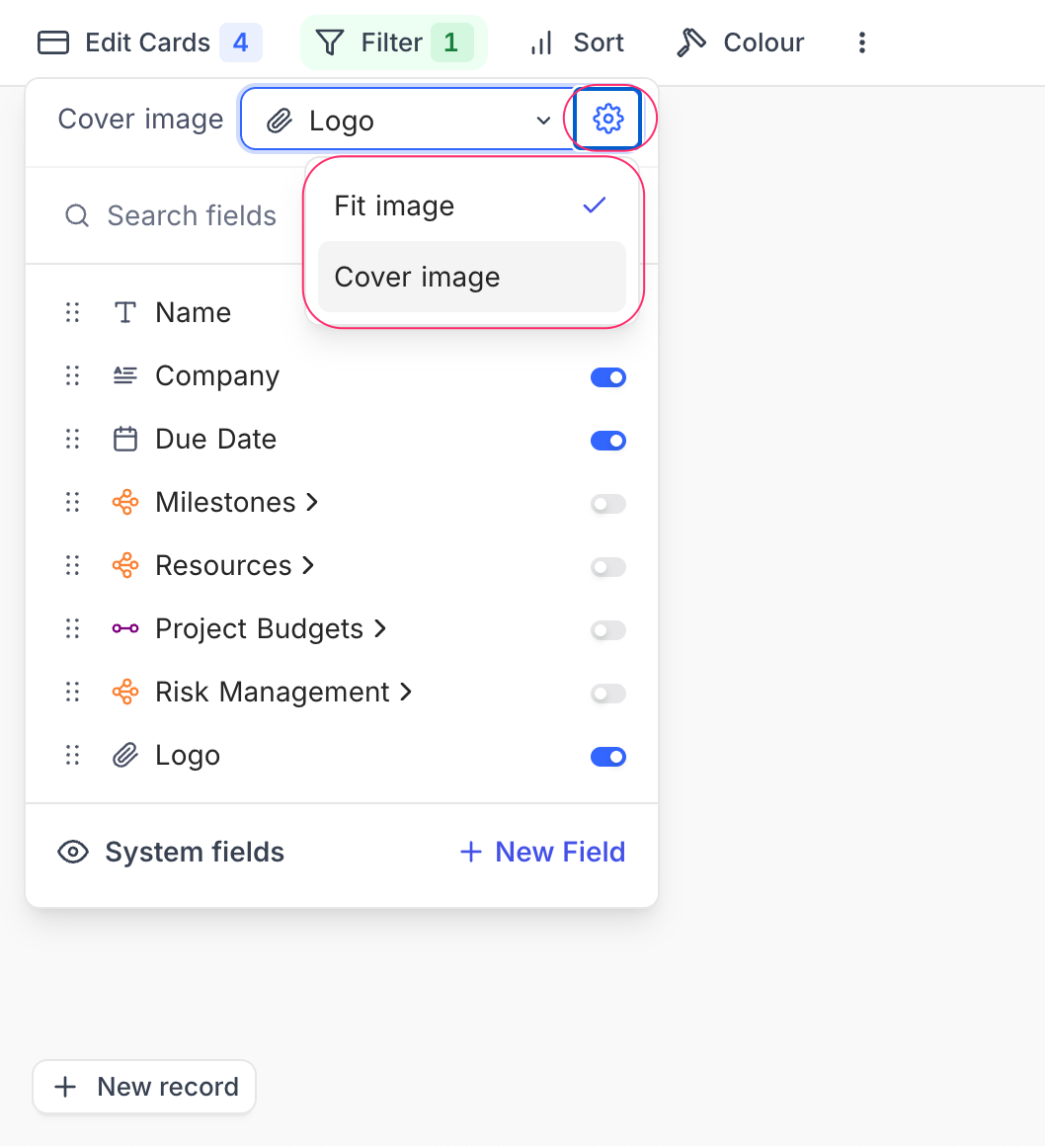
In Gallery and Kanban views, you can change the cover field by clicking `Cover image` field in the `Edit Cards` menu. Only fields of type Attachment can be used as cover fields. You can also use the Settings button in the same menu to adjust image display properties like `Fit image` or `Cover image`.
## Add new field
To add a new field, click the `+ New Field` button at the bottom of the `Fields` menu. This opens the field creation modal where you can select the field type and configure its properties.
## Add lookup field using existing relational fields
To add a lookup field based on an existing relational field, click relational field in the `Fields` menu. This opens a modal where you can select the target field to create a lookup field. Click `Add n lookup field(s)` to complete the process.
## Change cover field
In Gallery and Kanban views, you can change the cover field by clicking `Cover image` field in the `Edit Cards` menu. Only fields of type Attachment can be used as cover fields. You can also use the Settings button in the same menu to adjust image display properties like `Fit image` or `Cover image`.
## Add new field
To add a new field, click the `+ New Field` button at the bottom of the `Fields` menu. This opens the field creation modal where you can select the field type and configure its properties.
## Add lookup field using existing relational fields
To add a lookup field based on an existing relational field, click relational field in the `Fields` menu. This opens a modal where you can select the target field to create a lookup field. Click `Add n lookup field(s)` to complete the process.
 ## Hide field labels ☁
This feature is available on
**NocoDB Cloud**
(Plus plan and above) and licensed self-hosted deployments (Business plan and above).
In **Gallery** and **Kanban** views, you can hide field labels (headers) shown inside each record tile/card. This helps create a cleaner, more compact card layout—especially useful when cards are used for visual scanning.
**Steps**
Open the **Gallery** or **Kanban** view.
1. Click the **More options (⋮)** menu in the view toolbar.
2. Select **Hide field header** / **Show field header** to toggle the setting.
## Hide field labels ☁
This feature is available on
**NocoDB Cloud**
(Plus plan and above) and licensed self-hosted deployments (Business plan and above).
In **Gallery** and **Kanban** views, you can hide field labels (headers) shown inside each record tile/card. This helps create a cleaner, more compact card layout—especially useful when cards are used for visual scanning.
**Steps**
Open the **Gallery** or **Kanban** view.
1. Click the **More options (⋮)** menu in the view toolbar.
2. Select **Hide field header** / **Show field header** to toggle the setting.
 Once enabled, field names (labels) are hidden and only field values are shown on the record tiles/cards.
This setting is view-specific and applies only to Gallery and Kanban views. Grid view is not affected.
Use this option along with field reordering and cover image settings to design compact, dashboard-friendly cards.
---
## Related pages
- [Filtering Records](https://nocodb.com/docs/product/tables/table-operations/filter.md): Learn how to filter records in NocoDB.
- [Sorting Records](https://nocodb.com/docs/product/tables/table-operations/sort.md): Learn how to sort records in NocoDB.
- [Grouping Records](https://nocodb.com/docs/product/tables/table-operations/group-by.md): Learn how to group records in NocoDB.
- [Colouring Records](https://nocodb.com/docs/product/tables/table-operations/record-colouring.md): Learn how to colour records and individual fields in NocoDB.
- [Record Height](https://nocodb.com/docs/product/tables/table-operations/row-height.md): Learn how to adjust the height of records in NocoDB.
- [Freeze Fields](https://nocodb.com/docs/product/tables/table-operations/freeze-fields.md): Keep up to three fields pinned in place while scrolling horizontally in Grid view.
- [Search](https://nocodb.com/docs/product/tables/table-operations/search.md): Learn how to search for records in NocoDB.
- [Realtime Presence](https://nocodb.com/docs/product/tables/table-operations/realtime-presence.md): See who else is working in a table, live, with per-collaborator markers in the grid.
Once enabled, field names (labels) are hidden and only field values are shown on the record tiles/cards.
This setting is view-specific and applies only to Gallery and Kanban views. Grid view is not affected.
Use this option along with field reordering and cover image settings to design compact, dashboard-friendly cards.
---
## Related pages
- [Filtering Records](https://nocodb.com/docs/product/tables/table-operations/filter.md): Learn how to filter records in NocoDB.
- [Sorting Records](https://nocodb.com/docs/product/tables/table-operations/sort.md): Learn how to sort records in NocoDB.
- [Grouping Records](https://nocodb.com/docs/product/tables/table-operations/group-by.md): Learn how to group records in NocoDB.
- [Colouring Records](https://nocodb.com/docs/product/tables/table-operations/record-colouring.md): Learn how to colour records and individual fields in NocoDB.
- [Record Height](https://nocodb.com/docs/product/tables/table-operations/row-height.md): Learn how to adjust the height of records in NocoDB.
- [Freeze Fields](https://nocodb.com/docs/product/tables/table-operations/freeze-fields.md): Keep up to three fields pinned in place while scrolling horizontally in Grid view.
- [Search](https://nocodb.com/docs/product/tables/table-operations/search.md): Learn how to search for records in NocoDB.
- [Realtime Presence](https://nocodb.com/docs/product/tables/table-operations/realtime-presence.md): See who else is working in a table, live, with per-collaborator markers in the grid.